Mini-LED vs OLED for all-day productivity desks usually comes down to how you work, not just how the panel looks on a spec sheet. If your day is full of spreadsheets, code, browser tabs, and always-open toolbars, mini-LED is usually the safer default. OLED becomes more reasonable when your desk stays controlled and you are comfortable managing static content.
Why Productivity Desks Make This Choice Different
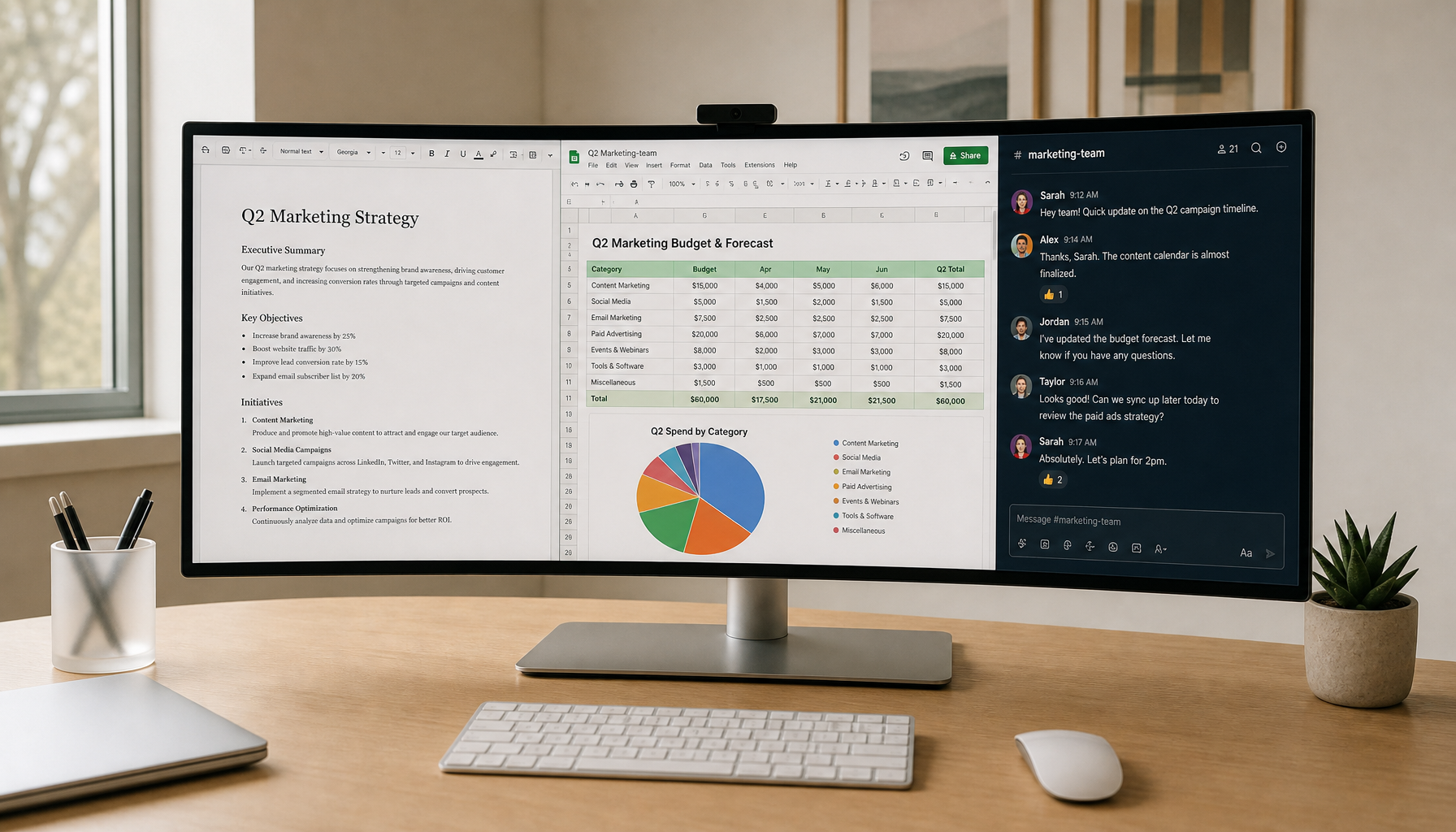
For all-day work, the main question is not which panel looks best in a short demo. It is which one stays comfortable when the same windows, menus, and documents sit on screen for hours. Bright-room clarity, text predictability, and long-session consistency matter more here than gaming-style headline specs.
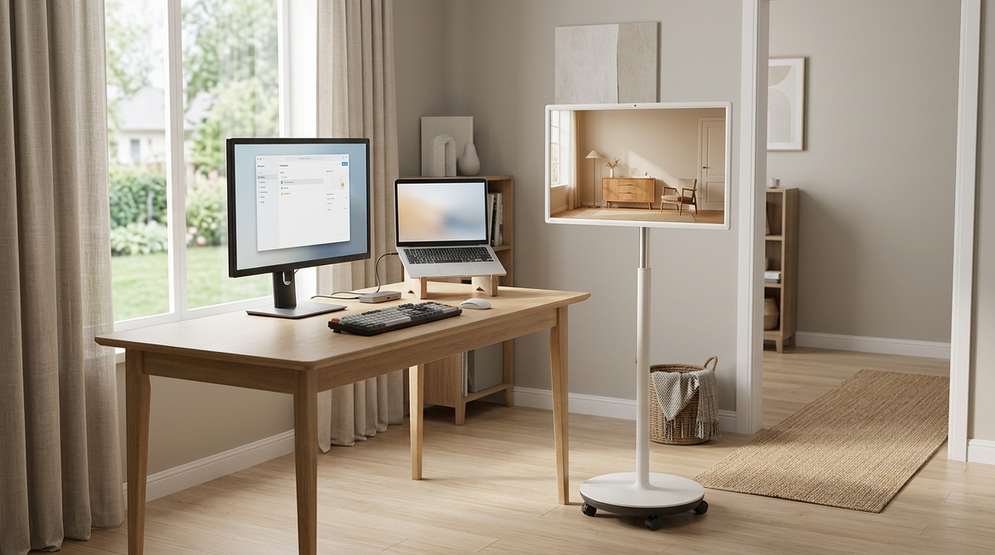
That is why mini-LED vs OLED for work should be framed as a desk-fit question. If you sit near a window or use strong overhead lighting, mini-LED is usually easier to live with. If your workspace is dimmer and more controlled, OLED can still be appealing because its contrast looks clean and uniform.
The trade-off is simple: mini-LED tends to be the lower-worry daily driver, while OLED is the more conditional pick for productivity. The rest of this guide narrows that down by text, burn-in risk, blooming, and lighting.
How Mini-LED and OLED Behave With Work Text
For spreadsheets, coding, and documents, text behavior can matter more than contrast. Microsoft's ClearType guidance explains that text rendering is tuned around standard RGB subpixel layouts, which is one reason some OLED desktop users notice edge fringing or softer-looking small text. PC Monitors' breakdown of QD-OLED and WOLED fringing issues makes the same desktop concern easier to spot in real use.
That does not mean OLED text is always bad. It means the result depends on panel structure, scaling, viewing distance, and how sensitive you are to tiny UI edges. In a coding editor or dense spreadsheet, that sensitivity shows up faster than it does in video or photo work.
Mini-LED usually behaves more like a conventional LCD for text, which makes it feel more predictable for office use. If you want a monitor that just disappears into the background while you work, that predictability is a real advantage.
In practical terms, mini-LED vs OLED text clarity comes down to what you notice first. If you are bothered by font edges, thin gridlines, or toolbar sharpness, mini-LED is easier to trust. If you care more about contrast than absolute consistency, OLED can still be fine, but it is the panel that asks more from the rest of your setup.

Text Clarity for Spreadsheets and Docs
Dense interfaces show panel differences fast. A spreadsheet with fine gridlines, a browser with many tabs, and a document full of small type will reveal comfort differences sooner than a game or a movie.
The practical check is simple: set your usual font size, sit at your normal distance, and look at the parts of the screen you stare at for the longest time. If your eyes keep bouncing to the UI edges, that is a warning sign that the panel and scaling combination is not ideal for your workday.
OLED Pixel Structure and Fringing
OLED can look extremely sharp in the right setup, but some desktop users notice fringing on small text or thin UI edges. That matters most in code editors, toolbars, spreadsheets, and browser chrome where the same patterns stay visible all day.
The important point is not that OLED is unusable. It is that its text look is more panel-dependent than many buyers expect. If your job is heavy on dense windows, treat OLED as a careful choice rather than a default upgrade.
Mini-LED Desktop Readability
Mini-LED usually keeps the familiar LCD-style text behavior most office buyers already know. That does not make it perfect, but it does make it easier to predict.
If you want a work monitor that stays consistent across office apps, that predictability can be worth more than a slight contrast advantage. For many hybrid desks, that is the real mini-LED vs OLED for spreadsheets decision.
Burn-In Risk and Brightness Tradeoffs
Static UI elements are the biggest reason productivity buyers hesitate on OLED. RTINGS' longevity investigation shows why taskbars, icons, and repeated on-screen elements deserve caution on OLED over time. LCD and mini-LED panels do not carry that specific permanent-image-retention risk, so they remove a common source of worry.
Brightness is the other half of the desk decision. RTINGS' mini-LED vs OLED monitor comparison notes that mini-LED is generally easier to live with in bright rooms because it can sustain higher brightness more comfortably than OLED, which often has to manage heat and protection limits.
That matters if you work near windows, use a lot of white backgrounds, or keep your screen up all day. OLED can still work in those conditions, but it tends to ask for more care and a more controlled room.
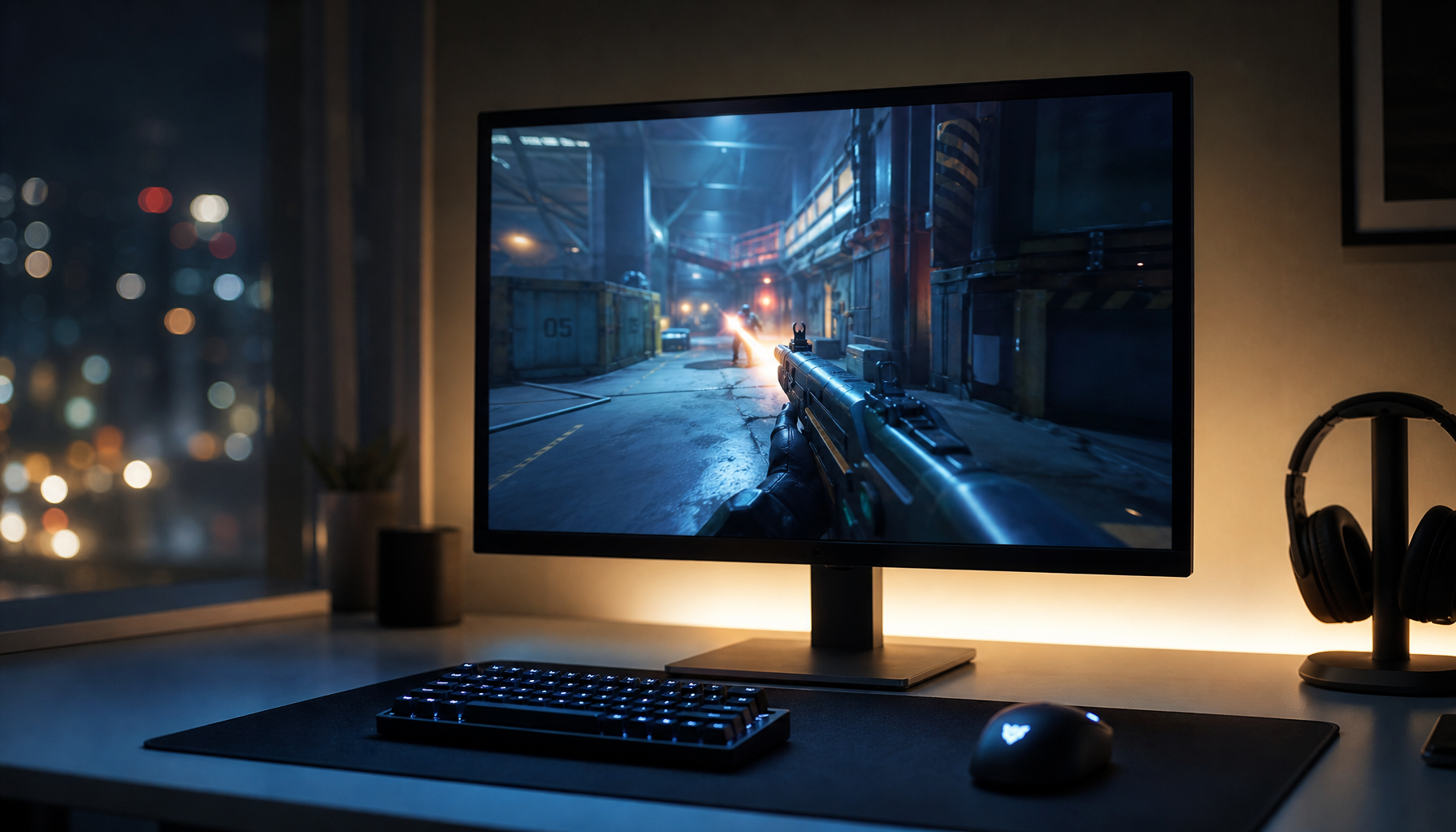
Mini-LED also has its own trade-off. Allion's explanation of mini-LED blooming and halation shows why bright text on dark backgrounds can pick up halos around letters or interface edges. So the choice is not "perfect" versus "imperfect." It is "different annoyances, different rooms."
For bright-room setup advice, brightness levels for home office use is worth reading alongside the panel choice itself. If you want a broader reminder of how panel brightness affects OLED care, the note on brightness and burn-in speed is a useful follow-up.

| Productivity factor | Mini-LED tendency | OLED tendency |
|---|---|---|
| Static taskbars, dashboards, and repeated UI | Lower worry, because it avoids OLED-style burn-in concerns | Requires more caution on long static workdays |
| Bright office or daylight desk | Usually easier to keep comfortable | Can feel dimmer or more managed, depending on the setup |
| White text on dark backgrounds | Can bloom or halo a bit | Usually cleaner around bright text edges |
| Long hours of spreadsheets and code | Often feels more predictable | Can be great, but more panel-dependent |
| Overall workday fit | Safer default for many desks | Better only when conditions are forgiving |
Which Panel Fits Your Desk Conditions
If your desk is bright, your workflow is static, or you keep the same apps open for hours, mini-LED is usually the better productivity fit. It is the safer default because it reduces burn-in anxiety, handles bright rooms better, and behaves more like a familiar office LCD for text.
If your room is controlled, your sessions are shorter, and you are willing to manage desktop habits, OLED can make sense. It is the more visually striking panel, but it is not the one I would pick first for a spreadsheet-heavy daily driver.
For a neutral Mini-LED example, the KTC Mini LED 27" 4K 160Hz HDR1400 Gaming Monitor fits the kind of desk that values 4K sharpness, strong brightness, and full ergonomic adjustment. That does not make it the only answer, but it does make it a clean match for work-first setups that still want premium hardware.
If you want to compare the opposite category side by side, browse the Mini-LED range and the OLED selection after you decide which desk conditions matter most.
Checklist Before You Buy
- Check your room light first. If you sit in daylight or bright overhead lighting, mini-LED is usually the easier fit.
- Look at your longest-screen apps. If taskbars, spreadsheets, dashboards, or IDE windows stay open for hours, OLED deserves extra caution.
- Match resolution and scaling to your text needs. Mini-LED vs OLED text clarity often comes down to the whole setup, not just the panel label.
- Decide which compromise bothers you less: OLED burn-in management or mini-LED blooming around bright UI.
- If you want the sharpest possible work canvas, compare the 4K monitor options after you rule in the panel type.
- For all-day productivity, choose the panel that fits your room and habits, not the one that wins a spec-sheet fight.
Final Takeaway
For all-day productivity desks, mini-LED is usually the safer default, especially in bright rooms or static workflows. OLED still has a place, but mostly when the desk is controlled and you are comfortable managing the trade-offs. If you are unsure, start with your room light, your longest-open apps, and your tolerance for burn-in care or blooming.