USB-C to DisplayPort usually preserves more usable display bandwidth because USB-C video most commonly uses DisplayPort Alt Mode, while USB-C to HDMI often requires conversion that can cap resolution, refresh rate, or features.
Is your 144Hz monitor suddenly stuck at 60Hz after you added a tiny USB-C dongle? In real desk setups, choosing the right adapter can be the difference between getting full 4K60 or 4K120 capability and settling for a fallback mode that looks fine but feels slower. Here is how to pick the adapter that keeps your gaming monitor, office display, or portable screen running at its real performance ceiling.
 The Short Answer: USB-C to DisplayPort Is Usually the Cleaner Path
For most laptops, tablets, and compact PCs, USB-C video output depends on Alt Mode, and USB-C display output commonly uses DisplayPort Alt Mode or HDMI Alt Mode. That matters because a USB-C to DisplayPort cable can often carry the native DisplayPort signal directly from the computer to the monitor. Less translation means fewer chances for the adapter to become the bottleneck.
USB-C to HDMI can still be excellent, especially for TVs, projectors, conference rooms, and console-style displays. The catch is that many USB-C to HDMI adapters convert a DisplayPort signal into HDMI inside the dongle. If that converter chip only supports HDMI 2.0, your expensive 4K120 monitor or TV may behave like a 4K60 display, no matter how powerful your laptop is.
Think of it like a highway exit. USB-C to DisplayPort often stays on the same high-speed route. USB-C to HDMI may take an exit ramp through a converter, and that ramp has its own speed limit.
Bandwidth Basics Without the Fog
Bandwidth is the display link’s capacity to carry resolution, refresh rate, color depth, HDR, and audio. A 4K office monitor at 60Hz is far easier to drive than a 4K gaming monitor at 144Hz with HDR. The adapter does not improve the signal; it either supports the required mode or forces the system to negotiate something lower.
The standards tell the story. HDMI 2.0 supports up to 18 Gbps, while HDMI 2.1 supports up to 48 Gbps. DisplayPort is typically positioned more aggressively for PC monitors, high refresh rates, adaptive sync, and multi-monitor workflows, with resolution, refresh rate, or workstation flexibility often favoring DisplayPort.
Connection path |
Typical strength |
Common limitation |
Best fit |
USB-C to DisplayPort |
Preserves native DisplayPort Alt Mode well |
Requires USB-C video support and a capable monitor |
Gaming monitors, high-refresh office displays, creator workstations |
USB-C to HDMI |
Broad compatibility with TVs and projectors |
Adapter chip may cap HDMI spec, refresh rate, or HDR features |
TVs, meeting rooms, travel screens, home entertainment |
USB-C hub with HDMI |
One-port convenience with data, power, and display |
Shared bandwidth and hub quality can affect stability |
Laptop desks, portable productivity, light multi-device setups |
Why DisplayPort Often Wins for Monitors
DisplayPort was built with computer displays in mind. It is common on graphics cards, docking stations, creator monitors, esports displays, and productivity panels that support higher refresh rates or multi-monitor chaining. DisplayPort supports features such as high refresh rates, adaptive sync, and daisy-chaining, which are exactly the features performance users tend to notice first.
 A practical example: if you connect a USB-C laptop to a 27-inch 1440p 165Hz gaming monitor, a USB-C to DisplayPort cable is usually the first adapter to try. It is more likely to expose the monitor’s PC-focused modes, including high refresh rates and variable refresh behavior, assuming the laptop’s USB-C port supports DisplayPort Alt Mode.
This is also why many monitor specialists treat DisplayPort as the default for desktop-class screens. It is not because HDMI is weak; it is because DisplayPort is often the more direct language between a computer GPU and a monitor.
When USB-C to HDMI Is the Better Choice
HDMI remains the most practical connection for TVs, soundbars, projectors, capture devices, and many living-room displays. HDMI is widely used across TVs, laptops, game consoles, media players, and home theater systems, so USB-C to HDMI is often the adapter you want when compatibility matters more than squeezing every last frame from a gaming panel.
For example, a portable USB-C laptop going into a hotel TV, office projector, or family-room screen should usually carry a USB-C to HDMI adapter. If the display is 4K60, a properly rated HDMI 2.0-class adapter is enough. If the target is 4K120, VRR, or advanced HDR, you need to verify that the adapter, cable, display input, and computer all support the same HDMI feature set.
This is where buyers get trapped. A product title may say “USB-C to HDMI 4K,” but that could mean 4K30, 4K60, or something else depending on the adapter. For serious gaming or smooth pointer movement on a large productivity screen, 4K30 feels noticeably sluggish.
Active vs. Passive Conversion Matters
Adapter direction and conversion type can change the outcome. DisplayPort and HDMI use different signaling methods, so a simple adapter may rely on the host device to output a compatible HDMI-style signal, while an active adapter includes electronics that convert the signal.
That lesson applies to USB-C decisions too. If your USB-C port is outputting DisplayPort Alt Mode and your adapter converts it to HDMI, the converter chip becomes part of the display chain. A weak chip can limit you to a lower resolution or refresh rate even when the laptop and screen could do more through a direct DisplayPort route.
For a single 1080p office monitor, this difference may not matter. For a 4K144 gaming monitor, ultrawide productivity display, or color-critical screen, it matters immediately. The more demanding the display mode, the more you should favor a direct USB-C to DisplayPort connection when the monitor offers DisplayPort input.
 Hubs Can Quietly Reduce Headroom
A USB-C hub is convenient, but convenience often shares the same upstream pipe. USB-C hubs can affect performance through shared bandwidth, power limits, cable quality, and hub design rather than by slowing the laptop itself.
Picture a laptop connected to one USB-C hub that is driving HDMI, charging the computer, reading an external SSD, powering a webcam, and feeding a keyboard. The display may still work, but the hub has more work to coordinate. If you see flicker, random disconnects, lag, or reduced refresh-rate options, test the monitor with a direct USB-C to DisplayPort cable before blaming the laptop or the screen.
 For office productivity, a good powered hub can be the right call because it keeps the desk clean and supports charging. For competitive gaming or high-refresh creative work, a direct display cable is usually the more reliable performance path.
How to Choose for Gaming, Office, and Portable Screens
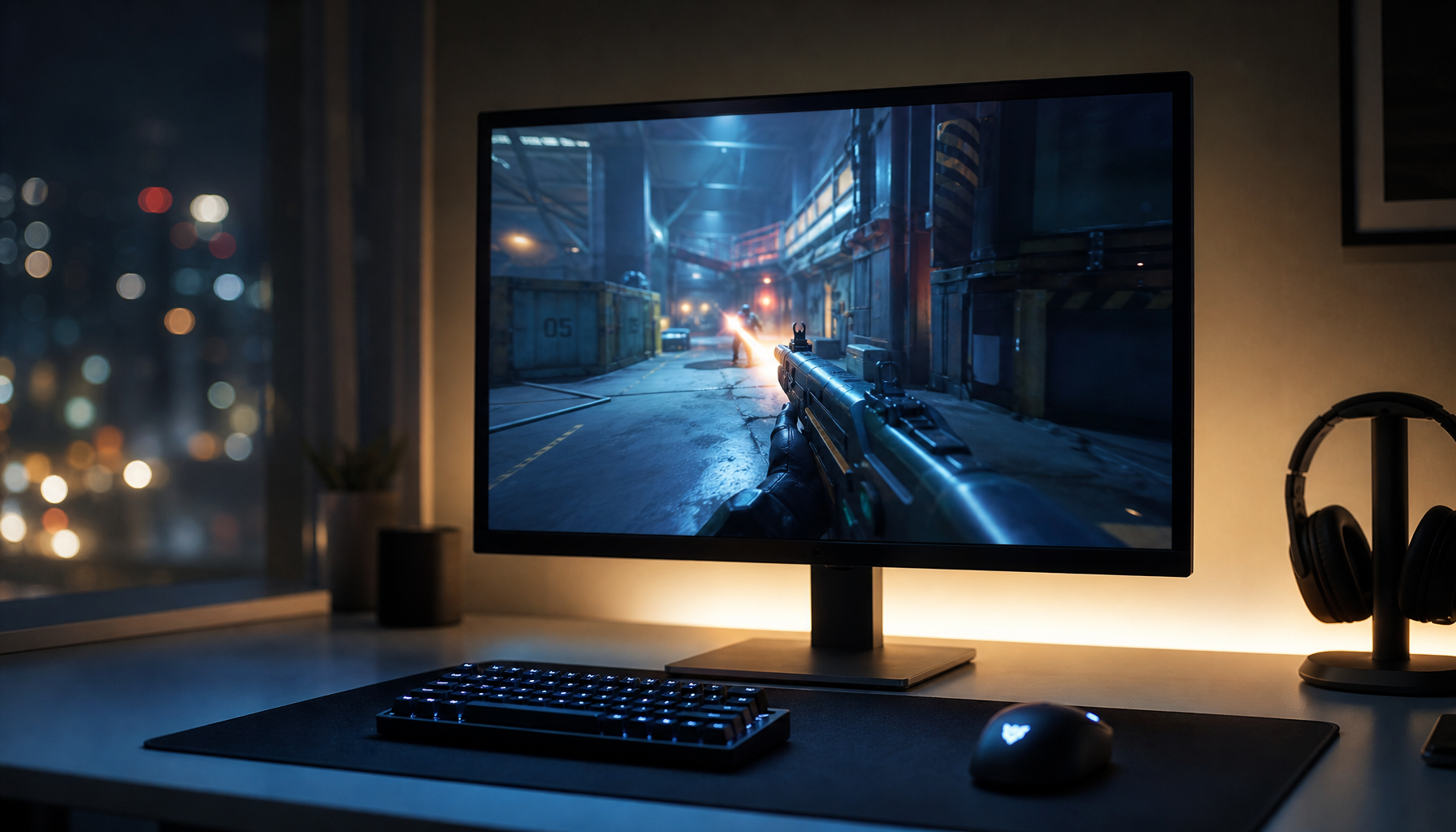
For gaming monitors, choose USB-C to DisplayPort first when the monitor has DisplayPort input. It gives you the best shot at preserving refresh rate, adaptive sync behavior, and high-resolution modes. If you must use HDMI, confirm HDMI 2.1 support when targeting 4K120 or higher.
For office productivity displays, either adapter can work well if the target is modest, such as 1080p60, 1440p60, or 4K60. Still, USB-C to DisplayPort is often cleaner for dual-monitor desks and monitors with PC-first features. HDMI is more convenient when you move between conference rooms, TVs, and shared displays.
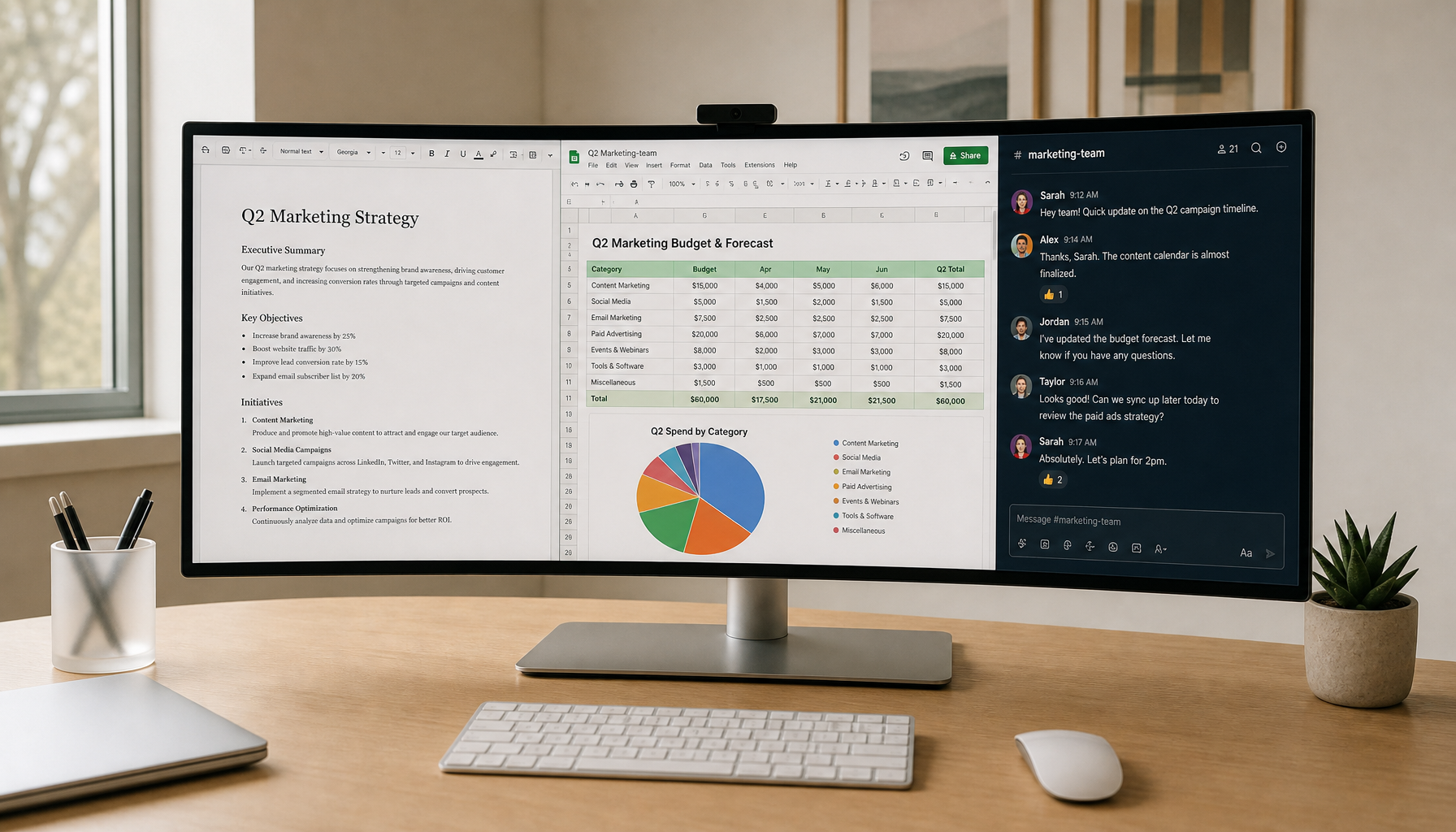
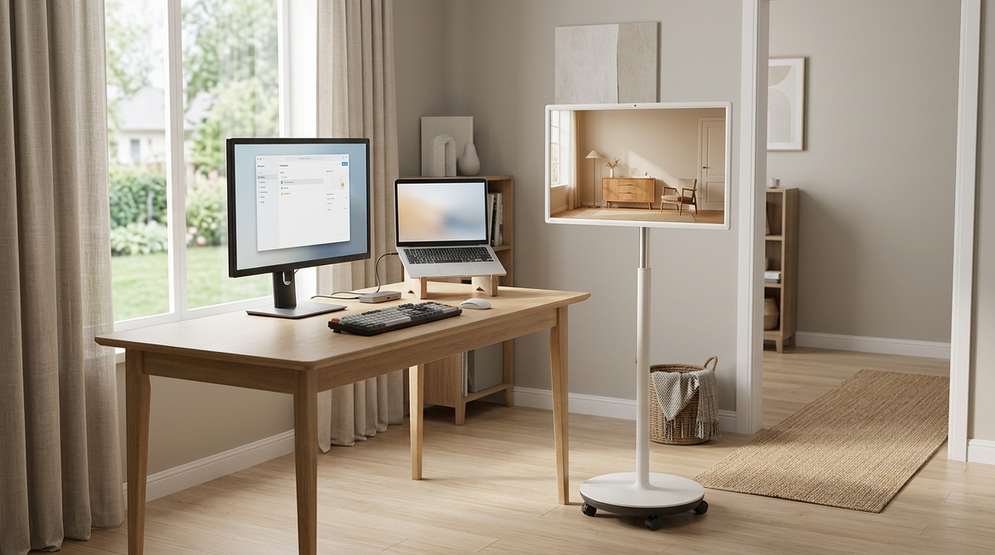
For portable smart screens, USB-C direct video is ideal when the screen supports it because one cable may carry video and power. USB-C can support video, audio, data, and power depending on the device and standard, but not every USB-C port supports every capability. If the portable screen only accepts HDMI, use a USB-C to HDMI adapter that clearly states its maximum resolution and refresh rate.
Buying Checks That Prevent Bandwidth Loss
Start with the computer’s USB-C port. It must support video output, usually DisplayPort Alt Mode or Thunderbolt. A charging-only USB-C port will not become a display output just because the adapter fits.
Then match the adapter to the display’s real mode. If you own a 4K60 monitor, choose an adapter that explicitly supports 4K60, not just “4K.” If you own a 144Hz or 165Hz monitor, check the product’s supported refresh rates at your exact resolution. Resolution and refresh rate matter more than price alone, because a cheaper certified cable can outperform an expensive cable with the wrong spec.
Finally, keep cable length reasonable. Desk setups usually behave best with short, well-rated cables. Long runs, cheap hubs, and vague adapter listings are where bandwidth disappears in practice.
Verdict: Which Preserves More Bandwidth?
USB-C to DisplayPort is the better default when your goal is to preserve bandwidth for a monitor. It usually follows the laptop’s native DisplayPort Alt Mode path, supports PC-focused display features more naturally, and avoids unnecessary HDMI conversion.
USB-C to HDMI is still the practical winner for TVs, projectors, and travel compatibility. Just treat the adapter’s HDMI spec and refresh-rate support as hard requirements, not marketing decoration. The best display setup is not the one with the flashiest dongle; it is the one where every link in the chain can carry the mode your screen was built to show.