Yes, but only if your laptop, the first monitor, and the connection standard all support video pass-through. In most cases, this works best over Thunderbolt or USB-C with DisplayPort.
When Daisy-Chaining Actually Works
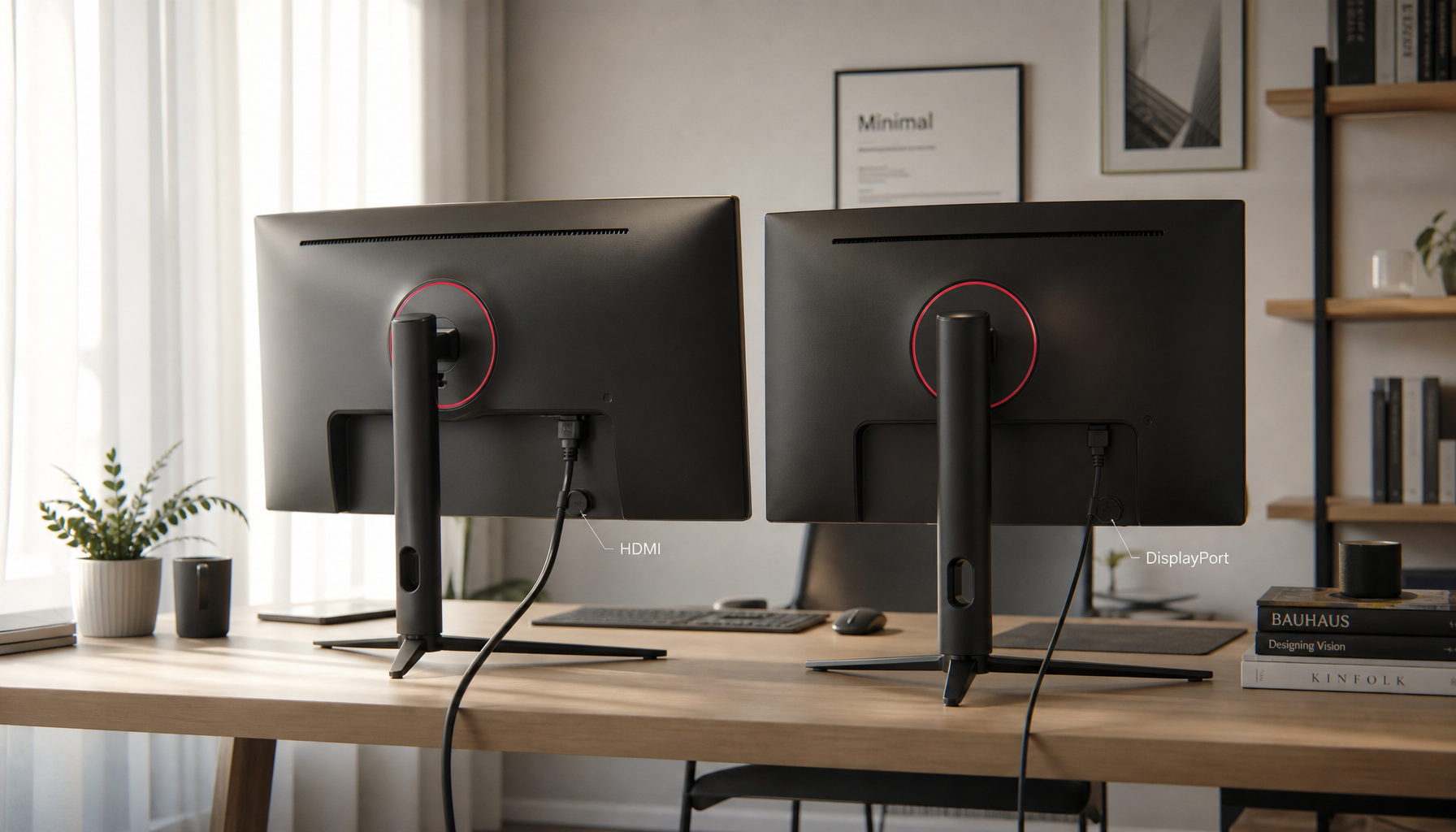
A true daisy chain sends video from your laptop to the first display and then passes that signal to the next one. For extended desktops, that usually requires DisplayPort MST support or a Thunderbolt-based chain, not a basic HDMI splitter.
That distinction matters with portable monitors. Many travel displays accept USB-C video input, but fewer include the output path needed to pass that signal to another monitor. The real question is not just whether your laptop has USB-C, but whether the full chain supports video out as well as video in.
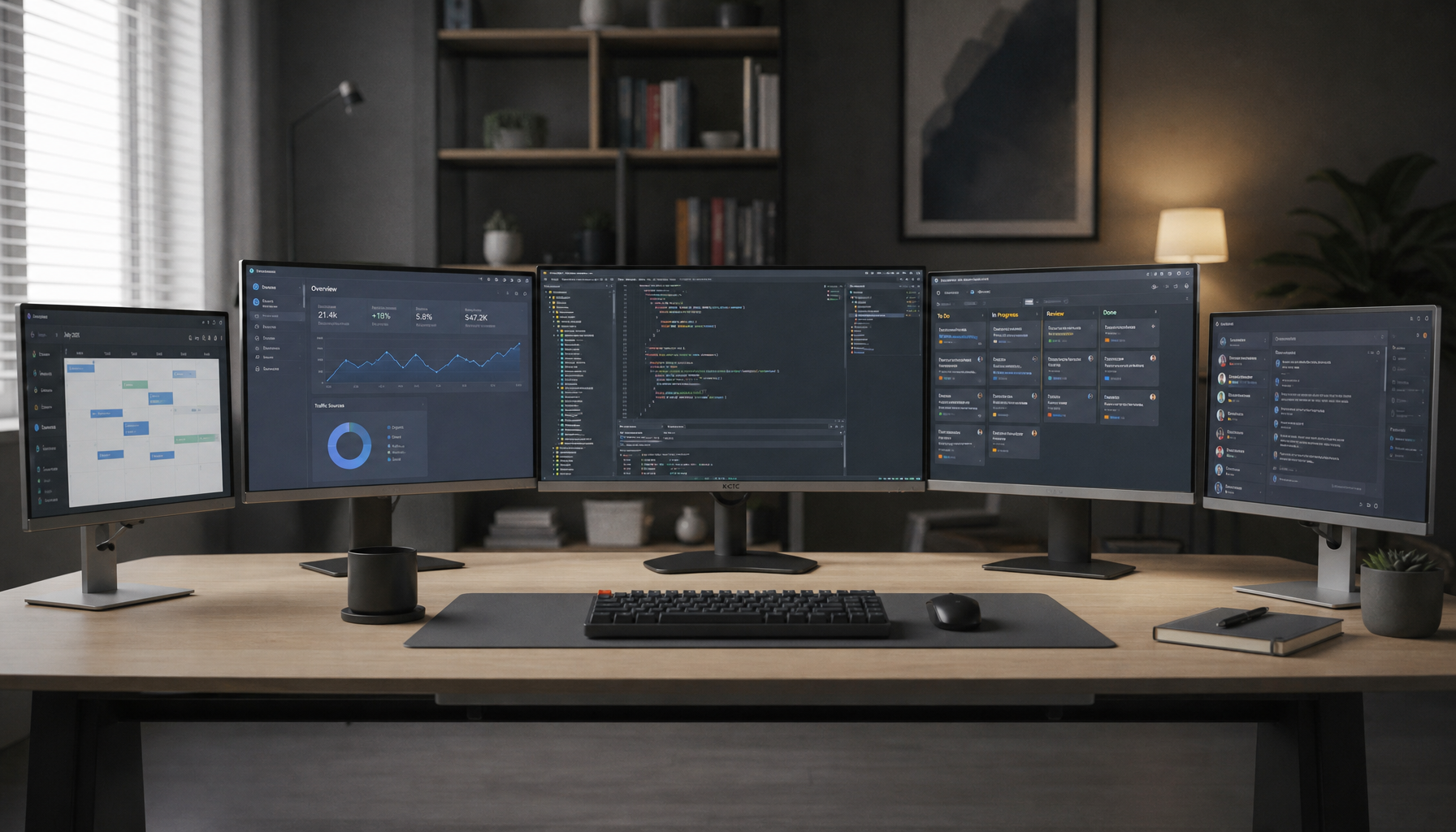
For a clean productivity setup, daisy chaining is attractive because one laptop port can drive multiple displays with less cable clutter. It is a practical fit for coding, spreadsheets, side-by-side documents, and dashboard work, where dual 1080p or dual 1440p displays are often realistic on modern hardware.

The 4 Checks Before You Buy Anything
Start with a hardware audit. Check your laptop’s port, your GPU’s display limit, the first monitor’s output capability, and the total bandwidth available.
- Confirm the laptop’s USB-C port supports video, ideally USB-C video support through DisplayPort Alt Mode or Thunderbolt.
- Check whether the first portable monitor has a true video output, not just charging or data.
- Verify MST support if the setup depends on DisplayPort daisy chaining.
- Match your target resolution and refresh rate to the available connection bandwidth.
- Make sure your operating system supports the method you plan to use.

One important nuance is operating system support. macOS limitations for MST extended displays differ from many Windows systems, so a chain that works on Windows may fall back to mirroring or require a dock-based workaround on a Mac.
Where Portable Setups Hit Limits Fast
Portable monitors are convenient, but they still share the same upstream bandwidth as full-size displays. Every screen in the chain depends on that single laptop connection.
That is why daisy chaining usually makes more sense for productivity than for performance-heavy display use. Daisy-chain bandwidth limits, higher refresh rates, 4K panels, HDR, and mixed monitor specs can force tradeoffs in refresh rate, resolution, or color depth.
For gaming, that tradeoff usually is not worth it. If your main screen is a high-refresh portable gaming monitor, connect it directly. Daisy chaining is better for chat, tools, reference windows, and office tasks where stable extra screen space matters more than peak panel performance.

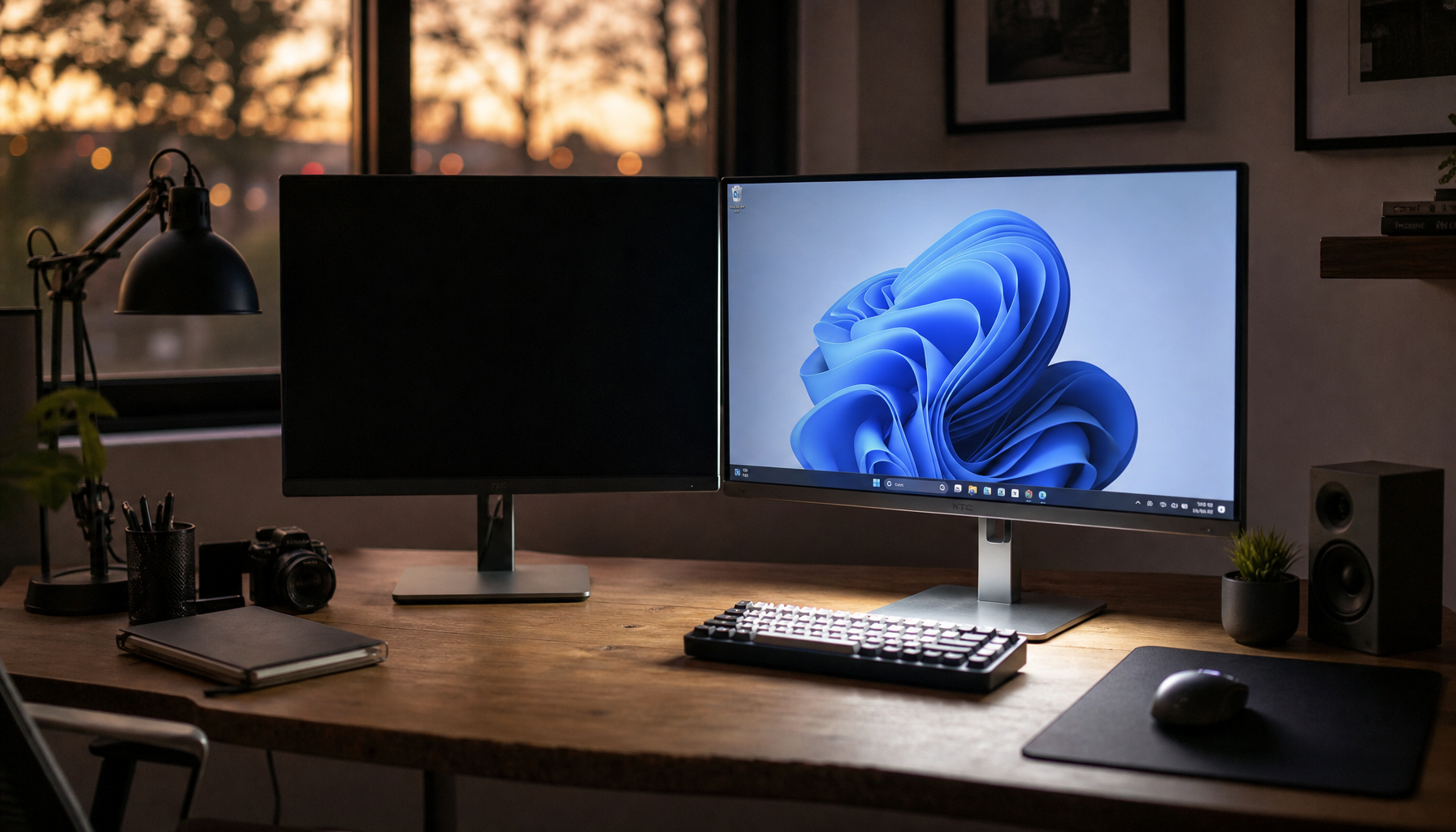
HDMI splitters are also a common trap. They usually mirror one image instead of creating two independent desktops, so they do not solve the one-port, multi-monitor problem the way most people expect.
Best Alternatives If Daisy Chaining Fails
If your portable monitors do not support pass-through, the best fallback is usually a dock or MST hub. A USB-C dock with dual-display support is typically more reliable than trying to force a chain through incompatible panels.

- Use direct connections if your laptop already has two video-capable outputs.
- Use a USB-C or Thunderbolt dock for the most reliable one-cable desk setup.
- Use daisy chaining only when every device in the chain explicitly supports it.
- Avoid HDMI splitters if you need extended desktop mode.
For most portable-monitor buyers, the decision is straightforward. If your workflow is productivity-first and your gear supports MST or Thunderbolt, daisy chaining can be efficient and tidy. If not, a good dock is usually the faster and more reliable solution.