Uneven brightness usually comes down to either panel limits or settings that exaggerate the problem. A simple, controlled check will tell you whether to keep tuning or start considering a replacement.
Fix uneven brightness by separating a true panel defect from a setup problem: warm the monitor up, reset the picture mode, use native resolution and a digital signal, then tune brightness, contrast, gamma, and any power-saving or HDR luminance controls. If the dim patch stays in the same spot across test images, inputs, and devices, the panel is usually the limiting factor rather than your settings.
Does one side of your screen look washed out while the other looks darker, especially when you load a gray menu, a bright skybox, or a white browser page? In real gaming setups, that symptom often improves once the monitor is fully warmed up, the room light is controlled, and factory-bright defaults are pulled back to reasonable levels. You’ll leave with a clean way to diagnose the cause, correct the settings that actually matter, and decide when replacement is the only reliable fix.
What uneven brightness actually means on a gaming monitor
Screen contrast ratio is the gap between the brightest white and darkest black a screen can produce, but uneven brightness is different: it means one area of the panel looks brighter, dimmer, or more washed out than another even when the image should be uniform. On a gaming monitor, this usually shows up in gray loading screens, white web pages, foggy game scenes, or dark menus where one corner lifts or one side dips.

In practice, gamers often confuse four different problems. One is normal panel uniformity variation, which nearly every LCD and OLED has to some degree. Another is poor setup, where excessive brightness, crushed contrast, or a bad viewing angle exaggerates the issue. A third is software behavior, such as HDR tone mapping or power-saving features changing luminance dynamically. The last is hardware trouble, where the backlight, diffuser, OLED compensation, or panel assembly is genuinely uneven.
Start with the fast diagnosis before you change everything
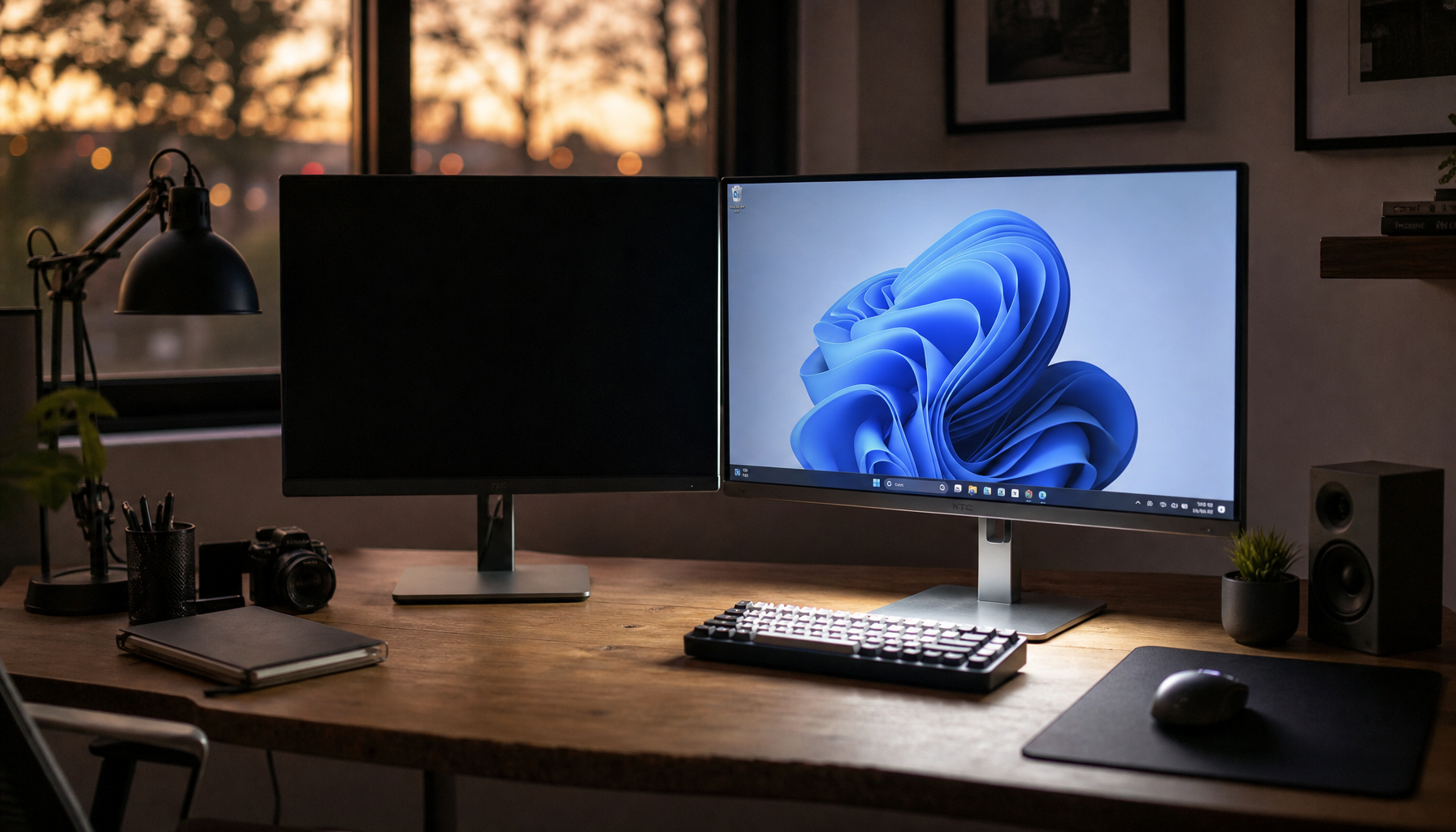
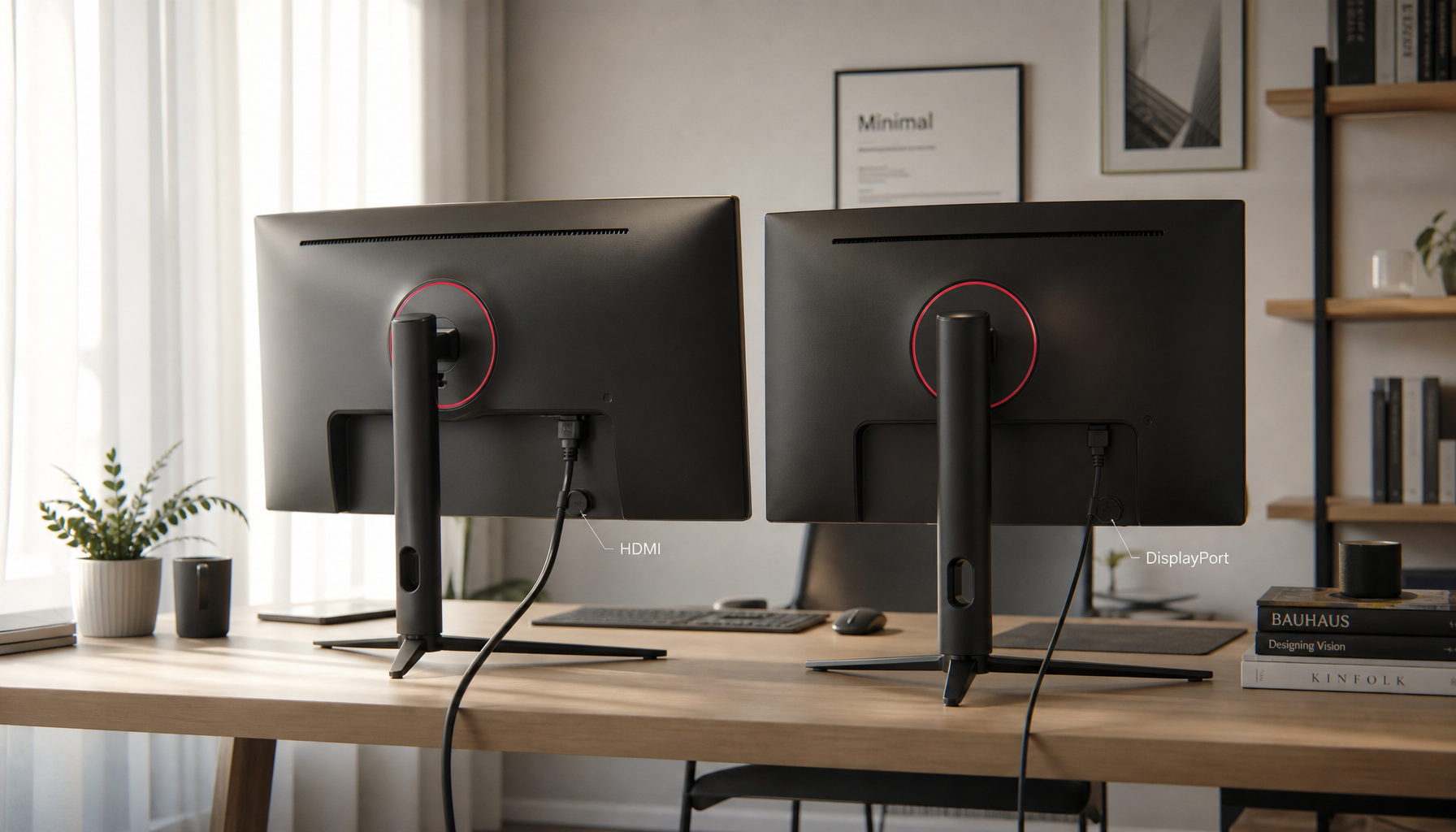
The first pass should be controlled and simple. Display brightness and color settings and older calibration best practices both support starting from the operating system and the monitor’s own controls rather than stacking random driver tweaks. Let the monitor run for about 20 to 30 minutes, because luminance and color can shift while the panel stabilizes. Then switch to the monitor’s native resolution and make sure you are using a digital connection rather than an older analog path, which signal-quality calibration advice has long warned can add signal degradation.
Once the screen is warm, load a full-screen gray image, a black image, and a white image. Sit directly in front of the panel at your normal playing distance. If the dimmer area moves or changes dramatically when you shift your head, that points more toward viewing-angle behavior than a broken panel. This matters on curved VA gaming monitors in particular, where edge luminance can look less even off-axis even when the panel is technically fine.

A useful real-world check is to open the same test image on another input or another device. If the exact same left-side dim patch remains on every source, your GPU settings are unlikely to be the root cause. If it only appears in one game or only with HDR enabled, the monitor may be fine and the issue may sit in the signal chain or the game’s implementation.
Fix the settings that most often make the problem look worse
Lower brightness before you chase exotic fixes
Many gaming monitors ship far too bright out of the box, and practical calibration advice notes that even 300 cd/m² can feel excessive for normal indoor desktop use. Too much brightness does not create non-uniformity by itself, but it makes edge shading, clouding, and IPS glow much more obvious. If your monitor is sitting at 80 or 100 brightness in a normal room, pull it down until white areas stop looking like a light source and start looking like a surface.

This is where some guidance appears to conflict, but the gap is mostly about use case. Monitor calibration workflow often targets roughly 80 to 120 cd/m² for controlled editing rooms, while bright-room TV advice can push much higher. For a gaming monitor on a desk, the practical takeaway is simple: set brightness for your room, not for the box spec. If a white inventory screen feels harsher than a page in a well-lit book, it is probably too bright.
Reset contrast and stop overdriving the image
Calibration settings for gaming and broader monitor setup guidance both agree that pushing contrast too high can clip highlight detail, while too little contrast makes the image look flat. If the bright half of the screen seems to bloom while the dark half loses detail, reset contrast to the monitor’s default or a moderate setting and recheck with a white test image. A simple example is a snowy game map: if the bright side of the snow loses texture while the darker side still shows detail, your contrast is too aggressive.

Artificial sharpening, black equalizer, dynamic contrast, and vivid presets can also make uneven brightness look worse. They may help in a specific competitive title, but for diagnosis they add noise. Turn them off first, then judge the panel.
Use gamma and white point carefully
Gamma changes how brightness is distributed across tones, which is why monitor calibration sources often treat it separately from backlight brightness. If your screen looks uneven mostly in shadow-heavy scenes, gamma may be exaggerating the transition. A target around 2.2 is the safest baseline for most PC gaming use.
White balance matters too. Gaming setup guidance and older calibration advice converge around a 6500K or warm/normal preset for a neutral image. If one side of the screen seems brighter but is really cooler or bluer, changing color temperature can reduce the perception of unevenness even when luminance has not changed much.
When HDR and smart luminance controls are the real culprit
HDR adds a complication that many gamers miss. A short but useful discussion of HDR quality limits points out that brightness alone does not define a good HDR result; color gamut and game implementation matter too. On some monitors, especially OLED models, the screen can dim as more of the image becomes bright because the panel is managing heat and power across the whole screen.
That behavior is why uniform luminance settings exist. On supported displays, they can flatten or reshape HDR brightness rolloff so mixed bright scenes feel more stable. If your monitor has a setting named Uniform Brightness, Uniform Luminance, ABL control, or a similar term, try it. The tradeoff is straightforward: you usually gain consistency across the screen, but you may lose some peak highlight punch.
A good example is a bright desert game scene with a white HUD. With default HDR behavior, the whole image may dim when more of the screen turns bright, which can feel like uneven brightness even though the panel is acting by design. Enabling a uniform luminance option often makes long sessions feel more reliable and less distracting.
Use built-in calibration tools, but know their limit
Operating-system color controls can improve consistency, and the classic calibration flow plus monitor OSD adjustments remain a solid first pass. This helps with gamma, black level, white clipping, and neutral grays. It is worth doing because the process is quick and can remove the settings problem from the equation.
Still, calibration software cannot fix a panel that is physically dimmer on the left than on the right. Professional calibration guidance is clear that true technical accuracy requires measurement hardware, and even then, a profile mainly corrects color behavior. It does not magically make a non-uniform backlight uniform. If the problem is localized brightness variation, software can mask it a bit, but not cure it.
The same caution applies to ICC profiles from reviews or forums. They can improve color character on a similar unit, but panel uniformity varies from one monitor to another. A profile can make the image nicer overall while leaving the same dim corner intact.
A practical way to decide whether to keep tuning or replace the monitor
The easiest decision point is consistency. If the uneven area appears only at extreme brightness, only in HDR, or only when extra processing is enabled, then tuning is worth your time. If it remains visible after warm-up, at reasonable brightness, in native resolution, across multiple inputs, and on plain gray or white test screens, the panel itself is probably the bottleneck.
This table keeps the decision clean:
What you see |
Most likely cause |
Best next move |
Unevenness changes when you move your head |
Viewing-angle behavior |
Recheck seating position, height, and tilt |
Unevenness becomes obvious only at very high brightness |
Factory-bright settings exaggerating panel variation |
Lower brightness and retest |
Brightness shifts mostly in HDR scenes |
HDR tone mapping or panel luminance control |
Try SDR, then uniform luminance or similar HDR controls |
One fixed dim patch stays in the same place on all content and inputs |
Panel or backlight uniformity issue |
Consider warranty or replacement |
If you compete in dark shooters, you may be tempted to keep raising brightness or black boost until enemies pop. That can help visibility, but it also magnifies the same uniformity flaws that break immersion. The stronger long-session setup is usually moderate brightness, moderate contrast, a warm-neutral white point, and restrained processing.
A gaming monitor should feel fast, readable, and trustworthy from edge to edge. If careful setup removes the distraction, keep the tuned profile and enjoy the result. If the same dark patch survives every sensible test, stop burning time on slider chasing and treat it as a hardware call.