HDMI does not automatically look worse than USB-C on portable monitors. The drop in quality usually comes from weaker adapters, lower bandwidth, separate power needs, or display settings that force the monitor into a lower-performance mode.
The Real Reason: It’s Usually the Signal Path, Not the Port Name
Portable monitors are sensitive to the entire connection chain: the laptop output, adapter, cable, monitor input, and available power. If any part of that chain falls back to a lower spec, the display may drop from sharp 1440p or 4K output to softer scaling, a lower refresh rate, reduced color depth, or unstable brightness.
That is why HDMI can look worse in practice even though HDMI 2.1 supports very high bandwidth. Many portable-monitor setups do not use full-spec HDMI 2.1 from end to end. Instead, they rely on mini HDMI ports, older cables, or USB-C hubs that cap output well below the panel’s best mode.
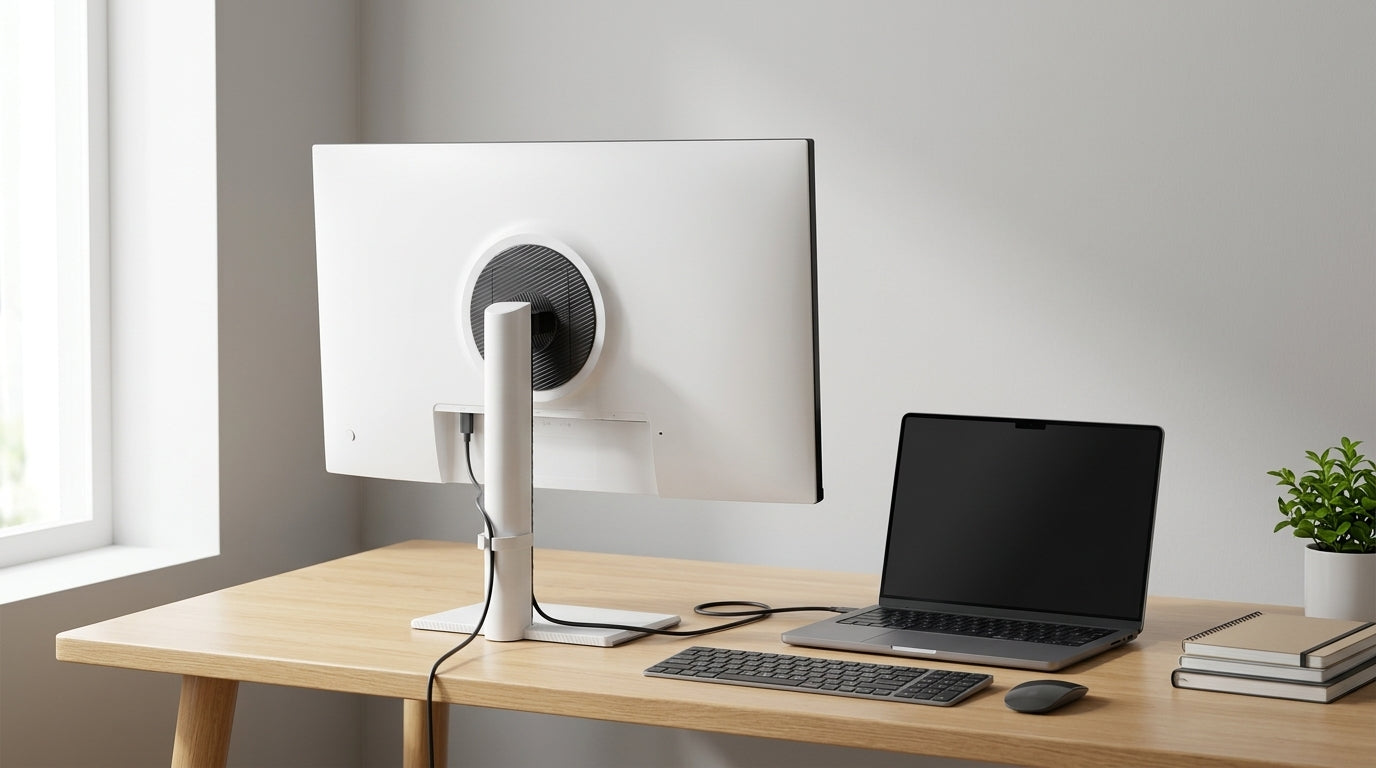
USB-C often avoids that problem. On a modern laptop, one cable can carry both video and power directly to the display through USB-C with DisplayPort Alt Mode, which reduces the number of failure points.

Why HDMI Setups Commonly Lose Sharpness or Smoothness
The biggest issue is mismatch. Your monitor may support a higher mode over USB-C than over HDMI, or your adapter may quietly cap the signal. A USB-C-to-HDMI hub may be limited to 4K at 30 Hz, an older HDMI cable may not sustain the target bandwidth, the monitor’s HDMI input may support less than its USB-C input, or the laptop may default to a lower color or scaling mode.
This is especially common on portable displays built around USB-C-first workflows. Some models are designed to run best from a single USB-C connection, while HDMI is included mainly for compatibility with consoles, older laptops, or media devices, as seen across portable monitor picks and portable monitor recommendations.
A simple example makes the issue clear: if your monitor supports 2560 x 1600 at 60 Hz over USB-C, but your HDMI adapter tops out at 1920 x 1080 or forces heavier scaling, the image will look softer immediately.
Power Can Also Affect Image Quality
Unlike USB-C, HDMI does not power the monitor. That matters more than many buyers expect.
With USB-C, the display may receive video and power through the same cable. With HDMI, the portable monitor often needs a second USB power connection. If that power source is weak, the monitor can dim, flicker, power-cycle, or limit brightness and features. Real-world testing of portable displays shows that some models become unstable when power delivery is tight, especially at high brightness.

That makes USB-C the more reliable option for travel setups, shared desks, and clean one-cable connections. USB-C power delivery and video support are major reasons it often feels better on portable screens, even when the raw image specifications look similar.
How to Fix It
- Check the monitor’s native resolution and manually select it in display settings.
- Confirm the refresh rate on both the laptop and the monitor.
- Replace cheap adapters or older HDMI cables with higher-spec versions.
- Power the monitor separately with a stable USB-C charger if required.
- Update graphics and dock drivers if the display mode options look limited.
If the image still looks off, check for TV-style scaling problems such as overscan or incorrect aspect handling, especially when using HDMI from some desktop systems. Manual resolution and scaling checks often solve what looks like a panel problem but is really a signal-setting issue.

The Best Connection for Portable Monitors
For most portable monitors, USB-C is the better everyday choice because it is cleaner, simpler, and usually better matched to how these displays are engineered. HDMI still matters for broad compatibility, but it is more likely to introduce compromises through adapters, separate power, or lower-spec inputs.
The practical takeaway is simple: HDMI does not inherently ruin image quality. It just exposes more bottlenecks, and portable monitors are less forgiving when those bottlenecks appear.