Late-night gaming can leave your eyes feeling “wired” because you are usually dealing with two problems at once: digital eye strain from long screen focus and light exposure that makes your brain feel less ready for sleep.
You know the feeling: you stop playing at 1:00 AM, but your eyes still feel alert, dry, and oddly tense even though the rest of you is tired. That pattern shows up often when gaming sessions stack bright screens, fast motion, low blink rates, and dark-room setups that make a monitor feel harsher than it did earlier in the day. By the end of this piece, you will know which monitor settings matter most, what a more comfortable night setup looks like, and when the problem may be more than just your display.
What “wired eyes” usually means after gaming
Computer vision syndrome is the umbrella term for the eye and vision problems that show up after prolonged screen use, and the symptom list matches what many gamers call “wired eyes”: eyestrain, headaches, blurred vision, dry eyes, and even neck or shoulder pain. Gaming makes that worse because you are not just reading static text. You are tracking motion, reacting quickly, and staring at bright, high-contrast visuals for long stretches without looking away.

Digital eye strain also gets amplified by reduced blinking, with screen users often blinking three to five times less than normal. In practice, that means your eyes can feel dry, itchy, watery, and hard to refocus after a long session, especially if you have been playing in a dark room with a bright gaming monitor.
Screen-emitted blue light is a separate part of the story, because the evidence is stronger for sleep disruption before bed than for direct eye damage. So if your eyes feel “wired,” part of that sensation may be literal eye fatigue, while part of it is your brain staying more alert than you expected after exposure to a bright display late at night.
A common real-world pattern
A real user example from a platform described a gamer who could use an older 24-inch, 1080p, 60 Hz monitor for years without issues, but developed eye strain within about 15 to 30 minutes on several newer 240 Hz gaming monitors. That case does not prove high refresh causes strain, but it does show something important: discomfort is often about the full display setup, not one spec on the box.
Is it your monitor, your habits, or both?
The main risk factors are usually cumulative: poor lighting, glare, wrong viewing distance, poor posture, and uncorrected vision issues all pile onto long screen time. If you game for two or more continuous hours, you are already in the higher-risk group for digital eye strain, and a poorly tuned monitor can push that discomfort from manageable to obvious.
Gamers often blink less during intense play, and that dryness can feel like overstimulation even when the core problem is actually your tear film breaking down. If your eyes burn, water, or feel scratchy after matches, the issue is probably not “too much gaming monitor blue light” alone. It is more likely a mix of reduced blinking, bright output, and too much uninterrupted focus.
A night setup that is too bright for the room can make the screen-to-room contrast feel harsh, especially when the rest of the room is nearly dark. That is why the same monitor can feel fine at 3:00 PM and punishing at 12:30 AM. Late-night discomfort is often a room-and-monitor mismatch, not proof that you bought the wrong display.

Signs the display setup is a major factor
If symptoms improve when you turn on a lamp, lower brightness, or sit farther back, your monitor setup is probably a major contributor. If symptoms stay severe across multiple displays, or you also notice persistent headaches, double vision, or focusing trouble away from the screen, it is worth scheduling an eye exam because uncorrected prescription issues can make every monitor feel worse.
Do high-refresh-rate monitors actually help?
Refresh rates above 60 Hz can improve comfort for some users because motion, cursor movement, and scrolling look smoother. Comfort gains often start around 75 Hz to 100 Hz, and 144 Hz is a practical sweet spot for mixed gaming and everyday use. That matters for fast games because motion clarity reduces some of the visual effort involved in tracking targets and scene changes.
Higher refresh alone is not a full fix, though, because dryness, glare, poor brightness matching, and late-night light exposure still exist on a 144 Hz or 240 Hz panel. A fast monitor may feel better during gameplay, but it cannot prevent the eye fatigue that comes from staring too long, blinking too little, or running the panel too bright in a dark room.
Display makers that focus on eye-care features usually pair higher refresh with other comfort tools such as low-blue-light modes, flicker reduction, and ergonomic adjustment. That is the right way to think about buying guidance: refresh rate is one useful part of comfort, not the whole package.
The spec that matters just as much: flicker control
Flicker-free backlighting matters because older or poorly implemented brightness control can create invisible flicker that some people feel as headaches, fatigue, or eye pressure. If you are sensitive, a 165 Hz gaming monitor with poor low-brightness behavior may still feel worse at night than a calmer, better-tuned display.
Which monitor settings should you change first?
Matching brightness to ambient light is the first change to make, and for dark-room use, a range around 120 to 180 nits is a common comfort target. If your gaming monitor looks like a flashlight in an otherwise dim room, lower brightness first, then fine-tune contrast in small steps so white areas stay clear without making dark areas crush together.

Screen position and distance are the next fixes, with a practical target of roughly 20 to 28 inches from your eyes and the screen sitting slightly below eye level. For larger ultrawide monitors or 32-inch displays, sitting closer than about 28 to 32 inches can force more eye movement across the panel and make long sessions feel more demanding.
Blue-light settings can help more with comfort and sleep timing than with eliminating strain itself. If you play late, use a moderate evening low-blue-light mode instead of the strongest orange-tinted preset unless you truly need it. The strongest modes often shift whites, shadow detail, and skin tones enough to hurt image quality, which is a bad trade for many gamers.
A practical night-gaming baseline
Use this as a starting point for a gaming monitor, ultrawide, or portable monitor used at night:
Setting |
Practical starting point |
Brightness |
Lower than daytime; aim for visual comfort, often around 120 to 180 nits in a dim room |
Contrast |
Moderate, with dark gray still visible from black |
Color temperature |
Slightly warmer at night, but not so warm that the image looks muddy |
Refresh rate |
At least 75 to 100 Hz for comfort, 144 Hz for mixed gaming use |
Viewing distance |
About an arm’s length; farther back for 32-inch or ultrawide screens |
Room light |
Soft bias lighting or a nearby lamp, not total darkness |
Which monitor features matter most for late-night comfort?
Eye-care monitor features that matter most at night are flicker-free backlighting, low-blue-light modes, anti-glare treatment, and ergonomic adjustments. Those features do more for real comfort than flashy marketing terms because they affect the conditions your eyes deal with every minute of the session.
IPS panels and sharp resolutions are usually easier on the eyes when matched to the right size, because they offer stable colors, wide viewing angles, and clearer text. A 24-inch 1080p display is acceptable, 27-inch 1440p is a strong sweet spot, and 4K works best once you move into 27- to 32-inch sizes where the extra sharpness is more useful.
Anti-glare surfaces and adaptive brightness controls can help if reflections or brightness swings are part of the problem. This is especially important for glossy-looking displays in bedrooms or apartments where lamps, windows, or wall lighting create small reflections that your eyes keep fighting.
What to prioritize when buying a gaming monitor
If night comfort is a major goal, prioritize these in order: - Flicker-free backlighting with good low-brightness behavior - Easy brightness and color-temperature control in the monitor OSD - Matte or low-reflection screen treatment - At least 100 Hz, with 144 Hz as a strong comfort-and-performance target - A size and resolution match that keeps text and HUD elements sharp without forcing you too close - Ergonomic stand adjustment for height and tilt
How to game late without making your eyes feel worse
The 20-20-20 rule is still one of the most useful habits: every 20 minutes, look at something at least 20 ft away for 20 seconds. That sounds basic, but it directly counters the nonstop near-focus that makes your eyes feel locked onto the monitor.
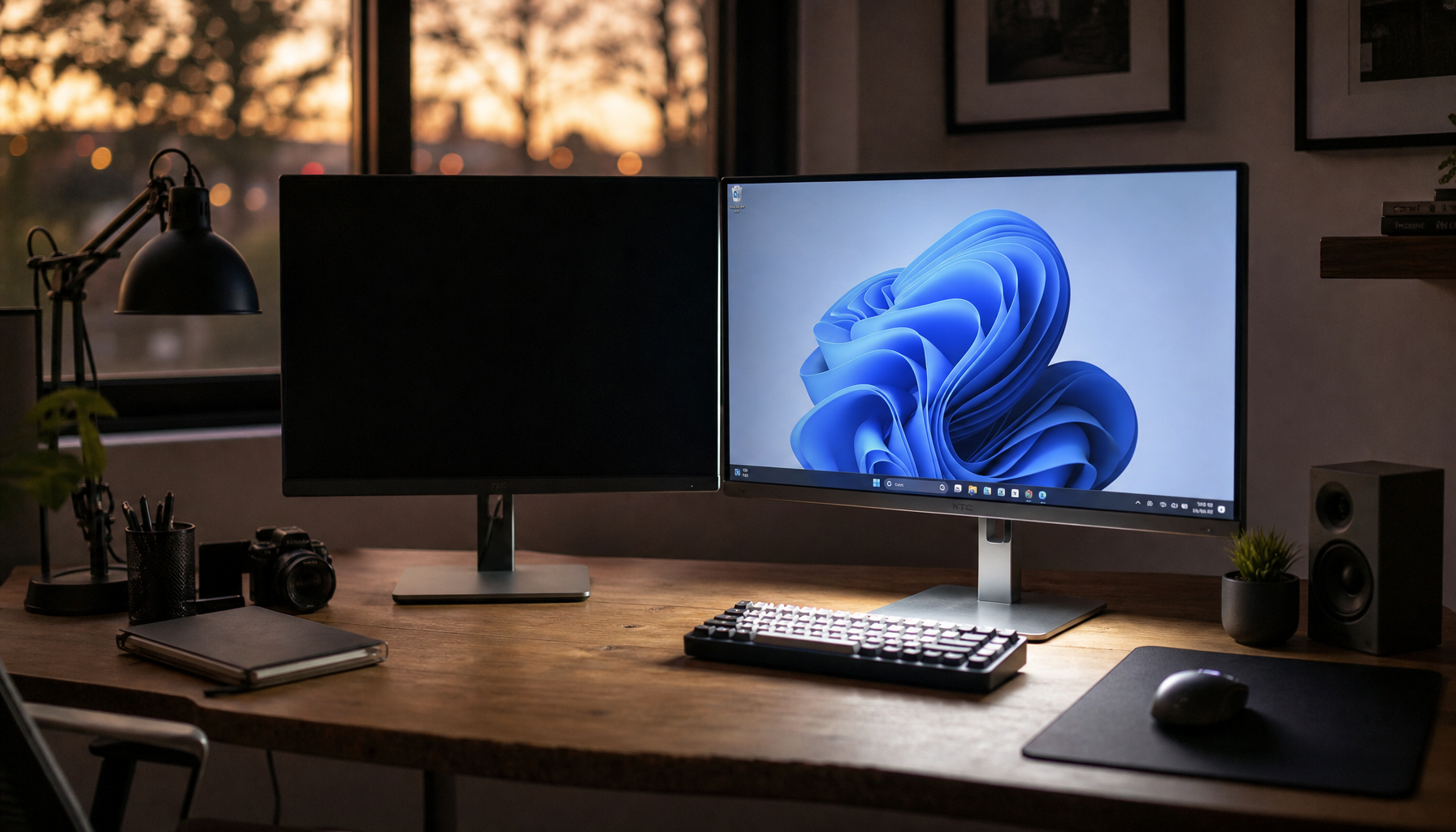
Soft room lighting instead of total darkness is one of the fastest improvements for late sessions. A small lamp behind or near the monitor reduces the jump between a bright screen and a black room, which often makes a gaming display feel less aggressive without changing your in-game visibility much.

Low-blue-light display modes that preserve color better are worth considering if you regularly play near bedtime and still care about image quality. The best implementations reduce high-energy blue light without pushing the whole picture into a heavy yellow cast, which is especially relevant if you use the same monitor for gaming, streaming, and general desktop work.
When to stop troubleshooting and get checked
If symptoms are persistent, severe, or followed by ongoing blurred vision, headaches, or chronic dryness, do not keep assuming a better monitor preset will solve it. Eye strain from screens usually is not permanent, but recurring symptoms can point to a prescription issue, focusing problem, or dry-eye condition that a monitor alone cannot fix.
Practical Next Steps
Your eyes usually feel wired after late-night gaming because a bright display, long focus time, reduced blinking, and bedtime light exposure are all hitting at once. A better gaming-monitor setup can help a lot, but the biggest wins usually come from lowering nighttime brightness, adding soft room light, sitting at the right distance, and treating high refresh as a comfort bonus rather than a cure.
If you are shopping for a new display, look for flicker-free backlighting, flexible brightness and color controls, anti-glare treatment, and a size-resolution pairing that keeps text and HUD elements sharp from about 2 ft away. If you already own the monitor, start by changing the room and the settings before blaming the panel, then get an eye exam if the symptoms keep showing up across different screens.