Your photos may be consistent, but your screen may not be. When a display shifts brightness, white point, gamut, or tone, color matching becomes harder to trust.
Your Screen Is Editing the Photo Before You Do
A monitor is not a neutral window. Panel type, backlight, factory tuning, age, and viewing angle all influence how skin tones, skies, product colors, and shadows appear.
For photo work, an IPS panel is often preferred because it offers stronger color consistency and wider viewing angles than budget TN-style displays, especially when judging a set of images side by side on a large canvas. Photography-focused monitor advice consistently prioritizes color accuracy, sRGB coverage, uniform brightness, and stable viewing angles.

That matters when matching multiple photos from the same shoot. If one image looks slightly warm and another looks slightly green, the problem might be your correction, or it might be the panel tinting different tones unevenly.
Brightness Mismatch Creates False Exposure Decisions
Color matching is not only about hue. A display that is too bright can make underexposed images look acceptable, while a dim display can push you to over-brighten everything.
This gets worse across a batch. You may lift shadows in one frame, lower highlights in the next, then wonder why the final gallery feels uneven. The monitor has trained your eye to chase its own brightness behavior instead of the image data.

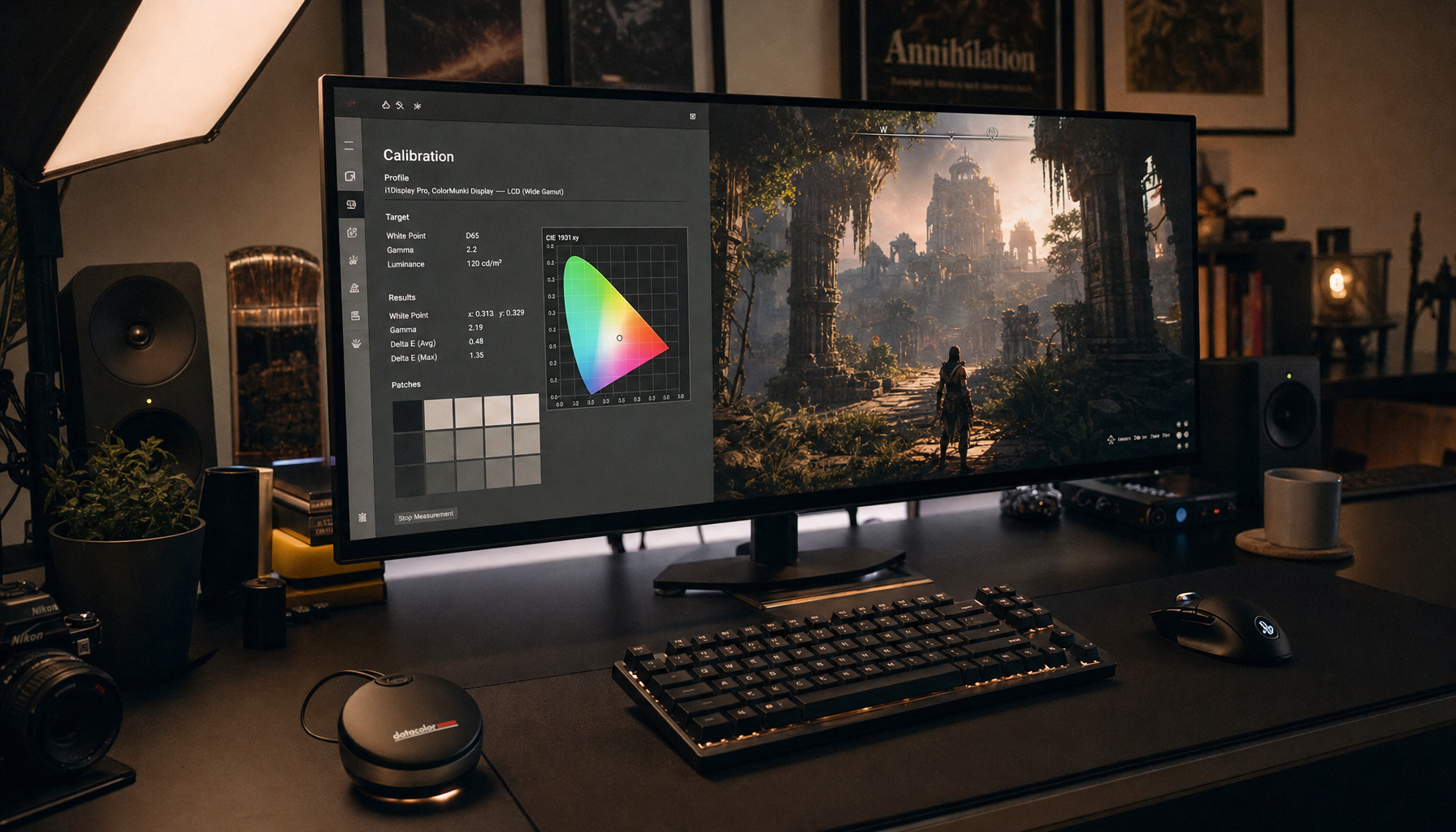
A practical calibration target is to match screen luminance to your room, with many editing setups landing around a moderate brightness range for normal indoor light. A hardware colorimeter and monitor-specific profile help because calibration measures the screen rather than relying on guesswork; a good workflow creates an ICC profile for that exact display.
White Point and Gamut Make Same Colors Look Different
White point controls the overall color cast of the screen. If your display is cooler than standard, neutral grays may look clean while warm skin tones seem too orange. If it is too warm, you may overcorrect toward blue.
For most photo and web work, D65, roughly 6500K, is the common target because it approximates daylight viewing conditions. Wide-gamut screens add another twist: if color management is weak, sRGB images can look oversaturated, making reds, greens, and blues appear more intense than intended.
This is why two monitors can both look good but still disagree. Dual-monitor mismatch is commonly tied to hardware variation, including panel type, backlight, age, and factory calibration.
Even measured calibration may not make two different display technologies look identical to the human eye.
Built-In Controls Help, But They Are Blunt Tools
Brightness, contrast, RGB gain, color presets, and black-level controls are useful first steps. On some monitors, desktop utilities can adjust settings through DDC/CI, but not every display exposes every control reliably; even gamma control may be unavailable on certain models.
For tighter photo matching, use this quick sequence:
- Warm up the display for at least 30 minutes.
- Reset picture mode, then avoid Vivid or Eco modes.
- Set white point near D65 and gamma near 2.2.
- Match brightness to your editing room.
- Calibrate with a colorimeter, then recheck monthly.

The Best Fix Is a More Stable Editing Workflow
For consistent batches, pick one primary reference display and trust it. If you use two screens, edit color-critical work on the better-calibrated panel and keep the second for tools, folders, notes, or previews.

A display built for photo work should offer strong sRGB coverage, good uniformity, stable viewing angles, and calibration support. Hardware LUT calibration, found on some creator monitors, can store calibration behavior in the monitor itself, reducing software conflicts and making the setup more reliable across devices; this is one reason professional photo displays emphasize hardware calibration.
The real win is confidence. When your display is controlled, matching colors across multiple photos becomes a creative decision instead of a guessing game.