Desktop taskbars and browser tabs usually do not permanently mark a modern LCD monitor, but they can contribute to permanent burn-in on OLED displays if the same bright elements stay in place for months of repeated use.
If you keep noticing a faint taskbar line or the outline of a browser window after switching apps, it is reasonable to worry that your new monitor is already wearing out. A recent long-use example logged 2,656 hours on a modern OLED monitor with little visible burn-in after simple precautions, while real user reports still show that static desktop UI is the pattern most worth managing. You’ll leave with a practical way to judge the risk, set up your display correctly, and choose the right panel type for work, browsing, and gaming.

What taskbar and tab ghosting usually means
Temporary retention is not the same as burn-in
Image retention is temporary ghosting that can appear after static, high-contrast content stays on screen for a while. In a testing source’s older monitor lab method, most displays showed little to no meaningful retention, and any visible effect usually faded within minutes after the content changed.
Permanent burn-in is different. A testing source separates it from retention because burn-in comes from long-term repeated exposure to the same static elements, and once those pixels wear unevenly, the damage does not fade away. That distinction matters for monitor buyers: a faint ghost of a tab bar after a long work session is annoying, but it is not proof that your display is permanently damaged.
Why people confuse the two
A real-world IPS laptop case helps explain the confusion. A 2022 laptop from a brand with a 14-inch, 120 Hz IPS display showed a large ghosted browser smudge after a video platform stayed on screen for about 2 to 3 hours, which felt alarming even though IPS is more commonly associated with temporary retention than classic OLED-style burn-in.
That same confusion shows up in monitor shopping. If you are using a portable monitor as a second screen, or a high-refresh office/gaming display for long browser sessions, the first question should be whether the mark fades after rest or changing content. If it fades, you are dealing with retention; if the same shapes remain visible over weeks or months, that is the more serious burn-in pattern.

Which monitor types are actually vulnerable
OLED gaming monitors carry the real long-term risk
OLED panels are the monitor category most associated with permanent burn-in because their organic materials wear over time, and static bright content speeds up that wear. That does not mean every OLED gaming monitor is a bad buy for desktop use. In one nine-month example, a monitor from a brand used full-time for desktop work and 10 to 15 hours of gaming per week reached 2,656 hours with little to no visible burn-in in normal use, especially with auto-hide taskbar, 50% office brightness, pixel shifting, and screen-dimming protections enabled.
User reports still show why caution is reasonable. A forum discussion identifies taskbars, wallpapers, and even fixed snap-zone patterns as the main concern when OLED is used as a computer monitor rather than for mixed full-screen video and games. That is especially relevant on ultrawide OLEDs, where people tend to keep the same chat window, browser, and editor in fixed zones every day.
LCD, IPS, and many portable monitors are the safer desktop choice
LCD and IPS monitors can still show temporary persistence, especially after long static images, but they are generally the safer pick for all-day desktop and browser use. If your priority is a low-maintenance office monitor, a bright-room display, or a portable monitor that often shows fixed toolbars during travel, LCD remains the conservative choice.
That is why many buyers still split by workload rather than hype. Choose OLED when motion clarity, contrast, HDR games, and deep blacks matter most; choose LCD or IPS when your screen spends more time on email, spreadsheets, browsers, dashboards, or a fixed ultrawide productivity layout than on full-screen entertainment.
Why the taskbar and browser tabs are common trouble spots
These elements stay bright, sharp, and fixed
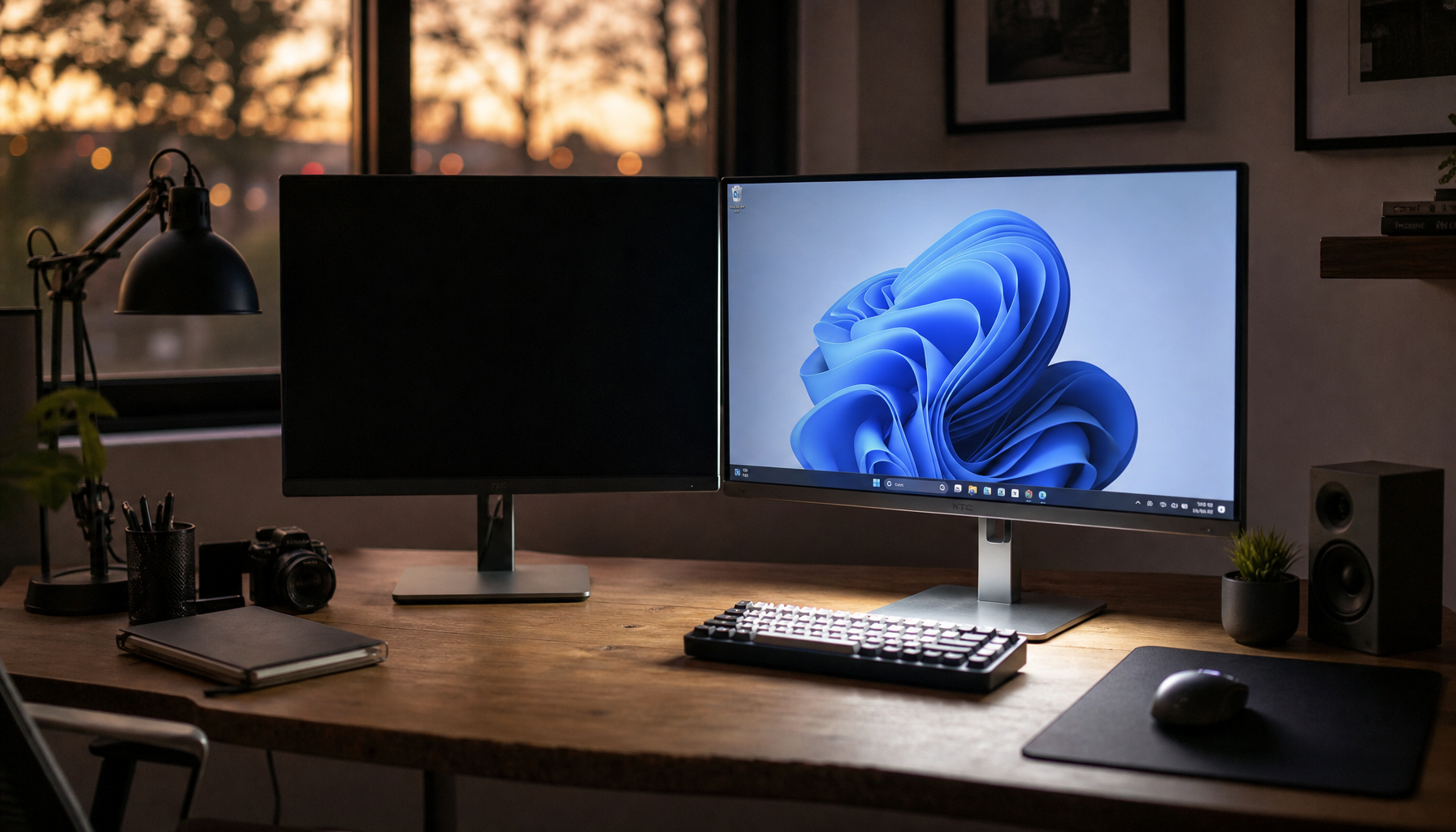
A taskbar-dimming feature request on a desktop operating system exists for a reason: the taskbar and its icons are among the most persistent static elements on a PC. Unlike a movie or game scene, they sit in the exact same place for hours, often with high-contrast edges and bright accent colors.
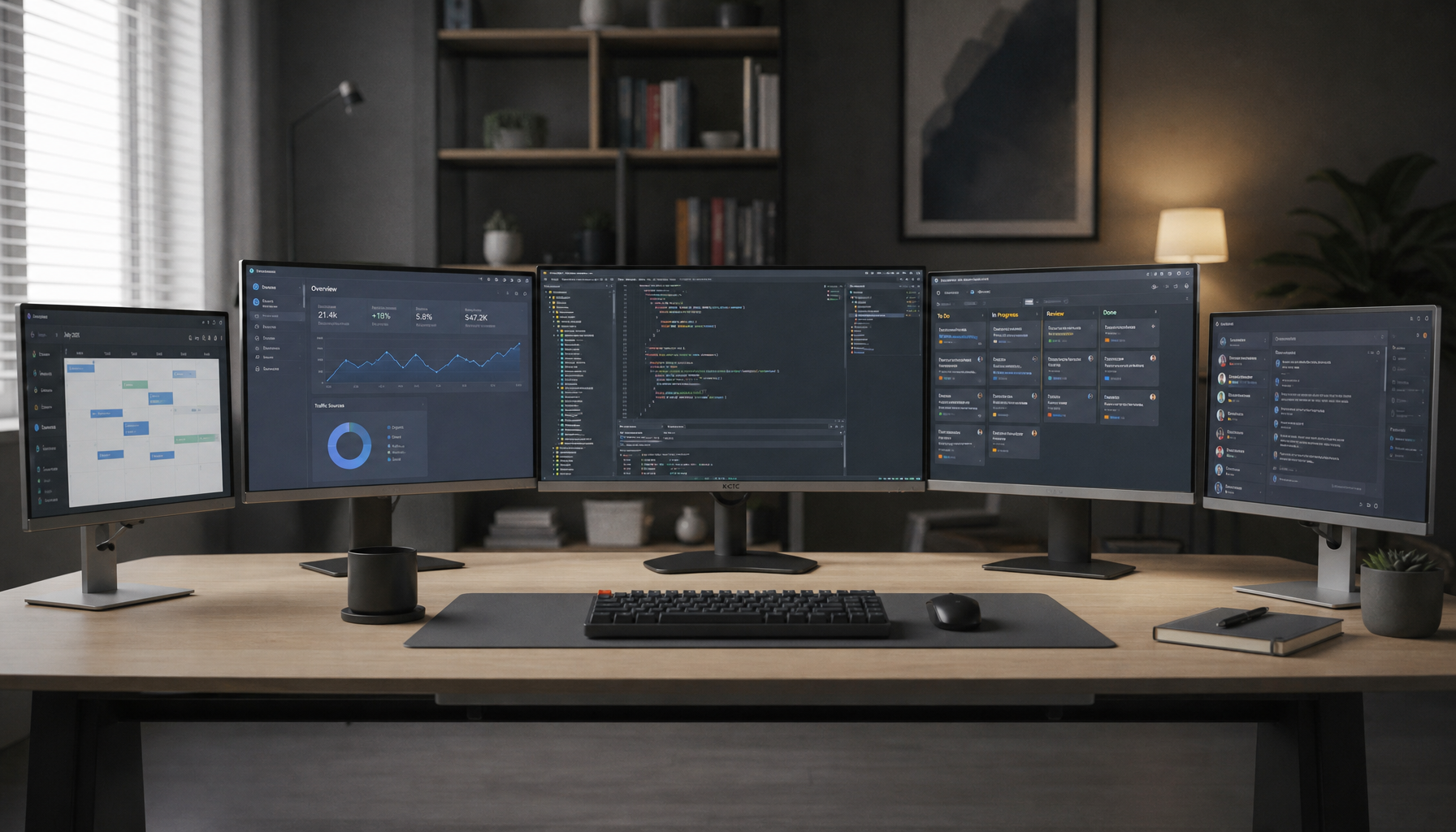
Browser tabs add a second layer of repetition. The tab strip, bookmarks bar, address bar, and pinned extensions can remain visible through an entire workday, and on a 34-inch or 49-inch ultrawide monitor that often means the same bright line across the top plus the same taskbar line across the bottom. The issue is not one afternoon of browsing; it is the same geometry, at the same brightness, repeated every day.
Desktop layouts can make large monitors riskier
OLED monitor users trading prevention tips often mention hidden taskbars, dark themes, low-contrast wallpapers, and cycling backgrounds because desktop layouts matter as much as panel type. On a large gaming monitor, the risk pattern is usually not the game itself. It is the launcher, browser, a chat platform, and a search bar sitting in place before and after the game.
Ultrawide layouts can amplify that pattern. In the forum thread, one user specifically warned about leaving windows snapped in place and creating a visible cross pattern over time. That is a useful buying clue: the bigger and more static your desktop canvas becomes, the more you should think about daily window habits, not just panel specs.
Settings and habits that actually reduce the risk
Keep the monitor’s protections turned on
Built-in OLED protections are worth more than most buyers assume. A company describes screen shift, static-logo dimming, luminance control for stationary images, and automatic pixel refresher cycles after cumulative use. The important practical point is simple: those features are there because static content is the real enemy, and they work best when you let them run.
That lines up with the long-use desktop test, where moderate brightness, pixel shifting, a static-content screen saver, and the monitor’s image-cleaning cycle were all kept active. The monitor’s cleaning process ran after power-off and took about 5 to 10 minutes, which is a good reminder not to cut power immediately if your display performs refresh routines after shutdown.
Small desktop and browser changes help more than people expect
A testing source’s prevention advice is not complicated: lower brightness, reduce extreme contrast, use a screensaver, turn the monitor off when idle, and vary what stays on screen. For OLED monitor owners, that translates into very specific desktop choices: auto-hide the taskbar, use dark mode, avoid a bright static wallpaper, go full-screen for video when possible, and stop leaving the same browser window parked in the same place all day.

A second layer of practical habits comes from user OLED setups: remove unused desktop icons, use dynamic wallpapers, keep office brightness moderate instead of maxed out, and do not disable anti-dimming or protection systems just because they are mildly annoying. If you need a display that never asks you to think about those tradeoffs, that is a sign you may be better off with a good IPS gaming monitor instead of OLED.
How to buy the right monitor for work, browsing, and mixed gaming
Buy LCD or IPS if your desktop stays static most of the day
For heavy productivity, shared family PCs, kiosk-like use, or portable monitors that spend hours on a fixed dashboard, LCD and IPS are still the safer buying recommendation. They are more forgiving of long browser sessions, taskbars, spreadsheets, and office apps, and any retention issue is more likely to be temporary rather than permanent.
That recommendation gets stronger in bright rooms. OLED looks best when you can keep brightness moderate and let its contrast do the work. If your monitor must fight daylight all day at high brightness while also showing static desktop UI, you are stacking the risk in the wrong direction.
Buy OLED when image quality matters more than maintenance-free behavior
A modern OLED monitor used carefully can absolutely work for mixed desktop and gaming use. If you want deep blacks, elite pixel response, strong HDR, and premium gaming performance, the real question is not “Will the taskbar instantly ruin it?” but “Am I willing to manage brightness, idle behavior, and static layouts?”
For many enthusiasts, the answer is yes. For buyers who want a monitor to last for years with zero babysitting, especially in office-first or web-first use, a high-refresh IPS display is still the easier recommendation. In buying terms, OLED is the higher-performance but higher-discipline option.
FAQ
Q: Can a desktop taskbar permanently burn into an OLED monitor?
A: Yes, over time it can contribute to permanent burn-in if it stays in the same place at the same brightness for long daily sessions over months or years. It is a cumulative risk, not something that usually happens after one normal day.
Q: Are browser tabs as risky as the taskbar?
A: They can be, especially when the same tab strip, bookmarks bar, and browser chrome stay visible for most of the workday. On ultrawide monitors, fixed browser layouts can be just as important as the taskbar because they create repeated horizontal and vertical lines.
Q: If I see ghosting once, should I return the monitor immediately?
A: Not always. If it fades after minutes or hours, it is more likely temporary retention. If a new monitor shows recurring retention very easily, a testing source suggests that returning it may be the best move, because unit variation still exists.
Final Takeaway
Taskbar and browser-tab burn-in is a real concern mainly for OLED monitors, not for most modern LCDs. The safe rule is straightforward: static UI raises long-term risk on OLED, while varied content and moderate brightness lower it.
- Auto-hide the desktop taskbar on OLED monitors.
- Use dark mode for your operating system and your browser.
- Keep office brightness moderate instead of running maximum brightness all day.
- Leave pixel shift, screen saver, logo dimming, and panel refresh features enabled.
- Set the display to sleep or lock after about 10 minutes of inactivity.
- Avoid leaving the same ultrawide window layout or browser position unchanged every day.
- If your use is mostly browsing, documents, and fixed apps, favor a quality IPS or LCD monitor over OLED.