Most monitors switch inputs on their own because they are reacting to a signal change, not because they are truly making a random choice. The fix is usually to disable auto input detection, remove a flaky link in the chain, or isolate a firmware bug.
You sit down to use your gaming monitor, ultrawide, or portable display, and it suddenly jumps from your PC to a laptop dock, a console, or a dead input with a black screen. In real multi-device desk setups, the trigger is often as simple as a sleeping desktop waking up, a console renegotiating video, or a docked display connection staying electrically active even when the laptop looks off. What follows is the shortest path to figure out which one you are dealing with and stop it for good.

What Random Input Switching Usually Means
It is often signal detection, not true randomness
Auto-switch input behavior often follows signal presence rather than active use, which is why a monitor may prefer one video input over another the moment it sees a valid signal. That matters on modern monitor desks because a powered console, docked work laptop, or standby gaming PC can all look “active” enough to pull focus even when you are not using them.
A monitor owner found an auto source switch feature moved the display to a newly powered-on console but would not switch back to an already running PC. That behavior is common on monitors built for mixed gaming and desktop use: the feature is good at noticing a new source, but much less reliable at deciding when your preferred source should regain priority.
Sleep and wake events are a major trigger
A platform setup with a laptop on one display connection and a desktop on another showed the monitor pulling the laptop session onto the external screen when the desktop woke from inactivity. In practice, that means the problem can start even when auto-switching looks disabled in the monitor menu, because the operating system and hot-plug behavior are still changing what the monitor sees.
A monitor case showed the monitor cycling through multiple input ports on power-up. If your display keeps hunting across ports before settling, the monitor is usually searching for a stable handshake rather than failing instantly.
How Different Video Connections Change the Problem
Docked all-in-one connections can stay “alive” longer than expected
A monitor setup with two different display connections would not switch to the desktop connection automatically after the laptop was turned off but left connected through the dock-style link. For buyers using one monitor with a work laptop and home desktop, this is a key detail: some all-in-one connections often carry power, data, and display together, so the monitor may continue treating that path as present.
Peripheral upstream auto-switching can also move control devices unexpectedly on an ultrawide monitor. That is a separate issue from video input, but on productivity ultrawides and switcher-style monitors it feels like the same failure because your keyboard and mouse jump to the wrong system while the picture changes or stalls.
Different video connections can misbehave differently
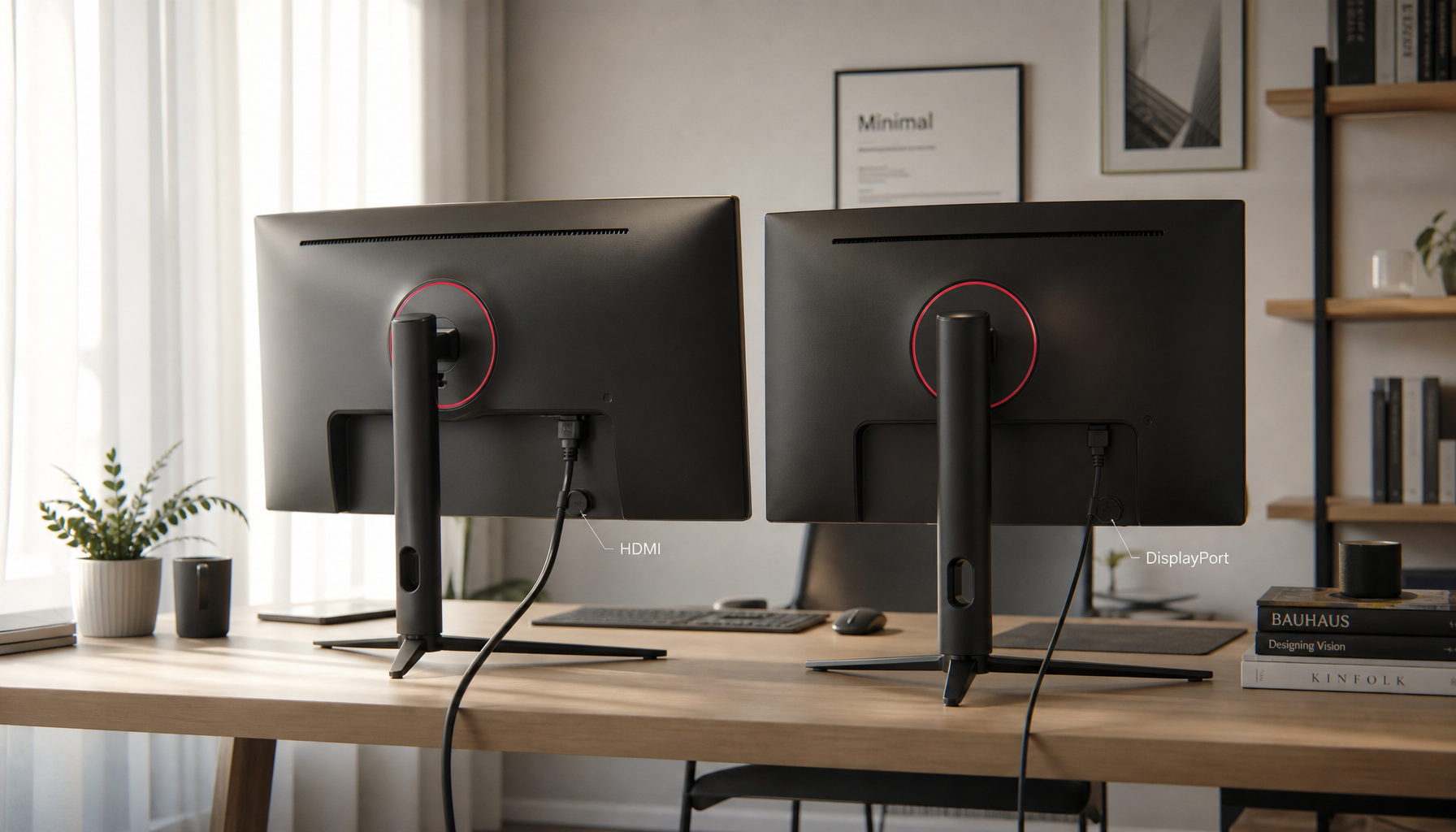
Users on a company forum looking for faster switching between two video connections were told there was no simple software method and were pointed toward a hardware switch. That matches real-world use: one digital video connection is often the better choice for high refresh rates, but it is not always the cleanest option for quick source flipping between a work laptop and a gaming desktop.
A monitor owner found the monitor auto-switched back to the PC on one video connection while a console briefly blanked during high-resolution setting changes. If your monitor changes source during resolution, high-dynamic-range, or refresh-rate renegotiation, the real issue is often that one source drops signal for a second and the other source looks more stable.
Why Gaming Monitors and High-Refresh Displays Are More Sensitive
High bandwidth makes bad handshakes more obvious
A monitor report described standby input scanning that briefly broke the video link, causing flicker, black screens, and operating system behavior similar to unplugging and reconnecting a monitor. The user tested multiple graphics cards, cables, ports, drivers, and firmware, and the issue became more frequent under very high refresh rates, high-dynamic-range mode, and display compression, which strongly suggests bandwidth-heavy modes can expose weak firmware logic.
A user report on a display showed black-screen events that looked like an input switch even though only one video source was connected. On gaming monitors, that symptom often means the display is renegotiating the same input after a signal hiccup, not actually moving to another port.
Multi-monitor and dual-system desks add more variables
Monitor owners using one video connection for a home PC and another for a work laptop dock reported needing to select the laptop input 3 to 5 times or reconnect the cable before the monitor stayed put. That is typical of desks where two systems, two monitors, and one dock all compete for timing, hot-plug detection, and sleep-state control.
For display buyers, this is why a monitor that looks excellent on paper for resolution and refresh rate can still be frustrating in daily use. If you regularly share one display between a gaming rig, a work laptop, and a console, source-handling behavior is just as important as panel quality.
A Practical Troubleshooting Order That Saves Time
Start with settings before replacing hardware
Turning Auto Select off on an ultrawide monitor was one of the first recommended fixes for unwanted switching. On most monitors, this should be your first move, followed by setting one preferred input manually and disabling extra auto-switch options for dock-style or peripheral upstream ports if they exist.

A company support discussion shows that some monitors expose only basic source choices and an Auto-Switch toggle, with no real default-source control. If your on-screen display is limited like that, you may need to solve the issue outside the monitor by changing the active cabling, wake behavior, or dock setup.
Then isolate one variable at a time
Use this sequence:
- Turn Auto Input, Auto Select, or similar monitor options off.
- Disconnect every source except the one you want to test.
- Swap to a known-good cable, especially for modern video or dock-style connections; testing with something like a known-good display cable in a suitable length and spec for your setup can help rule out a flaky connection.
- Lower bandwidth temporarily by disabling high-dynamic-range mode, display compression, variable refresh, or extreme refresh rates.
- Wake and sleep each connected device one at a time.
- Reconnect docks, adapters, hardware switches, and peripheral hubs last.

A monitor owner already ruled out many common causes by testing different cables, graphics cards, ports, drivers, and lower refresh settings. That is the right logic: when the problem survives a clean cable path and a reduced-bandwidth test, the odds shift toward firmware or monitor-side hardware.
Comparison table: symptom to likely fix
Setup or symptom |
Most likely trigger |
Best first fix |
Long-term fix if it keeps happening |
Gaming monitor jumps to another source when a console wakes |
Auto-detect prefers newly active signal |
Disable auto input switch |
Use manual input selection or a hardware switch |
Ultrawide with laptop on one connection and desktop on another will not switch back |
Dock-style path still looks active |
Disable dock-style auto-select features |
Disconnect the dock-style cable when not in use or use a dedicated switch |
High-refresh monitor flickers or goes black in standby |
Firmware bug during input scan |
Turn off auto-detect and test lower refresh or high-dynamic-range settings |
Update firmware or replace the monitor |
Monitor cycles through ports on startup |
Auto-search cannot find stable handshake |
Manually lock the correct input |
Replace bad cable or adapter |
Dual-monitor work/laptop desk keeps losing one video source |
Dock or hot-plug instability |
Reseat cable and test direct connection |
Replace the dock or simplify the chain |
When the Problem Points to Firmware or Hardware Failure
Persistent switching after clean tests is not normal
A monitor case combined automatic input switching with the on-screen menu popping up by itself. When source changes happen alongside phantom menu activity, suspect failing front controls, a bad control board, or a monitor that needs service rather than another round of cable swapping.
The monitor report is a stronger example of a likely firmware defect because the issue appeared before the operating system loaded, happened at least once per hour, and stopped only when the monitor was fully powered off or auto-detect was disabled. If your display misbehaves even before the operating system loads, the operating system is probably not the root cause.
Know when accessories are the better fix
A community solution suggested a video switch to force the monitor to see the PC as a newly connected source. That is not elegant, but it can be practical for desks that switch between a gaming PC and multiple consoles every day.

Users on a company forum discussing slow source changes were also steered toward a hardware switch for frequent machine switching. For buyers comparing monitors, this is the broader lesson: if your workflow depends on fast, reliable switching, external switching hardware is often more dependable than the monitor’s built-in logic.
FAQ
Q: Why does my monitor switch inputs even when I turned auto-switch off?
A: Some setups still trigger hot-plug or wake events outside the simple auto-switch menu. Docked all-in-one connections, standby consoles, and operating-system display detection can all make the monitor think a source changed even when the feature appears disabled.
Q: Can high refresh rate or high-dynamic-range mode really cause source switching?
A: Yes. High-bandwidth modes such as very high refresh rates, high-dynamic-range mode, display compression, and variable refresh make the link less tolerant of firmware bugs or weak cables. If the problem gets better at lower settings, you have learned something useful about the handshake path.
Q: Should I replace the monitor right away?
A: Not immediately. Replace it only after you test with one source, one known-good cable, manual input selection, and reduced bandwidth. If the menu opens by itself, the issue happens in firmware setup, or the monitor keeps disconnecting even in a stripped-down setup, replacement becomes much more reasonable.
Practical Next Steps
If you want the fastest path to a stable setup, treat random input switching as a source-detection problem first and a hardware problem second. Most users can stop it by locking the monitor to one input, removing docks or adapters from the test path, and checking whether the issue changes when high-dynamic-range mode, variable refresh, display compression, or very high refresh rates are turned off.
Use this action checklist:
- Open the monitor menu and disable every auto input or auto select feature you can find.
- Test with one source and one cable only.
- Replace the current video cable with a known-good cable rated for your resolution and refresh rate.
- Temporarily turn off high-dynamic-range mode, variable refresh, display compression, and extreme refresh settings.
- Remove the dock, adapter, or hardware switch and connect the source directly.
- If the issue continues in firmware setup or with phantom menu pop-ups, treat it as a monitor firmware or hardware fault.