If a monitor works on one system, the panel usually is not the problem. The failure is more often in the signal path: the source device, the selected input, the cable standard, the port, or the display settings.
You plug your gaming monitor or ultrawide into a second PC, the power light turns on, and the screen still says no signal. Cases like this often come down to a specific mismatch rather than a dead display, from the wrong input selection to a refresh-rate limit, a weak PSU, or a USB-based port that carries power but not video. You will be able to separate monitor faults from computer-side faults and choose the next test that actually narrows the problem.

What “No Signal” Usually Means
The monitor may be fine
In most cases, a no-signal message means the monitor has power but is not receiving valid video. That is an important distinction for gaming monitors, ultrawides, and portable displays, because a black screen does not automatically mean the panel, backlight, or scaler has failed.

Isolation testing tells you where to look
A good example is the case that still worked with a game console but stayed blank on one all-in-one PC. In that report, the PC even made the device-connected sound and showed the monitor in settings, which strongly suggests the failure was in output negotiation, display mode, or port behavior rather than in the monitor itself.
What you observe |
Most likely cause |
Best next test |
Monitor works on PC A but not PC B |
Computer B output, settings, or port issue |
Test PC B on another display and enter BIOS |
BIOS appears, then the screen loses signal in the operating system |
Driver, refresh-rate, or display-mode problem |
Use the display projection shortcut, then reset or reinstall the display driver |
The operating system detects the monitor but the panel stays blank |
Wrong input, handshake issue, or inactive port |
Manually select the input and try another port |
Portable monitor powers on, then says no signal |
The USB-based video path is unsupported or power is too weak |
Use a dedicated video cable and separate USB power |
New ultrawide works on one PC but not an older one |
Resolution, refresh, or bandwidth limit |
Lower the output mode and try a higher-bandwidth video connector if available |
Check the Cable, Input, and Port First
Start with the simple path
The fastest wins are usually in the cable, connector, or selected input. Unplug and reconnect both ends, inspect for bent pins or loose connectors, power the monitor off for about 30 seconds, and manually select the active input in the on-screen menu instead of trusting Auto Select. This matters even more on monitors with multiple digital video inputs, where the screen can sit in standby on the wrong source. If you suspect a spec mismatch, testing with a known-good high-bandwidth video cable or a compatible video-over-USB cable such as Premium Display Signal Cables for Gaming & Productivity Monitors can help rule that out quickly.
Test the exact port that matters
Desktop layout matters because trying another physical video port is a standard operating-system troubleshooting step. If the PC has a discrete graphics card, connect the monitor to the graphics card first, not the motherboard video output. For older desktops and newer high-refresh displays, moving from one digital video port to another, or from one connector type to another, can be the difference between a stable picture and no signal at all.
Verify That the Computer Is Actually Sending Video
Watch what happens before the operating system loads
If the monitor never shows a BIOS logo or POST screen, the computer may not be completing startup even if fans and LEDs turn on. One repair-forum answer notes that a PSU can fail gradually, so fans and motherboard lights still work while the system cannot fully power the GPU or complete video initialization. The same thread also points to POST beeps as a clue and notes that a CMOS battery measuring below 2.6 V can contribute to repeated no-signal startup problems.
If BIOS works, shift your attention to the operating system
When the monitor shows BIOS and then loses picture only after the operating system loads, the failure is usually in display mode or the graphics driver. Use the display projection shortcut and confirm Extend, Duplicate, or Second screen only as needed. If the setup used to work and suddenly stopped, the graphics reset shortcut can reset the graphics stack, and rolling back or reinstalling the display driver is a reasonable next step.

Device detection is a useful clue
A strong clue is when the operating system detects the monitor or plays the connection sound, but the panel still shows no image. That pattern usually points away from a dead monitor and toward a handshake problem, an inactive output state, or firmware and driver behavior. In those cases, BIOS or UEFI display settings, a monitor OSD reset, and a BIOS update are more relevant than replacing the screen.
Resolution, Refresh Rate, and Ultrawide Compatibility Can Block the Signal
New monitors expose old limits
Older systems often fail not because the monitor is defective, but because the new display demands a signal mode the older system does not handle cleanly. In one hardware-forum case, two older PCs both worked with a 22-inch display, but only one could reliably drive a 34-inch curved monitor over a digital video connection. The other system behaved inconsistently, briefly working in a dual-display arrangement and then failing again after reboot.
High refresh and high resolution raise the bar
For gaming monitors and ultrawides, the lowest-bandwidth link in the chain sets the real limit. The notes list one common video standard at 18 Gbps, a newer version at 48 Gbps, one PC-oriented standard at 32.4 Gbps, and a newer one at 80 Gbps. That matters when you move from a basic 1080p office monitor to a 1440p ultrawide, a 4K panel, or a 144 Hz to 240 Hz gaming monitor, because one older port, cable, or adapter in the chain can force a blank screen instead of a clean fallback.
The safest compatibility test is to lower the load
A telling example is the dual-monitor case where both screens showed BIOS, but the operating system later kept only the GPU-connected display active. If you suspect a mode mismatch, connect the computer to a known-good lower-demand display first, reduce resolution and refresh rate, reboot, and then reconnect the target monitor. That method is especially useful when pairing older desktops with modern ultrawide or high-refresh panels.
Portable Monitors and USB Video Need Special Attention
A USB-shaped port is not enough by itself
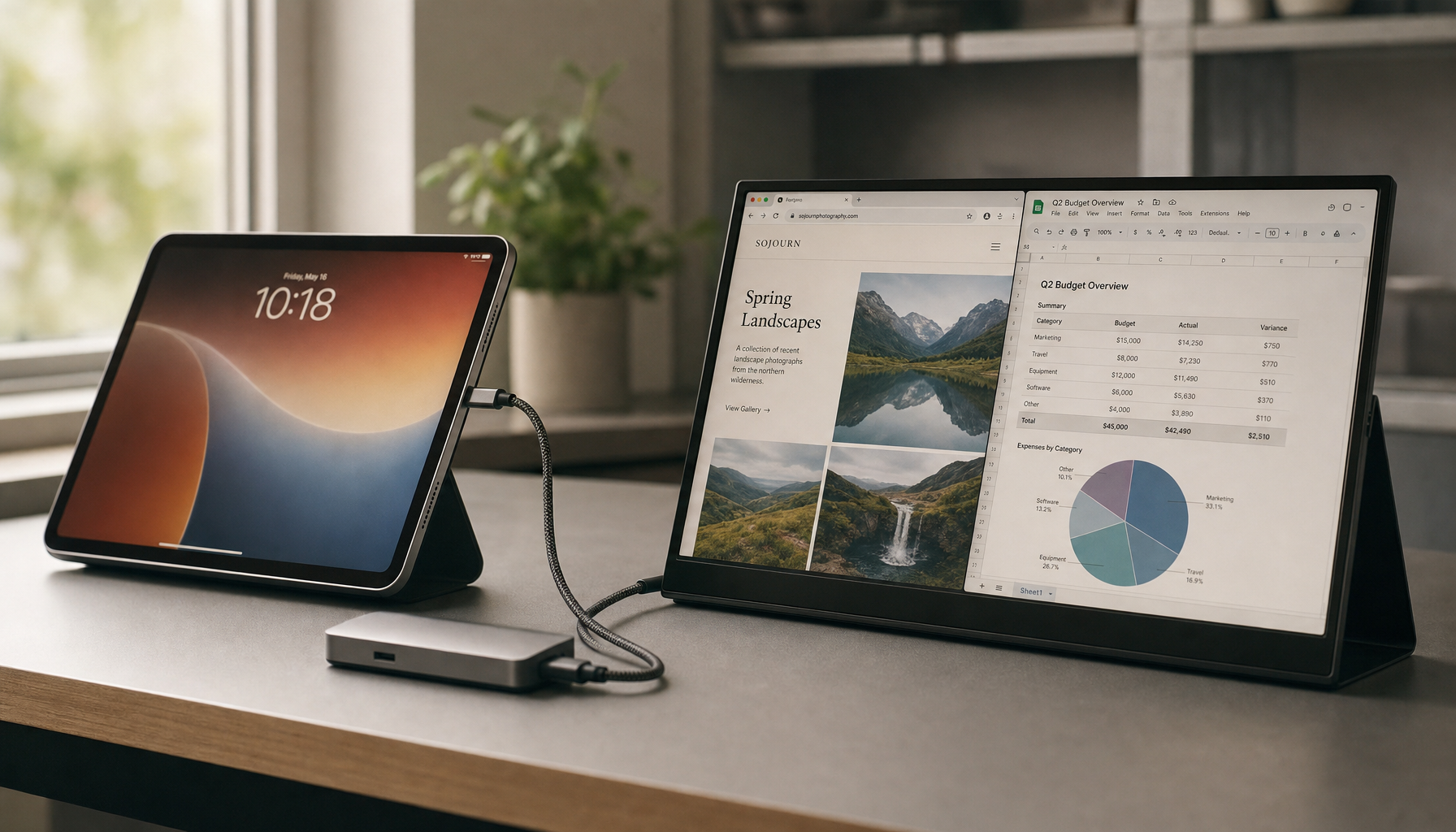
Portable displays behave differently because a USB-based connection carries video only when the port and cable support the required video mode. A laptop or mini PC may have a USB-based port that charges devices or moves data but does not output video, which explains why a portable monitor can power on and still show no signal.
Power can be the real failure point
Another portable-monitor pattern is that the screen powers up and then shuts off because the power source is insufficient. One answer in the notes says the included cable carried both power and video while generic replacement cables did not, and another recommends using the original wall charger or switching to a dedicated video cable plus USB for power. If you use a portable monitor for travel, consoles, or a second productivity screen, this is one of the first things to test.
Practical Next Steps
Use an isolation sequence, not random swapping
The fastest way to avoid replacing the wrong part is to test the monitor on another computer and test the original computer on another monitor using the same cable. That single sequence separates monitor failure from source-device failure, and it works for standard office displays, high-refresh gaming monitors, ultrawides, and portable monitors.
Action checklist
If the system fails on every display before the operating system loads, hardware checks should come before monitor shopping. Use this order:
- Confirm the monitor is on the correct input and the cable is fully seated at both ends.
- Test the same monitor and same cable on another computer.
- Test the problem computer on another monitor or TV.
- Try a different output port on the computer, especially the discrete GPU output instead of the motherboard port.
- Enter BIOS if possible; if BIOS shows, use the display projection shortcut, then lower resolution or refresh rate and update or roll back the graphics driver.
- For portable monitors, verify that the USB-based port supports video and try a dedicated video cable plus separate USB power.
- If there is still no signal before the operating system starts on any display, check PSU, GPU seating, CMOS battery condition, and basic POST behavior.
FAQ
Q: Why does a monitor show no signal even though the operating system detects it?
A: That usually means the connection exists but the display mode is not usable. The monitor may be on the wrong input, the port may be inactive, or the PC may be outputting a resolution or refresh rate the monitor cannot lock onto from that source.
Q: Is one video connector type better than another for gaming monitors?
A: Not automatically. If both ends support the same resolution and refresh rate, the result is effectively the same. For PC gaming, the PC-oriented connector is often the safer choice for high refresh rates and adaptive-sync behavior, while the TV-oriented connector remains essential for many consoles and living-room devices.
Q: Can a portable monitor fail even if the USB plug fits?
A: Yes. A matching connector shape does not guarantee video output. The port may support power or data only, and some portable monitors also need more power than the computer is delivering through that connection.
References
- A repair forum: Monitor no signal after startup
- A company support article: Check cable or input source
- A company support article: Second monitor receiving no signal
- A platform support article: Troubleshoot external monitor connections in the operating system
- A hardware forum: Monitor working for one computer but not the other
- A hardware forum: Second screen no signal
- A repair forum: PC not connecting to any monitor at home but works elsewhere
- A tech site: Laptop won’t connect to monitor
- A company community article: No signal on a USB video monitor