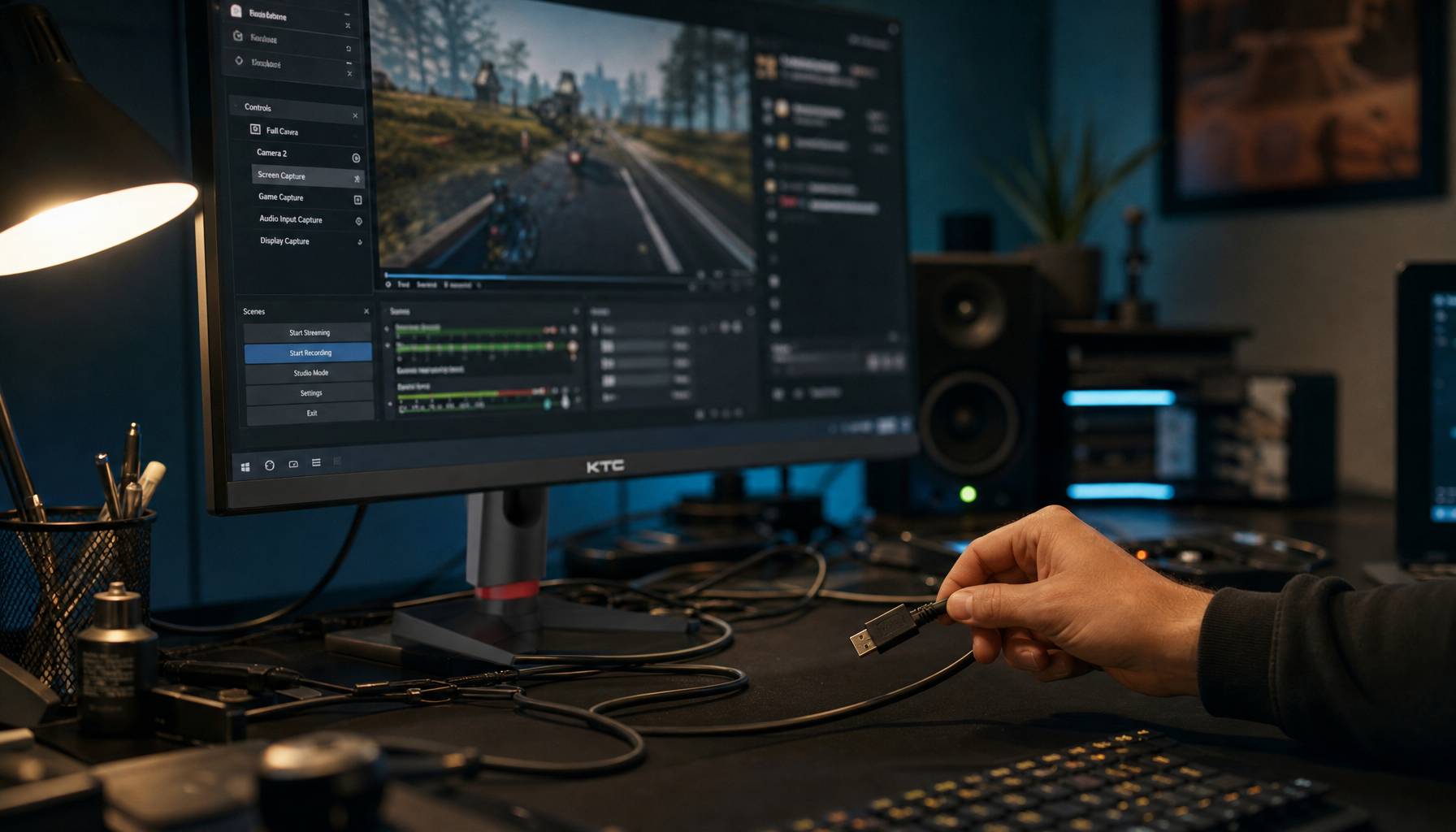
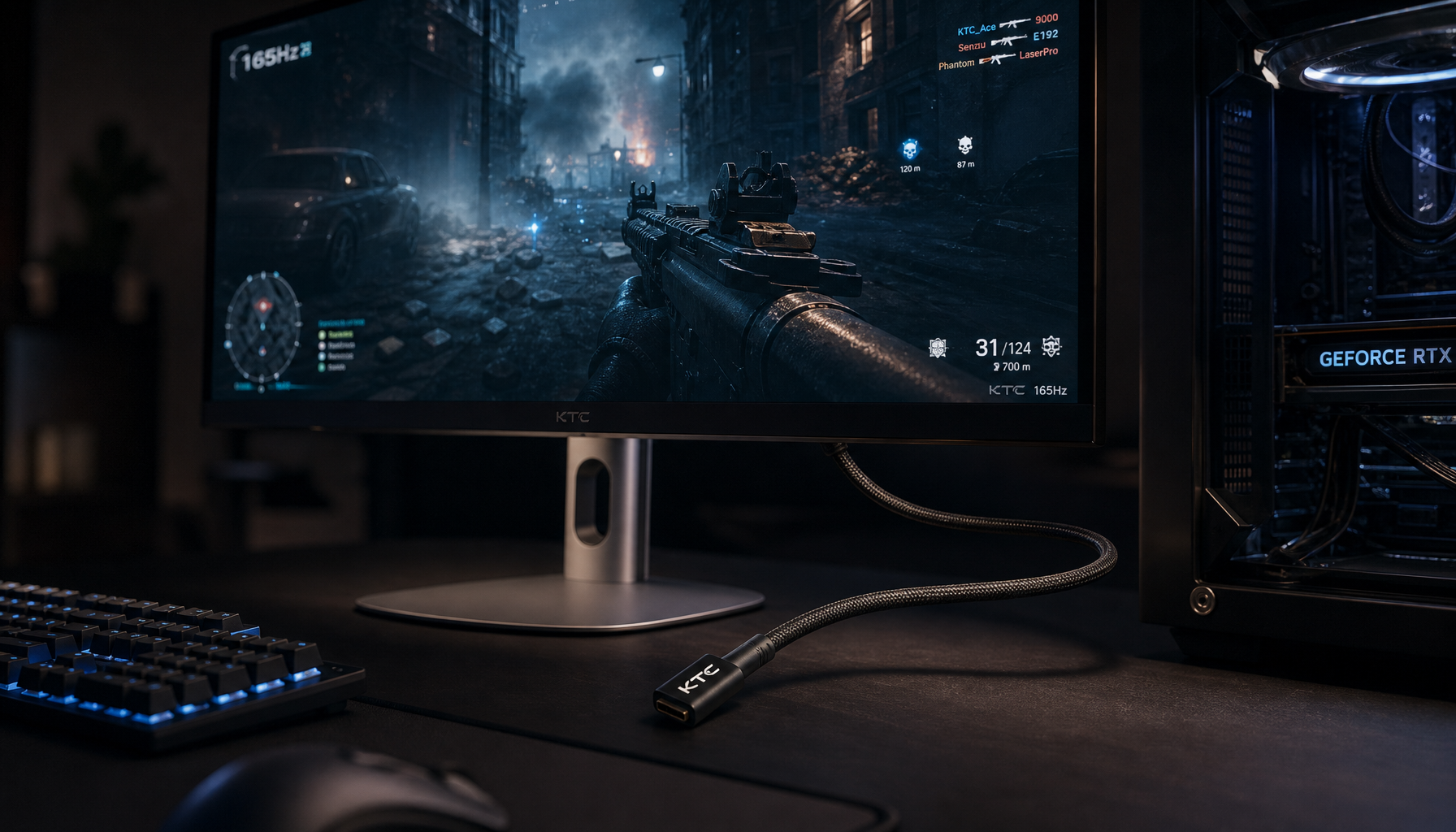
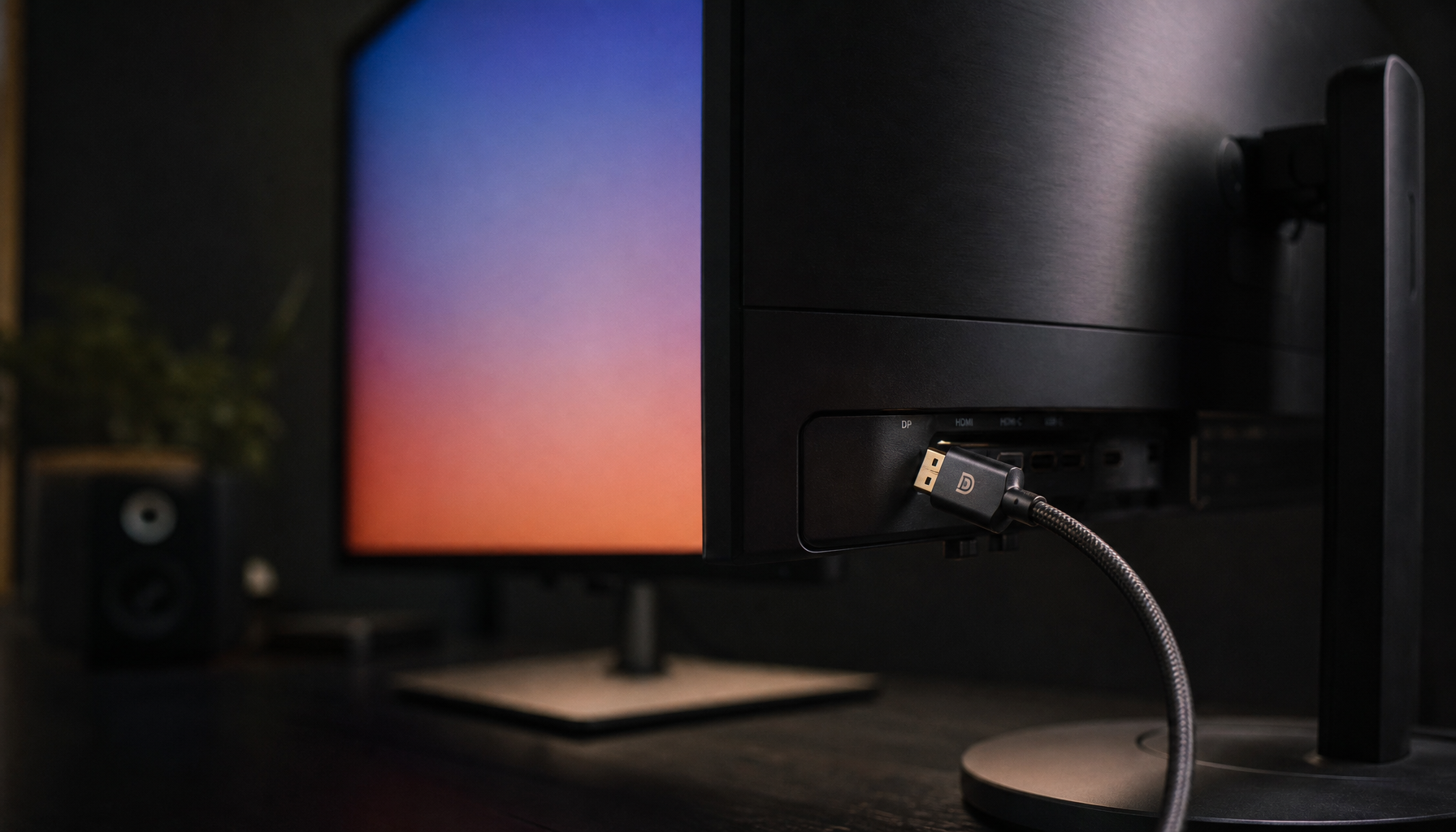
Some portable monitors need two cables because video and power travel separately. One-cable setups work only when the laptop, monitor, and USB-C cable all support video output and enough power delivery.
The Core Difference: Video-Only vs. Full-Function USB-C
A portable monitor is not just asking for a picture. It also needs steady power for the panel, backlight, speakers, touch layer, and sometimes higher refresh-rate electronics.
HDMI is excellent for compatibility, but it does not power the screen. That is why an HDMI portable monitor usually needs a second USB cable plugged into a laptop, charger, power bank, or wall adapter.

USB-C can be cleaner because one cable may carry video, audio, data, and power, but only when both devices support the right features. A USB-C port with DisplayPort Alt Mode can send the display signal through the USB-C connector.
The catch is that USB-C is a connector shape, not a feature guarantee. A charging-only USB-C cable may fit perfectly and still produce a “No Signal” message.
Why One Cable Works on Some Setups
A true one-cable portable monitor setup needs three things working together: the source device, the monitor port, and the cable.
Your laptop’s USB-C port must support video output. Ports marked with a Thunderbolt lightning icon or DisplayPort-style symbol are often the best candidates. The monitor also needs a USB-C input that accepts video, not just charging.

The cable matters just as much. Many cell phone charging cables are built for power, not display bandwidth. For reliable performance, use the cable that came with the monitor or a certified full-featured USB-C cable.
One-cable mode is ideal for short meetings, travel desks, and quick second-screen workflows. It keeps the setup fast, compact, and easy to pack.
Why Two Cables Can Be Better
Two cables are not always a downgrade. They often create a more stable, higher-performance setup.
If your laptop cannot deliver enough power, the portable monitor may flicker, restart, dim itself, or refuse to raise brightness. Some portable displays limit brightness in low-power mode, and external power restores full control. A typical laptop may power a portable monitor for only about 2 to 3 hours over USB-C.
Two-cable setups are also common with older laptops, game consoles, desktops, and mini PCs. HDMI handles video while USB-C or USB-A supplies power.
For portable touchscreens, HDMI alone is not enough for touch input. The display signal may work, but touch data needs USB, so a second cable is required.

Quick Buying and Setup Checks
Before blaming the monitor, check the connection chain. Most “one cable vs. two cables” problems come from mismatched ports, weak power, or the wrong cable.
- Check the laptop: confirm USB-C video output or Thunderbolt support.
- Check the monitor: identify which USB-C port supports display input.
- Check the cable: avoid charging-only USB-C cables.
- Check power: add external power for high brightness or long sessions.
- Check Windows: confirm the display is detected and set to Extend mode.
If Windows sees one monitor but not additional displays, the limitation may be the graphics adapter or available outputs. Microsoft notes that a device with one video output typically supports one external monitor unless expanded with compatible hardware.
The Smart Choice for Performance and Mobility
Choose one cable when you want the lightest, fastest setup and your laptop can provide both video and power. It is the cleanest path for productivity, travel, and flexible work.

Choose two cables when you need dependable brightness, longer sessions, touch support, console compatibility, or older-device support. For gaming, editing, and all-day work, that second cable can be the difference between a clean image and an unstable screen.
The best portable monitor is not the one with the fewest cables on paper. It is the one that matches your device, power needs, and performance target without forcing compromises at the desk or on the road.