









Yes, but the USB-C port must support video output, usually called DisplayPort Alt Mode. A USB-C shape alone is not enough, so compatibility matters more than the cable looking right.
USB-C Is the Connector, Not the Guarantee
For a portable monitor to work directly with a cell phone, three things need to line up: the phone, the monitor, and the cable. The phone must send video over USB-C, the display must accept USB-C video input, and the cable must support video rather than charging only.
This is why many flagship and gaming-focused USB-C phones can work, while many budget or midrange USB-C phones cannot. Compatibility lists for USB-C screen mirroring show the real pattern: support is model-specific, not universal.
Think of USB-C as the doorway. DisplayPort Alt Mode is the actual path carrying the image.
What You Need for a Clean One-Cable Setup
The best setup is simple: one full-featured USB-C cable from the phone to a portable monitor with USB-C video input. If the monitor supports power pass-through, you can add a charger to the monitor and keep the phone powered during longer work sessions.

Before buying, check these essentials:
- Phone supports USB-C video output or DisplayPort Alt Mode
- Portable monitor has USB-C video input, not just USB-C power
- Cable supports video, data, and power
- Monitor has enough brightness for your workspace
- Stand or case holds the screen at a stable viewing angle
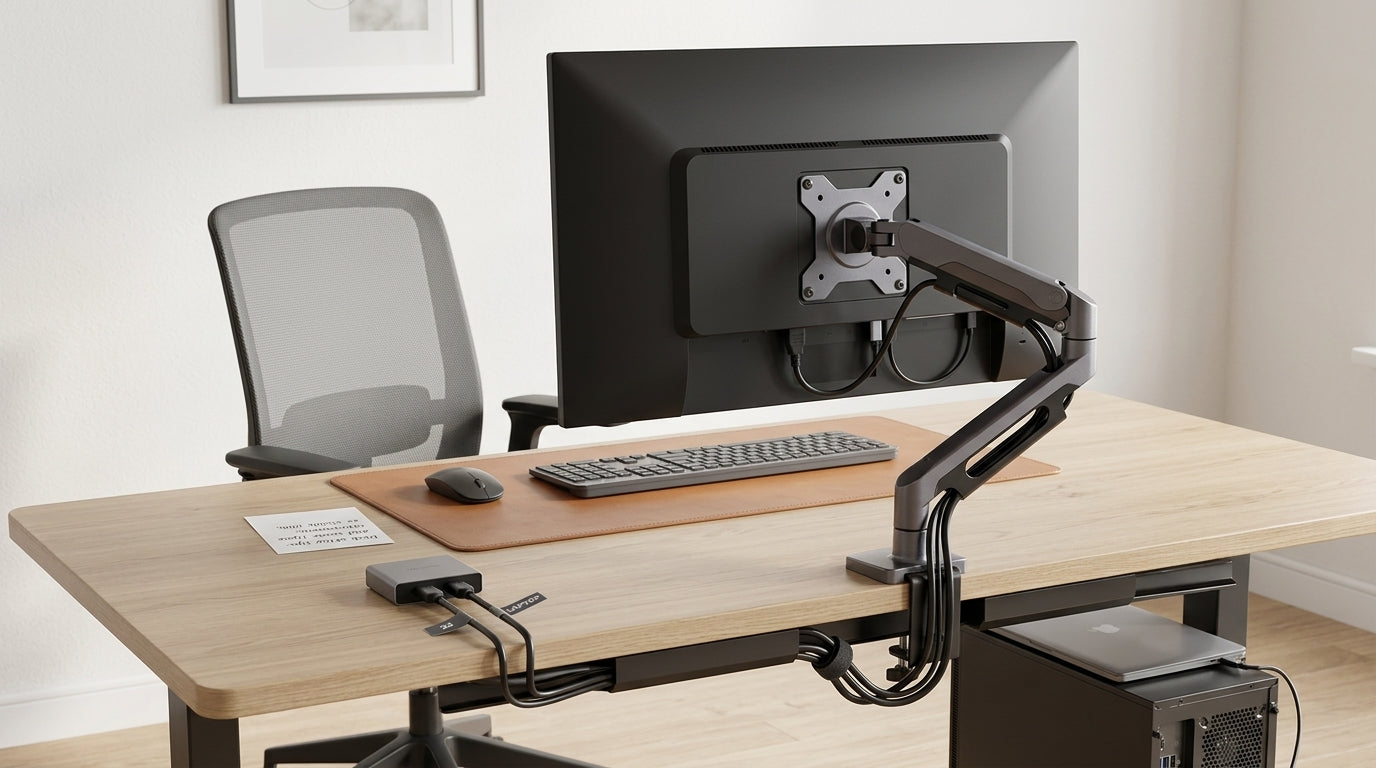
A true USB-C monitor can carry video, data, and charging through one cable when supported, making it a strong fit for compact workstations and travel setups. That one-cable advantage is a core reason users choose USB-C monitor connectivity over adapter-heavy setups.
Phone Mirroring and Desktop-Style Modes
Desktop-style phone modes create the strongest phone-to-monitor experience because they can turn a compatible phone into a workstation-like interface with resizable windows, keyboard support, and better multitasking. For productivity, that makes a portable monitor feel less like a blown-up phone and more like a lightweight workstation.

Some phones only mirror the screen. That is still useful for presentations, video calls, streaming, and reviewing documents, but it is not as efficient as a desktop mode.
Many newer USB-C phones can connect to external displays, but the experience is often more about mirroring or app-based output than a full desktop environment. For gaming, video, and photo review, that can still be excellent on a sharper 14- to 16-inch portable screen.
The safest buying rule is to verify your exact phone model and the monitor’s input specs before checkout.
If Direct USB-C Does Not Work
If your phone lacks USB-C video output, you still have options. A USB-C to HDMI adapter can mirror many phones to a monitor with HDMI input, though touch control usually will not pass back to the phone.

Wireless screen sharing and casting are useful for casual viewing, but they can add lag or compression. For gaming, presentations, or office work, wired video is usually more reliable, especially when wireless mirroring slows down on crowded Wi-Fi.
For the best value, do not overbuy. A 15.6-inch 1080p portable monitor is often enough for email, documents, dashboards, and streaming. Step up to 2K, OLED, touch, or high refresh only when your workflow actually benefits from sharper text, richer color, pen input, or smoother motion.
Bottom Line
You can use a portable monitor with a USB-C smartphone, but only if the phone supports video over USB-C. For the most reliable, immersive setup, choose a monitor with USB-C DisplayPort Alt Mode support, use a full-featured cable, and confirm your exact phone model before buying.


.%20Get%20the%20facts%20on%20what%20you%20need%20for%20a%20simple,%20one-cable%20setup.
)