If your monitor keeps jumping to a different picture mode when you swap between different video inputs, the fix is usually to control the input behavior first and the image preset second. Most cases come down to per-input memory, a new signal type, or a gaming feature that locks part of the menu.
You switch from your computer to a game device or work laptop, come back, and the image suddenly looks too bright, too dark, oversharpened, or stretched. Real support cases show this is often tied to specific signal changes such as 1080p vs. UHD, 60 Hz vs. high refresh, or HDR and adaptive sync being turned on. What follows will help you identify which one is happening on your display and choose the cleanest fix.
Why Your Monitor Changes Picture Mode After an Input Switch
Inputs are often treated as separate display profiles
Many monitors behave as if each port is its own device, so different video inputs can each store different picture settings. That is why a gaming monitor can look correct on one input from your desktop, then look too vivid on another input from a game device, even though it is the same panel.
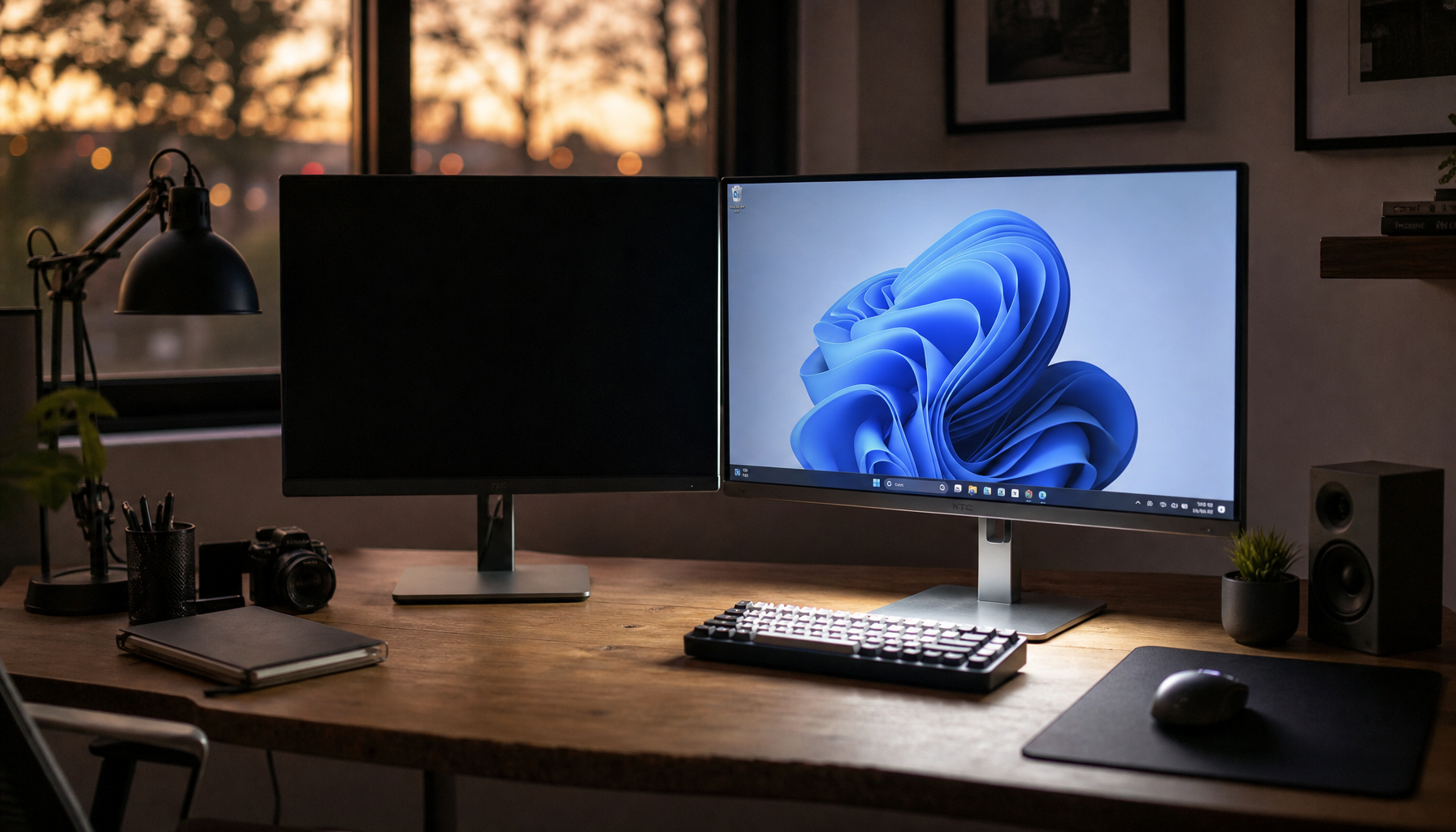
This behavior also shows up at the system level. In window-moving reports after an input change, an operating system plays the device-connect sound when the user switches back to a computer input, which means the display is being detected again rather than treated as one unchanged screen. In practice, that same redetection can also make the monitor reload a different preset, color format, or scaling rule.
Auto input switching can trigger the wrong path
Some displays automatically jump to whichever input becomes active first. A company’s input switching behavior shows a clear priority order of input 1 → input 2 → input 3 → input 4, and it also notes that turning off Auto select stops automatic switching. That matters because the monitor may not return to the same stored picture mode if it lands on a different port than you expected.
I have seen this most often in mixed desks with a desktop on one input, a work laptop on another, and a handheld or game device on a third. The user thinks the “monitor changed mode,” but the real issue is that the monitor changed inputs automatically, and each input had its own saved image settings.

Which Settings Usually Force a Different Picture Mode
HDR, adaptive sync, and low-latency modes can lock the menu
A real HDR and adaptive sync case on a monitor from a brand showed two separate HDR behaviors: one HDR mode looked correct but did not allow adaptive sync, while the gaming HDR mode allowed adaptive sync but introduced artifacts, crushed dark detail, and a brighter image. That is the clearest example of why two inputs can look radically different even before you touch brightness or contrast.
The same pattern appears on video devices when the incoming signal changes. In a video-input case, picture controls were unavailable at UHD, 50 fps, 8-bit, but became adjustable again after the source was changed to 1080p. If your monitor menu says something like Not available with current signal, the signal format is often the reason.

Resolution, refresh rate, and link type change what the monitor allows
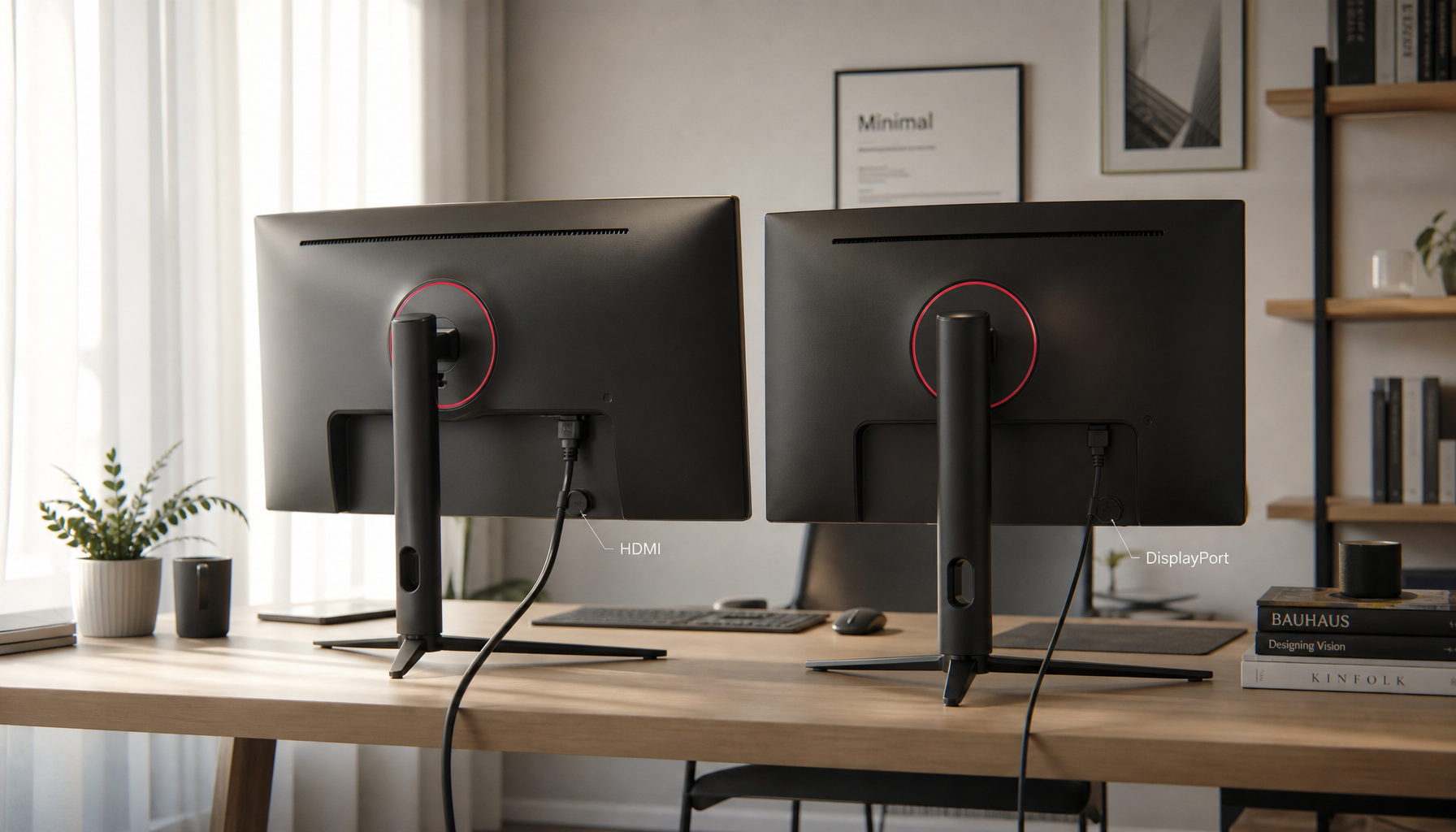
A monitor connected over different video links does not always receive the same bandwidth or signal format. A company’s external display specs show why: one connection standard tops out at 4K at 30 Hz, a newer version can do 4K at 60 Hz, and another can reach 4K at 120 Hz. Other display paths can also behave differently depending on whether the connection is native, alternate mode, or a dock.
For high-refresh-rate and ultrawide monitors, that matters even more. If one input is running 3440x1440 at high refresh through one display path and another is limited to a lower-bandwidth path, the monitor may switch color depth, chroma format, or gaming features automatically. Once that happens, the picture preset you saved on one input may no longer be available on the other.
How to Keep the Image Consistent Across Different Video Inputs
Start by disabling automatic behavior
Turn off Auto select or similar input-hopping features first. If your display also has a device-control feature, CEC, low-latency mode, or a source-led HDR toggle, disable them temporarily while testing. This reduces the number of variables and helps you confirm whether the real cause is the input itself or a feature that activates when a source wakes up.
Then test one source at a time. Use the same resolution, refresh rate, and HDR state on each input if possible. A good baseline for diagnosis is 1920x1080 at 60 Hz or your monitor’s native desktop mode with HDR off. In the out-of-range case, getting back to 1920x1080 at 60 Hz was the recovery path because it matched the display’s stable native mode.
Build one “reference preset” and copy it port by port
Once the signal is stable, create a reference picture mode on your main input. The safest base is usually User, Custom, or Game, not Vivid or a locked sRGB mode. The calibration guidance from a photography platform recommends adjusting the monitor’s own controls in this order: contrast, then RGB, then brightness, while disabling smart or self-adjusting features.
That sequence works well for monitors, especially when you need two inputs to match. Set the first input, write down every value, then switch to the second input and enter the same values manually. On many gaming monitors, that is the only reliable way to make one input from a game device look close to another input from a computer.

Warm up the panel before fine-tuning
If you want closer visual matching, let the panel warm up for 10 to 15 minutes before making changes. A calibration guide from a photography website also recommends starting from default LCD contrast and then adjusting brightness until mid-tones and shadow steps are visible. That is practical advice for monitor buyers and owners because it avoids chasing a moving target while the backlight and color balance settle.
What to Check on Gaming, Ultrawide, and Portable Monitors
Gaming monitors often tie picture controls to performance features
On a gaming monitor, the preset may flip when you enable adaptive sync, VRR, MPRT, shadow-boost feature, or console mode. Some menus silently swap you into a gaming-specific picture path; others lock color temperature or sharpness until VRR or HDR is disabled.
If you use one monitor for both competitive play and office work, make two deliberate profiles instead of forcing one compromise. For example, keep one input for computer gaming at high refresh with the gaming features you actually use, and keep another input for a work laptop or game device at a stable 60 Hz or 120 Hz mode with HDR off unless you know the monitor handles HDR cleanly.
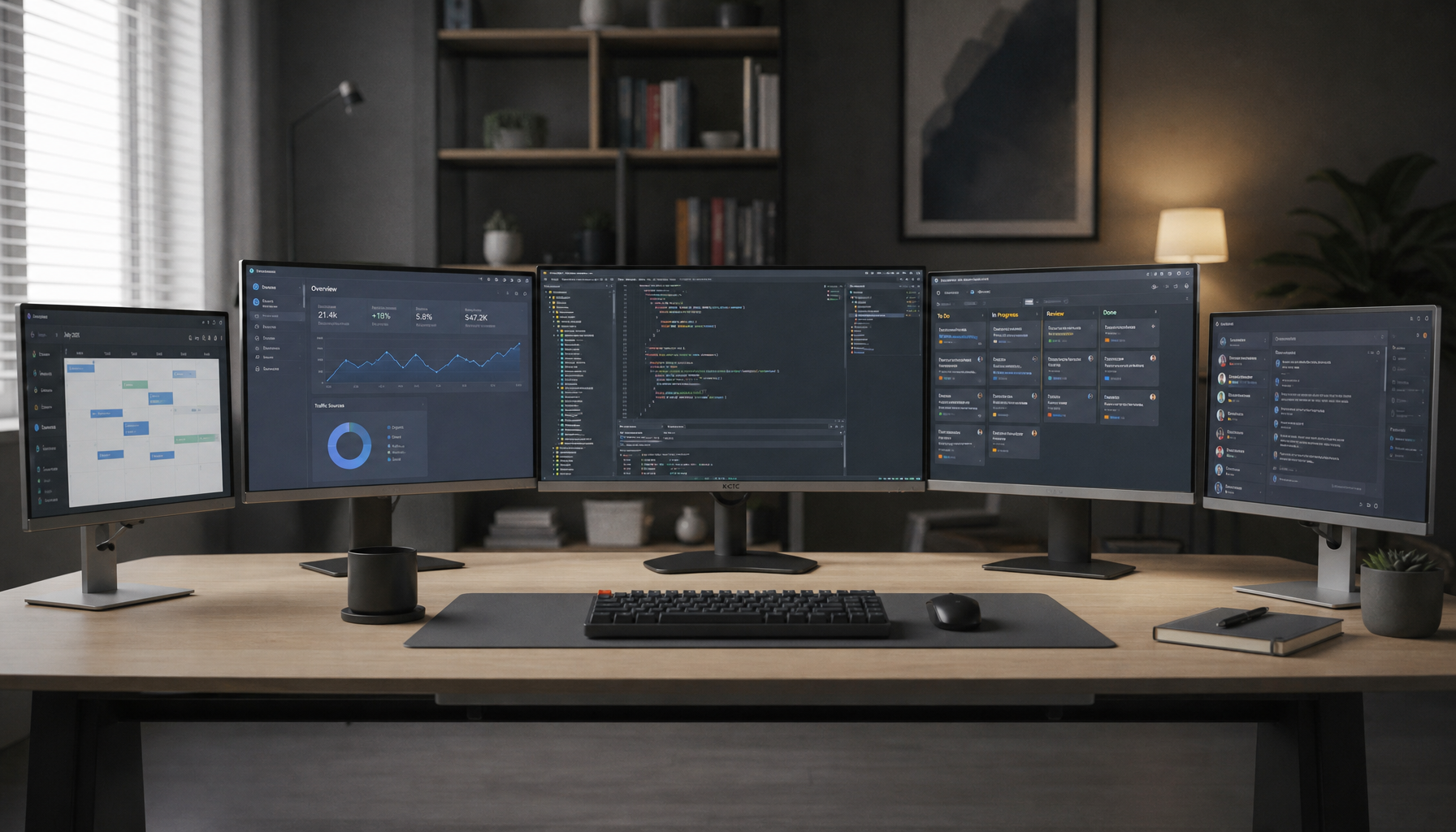
Ultrawide and multi-monitor setups are more sensitive to redetection
In a company’s dual-monitor reset reports, users lost monitor layout and desktop positions after reboot, docking, or resume, and a driver update fixed part of the persistence problem. That is relevant to ultrawide and stacked monitor setups because any momentary disconnect can cause an operating system to rebuild the layout and trigger new display identities.
A similar problem appears with KVMs and docks. In profile-switching cases from a software tool, disconnected monitors still appeared connected, which interfered with automatic profile detection. If your image preset changes only when a KVM, dock, or USB-C hub is in the chain, test the monitor with a direct cable before changing any picture settings.
Portable monitors and USB-C displays depend heavily on cable quality
Portable monitors are especially sensitive because one USB-C cable can carry power, video, and sometimes data, but not every cable supports the same display mode. If a portable monitor keeps changing color or refresh behavior when you switch sources, the problem may be the cable or adapter negotiating a different mode each time, not the panel itself.

For that reason, a direct, known-good cable is part of the fix. Match the cable and adapter to the monitor’s target mode first, then tune the picture. Otherwise you may save a preset on a compromised signal path and blame the monitor when the real issue is transport.
Comparison Table: What Usually Causes the Change
Trigger |
Common symptom |
Why it happens |
Best fix |
Monitor lands on the wrong source or wrong preset |
The display selects the first active signal and loads that input’s stored settings |
Turn off auto input select and switch ports manually |
|
Different port memory |
One input looks vivid, another looks normal |
Many displays save picture values per input, not globally |
Copy one reference preset to each input manually |
HDR enabled |
Picture options disappear or image gets brighter |
HDR mode can override or lock normal SDR controls |
Test with HDR off first, then re-enable only if needed |
Adaptive sync or VRR enabled |
Gamma, black detail, or color changes |
Gaming features can force a separate image pipeline |
Compare with VRR off and save a dedicated gaming preset |
Signal format change |
Not available with current signal in the OSD |
Resolution, refresh, bit depth, or chroma changes restrict the menu |
Match output format across devices, such as 1080p or native resolution at stable refresh |
Dock or KVM in the chain |
The operating system redetects the monitor on return |
EDID or hot-plug behavior changes when the path switches |
Test direct connection, then reintroduce the dock or KVM |
Driver persistence issue |
Layout and settings reset after reboot or wake |
GPU driver mishandles monitor identity or saved layout |
Update GPU and monitor drivers, then recreate profiles |
Action Checklist
- Turn off Auto select, CEC, and any source-led auto switching.
- Test the monitor with one direct cable and one source only.
- Set both sources to the same resolution, refresh rate, and HDR state.
- Build a User or Custom preset on your main input first.
- Copy the exact brightness, contrast, RGB, and color temperature values to the other inputs.
- Re-enable gaming features one by one to find the setting that forces the picture change.
- If the problem appears only through a dock or KVM, bypass it and test again.
FAQ
Q: Can I save one picture preset for every input on my monitor?
A: Sometimes, but not usually. Many monitors store image settings separately for different video inputs, so the practical fix is to duplicate the same values on each input.
Q: Why do my picture controls disappear only on one source?
A: That usually means the incoming signal is forcing a restricted mode. HDR, UHD timing, high refresh, VRR, or a device-specific format can lock out parts of the menu until you change the source output.
Q: Is this a monitor problem or an operating system problem?
A: It can be both. The monitor may switch presets because it sees a new signal type, while the operating system may also redetect the display and move windows or change layout when the connection drops briefly.
Final Takeaway
If your monitor’s picture mode changes every time you switch inputs, do not start by chasing random brightness or color settings. First make the signal path predictable: fixed input selection, direct cable, matching resolution and refresh, HDR off, and VRR off.
Once the image is stable, save one clean reference preset and copy it to every port you use. That approach works best on gaming monitors, ultrawides, and portable USB-C displays because it separates signal problems from picture-setting problems, which is the fastest way to stop the cycle of constant readjustment.