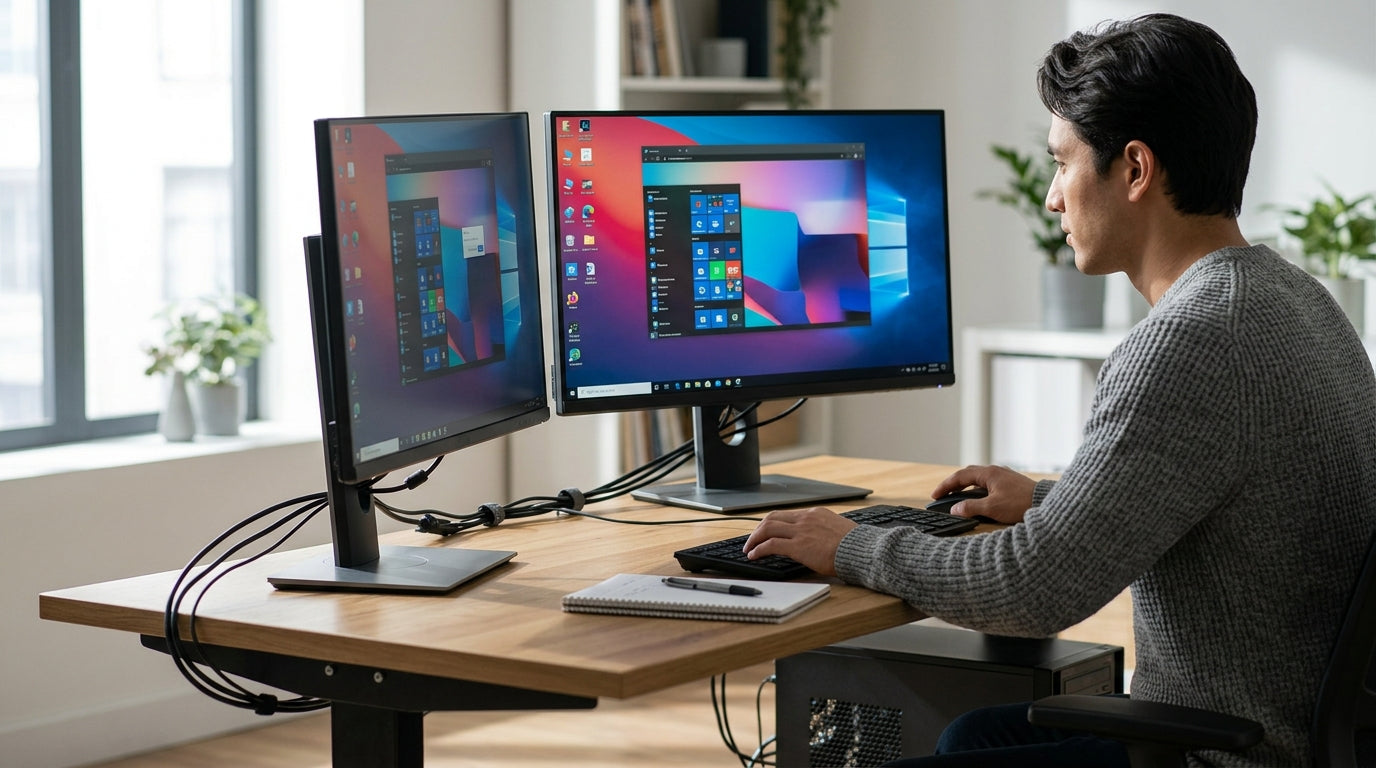
Setting up dual monitors can dramatically improve your workflow, but having the wrong screen as the primary monitor creates constant friction: the taskbar, notifications, and apps appear on the secondary display, forcing you to look away or manually drag windows every time. The good news is that Windows 10 and 11 make it straightforward to switch your primary monitor, and a few hardware and settings tweaks can make the change stick permanently—especially important for gamers who need the highest-refresh-rate screen as primary and professionals who want the taskbar anchored front and center.

Why the Primary Monitor Matters for Your Workflow
The primary monitor in Windows isn't simply the one labeled "1"—it serves as the system's anchor. It exclusively hosts the full system tray with the clock, network, volume, and other critical icons, along with most system notifications and flyouts. As this Windows 11 taskbar update overview explains, while secondary monitors have gained more flexibility in recent versions, the primary display remains the only one with complete tray functionality.
Full-screen games and many professional applications default to the primary monitor on launch. This ensures they synchronize correctly with the display's refresh rate and resolution capabilities. Setting a 60 Hz office monitor as primary while your 180 Hz gaming panel sits secondary often leads to stuttering or forced lower performance in games.
For everyday use, an incorrectly assigned primary monitor creates neck strain. You constantly turn your head to check the clock, notifications, or newly opened apps on the side screen instead of the one directly in front of you. Understanding this helps you decide early whether your highest-performance or most centrally positioned monitor should take priority.
How to Switch Your Primary Monitor in Windows 10 and 11
The process is nearly identical in both Windows 10 and 11. Open Settings (press Windows key + I), navigate to System > Display, and you'll see a diagram of your connected monitors. Click the Identify button to flash large numbers on each screen so you know which physical monitor corresponds to which numbered box.
Select the monitor you want as primary in the layout diagram. Scroll down and check the box labeled Make this my main display. Windows applies the change immediately in most cases. To verify, look at the taskbar: the full system tray with clock and icons should now appear on your chosen screen.
If the option is grayed out, ensure you've selected a monitor that is set to Extend these displays rather than Duplicate or Second screen only. For the most reliable results, update your graphics drivers first, as outdated drivers can interfere with display detection. These official Microsoft steps for changing screen layout remain the safest method across both Windows versions.

Optimizing for Gaming and Productivity Scenarios
Your choice of primary monitor should align with how you actually use the setup. For gaming on dual monitors, always set your highest refresh rate panel—such as a KTC 180 Hz model—as the primary display. This ensures full-screen games launch on the screen capable of the best performance and avoids desktop window manager (DWM) stutter when refresh rates differ between screens.
For productivity work, position the primary monitor directly in front of your seating position. This keeps notifications, the clock, and the taskbar where your eyes naturally rest, minimizing head movement during long work sessions. Many professionals prefer a 27-inch 4K panel like the KTC H27P27 for crisp text and detail as their main screen.
Mixed orientations work well once you decide the primary. Keep a horizontal high-refresh monitor as the primary anchor for games and video, while using a vertical secondary monitor for documents, chat windows, or reference material. The guide on vertical vs horizontal dual monitor setups offers practical layout ideas that complement these primary monitor choices.
Here's a quick decision aid showing how different scenarios map to primary monitor priorities:
Primary Monitor Choice by Use Case and Troubleshooting Step
A quick decision aid for choosing the primary display in Windows, with a separate fallback rule for primary-monitor amnesia. Gaming and productivity are compared as setup cues, while the troubleshooting path emphasizes the first-to-wake check and sleep-depth friction.
View chart data
| Category | Fit level |
|---|---|
| Gaming setup | 3.0 |
| Productivity setup | 2.0 |
| Primary monitor amnesia: first-to-wake | 3.0 |
| Primary monitor amnesia: deep sleep friction | 1.0 |
Troubleshooting: Solving 'Primary Monitor Amnesia' and Display Resets
Many users experience "primary monitor amnesia," where Windows forgets their chosen main display after sleep, reboot, or docking station reconnection. This often stems from the "First-to-Wake" rule: Windows assigns primary status to whichever monitor completes its EDID handshake first during boot or wake. Monitors with aggressive Deep Sleep or Energy Saving modes in their on-screen display (OSD) menu can wake too slowly and lose the race.
To address this, enter your monitor's OSD menu (usually via buttons on the bottom or back) and disable Deep Sleep, Energy Saving, or similar power features on your intended primary monitor. This helps it wake faster and consistently claim primary status. For docking stations, go back to Settings > System > Display and ensure the Remember window locations option (or similar multi-display persistence setting) is enabled.
If the problem persists after driver updates, use the Windows + P shortcut to quickly cycle display modes—this can force Windows to re-detect all screens properly. According to Microsoft troubleshooting discussions, display settings that change on their own are often tied to updates, sleep behavior, or docking, so keeping graphics drivers current is essential. Advanced users may explore tools like Custom Resolution Utility (CRU) for EDID overrides, but treat these as pro-level steps and back them up first, as they carry risk of temporary display instability.
Quick Shortcuts for Dual Monitor Management
You don't always need to open Settings. Press Windows + P to instantly switch between PC screen only, Duplicate, Extend, and Second screen only modes. This shortcut is particularly useful when a monitor isn't detected or the primary assignment seems stuck.
In Settings > Personalization > Taskbar, you can choose whether to show the taskbar on all displays or only the primary one. For quickly moving apps between screens, hold Shift + Windows + Left Arrow or Right Arrow to snap windows across monitors without dragging.
These shortcuts integrate well with the portable gaming dual-screen guide for users who frequently change setups between desk and mobile configurations.
Building Your Ultimate Multi-Monitor Combat Station
Once your primary monitor is correctly set and stable, the right hardware makes the entire workflow seamless. Pair a high-refresh gaming monitor as primary with a high-resolution office panel as secondary to get the best of both worlds. KTC's ergonomic stands and VESA mount compatibility simplify precise physical alignment so your primary screen sits exactly where your eyes naturally focus.
Consider the KTC H24T7 for fast-paced gaming as your primary display or the KTC H27P27 for sharp productivity work. Browse the full gaming monitor collection or office monitor collection to match your specific needs. Check the ergonomic monitor buying guide for tips on stands, mounts, and desk layout that reduce strain in long dual-monitor sessions.
With the primary monitor correctly assigned and hardware optimized, your dual-monitor combat station delivers the efficiency and performance you set out to achieve.
Frequently Asked Questions
Does Windows 11 handle the taskbar differently than Windows 10 on secondary monitors?
Windows 11 offers improved notification and clock visibility on secondary screens compared to older versions, but the full system tray and certain system flyouts still appear only on the primary monitor. Always verify your primary setting after major updates, as behavior can shift slightly between feature releases.
Why does my chosen primary monitor keep changing back after reboot?
This "amnesia" is usually caused by the secondary monitor waking faster during the EDID handshake. Disable Deep Sleep or aggressive power-saving modes in the monitor's OSD menu on your intended primary display. Updating graphics drivers and ensuring proper docking station configuration also helps.
Can I set different apps to always open on specific monitors?
Windows doesn't offer built-in per-app primary settings, but you can influence behavior by keeping your preferred monitor as the system primary. Many apps remember their last position; close them while on the desired screen and they often reopen there. Third-party tools exist for more advanced window management but are beyond basic Windows settings.
Will changing the primary monitor affect my game performance?
It can. Full-screen games default to the primary monitor, so setting your highest refresh rate and fastest response time panel as primary ensures they use its full capabilities. In mixed-refresh-rate setups, the wrong primary choice often introduces stuttering or forces lower settings.
What should I check first if my monitors aren't detected correctly?
Start with the Windows + P shortcut to reset the display mode, then verify all cables are securely connected. Update your GPU drivers, and if using a docking station, test direct connections to isolate the issue. Power cycle both the computer and monitors before diving into advanced troubleshooting.
Do I need special cables or adapters for a stable dual monitor setup?
Use high-quality HDMI 2.0 or DisplayPort 1.4 cables rated for your monitors' resolution and refresh rate. For KTC monitors, the included cables usually suffice, but upgrading to certified cables can reduce handshake problems that contribute to primary monitor amnesia.