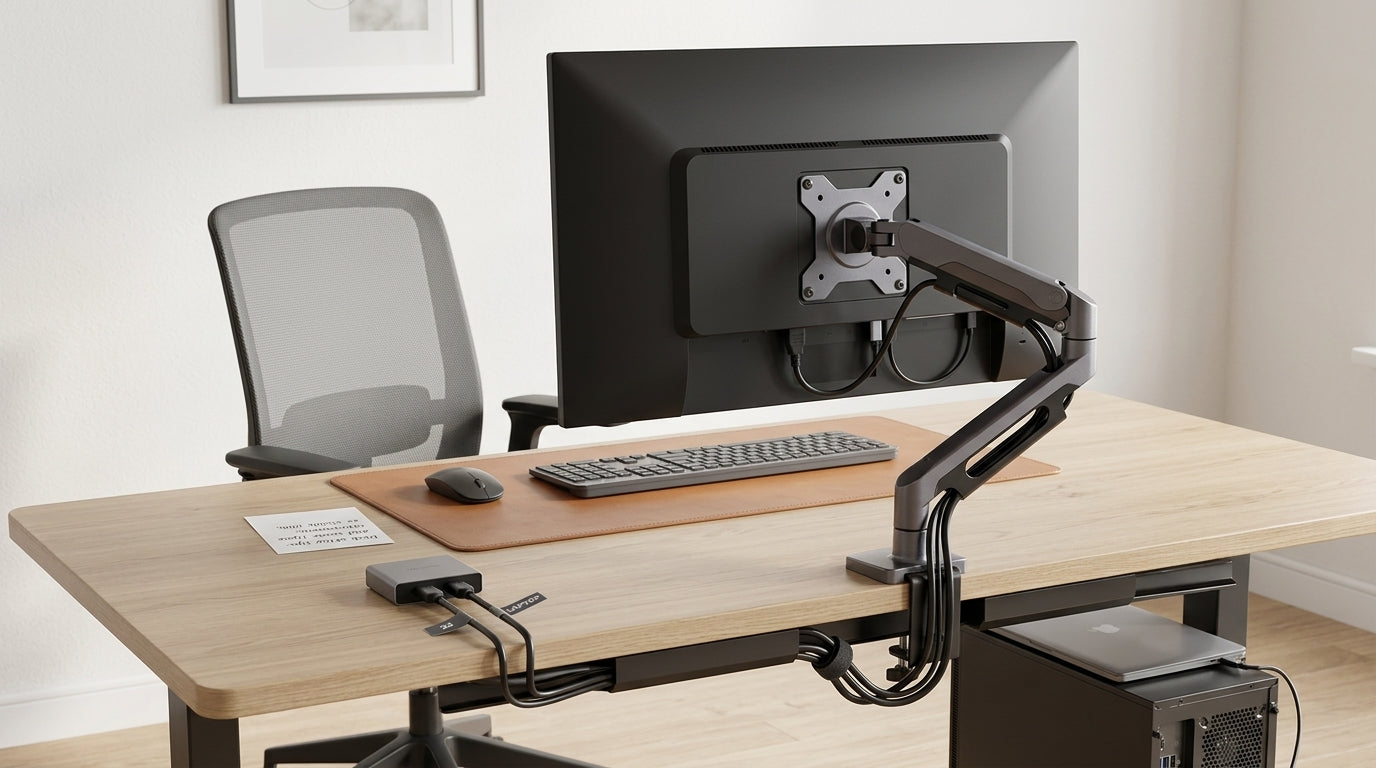
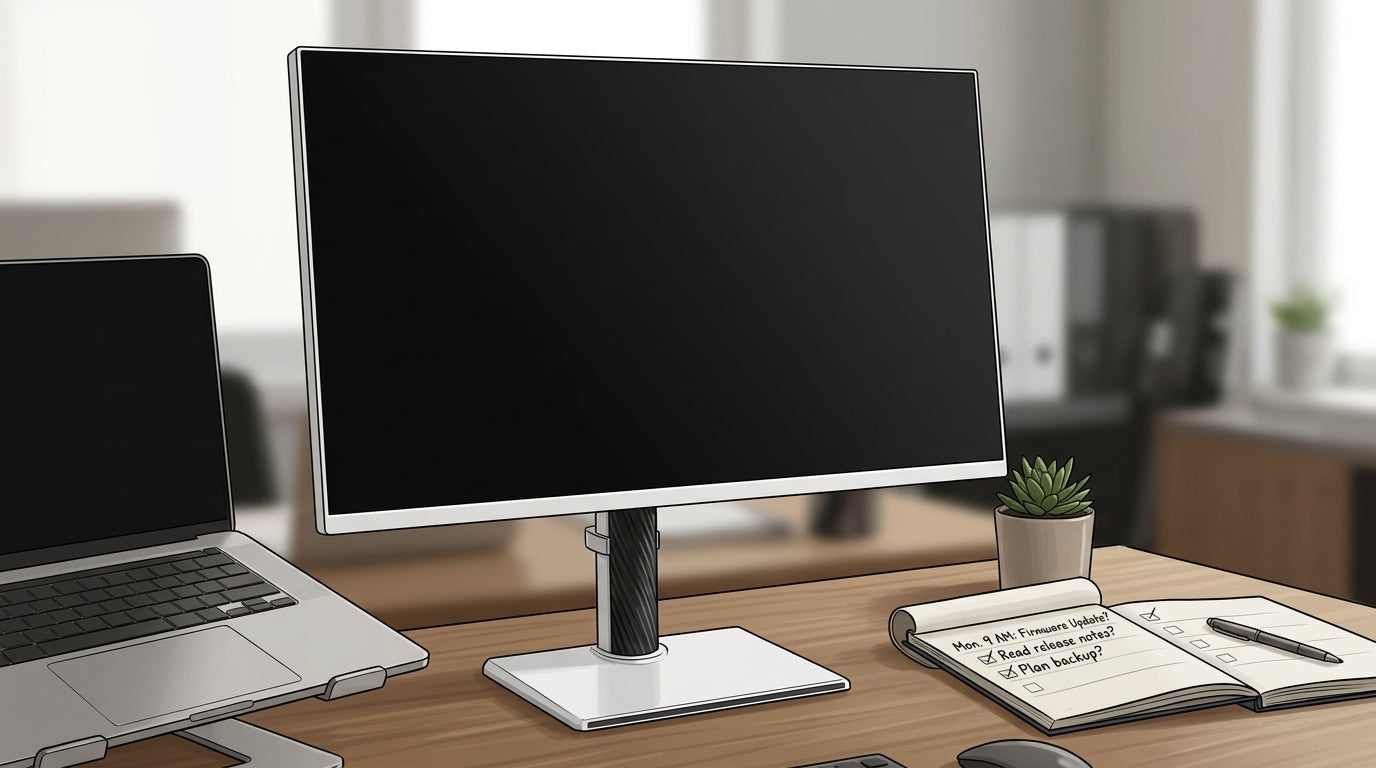
A USB-C monitor works only when the laptop’s USB-C port supports video, not just charging or data. Identical-looking ports can behave very differently depending on whether they include display output.
USB-C Is the Shape, Not the Promise
USB-C is a connector, not a full feature guarantee. The same oval port can carry power, file transfers, video, or all three, depending on how the laptop maker wired it.
For a monitor signal, the key feature is usually DisplayPort Alt Mode. Compatibility notes explain that USB-C video capability depends on the exact port implementation, so a laptop can have USB-C and still fail to drive an external display.
That is why a keyboard, mouse, or charger may work through a USB-C monitor hub while the screen stays black. Data and power are working; video is not.
Why Some Laptops Feel Easier
Some laptops commonly ship with display-capable USB-C or high-bandwidth display ports, which gives users a cleaner path to external monitors. These ports can often support display output, charging, high-speed data, and docking through one cable.
That consistency helps certain monitor setups feel plug-and-play. Many monitor recommendations prioritize USB-C or high-wattage charging because one-cable desk setups often depend on a single port handling power, display, and accessories.

Other laptops are more varied. A premium ultraportable may have USB4 or a display-capable high-speed port. A budget or midrange system may have USB-C for charging and data only. Both ports may look the same from the outside.
The Real Compatibility Checklist
Before blaming the monitor, check the laptop, cable, and display as one system. A performance monitor can only run at its best when every link supports the same workload.
Quick checks:
- Look for a lightning icon or DisplayPort “DP” icon near the USB-C port.
- Confirm the laptop specs mention DisplayPort Alt Mode, USB4, or video output.
- Use a certified full-feature USB-C, USB4, or high-speed display cable.
- Match power delivery: many laptops need 60W to 100W for reliable charging.
- Test HDMI or DisplayPort separately to isolate the monitor from the USB-C path.

Cable quality matters more than it should. Identical-looking USB-C cables can differ in wattage, data speed, and video support, and proper wiring or E-marker chips may be needed for demanding display and power loads.

Docking Monitors Add Another Layer
USB-C monitors with built-in hubs are powerful productivity tools: one cable can feed the display, charge the laptop, connect USB accessories, and sometimes provide Ethernet. But the laptop still needs compatible video output.
A docking monitor may charge a laptop and run its USB ports while failing to show an image. That does not prove the monitor is defective; it often means the laptop port lacks DisplayPort Alt Mode or equivalent video support.
Some setups support daisy chaining, where a second monitor connects through the first display’s DisplayPort output. That requires the laptop, primary monitor, and second display to support the right DisplayPort path, as shown in a second monitor connection.

High-bandwidth ports improve the odds, but they do not automatically guarantee every monitor, dock, cable length, refresh rate, or multi-display setup will work perfectly.
What to Buy for Fewer Surprises
For a one-cable desk, choose a USB-C monitor with 90W or higher power delivery, reliable display scaling, and a built-in hub if you want the monitor to handle display, charging, and accessories.
For mixed-laptop use, buy more defensively. Prioritize monitors with USB-C plus HDMI and DisplayPort inputs, so a laptop without USB-C video can still connect through a traditional display port.
For portable smart screens, check the same basics: the laptop or cell phone must support USB-C video, and the cable must carry display data. USB-C keeps the setup clean, but only when the port, cable, and monitor support the same display path.