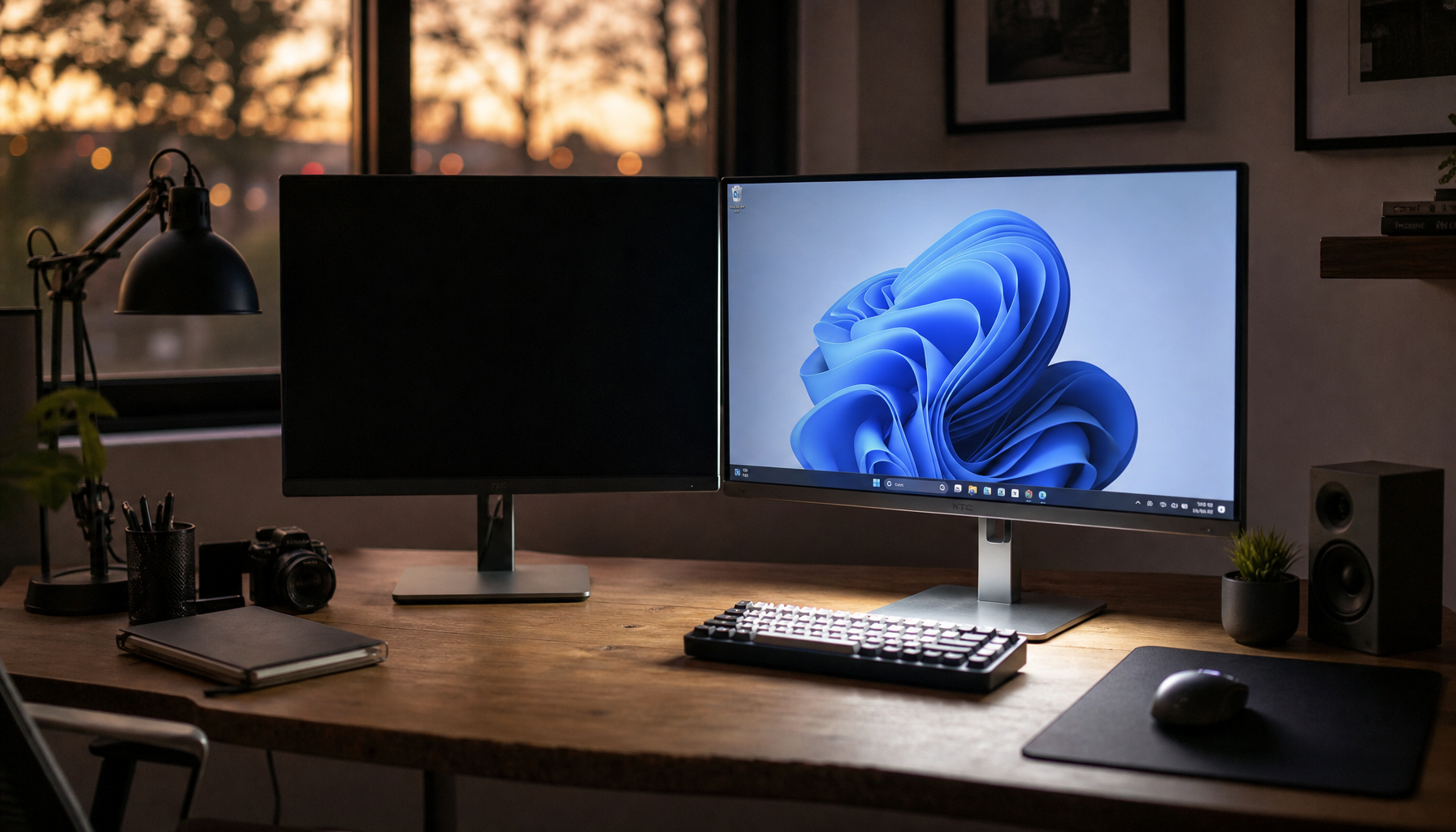
Calibration test patterns look different because your monitor and phone are separate display systems with different panels, brightness behavior, color profiles, gamma curves, and ambient-light controls. The pattern is not changing; each screen is translating it through its own hardware and software pipeline.
Your Screens Are Not Speaking the Same Color Language
A monitor may target sRGB, a wide-gamut photo mode, DCI-P3, or a factory-tuned game mode, while a phone often uses aggressive color enhancement, adaptive brightness, and wide-gamut rendering. That means the same gray ramp, skin tone, or saturation patch can look neutral on one screen and too warm, too blue, or too vivid on another.

Calibration is meant to bring a display closer to a known reference, not make every screen visually identical. A proper workflow measures the display and builds an ICC profile so color-managed software can translate image data more predictably through that specific screen.
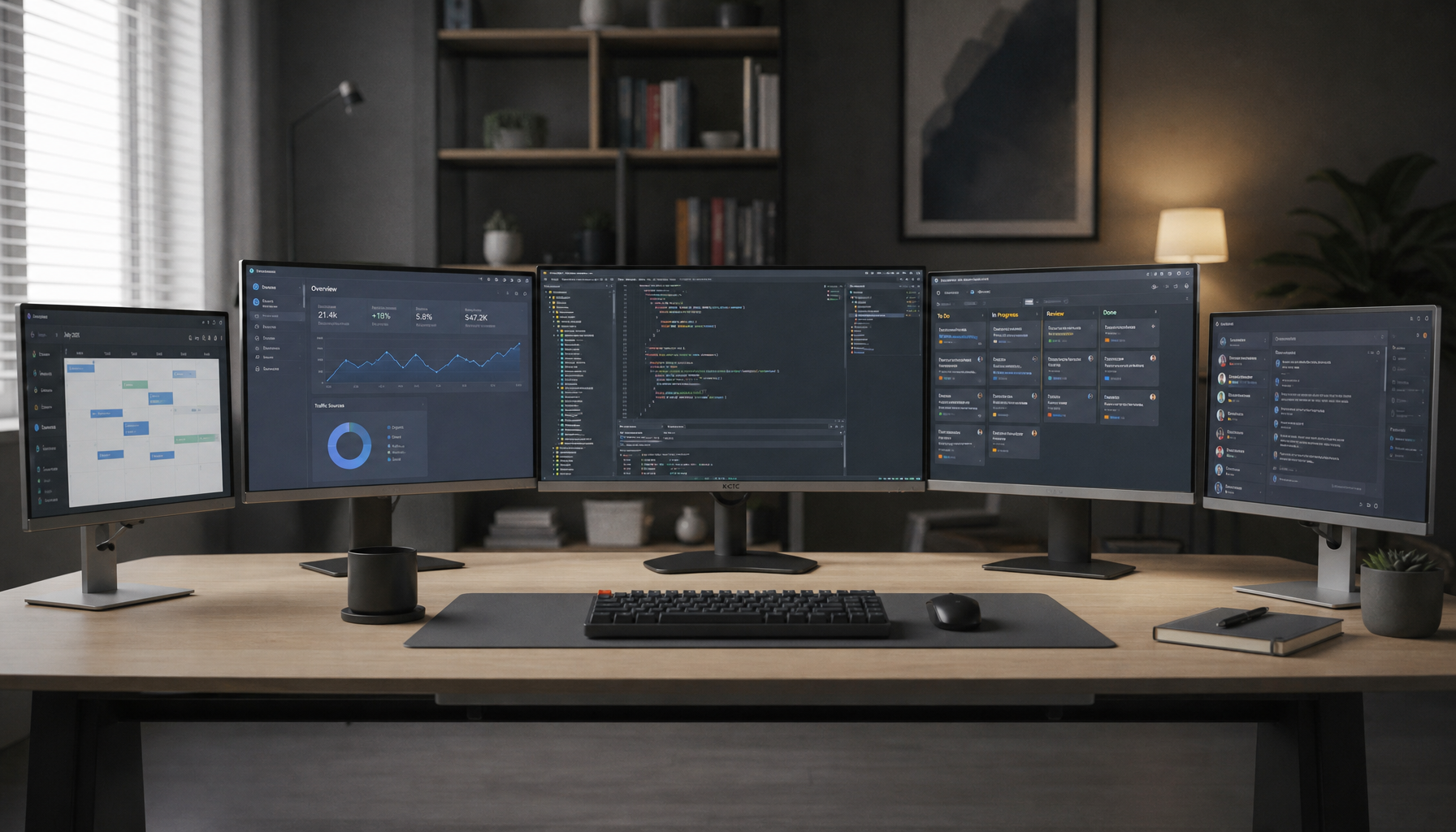
For gaming and productivity, this matters in different ways. A competitive monitor may prioritize speed, black visibility, and motion clarity, while a phone may prioritize punchy HDR-style viewing. Both can look good, but only one may be closer to an accurate reference.
Brightness and Gamma Change the Pattern Fast
Most people notice the mismatch first in black-level and white-level patterns. On one display, near-black boxes are visible; on another, they disappear into a crushed shadow block. On one screen, white steps stay separated; on another, highlights clip into a flat bright patch.

Basic LCD setup usually starts with brightness, contrast, and RGB balance because these controls decide whether shadow and highlight detail survive. A practical desktop target is to keep deep blacks dark while still revealing near-black detail, and to keep whites bright without losing texture, as explained in brightness, contrast, and RGB balance.
Gamma is the curve between black and white. A common monitor target is 2.2 for standard desktop use, while darker media rooms may use higher contrast settings. If your phone dynamically changes tone mapping or brightness, the same test image can shift throughout the day.
Phones Are Poor Calibration References
Your phone is useful for checking how content may look to a typical viewer, but it is not a reference instrument. Phones frequently change brightness automatically, may alter white point at night, and often use vivid color modes to make photos and video feel more immersive.
That is why calibrating a monitor until it matches your phone is risky. You may be matching your display to a moving target. A better baseline is a warmed-up monitor, stable room lighting, disabled eco or auto-brightness modes, and a measured profile from a colorimeter.
A hardware calibrator measures actual screen output and creates compensation settings. It can improve accuracy, but it cannot turn a limited panel into a premium reference display. Current buying advice also notes that display compatibility matters, especially for OLED, mini-LED, and HDR screens with high brightness capability in display compatibility.
How to Get More Consistent Results
Use your monitor as the controlled screen and your phone as a real-world preview. That gives you a reliable editing or setup base without pretending every consumer device will match it perfectly.

Quick setup steps:
- Warm up the monitor for about 30 minutes before judging patterns.
- Disable auto brightness, eco mode, night color, and vivid presets.
- Set a neutral mode such as Custom, User, or sRGB when appropriate.
- Adjust black and white patterns before chasing saturation.
- Recalibrate every 1 to 3 months, or sooner for color-critical work.
For a balanced target, many workflows use D65 white point, 2.2 gamma, and moderate luminance around 120 cd/m². Calibration guidance describes how calibration adjusts white point and luminance before building a display profile.
If your final audience mostly uses phones, preview there before publishing, but make color decisions from the calibrated monitor. That is how you keep both performance and trust in the image.