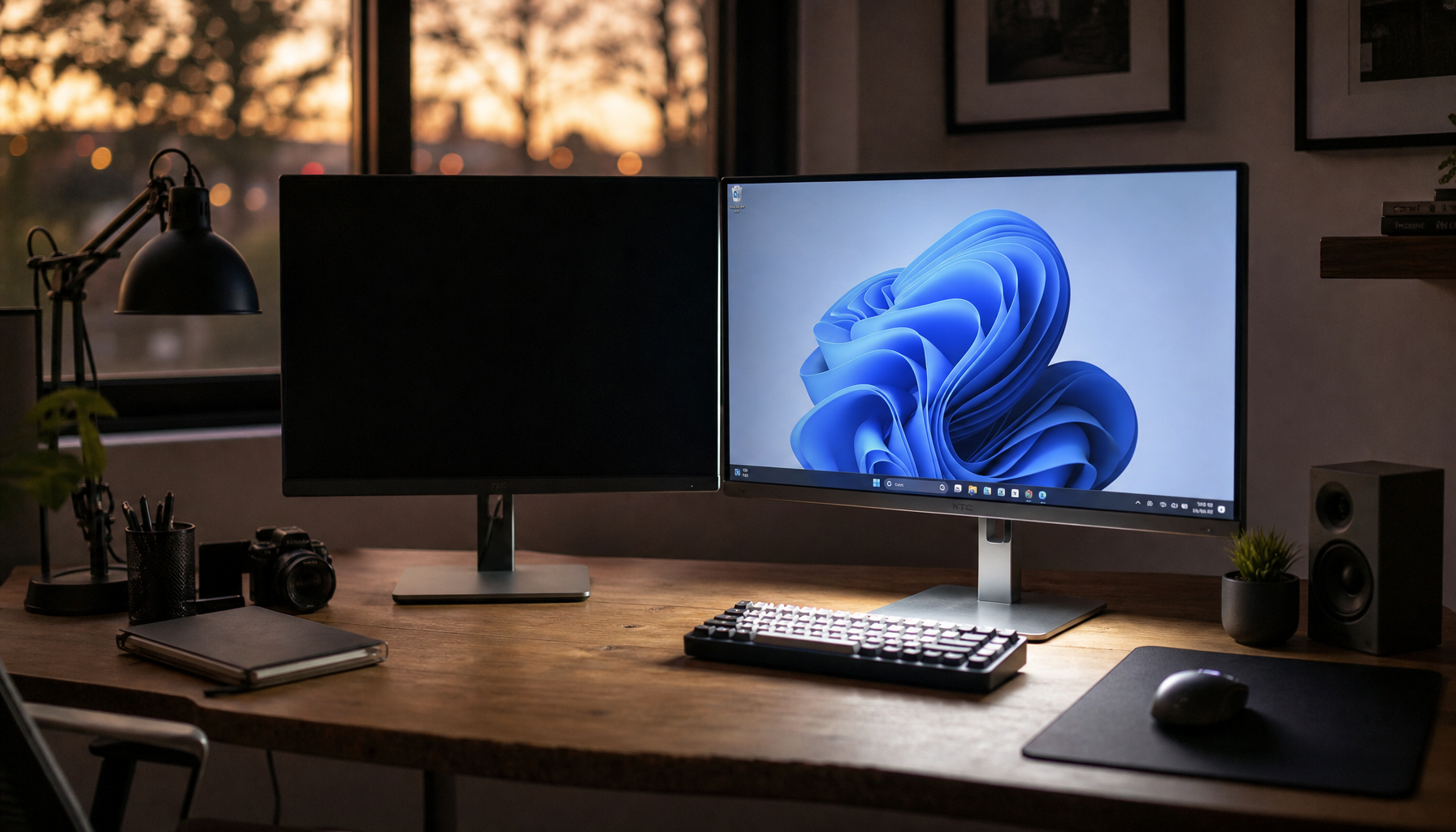
A brief black screen during app or game switching usually means your display is renegotiating a mode change, not that the monitor is failing. On gaming and high-refresh monitors, the most common triggers are exclusive fullscreen, refresh-rate mismatches, variable refresh settings, and a marginal signal path.
Does your gaming monitor blank out every time you Alt+Tab out of a match or jump between a game and a platform? In cases like a 165 Hz display from a brand that stopped black-screening after being reduced to 144 Hz, the quickest fix came from changing display settings instead of replacing hardware. You’ll learn how to tell a normal mode switch from a real signal problem and which monitor-related settings to change first.
What the Brief Blackout Usually Means
Normal mode switch vs. true failure
A 1 to 2 second black screen when leaving a fullscreen game is often the graphics system re-initializing the display path as it switches between the game’s mode and the desktop’s mode. That is why audio and input may keep working even while the screen is black.

A fullscreen windowed workaround is a strong clue that the issue is tied to mode switching rather than a dead panel or crashing GPU. If borderless mode makes Alt+Tab nearly instant, your monitor is usually reacting to a display-state change, not losing power.
When to worry more
A random one-second blackout across multiple devices points in a different direction. In that case, the same monitor showed the problem on two PCs and a game console, which makes a monitor-side or signal-path issue more likely than a single game or operating system setting.
For monitor buyers, that distinction matters. A blackout that happens only during switching is often fixable with settings; a blackout that also appears at idle, during video playback, or on another source deserves cable, port, firmware, or panel-level suspicion before you keep blaming the game.
Which Settings Trigger It Most Often
Refresh, resolution, and sync mismatches
A mode-switch blackout of about 1 to 5 seconds can be triggered by a change in resolution, refresh rate, or sync technology. That is the core pattern to remember: if the desktop is running one display mode and the game asks for another, your monitor may briefly lose the picture while the link renegotiates.
I usually treat this as a matching problem first. If your desktop is set to 1440p at 180 Hz with VRR on, but a game launches at a different refresh rate or with different sync behavior, the monitor has to switch states. On high-refresh gaming monitors, that can be fast and barely noticeable, or slow enough to feel like something is broken.
High refresh can expose weak spots
A monitor case showed black screens and “No Signal” when the user selected refresh rates above 119.88 Hz in an operating system, even though the same PC, monitor, and display cable worked at 180 Hz in another operating system. That is a good reminder that “the monitor supports it” and “this exact software stack is stable at it” are not always the same thing.
A 34-inch ultrawide with variable refresh enabled also showed repeated signal loss after resume, with workarounds that included disabling variable refresh or dropping from 100 Hz to 60 Hz. Ultrawide monitors and high-refresh displays are great upgrades, but they also make mode changes more sensitive when VRR and fullscreen behavior are layered together.
Is It the Monitor, the Cable, or the Game Mode?
Quick ways to isolate the cause
A black screen that disappears in fullscreen windowed mode usually points to the game mode, not a bad monitor. Exclusive fullscreen is allowed to take over the display more aggressively, so it is more likely to force a visible switch.
A one-monitor-only problem is another strong clue. In that example, the blackout happened on one new high-refresh display but not on the second display, which narrowed the problem to that monitor setup rather than the whole PC.
A mixed-monitor setup with a 1440p 180 Hz main display and a 1080p 60 Hz secondary display is also worth taking seriously during troubleshooting. Even when the second screen is not the root cause, mixed refresh and resolution environments make it harder to tell whether the issue is the game, the GPU driver, or the primary monitor’s timing behavior.

Scenario |
What it usually points to |
Best first move |
Black screen only when Alt+Tabbing from exclusive fullscreen |
Normal display mode switch |
Try borderless or fullscreen windowed |
Black screen only on one monitor |
Monitor-specific timing or setting issue |
Lower refresh one step and retest |
Black screen after enabling VRR or after resume |
VRR or handshake instability |
Toggle VRR off and compare |
Black screen across PC and console |
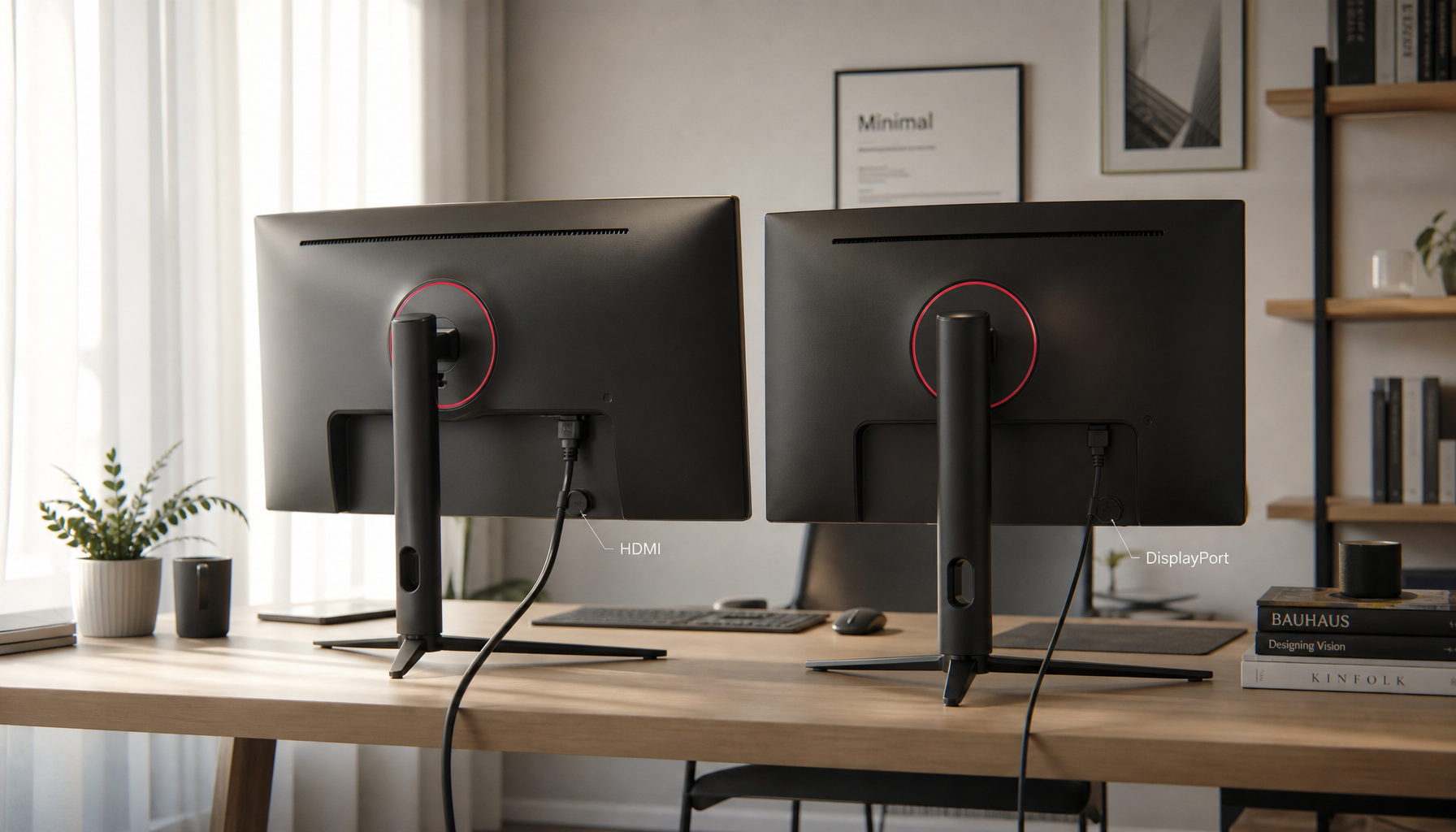
Monitor or cable path issue |
Test another port, cable, and source |
Black screen only at the highest refresh rate |
Signal margin or software-stack instability |
Match desktop/game mode and back off refresh |
Fixes That Usually Work Without Replacing Hardware
Match the desktop and game on purpose
A same-mode strategy is the highest-value fix for most gaming monitors: keep the desktop and the game on the same resolution, the same refresh rate, and the same sync state whenever possible. If you use VRR, keep it consistently on or consistently off for the test. If your monitor offers several refresh options, starting with one stable target mode is often better than chasing the highest advertised number.
For stubborn cases, advanced users sometimes go further and expose only one preferred refresh rate through custom resolution tools. That is not the first thing I would do on a normal setup, but it shows the principle clearly: fewer mode changes usually mean fewer blackouts.
Use borderless mode before deeper surgery
A borderless or fullscreen windowed mode often makes switching immediate because the desktop and the game stay in the same display environment. The tradeoff is that some games may give up a small amount of peak performance or behave differently with overlays and frame pacing, but for many players the smoother switching is worth it.

This is especially practical on ultrawide and high-refresh monitors used for both work and play. If you routinely jump between a game, a browser, chat, and capture software, borderless mode is often the simplest quality-of-life fix.
Back off one refresh step and retest
A 165 Hz to 144 Hz change solved one user’s Alt+Tab blackout on a gaming monitor from a brand after driver updates, operating system updates, variable refresh changes, and other common fixes had failed. That is a strong real-world reminder that a slightly lower refresh rate can be the difference between a stable signal and an annoying blackout.

I would test this in a strict order: lower refresh one step, retest in the same game, then try a different cable or port only if the behavior stays the same. Several users had already swapped cables without a full fix, which means cable replacement is useful, but not magic, when the real issue is a monitor mode transition.
What to Look for When Buying a Monitor for Faster Switching
Stability matters as much as peak specs
A 165 Hz display that behaved better at 144 Hz is a good buying lesson: the highest refresh number on the box is not the only spec that matters. If you regularly Alt+Tab, stream, use overlays, or keep multiple apps open during gaming, stable behavior at your actual daily settings matters more than chasing a headline refresh rate.
For ultrawide buyers, a 34-inch 3440x1440 monitor that became unstable with variable refresh enabled is another useful reminder. Variable refresh is valuable, but clean implementation matters. A monitor with easy on-screen control over VRR, predictable behavior after sleep, and stable operation at native resolution is often the better long-term purchase.
Match the monitor to how you really use it
A main 180 Hz monitor paired with a 60 Hz secondary display can be perfectly usable, but it adds complexity when something goes wrong. If your workflow mixes gaming, productivity, and frequent app switching, look for monitors with a strong reputation for stable firmware and straightforward mode behavior, not just speed.
For portable monitors or secondary displays, I would favor simple, stable operation over aggressive feature stacking. If the screen’s main job is quick switching between apps, meetings, and lightweight games, a clean single-cable setup and reliable native mode are often more valuable than exotic refresh options.
FAQ
Q: Is a 1-second black screen during Alt+Tab normal on a gaming monitor?
A: Often, yes. A 1 to 2 second black screen is commonly tied to exclusive fullscreen handing control back to the desktop, especially when the game and desktop are not using the same display mode.
Q: Why does it happen on one monitor but not the other?
A: A one-monitor-only case usually means that panel’s timing, refresh setting, VRR behavior, or signal tolerance is the weak point. That is common when a new high-refresh monitor is added to an older mixed-display setup.
Q: Should I replace the monitor right away?
A: Not unless the blackout also happens outside app switching or across multiple devices. A monitor that blacked out on PCs and a game console is a stronger replacement candidate than a monitor that only blanks during fullscreen transitions.
Practical Next Steps
If your monitor goes black only when switching between apps or games, treat it as a display-mode problem first and a hardware problem second. Most of the time, the fastest path is to reduce the number of mode changes your monitor has to handle.
- Set the desktop and the game to the same resolution and refresh rate.
- Test the game in borderless or fullscreen windowed mode.
- Turn VRR off for one test session, then back on if needed.
- Lower refresh one step, such as 180 Hz to 165 Hz or 165 Hz to 144 Hz.
- Retest with one known-good cable and one direct port connection.
- If the blackout also appears on another PC or console, start evaluating the monitor itself.
If those steps do not change the behavior, your next move is not random tweaking. It is controlled isolation: one monitor, one cable, one refresh target, one game mode, then compare results.
References
- An operating system forum: monitor black screen when changing refresh rate
- A Q&A platform: black screen when Alt+Tab or exiting fullscreen games in an operating system
- A technical Q&A platform: screen goes black for 1 to 2 seconds while switching between a game and the desktop
- A display forum: slow Alt+Tab fix and mode-switch blackout discussion
- A developer forum: variable refresh causing display signal loss
- A hardware forum: black screening after tabbing out and back into a fullscreen game
- A tech community forum: screen goes black for 2 to 3 seconds when going in and out of fullscreen
- A hardware forum: monitor randomly goes black for a second then comes back on