







Featured story
Why Your USB-C Monitor Connection Drops When You Plug In Peripherals
USB-C monitor connection drops often happen because one cable handles video, data, and power. Adding peripherals can expose lane sharing, power, or cable issues.

KTC Journal
Monitor reviews, gaming guides, productivity advice, and practical display know-how from the KTC team.
USB-C monitor connection drops often happen because one cable handles video, data, and power. Adding peripherals can expose lane sharing, power, or cable issues.
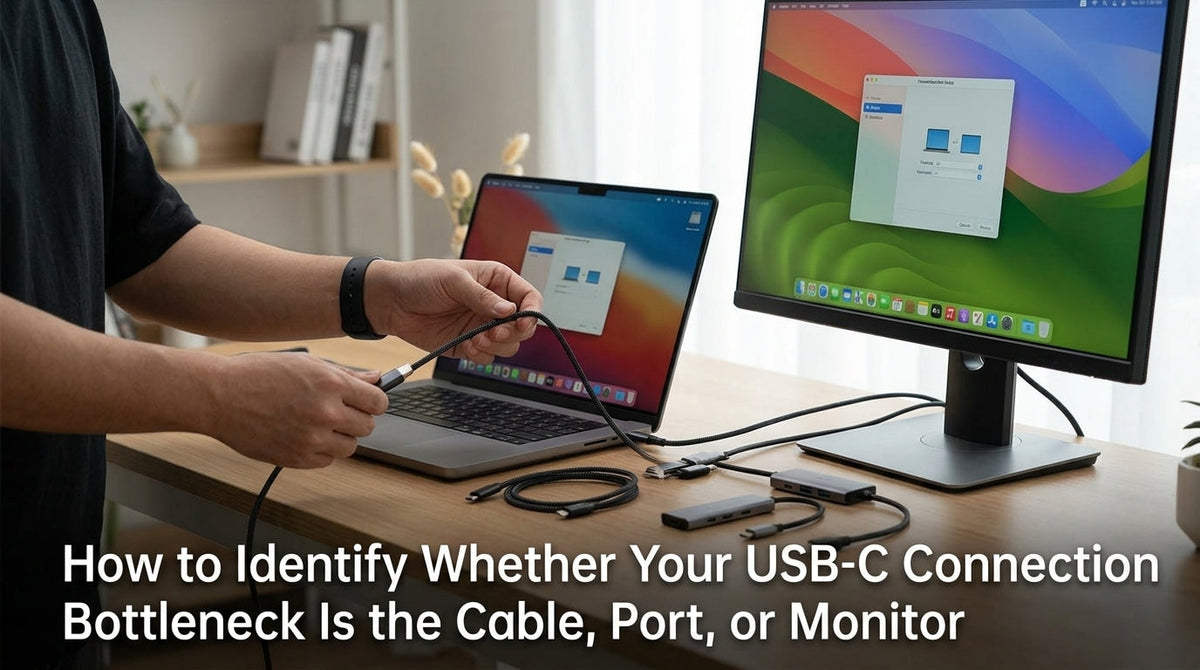
A USB-C display problem like a black screen or low refresh rate is often a simple bottleneck. Use this guide to test if the issue is your cable, port, or monitor.
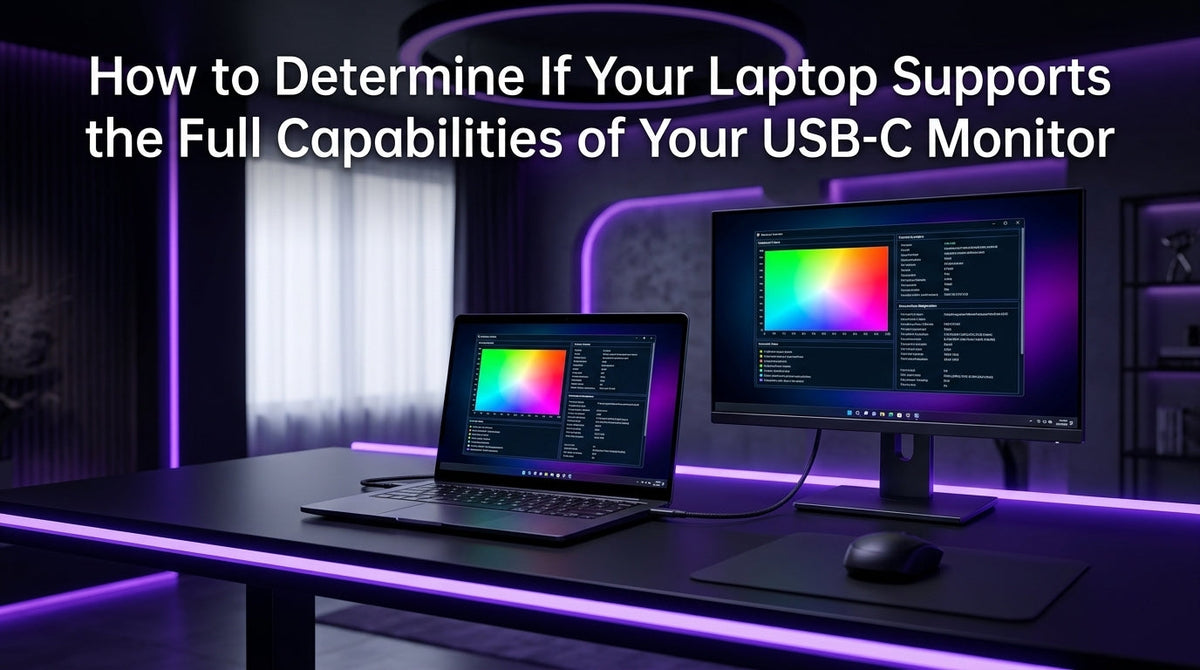
Your laptop's USB-C monitor compatibility determines if one cable can handle 4K video, charging, and hub data. Get the steps to verify DisplayPort Alt Mode, Power Delivery (PD), and cable specs for a perfect connection.
A USB-C monitor not working is often due to the laptop's port, not the display. The port may lack video support like DisplayPort Alt Mode. Get details on the real causes.

A monitor's USB-C port won't charge your laptop fully if its Power Delivery (PD) wattage is lower than your device's needs. This common wattage mismatch is why charging stalls.
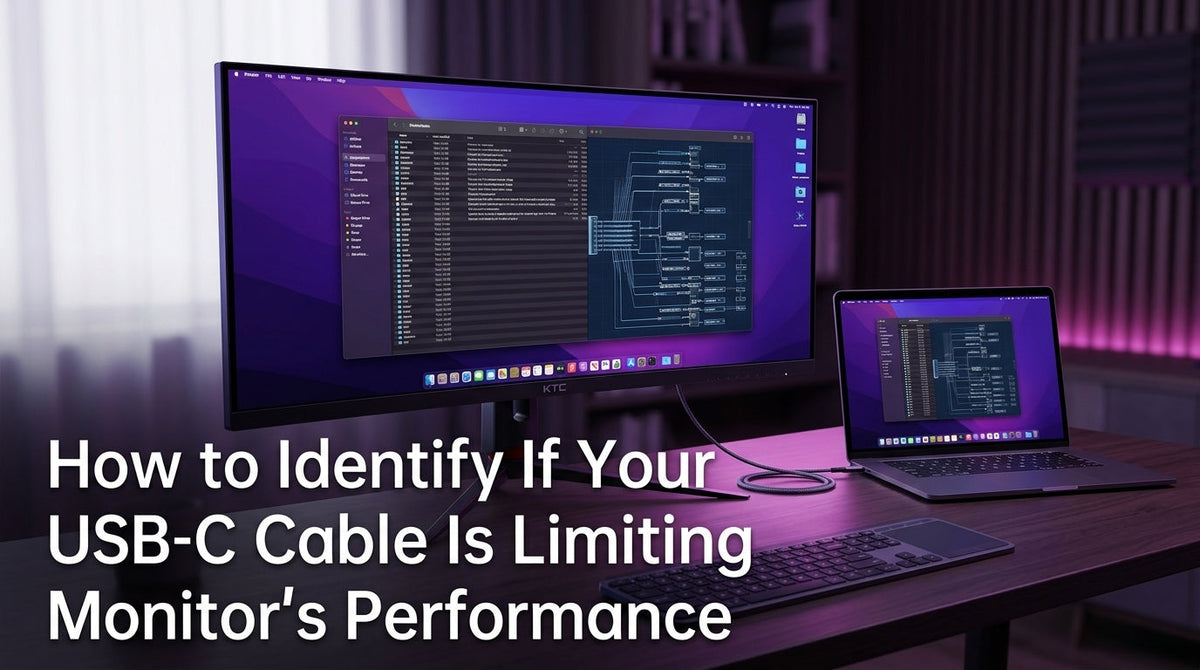
A USB-C cable limiting your monitor's performance can cause low resolution, refresh rate drops, or slow charging. Check if your cable supports DisplayPort Alt Mode and has the right bandwidth for your setup.
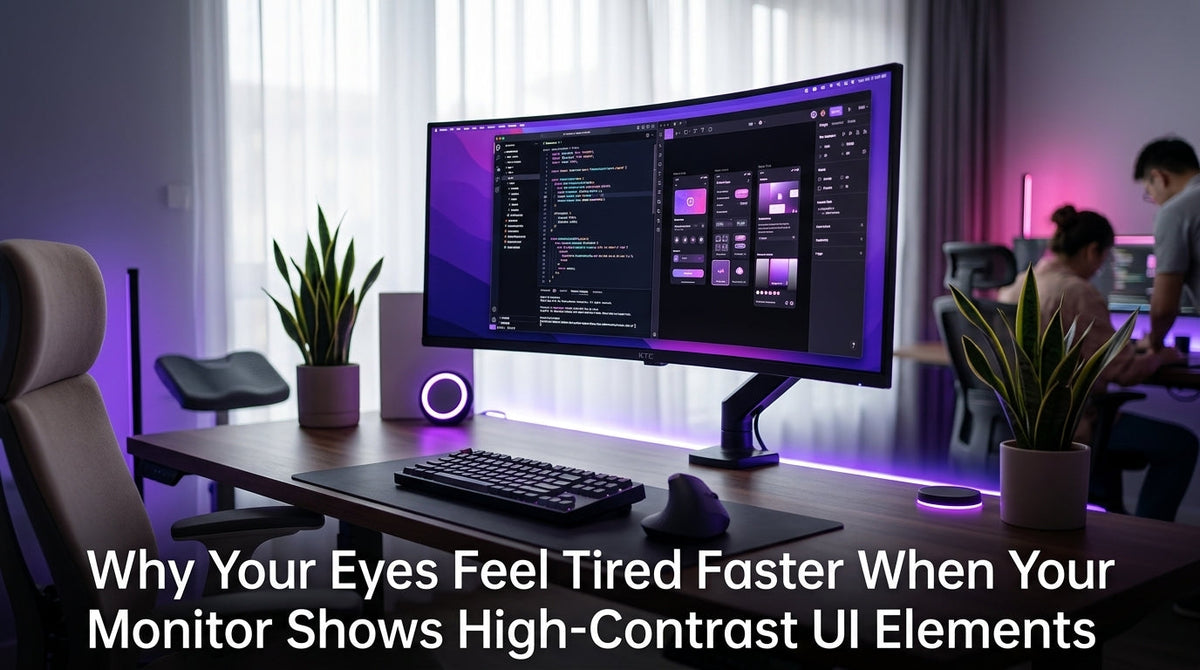
High-contrast UI can cause eye strain and fatigue. Your eyes work harder adjusting to intense bright and dark areas. Get tips on balancing brightness, text size, and lighting.