It usually does not by raw pixel density: 32-inch 4K is still denser than 24-inch 1440p. If the 24-inch screen looks sharper, the reason is usually viewing distance, scaling, panel quality, motion clarity, or how the content is rendered.
Pixel Density Is Only the Starting Point
A 24-inch 1440p monitor packs about 122 pixels per inch, while a 32-inch 4K monitor lands around 138 pixels per inch. On paper, the 32-inch 4K display should look slightly sharper.
Perception changes the result. A larger screen fills more of your vision, so flaws become easier to notice: soft textures, poor anti-aliasing, compression, matte coating haze, or imperfect scaling. Resolution is still the pixel count, but the best gaming monitor choice depends on hardware, budget, and preferences, not just the biggest number on the spec sheet, as gaming resolution advice often reflects.
If both screens are equally close and equally well tuned, 32-inch 4K should be crisper than 24-inch 1440p.
Screen Size Changes How Sharpness Feels
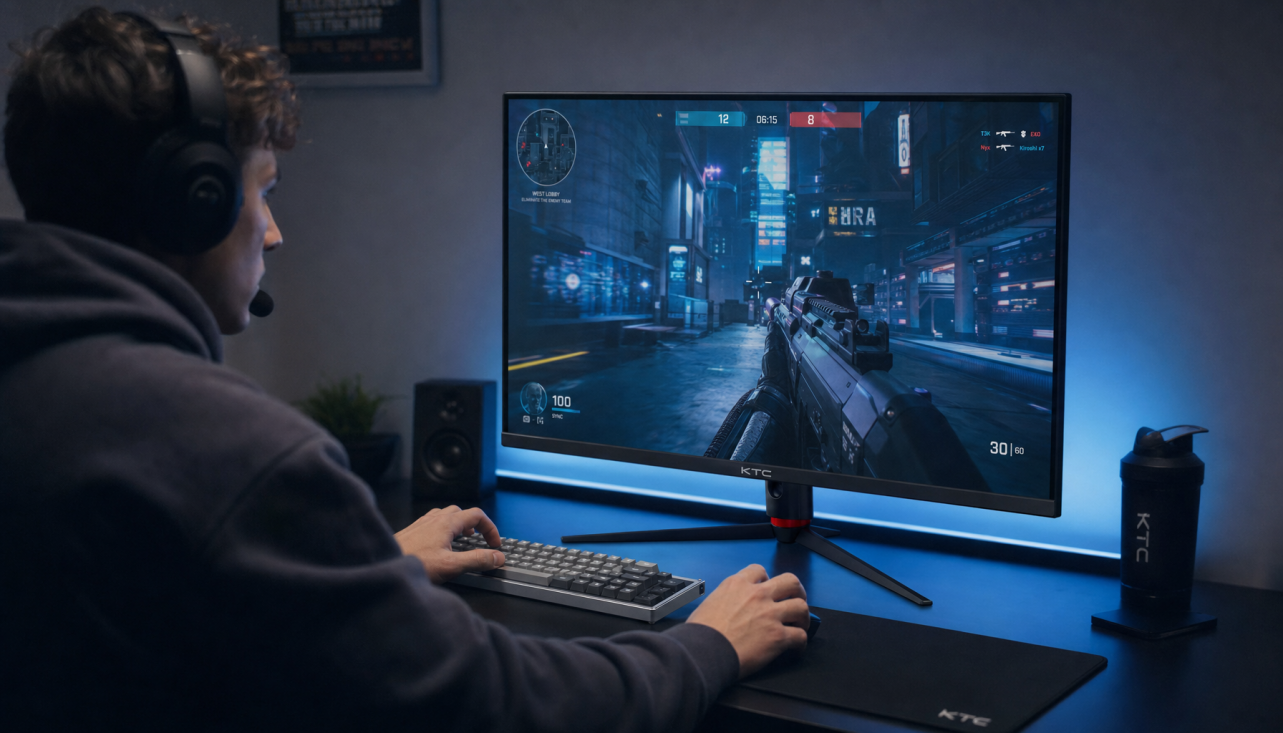
A 24-inch monitor keeps the whole image tighter. Text edges, HUD elements, and crosshairs occupy less physical space, so small imperfections are less exposed.

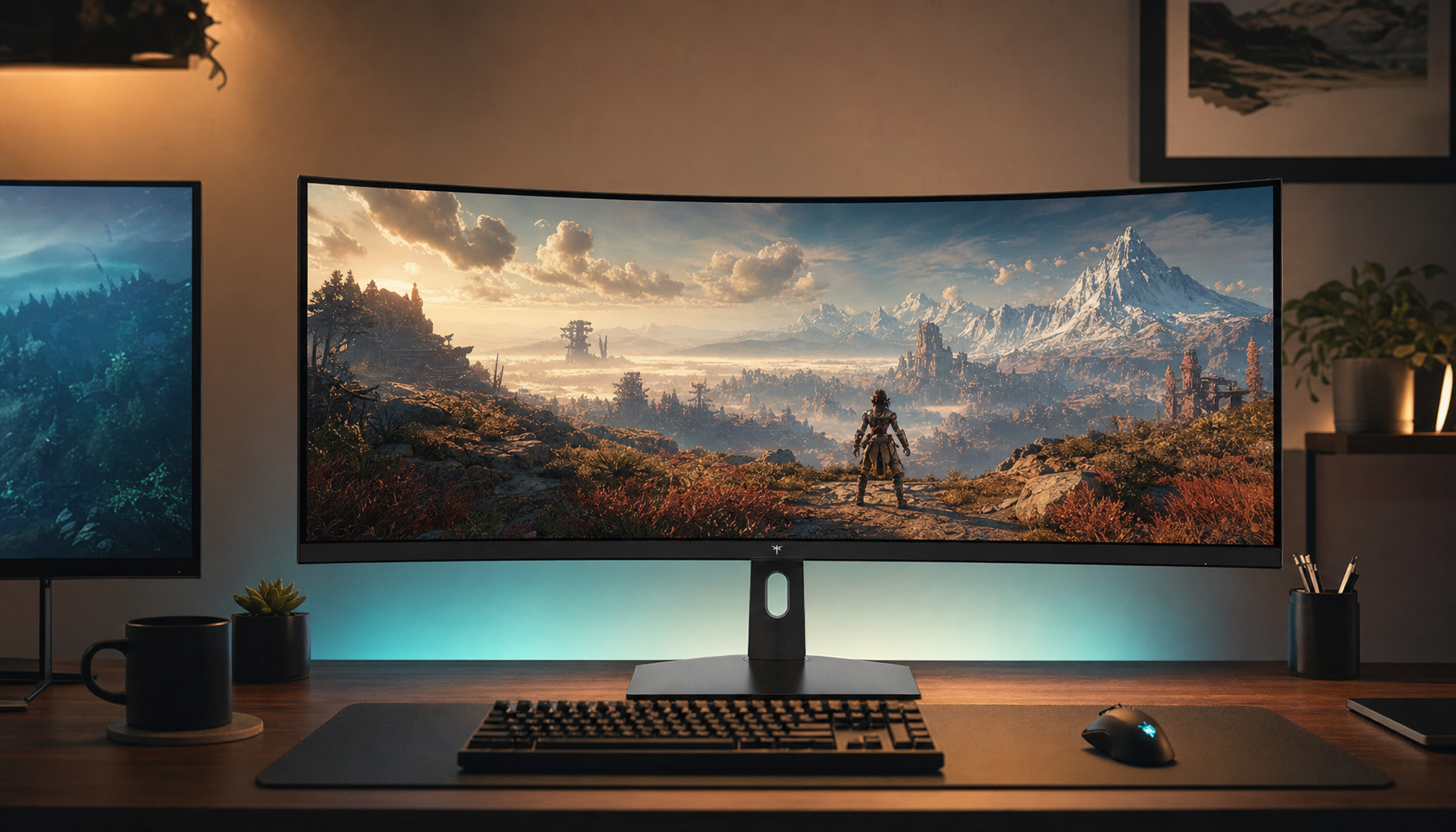
A 32-inch 4K monitor is more immersive, but it asks for more desk depth. At a typical close desk setup, your eyes scan more area, and the panel’s size makes texture quality and UI scaling more obvious. That is why many competitive players still favor smaller displays, while larger panels fit cinematic games, productivity, and console-style viewing better.

For a practical gaming setup, 24 inches is often about focus; 32 inches is about immersion. A buying checklist that weighs game type, GPU strength, budget, and desk space is more useful than chasing resolution alone, especially when monitor size changes the experience.
Scaling, Content, and GPU Load Can Make 4K Look Softer
4K only looks elite when the signal is truly 4K and the system can feed it cleanly. A 32-inch 4K panel running a game at a lower internal resolution, aggressive upscaling, weak textures, or poor sharpening can look less crisp than a native 1440p image on a smaller screen.
Desktop scaling matters too. If system scaling, browser zoom, app rendering, or game UI scaling is poorly handled, text and interface elements can look slightly blurred. This is not the panel failing; it is the software pipeline.
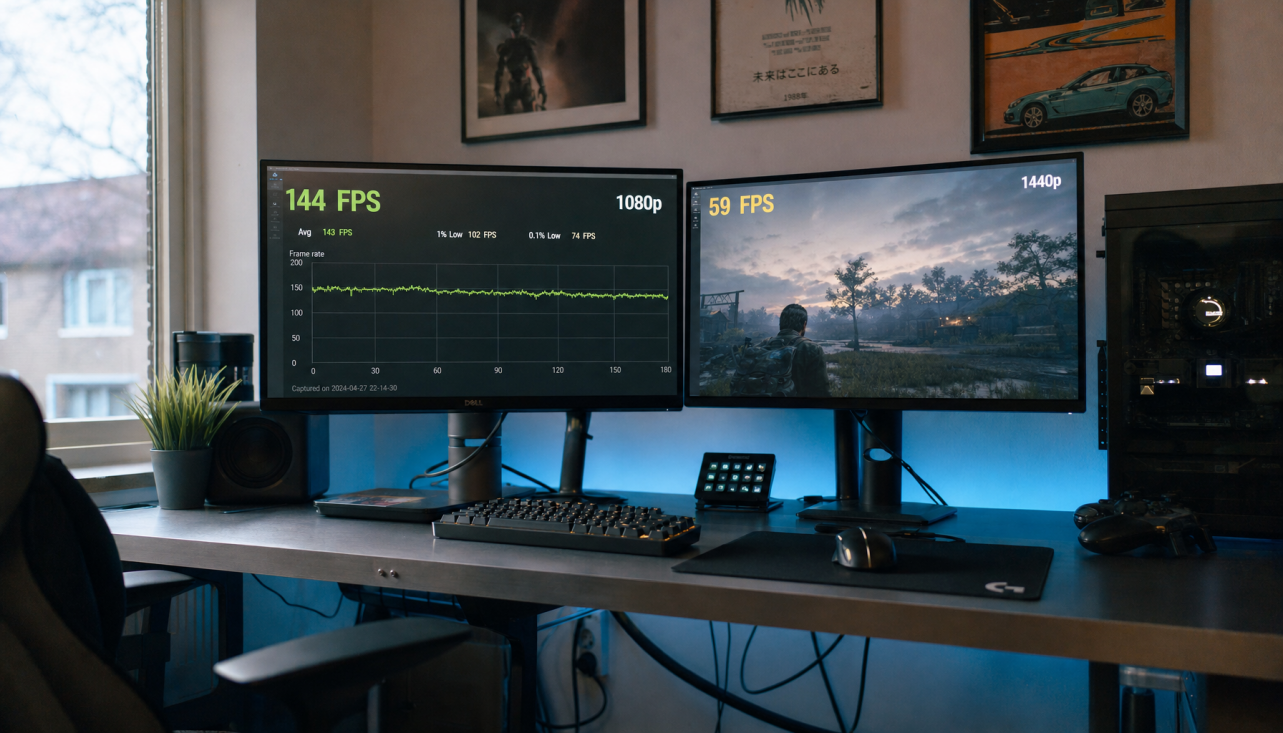
For gaming, 4K is also much harder to drive. 1440p is widely treated as a strong performance-and-detail balance, while 4K demands a stronger GPU and can reduce frame rate. A high-quality 1440p experience often feels sharper in motion than a struggling 4K one.

Motion Clarity Can Beat Static Sharpness
Sharpness is not only about still images. In fast games, refresh rate, response time, and frame consistency can make a lower-resolution monitor look clearer while moving.

A 1440p 24-inch or 27-inch monitor at high refresh can feel cleaner than a 32-inch 4K display running at lower FPS with more blur or stutter. Refresh rate describes how often the monitor updates the image, and higher rates can reduce blur and improve responsiveness in fast gameplay, which is why higher refresh rates matter so much for esports.
- Use native resolution, not a stretched lower setting.
- Match game render scale to 100% or higher.
- Check system scaling and app zoom.
- Compare panels at the same viewing distance.
- Prioritize refresh rate for competitive games.
Match the Screen to the Job
Choose 24-inch 1440p if you want a compact, dense, focused screen for competitive gaming, tight desk setups, or crisp text without huge GPU demands.
Choose 32-inch 4K if you want more workspace, larger visuals, sharper native 4K media, and a more immersive single-player or productivity display. Give it enough viewing distance and enough GPU power.
1440p on 24 inches can look sharper because it is easier to drive, easier to view closely, and less revealing of weak content. But a well-configured 32-inch 4K monitor still wins on raw detail.