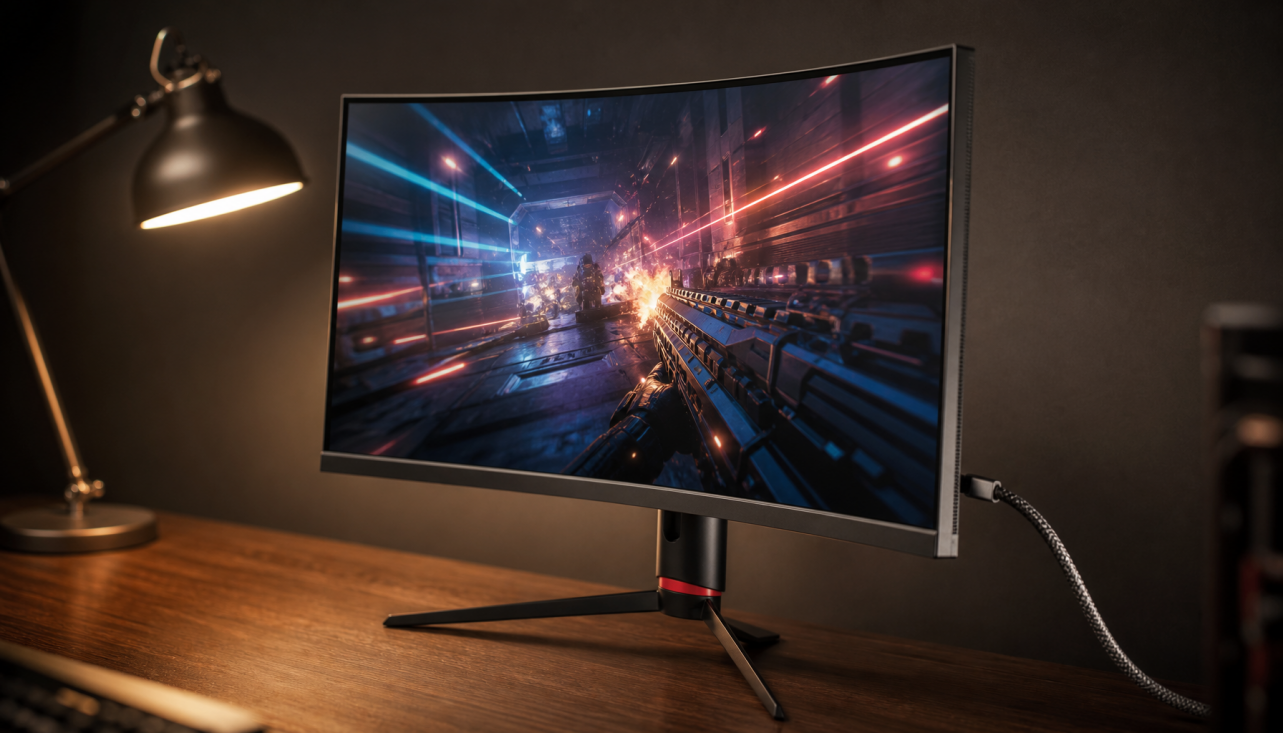
Usually, no. A 27-inch 1440p monitor is about 109 PPI, which is dense enough that individual pixels are hard to notice at a normal desk distance of about 24-32 inches.
Why 27-Inch 1440p Looks Sharp
A 27-inch QHD screen uses 2,560 x 1,440 pixels, and that size-resolution pairing is widely considered a practical sweet spot because pixel density is high enough for crisp text, detailed game worlds, and comfortable multitasking.

At roughly 109 pixels per inch, the pixel grid is much finer than on a 27-inch 1080p display, which sits near 82 PPI. That difference is obvious in small UI text, browser tabs, spreadsheets, and fine HUD elements.
For gaming, 1440p also keeps graphics demand realistic. You get a major clarity jump over 1080p without the heavier frame rate penalty of 4K.
Viewing Distance Is the Real Decider
At a typical desk, a 27-inch monitor is usually viewed from about arm’s length. Ergonomic guidance commonly places 27-inch screens around 24-32 inches from your eyes.

Inside that range, most users will not see individual pixels during normal work or play. You may notice them only if you lean close, stare at thin diagonal lines, or use a low-quality panel with poor subpixel rendering.
If you sit closer than 20 inches, 1440p can still look good, but the pixel structure becomes easier to detect. If you sit farther back, the display looks even smoother, though tiny text may need scaling.
1440p vs. 1080p vs. 4K at 27 Inches
A 27-inch 1080p monitor can feel large and fast, but pixelation is easier to spot in text and desktop icons. That is why 1080p is better matched to smaller 24-25-inch esports displays.
A 27-inch 1440p panel hits the performance-value zone: sharper than 1080p, easier to drive than 4K, and spacious enough for two windows side by side. Many size guides point to 1440p for 27 inches as the balanced choice.
A 27-inch 4K monitor is sharper, at around 163 PPI, but the gain is not always worth the cost in gaming performance. For office users, it can make text beautifully clean, but operating system scaling becomes part of the experience.
Quick Check: Will You Notice Pixels?
Use this fast test before overbuying:
- Sit at your real desk distance, not showroom distance.
- Set the monitor to its native 2,560 x 1,440 resolution.
- Keep browser and operating system scaling at a comfortable level.
- Check small text, diagonal lines, and game HUDs.
- If you must lean in to see pixels, the monitor is sharp enough.

For a more exact check, a native-resolution pattern test can confirm whether the display is rendering at 1:1 native resolution instead of being softened by scaling.
Bottom Line
For most people, a 27-inch 1440p monitor does not show individual pixels at normal viewing distance. It is one of the strongest all-around choices for high-refresh gaming, office productivity, and everyday use because it balances clarity, speed, desk comfort, and price.
Users with very sharp eyesight or unusually close seating may still detect the pixel grid, but for normal desktop use, 27-inch 1440p looks clean and reliably sharp.