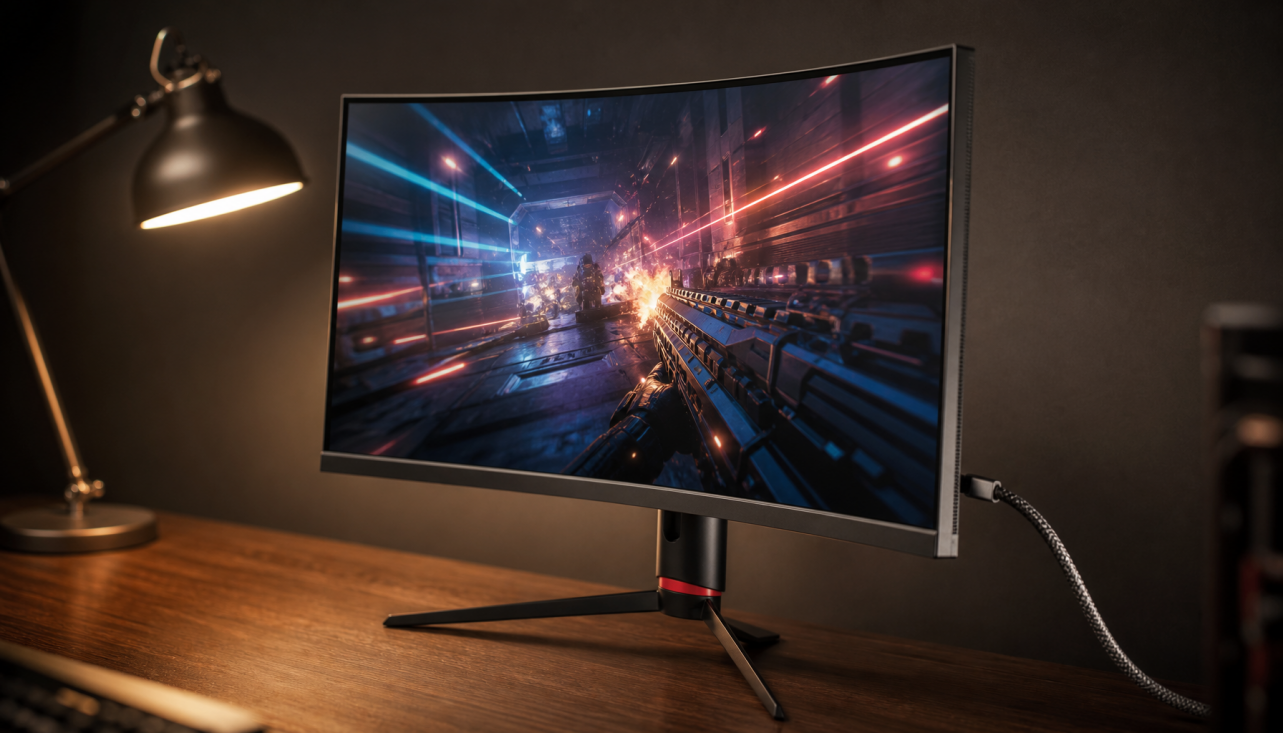
At 125%, a 4K monitor feels more spacious but demands sharper eyesight and better app behavior; at 150%, it becomes easier to read while giving up some working room. For most 27-inch 4K displays, 150% is the comfort pick, while 125% makes more sense on 32-inch or larger screens.
Squinting at tiny menus on a beautiful 4K monitor is a frustrating way to waste premium pixels. A practical scale change can turn the same screen from eye-strain hardware into a cleaner workspace for code, spreadsheets, editing panels, and game launchers. Here is how to choose between 125% and 150% without sacrificing the performance and clarity you paid for.
What Display Scaling Actually Changes
Display scaling changes the size of text, apps, icons, menus, and other interface elements while keeping the monitor at its native resolution. That distinction matters because lowering resolution makes the whole image softer, while changing display scaling preserves the 3840 x 2160 signal and simply changes how large the interface appears.
On a consumer 4K monitor, you are usually working with UHD resolution: 3840 x 2160 pixels. That gives you roughly four times the pixel count of 1080p, which is why 4K resolution can make text edges, image detail, and dense dashboards look so precise. The catch is that those pixels are packed tightly, especially on 27-inch and 32-inch panels, so 100% scaling often makes the desktop too small for sustained work.
The key usability tradeoff is simple: 125% keeps more usable desktop area, while 150% makes interface elements larger and easier to hit. Neither setting is universally correct. The best choice depends on panel size, viewing distance, eyesight, app mix, and whether your workload rewards density or comfort.
The Effective Workspace Difference
Scaling changes your effective workspace. At 100%, a 4K screen behaves like a full 3840 x 2160 canvas, but text and controls may be tiny. At 125%, the desktop behaves roughly like 3072 x 1728 in usable layout space. At 150%, it behaves roughly like 2560 x 1440.
Scale |
Effective workspace feel |
Best fit |
125% |
About 3072 x 1728 |
Larger 4K monitors, dense productivity, multitasking |
150% |
About 2560 x 1440 |
27-inch 4K, mixed work, easier reading |
200% |
About 1920 x 1080 |
Small 4K screens, accessibility-first setups |
A 27-inch 4K monitor has very high pixel density, so 150% often feels balanced: sharp text, readable menus, and a familiar amount of room similar to a 1440p display. A 32-inch 4K monitor gives the same pixels more physical space, so 125% becomes more realistic if you sit about 2 to 3 ft away and want more documents, toolbars, or browser panes visible.
For a real-world example, a video editor on a 27-inch 4K screen may prefer 150% because timeline labels, plugin controls, and file menus remain readable during long sessions. A spreadsheet-heavy analyst on a 32-inch 4K screen may prefer 125% because the extra rows and columns reduce window switching.

125% Scaling: More Room, More Demanding
At 125%, 4K finally starts to feel like a productivity upgrade instead of just a sharper 1440p monitor. You can keep a browser, chat window, spreadsheet, and notes app visible with less overlap. For programming, finance dashboards, research, and operations work, that extra space can be a real advantage.

The downside is readability. On a 27-inch panel, 125% can make ribbon menus, tab labels, and small app controls feel tight. If you work eight hours a day, the extra room may not be worth the visual load. The problem gets worse with older or poorly updated apps, because software that is not DPI-aware may render soft, tiny, or unevenly scaled.
For gaming-adjacent setups, 125% also has a practical launcher benefit. Game stores, capture tools, chat apps, streaming dashboards, and driver utilities fit more naturally beside each other. But once you are in a modern full-screen game at native resolution, desktop scaling usually matters less than in-game UI scale, render resolution, refresh rate, and input settings.
150% Scaling: Better Comfort, Less Desktop Density
At 150%, a 4K monitor becomes much more approachable. Text is still crisp because the panel remains at native resolution, but menus and interface targets are larger. This is the setting many users expect when they buy a 27-inch 4K monitor for office work, hybrid productivity, design review, or premium everyday computing.
The tradeoff is that 150% makes 4K behave more like a very sharp 1440p workspace. That is not a failure; it is often the point. You get cleaner fonts, smoother curves, better image detail, and enough room for serious multitasking without turning every window into a tiny control panel.
For creative work, 150% can be the better accuracy setting simply because you stop fighting the interface. A photo editor, for example, may care less about squeezing one more palette on screen and more about seeing tool names, histogram controls, and export settings without leaning forward. The best 4K monitors are often evaluated by workload, with office users prioritizing ports and ergonomics, creators prioritizing color, and gamers prioritizing refresh and input behavior; scaling should follow that same use-case logic.
Screen Size Changes the Answer
A 27-inch 4K display is extremely sharp, but it almost always needs scaling for comfortable desktop use. At this size, 150% is the safer default for most people. Try 125% only if you have strong eyesight, sit close enough, and use modern apps that scale cleanly.
A 32-inch 4K display is the swing size. At 150%, it feels relaxed and polished. At 125%, it becomes a high-density command center. This is where power users often split: writers, developers, and spreadsheet users may choose 125%, while designers, managers, and all-day office users may stay at 150%.
A 43-inch 4K display can often run at 100% or 125%, but it demands deeper desks and more head movement. That can be immersive for flight sims, trading layouts, and wall-like workspaces, yet overwhelming for competitive shooters where fast full-screen scanning matters. One gaming-monitor overview notes that common 4K gaming monitor sizes tend to sit around 27 to 32 inches, which remains the practical zone for most desks and gaming rigs.
Sharpness, Blur, and Legacy Apps
Display scaling is strongest when apps are DPI-aware. Modern browsers, office-suite apps, creative apps, and current productivity tools usually behave well. Older utilities, installers, and legacy business software can blur at non-native scaling or show mismatched window elements.
This is where 125% and 150% can both have imperfections. Some older apps look worse at fractional scaling because interface assets are being resized rather than redrawn cleanly. In practice, 150% often feels less tiring even if a legacy app is slightly soft, because the text is larger. At 125%, the same softness can combine with smaller UI elements and become harder to read.
The smartest move is to keep the monitor at native 3840 x 2160 resolution and adjust scale first. Lowering resolution can make the entire desktop look less sharp or stretched, while native 4K with scaling keeps the panel operating as designed.
Gaming, GPU Scaling, and Input Feel
Desktop scaling is not the same as GPU scaling. Desktop scaling changes how the operating system sizes interface elements. GPU scaling adapts non-native game resolutions or old aspect ratios before the signal reaches the monitor. One PC builder support article frames GPU scaling mainly as a tool for older or unsupported games, especially titles built for 4:3 or 5:4 displays.
For modern gaming, leave desktop scaling at the level that makes the desktop usable, then tune the game separately. Use native 4K when your GPU can handle it, use in-game render scaling or upscaling features when needed, and adjust the game’s own HUD scale if the interface is too small. Competitive players should be especially careful when comparing GPU scaling, display scaling, and no scaling, because perceived input latency can change with monitor processing, driver behavior, refresh rate, and full-screen mode.
A practical example: if you use a 27-inch 4K 144Hz monitor for work and esports, 150% may be best on the desktop, while the game runs full-screen at 2560 x 1440 or 1920 x 1080 with its own scaling path. That does not mean 150% scaling is slowing your aim; it means desktop comfort and game rendering behavior are separate decisions.
How to Choose Between 125% and 150%
Start with 150% on a 27-inch 4K monitor. Use it for a full workday, not five minutes. If you constantly wish you had more window space and you are not leaning forward, test 125% the next day with the same apps.
Start with 125% on a 32-inch 4K monitor if your priority is dense productivity. If your eyes feel tired, browser tabs are hard to read, or app menus feel cramped, move to 150%. The right setting is the one that lets you work longer without micro-adjusting posture.
For mixed monitor setups, scaling can become more fragile. One university support article notes that scaling can be adjusted per display, but multiple monitors with different sizes or resolutions may introduce scaling issues. If your laptop screen is 150% and your external 4K monitor is 125%, sign out and back in after changes so apps redraw cleanly.

Best Practical Settings
Keep resolution at 3840 x 2160 unless you have a specific gaming-performance reason to lower it. Set display scale to 150% for 27-inch 4K office and creative work, then try 125% only if you want more density. For 32-inch 4K, test 125% first if you value workspace, and use 150% if comfort wins.
Use the monitor’s sharpness setting conservatively, avoid unnecessary GPU scaling for modern desktop use, and update graphics drivers if scaling behavior looks broken. For high-refresh 4K gaming, prioritize display bandwidth, refresh rate, response time, and adaptive sync before obsessing over the desktop scale value.
FAQ
Does 150% scaling waste 4K?
No. It uses fewer effective layout pixels, but it does not waste the panel. You still get 4K sharpness, cleaner text edges, finer image detail, and better visual comfort than running a lower-resolution monitor.
Is 125% sharper than 150%?
Not necessarily. Both can look sharp in modern apps because the display remains at native 4K. The difference is size and workspace. Legacy apps may blur at either setting, but 150% is often easier to read.
Should I use 100% scaling on a 4K monitor?
Usually not on 27-inch or 32-inch desktop monitors. It maximizes workspace, but many menus, icons, and text labels become too small for practical daily use. Larger 4K displays can make 100% more viable.
Final Recommendation
Choose 150% if you want a premium 4K monitor to feel clean, readable, and reliable all day. Choose 125% if your screen is large enough, your apps scale well, and your workflow gains more from extra space than larger controls. The performance-driven move is not chasing the smallest UI; it is setting the display so the pixels serve your work, your games, and your eyes.