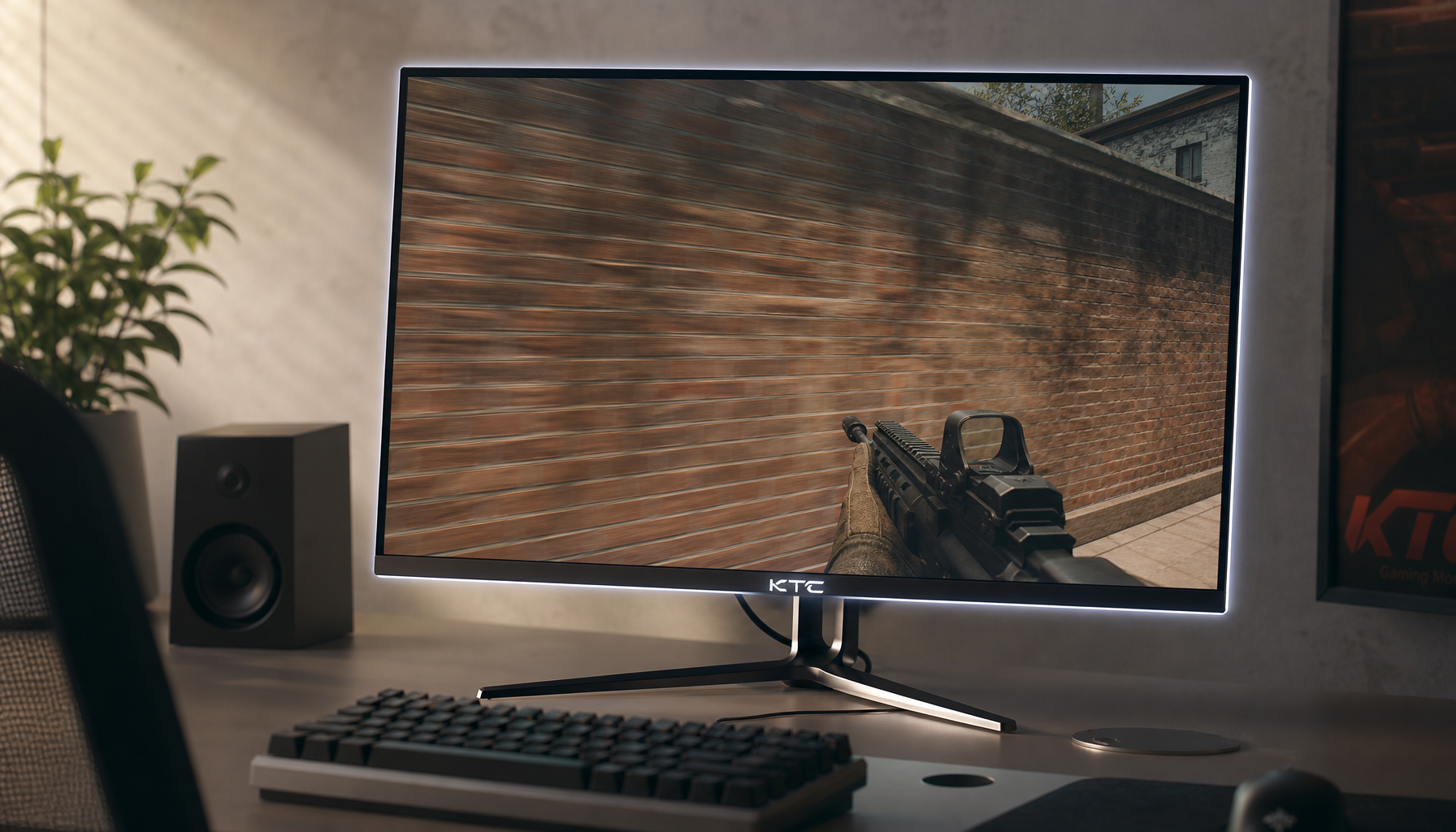
High refresh rate monitors deliver their full potential only when Adaptive Sync is correctly enabled and tuned. For competitive gamers using 240Hz, 360Hz, or 400Hz displays, the right combination of Variable Refresh Rate (VRR), driver-level V-Sync, and a modest frame-rate cap usually eliminates screen tearing while keeping input lag low enough for ranked play.

Why High Refresh Rate Isn’t Enough for Tear-Free Gaming
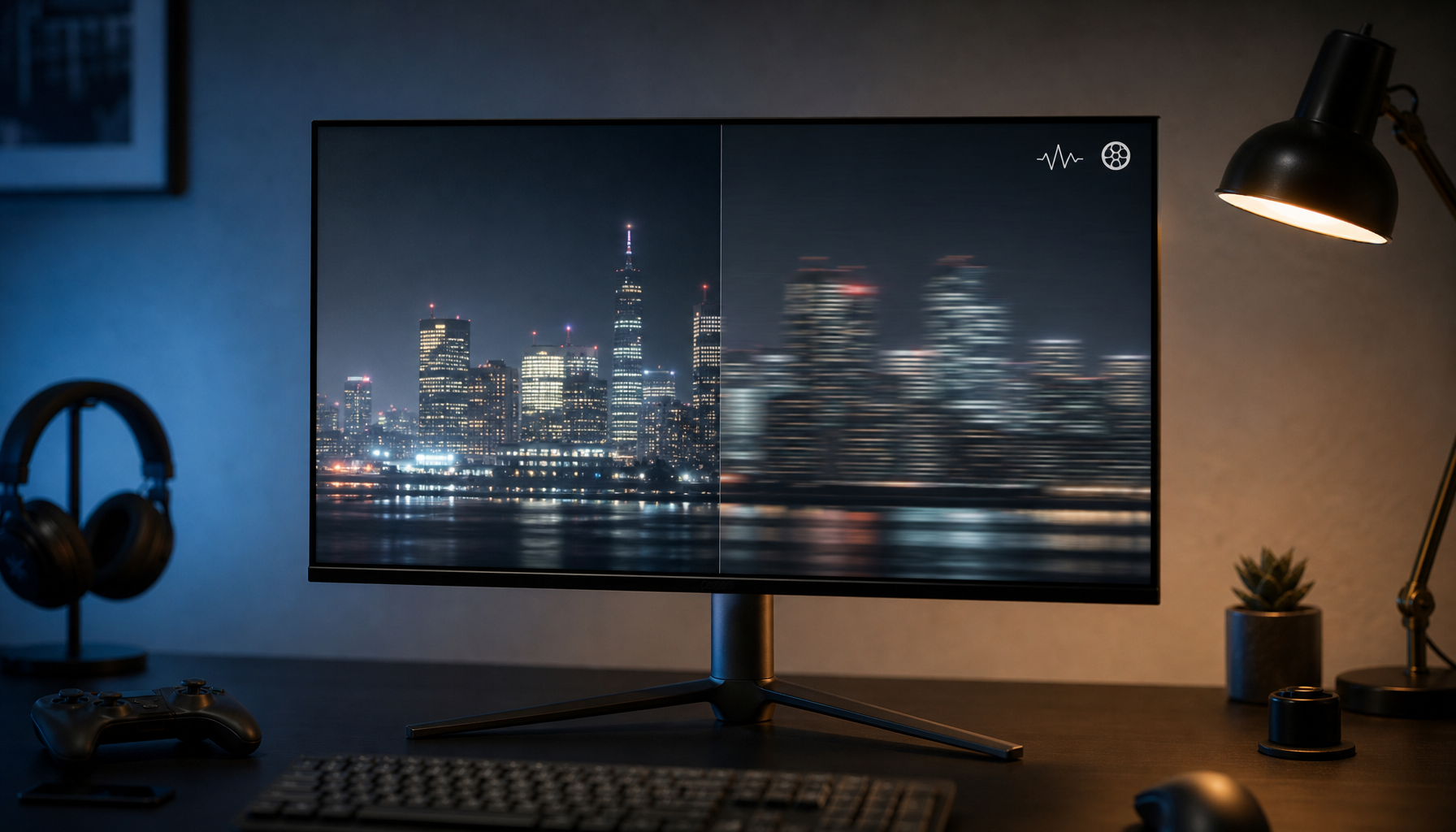
Even a 240Hz or 400Hz panel can show screen tearing when the GPU’s frame delivery timing does not match the monitor’s refresh cycles. Screen tearing appears as a visible horizontal line where two partial frames are shown at once. Stutter occurs when frame times vary sharply, making motion feel inconsistent.
Adaptive Sync, also called Variable Refresh Rate (VRR), solves this timing mismatch. The monitor dynamically adjusts its refresh rate to match the GPU’s output within a supported range, usually 48–240Hz or higher on modern panels. KTC’s high-refresh models rely on this technology more than standard 60Hz screens because the faster the panel, the more obvious any mismatch becomes during fast camera movement in esports titles.
Without proper VRR, higher refresh rates can ironically make tearing more noticeable rather than less. The first step toward tear-free gaming is therefore confirming that Adaptive Sync is active and that your setup stays inside its operational window.
Decoding the VRR Alphabet: G-Sync vs. FreeSync vs. Adaptive-Sync
Adaptive-Sync is the open VESA standard that lets a display vary its refresh rate. FreeSync is AMD’s implementation of that standard, while G-Sync is NVIDIA’s proprietary solution. Many modern FreeSync monitors, including KTC models, are also certified as G-Sync Compatible, allowing NVIDIA users to enable VRR through the NVIDIA Control Panel.
The VESA Certified AdaptiveSync Display logo signals that a monitor has passed rigorous testing for response times, minimal jitter, and consistent performance across its variable refresh range. This certification provides confidence that the panel will deliver smooth motion without excessive side effects.
For most users, the practical difference comes down to hardware compatibility rather than image quality. NVIDIA 10-series and newer GPUs can enable G-Sync on compatible FreeSync monitors, while AMD users simply turn on FreeSync. The key requirement across both is usually a high-quality DisplayPort connection.
How to Enable G-Sync on a FreeSync Monitor: A Step-by-Step Guide
Yes, you can use G-Sync on a KTC FreeSync monitor if you meet the hardware requirements. According to NVIDIA’s G-SYNC specifications, you need a GeForce GTX 10-series or newer GPU and a DisplayPort 1.2 or higher cable.
Follow these steps:
- In your KTC monitor’s OSD menu, enable FreeSync or Adaptive Sync.
- Open the NVIDIA Control Panel, navigate to “Display” → “Set up G-SYNC,” and select “Enable G-SYNC, G-SYNC Compatible” for your KTC display.
- Apply the changes and test with the built-in pendulum demo or in-game movement.
Our G-Sync vs. FreeSync: Which One is Better for Gaming in 2025? guide provides more background on cross-vendor behavior.
DisplayPort remains the non-negotiable connection for reliable cross-brand VRR. HDMI support varies by monitor and GPU generation and often limits the refresh range or introduces compatibility issues.
Tuning Your Setup: The Golden Rule for Low-Latency Gaming
The most stable low-latency configuration for most enthusiasts is the “Golden Rule”: enable VRR, turn V-Sync on at the driver level, and cap your frame rate roughly 3 frames below the monitor’s maximum refresh rate.
This combination prevents the monitor from reaching its absolute ceiling, where standard V-Sync would otherwise engage and add noticeable lag. As explained in testing from Blur Busters, the FPS cap acts as a safety valve that keeps the system inside the VRR window while V-Sync functions as a scanout regulator rather than a traditional buffer lock.

Adaptive Sync Trade-off: Lowest Practical Latency vs Tearing
For 240Hz+ monitors, the goal is usually to keep tearing off while avoiding the extra lag of full V-Sync. The “VRR + V-Sync + FPS cap” setup is shown as the usual balance point, not a zero-latency claim.
View chart data
| Category | Tearing risk | Input lag | Frame stability | Competitive fit |
|---|---|---|---|---|
| V-Sync Off | 3.0 | 1.0 | 1.0 | 3.0 |
| Standard V-Sync | 0.0 | 3.0 | 1.0 | 1.0 |
| VRR + V-Sync + FPS Cap | 0.0 | 1.0 | 3.0 | 2.0 |
This chart helps visualize the usual trade-offs. V-Sync Off offers the lowest theoretical latency but risks micro-tearing at the bottom of the screen. Standard V-Sync removes tearing at the cost of higher lag. The VRR + V-Sync + FPS cap combination typically delivers the best balance for 240Hz and above.
Our guide on What Is Screen Tearing And How Do You Fix It? explores the mechanics further, while What Happens When Your GPU Can’t Keep Up With Your Monitor’s Refresh Rate? explains why frame-time consistency often matters more than peak FPS.
Ultra-competitive players at 300+ FPS may still experiment with VRR off, but for most enthusiasts the Golden Rule provides smoother motion with acceptable latency.
Configuring Windows 11 for Peak VRR Performance
Windows 11 includes several settings that affect Adaptive Sync behavior. Go to Settings → System → Display → Graphics and enable the “Variable refresh rate” toggle. This helps reduce tearing in games that do not natively support VRR.
The Optimizations for windowed games in Windows 11 feature allows VRR to work more reliably in borderless windowed mode. Keep “Hardware-accelerated GPU scheduling” enabled for modern NVIDIA cards.
Only disable full-screen optimizations on a per-game basis if you encounter specific compatibility problems. These OS-level toggles often make the difference between consistent VRR performance and occasional tearing or stutter.
Troubleshooting Common Issues: Flicker, Black Screens, and Range Mismatch
VRR flicker is usually caused by rapid frame-rate changes that shift the panel’s gamma curve and brightness. This effect appears most often in dark scenes on OLED or high-contrast Mini-LED panels. Maintaining stable frame pacing by capping FPS well inside the VRR range often reduces or eliminates visible flicker.
Black screens or flashing are frequently related to cable bandwidth limits or an incompatible refresh rate. Try a shorter, high-quality DisplayPort cable and verify that your resolution and refresh rate combination stays within the cable’s and GPU’s capabilities.
Low Framerate Compensation (LFC) activates when FPS drops below roughly half the minimum VRR range, doubling the refresh rate to maintain smoothness. Crossing this threshold can produce a sudden brightness jump on some panels. The solution is usually to keep frame rates higher and more consistent.
Tearing at the very top or bottom of the screen in a VRR setup often indicates that the frame rate is occasionally exceeding the monitor’s maximum refresh. Lowering the in-game cap by a few frames typically resolves it. Our article Why Does My 240Hz Monitor Feel Slower Than My Friend’s 165Hz Display? covers related frame-time and overdrive issues.
Maximizing Your KTC Setup for Competitive Advantage
KTC’s high-refresh monitors reward careful configuration. The H25X7 excels at raw speed for esports with its 400Hz capability, while the G27P6 OLED offers exceptional motion clarity thanks to near-instantaneous pixel response.
Start Overdrive at the Middle or Standard setting when VRR is active to avoid overshoot artifacts. Check for firmware updates through the KTC support site, as newer versions often improve VRR stability and range compatibility.
Prioritize consistent 1% low frame rates over chasing maximum FPS. A locked 237 FPS on a 240Hz monitor will usually feel smoother than fluctuating between 200 and 280 FPS. Browse the full 240Hz-400Hz Monitors collection to find the model that best matches your resolution and panel-type preferences.
FAQs
Can I enable G-Sync on any FreeSync monitor?
Only if your GPU is NVIDIA 10-series or newer and you use a DisplayPort cable. Not every FreeSync panel is officially G-Sync Compatible, though many work well after enabling the setting in the NVIDIA Control Panel.
Does turning V-Sync on always increase input lag?
Inside the VRR range when paired with an FPS cap, driver-level V-Sync typically adds very little lag and prevents micro-tearing. The classic high-lag behavior only appears when frame rates exceed the monitor’s maximum refresh.
Why does my screen flicker with Adaptive Sync enabled?
Flicker is usually caused by rapid frame-time changes affecting panel brightness. Keeping frame rates stable and well inside the VRR range (for example, 60–230 FPS on a 240Hz monitor) often resolves it. Individual sensitivity to flicker varies.
Should I use V-Sync off for competitive esports?
Some players at very high frame rates prefer it to minimize any processing overhead. However, most enthusiasts achieve better overall visual consistency with the VRR + V-Sync + FPS cap combination.
What cable do I need for reliable Adaptive Sync?
DisplayPort 1.2 or higher is strongly recommended and often required for full G-Sync Compatible functionality at high refresh rates. HDMI support is more limited and model-dependent.