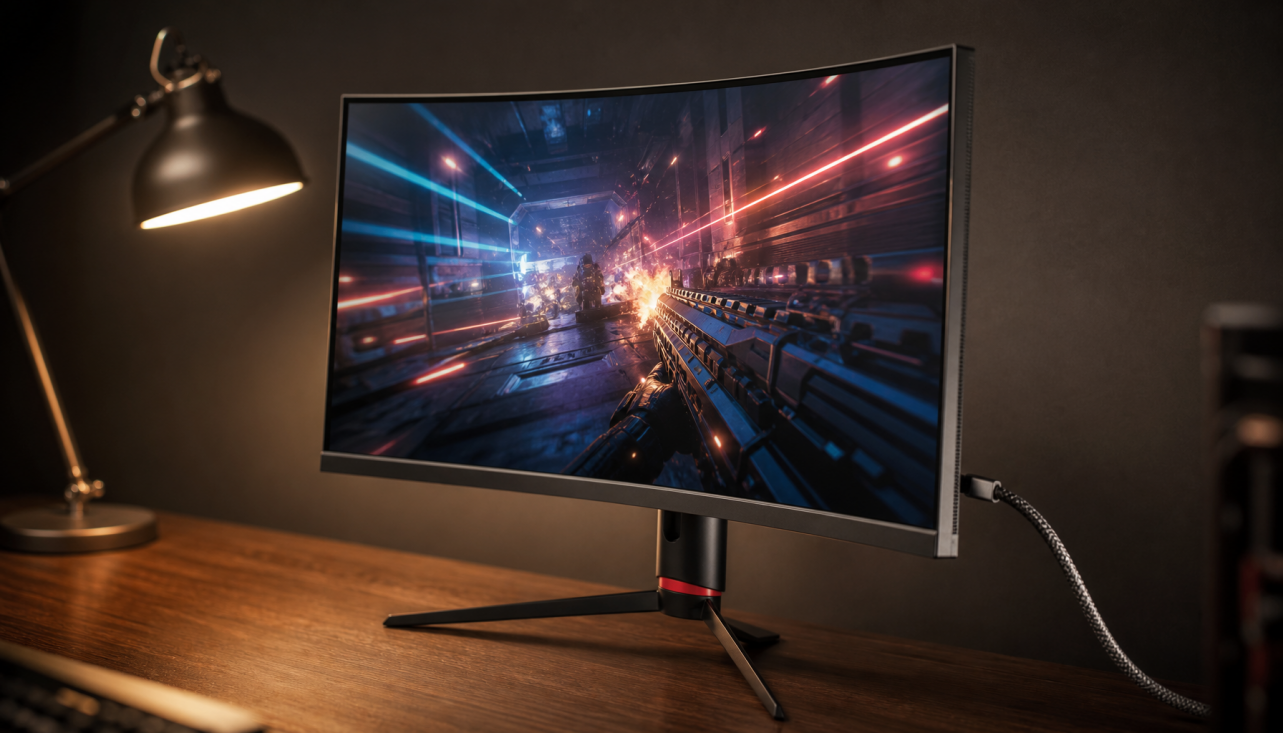
Ambient light sensors do not directly move local dimming zones, but they can change the brightness target the backlight algorithm is trying to hit. In real use, the same HDR scene may show deeper blacks in a dark room and brighter zones in a sunlit office.

Ambient Light Sets the Display’s Brightness Baseline
A local dimming system divides the backlight into zones, then raises or lowers each zone based on the image. An ambient light sensor adds another input: how bright the room is.
When room light rises, the monitor may lift overall luminance so the image stays readable. That can make dimming zones appear less black because the display is preserving visibility against glare instead of chasing the lowest possible black floor.
This matters most on Mini LED monitors, where many small backlight regions are used to improve contrast and HDR impact. Mini LED local dimming is designed to improve perceived contrast by controlling backlight areas independently, as explained in this overview of Mini LED local dimming.
Why Zones Can Look Different in Daylight
In a dark room, a bright HUD element on a black background may trigger one compact zone cluster while nearby zones stay dim. In a sunlit room, the ambient sensor may push the screen brighter, so surrounding zones may also lift slightly to maintain perceived detail.

That is not always a defect. It is often the monitor choosing usability over absolute contrast.
For gaming, this can mean fewer crushed shadows in bright rooms but more visible blooming around subtitles, crosshairs, or white UI. For office work, it can make text and spreadsheets easier to read without manually adjusting the brightness slider all day.
For example, if you edit documents near a window during the day and game at night, sensor-driven brightness can make the same dimming setting feel like two different monitor profiles.
The Blooming Tradeoff
Local dimming is always a balancing act: preserve highlights, deepen blacks, and avoid halos. Ambient light shifts that balance.
In brighter rooms, your eyes are less sensitive to subtle black-level differences, so the monitor can raise zone output without the image looking washed out. In darker rooms, the same zone lift becomes obvious as gray haze or blooming.
Ambient light compensation tools are built around this perception problem, adjusting display behavior as viewing conditions change; one display calibration resource describes the goal as adapting to ambient light conditions.
Sensor behavior varies by brand, firmware, picture mode, and HDR or SDR state, so two monitors with the same number of zones can react very differently.
Best Settings for Gaming and Productivity
For competitive gaming, consistency usually beats automation. If your monitor changes brightness mid-match, shadow visibility and perceived contrast can shift just enough to affect target spotting.
For immersive single-player HDR, ambient sensing can be useful during mixed lighting. It helps the display hold highlight visibility when the room gets brighter, especially on large screens or portable smart displays used in different locations.
For office productivity, ambient sensing is often a win. A monitor that gently adapts to room light can reduce eye strain during long sessions, particularly when switching between bright web pages, dark dashboards, and video calls.

Quick setup guidance:
- Competitive gaming: turn ambient brightness control off.
- HDR movies or cinematic games: test it on, then check blooming in dark scenes.
- Office work: keep it on if transitions are smooth.
- Color work: disable it and use a controlled lighting setup.
- Portable screens: use it when moving between rooms or travel spaces.
What to Watch For Before You Buy
Zone count matters, but it is not the whole story. A monitor with better algorithms, faster transitions, and smarter sensor tuning can outperform a higher-zone display that reacts clumsily.
Look for reviews that test blooming, HDR tone mapping, and brightness stability in different lighting. Also check whether the monitor lets you separate ambient brightness control from local dimming strength; that gives you more control for gaming, editing, and everyday work.
The best setup is not maximum dimming all the time. It is predictable contrast, readable detail, and a screen that supports the way you actually play, work, and move through your day.