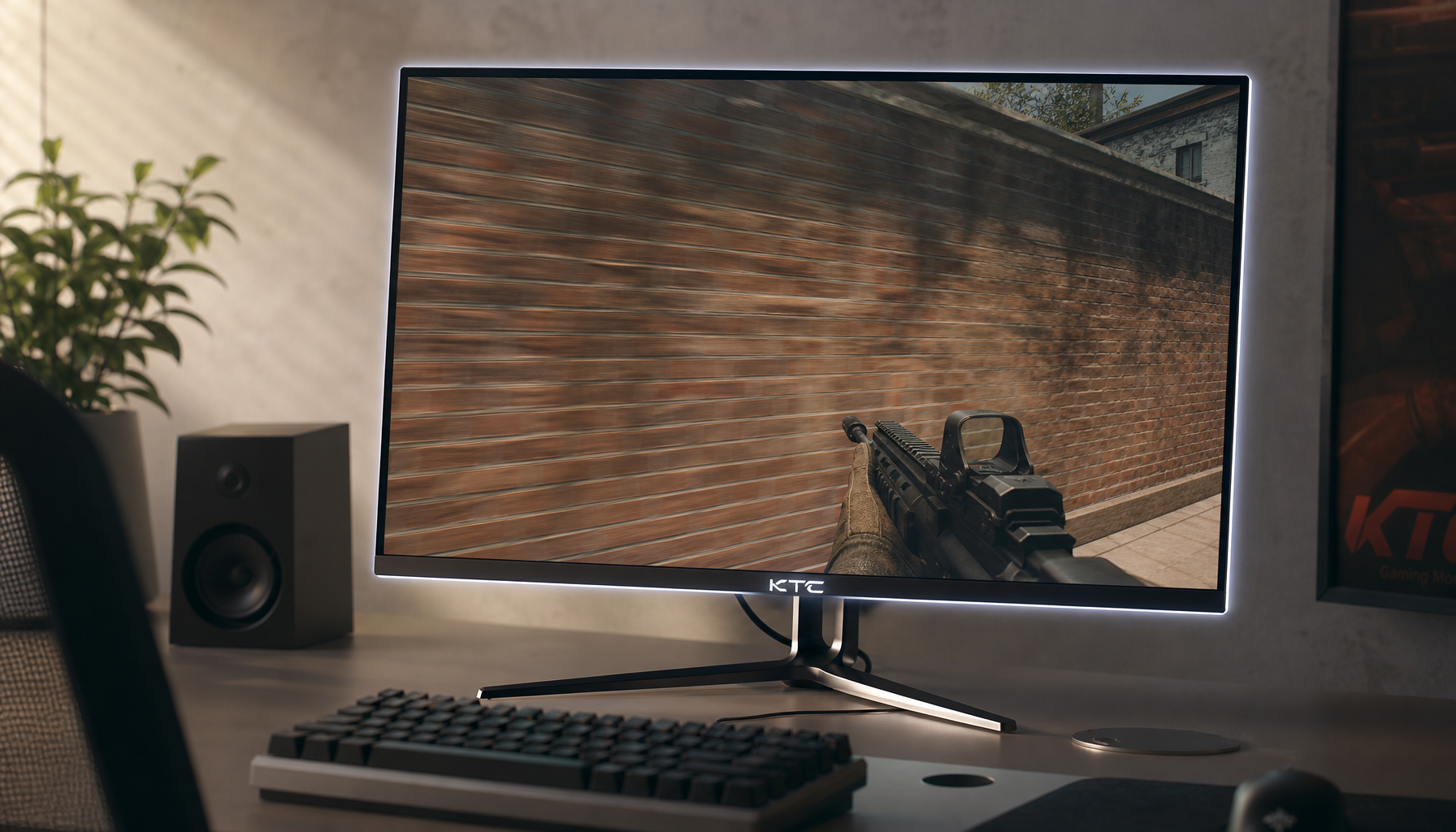
Black levels can change between the desktop and full-screen apps because the signal path changes: GPU color range, app color control, HDR/SDR mode, scaling behavior, panel type, and monitor processing may not stay consistent.
Does your game look rich and inky in borderless mode, then pale or crushed the moment you switch to exclusive full screen? A few targeted checks can usually separate a real panel limitation from a settings mismatch in minutes, especially RGB range, HDR, and driver color controls. Use this workflow to diagnose the cause and tune your monitor for darker scenes without wrecking desktop readability.
The Short Version: Full Screen Can Use a Different Display Pipeline
On a desktop, your monitor usually receives a steady SDR signal managed by the operating system, GPU driver, color profile, and monitor settings. When a game, video player, emulator, or creative app enters full-screen mode, it may request a different resolution, refresh rate, HDR state, color format, gamma curve, or dynamic range. That is why the same black background can look deep on the desktop, gray in a game, or overly dark in a movie.
The most common cause is an RGB range mismatch. For normal PC monitor use, Full RGB is generally best, while Limited RGB is more common in TVs and video playback chains. If the GPU sends Limited RGB while the monitor expects Full RGB, blacks lift into a gray haze. If the GPU sends Full RGB while the display expects Limited, shadow detail can be crushed into a black block.
A second cause is gamma. Gamma controls how midtones are displayed, so it affects whether dark scenes look flat, punchy, or unnaturally heavy. Troubleshooting reports on games looking washed out in full screen often point to graphics-driver color behavior, where switching between driver-controlled settings and application-controlled settings changes brightness, contrast, and gamma availability.
Desktop Black Is Not the Same as Game Black
The desktop is mostly made of stable UI elements: windows, taskbars, text, browser backgrounds, and controlled SDR color. Full-screen apps often behave more aggressively. A game may apply its own brightness slider, black equalizer, HDR calibration, tone mapping, gamma ramp, or exclusive display mode. A video player may fo llow video levels instead of PC levels. An older game may force a legacy resolution or interact poorly with system scaling.
That is why one simple test matters: compare the same content in three modes. Try a black-level test image on the desktop, then in borderless windowed mode, then in exclusive full screen. If the desktop and borderless mode match but exclusive full screen changes, the issue is probably in the app, driver, full-screen optimization, HDR state, or refresh-rate mode rather than the panel itself.
On ultrawide monitors, the difference can be more obvious because full-screen apps may render at unusual aspect ratios or unsupported modes. A 21:9 game can feel more immersive, but unsupported games may display black bars, stretching, or misplaced interface elements. Those bars are useful diagnostically: if they are gray instead of black on an LCD, you may be seeing panel contrast limits or lifted signal levels.
RGB Range: The First Setting to Check

RGB range defines the brightness values used for black and white. Full RGB uses the full PC range. Limited RGB reserves the darkest and brightest values for video headroom and footroom. Neither is better in every chain; the correct setting is the one your display expects.
For a PC connected to a computer monitor through DisplayPort or HDMI, set the graphics driver to Full RGB when the monitor supports it properly. Then check the monitor’s own menu for HDMI range, black level, dynamic range, or RGB range and make sure it also expects Full. For a PC connected to a TV, Limited may be correct because many TVs expect video levels.
Symptom |
Likely mismatch |
Practical fix |
Blacks look gray or washed out |
GPU outputs Limited, monitor expects Full |
Set GPU output to Full RGB or set display input range to Limited |
Shadow detail disappears |
GPU outputs Full, display expects Limited |
Match both devices to Full or both to Limited |
Desktop looks fine, game looks wrong |
App switches mode or controls gamma |
Check game brightness, HDR, driver color, and full-screen mode |
Movies look correct but desktop looks odd |
Video-level workflow mixed with PC monitor settings |
Use PC Full RGB for desktop, then adjust player or video settings separately |
A clean setup avoids stacked corrections. If your monitor brightness, GPU gamma, system HDR slider, and in-game brightness are all adjusted at once, the picture may look impressive for one title and broken everywhere else. Start neutral, match the range, then tune the monitor.
Panel Technology Changes How Black Can Look

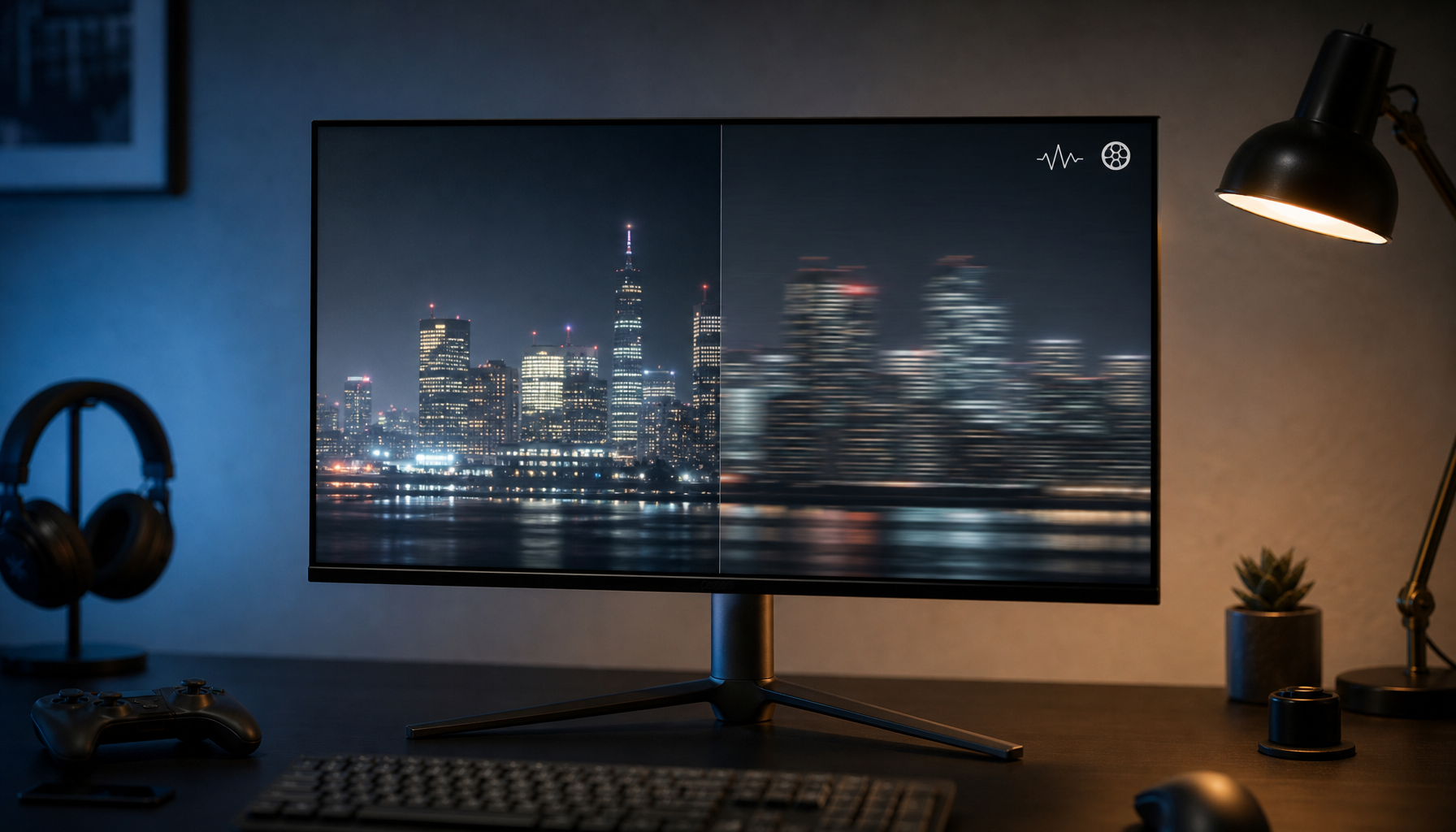
Not every black-level shift is a settings problem. Panel type sets the physical baseline. IPS panels are excellent for office work, color stability, and wide viewing angles, but they often show weaker black depth than VA or OLED. VA panels typically deliver deeper dark scenes, although some budget models smear motion in dark transitions. Because OLED pixels are self-emissive, they can produce much stronger contrast and deeper blacks than typical backlit LCDs.
For gaming, that means an IPS monitor may look clean and responsive in bright esports titles but show glow in dark horror scenes. A VA display may make night scenes look richer but trail slightly in fast dark motion. OLED can look spectacular in full-screen movies and games, yet static desktop elements such as taskbars and toolbars require more care because image retention risk is part of the tradeoff.
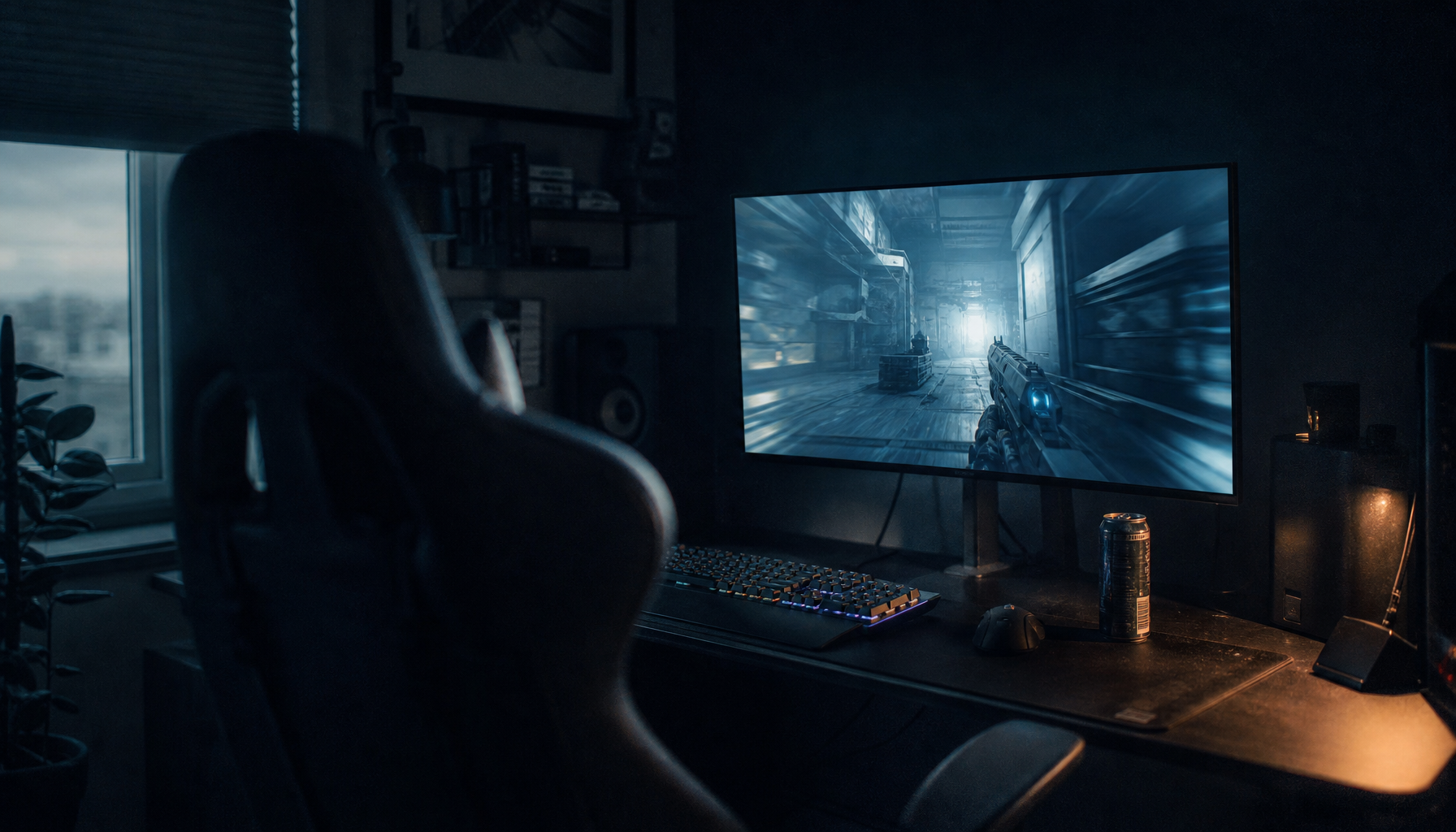
There is also unit-to-unit variation. A large uniform black or gray screen exposes backlight bleed, clouding, IPS glow, and dirty-screen effects more than normal mixed content. Full-screen apps make these flaws easier to see because they fill the whole panel with a single tone. A dark loading screen in a dim room is a harsher test than a web browser with mixed text and images.
HDR, Local Dimming, and Game Modes Can Move the Goalposts
HDR can improve brightness and contrast, but only when the whole chain is configured well. Some monitors change local dimming, color temperature, brightness limits, or tone mapping when HDR turns on. A game launched in full screen may trigger HDR while the desktop remains SDR, creating a sudden change in black level and highlight behavior.
Mini LED and local dimming displays add another variable. Local dimming can deepen blacks by lowering backlight zones behind dark content, but it can also create blooming or dim small highlights. OLED avoids backlight blooming because pixels light individually, but it may show near-black handling differences depending on brightness, refresh behavior, and panel compensation.
If you use a gaming monitor for office work and competitive play, create two honest presets. Keep one SDR desktop mode around comfortable brightness with neutral color and readable text. Keep one game mode with low input lag, adaptive sync, and carefully calibrated in-game black levels. A monitor can be fast and useful for work, but gaming monitors are not recommended as substitutes for strict color-accurate professional displays when photography, design, or print proofing is the priority.
Driver Color Controls Versus Monitor Controls
A common mistake is using the GPU driver as a permanent correction layer for a monitor that is already heavily adjusted. Driver brightness, contrast, digital vibrance, and gamma can help troubleshoot, but they can also create inconsistencies when applications take over color control in full screen.
For a reliable baseline, reset the monitor picture mode to a standard or sRGB-like preset if available, set brightness for your room, leave contrast near default unless a test pattern says otherwise, and set the GPU to output the correct RGB range. Then open the game and use its internal calibration screen. If the game asks you to make a logo barely visible, do that after the system-level range is fixed, not before.
Color-sensitive users should go one step further. A calibrated external monitor is a better foundation for serious visual work because color accuracy can be affected by panel quality, energy-saving behavior, gamma, color profiles, and color space choices. Calibration will not fix backlight bleed or IPS glow, but it can align white point, gamma, and color response so you are not chasing a moving target.
A Practical Diagnostic Workflow

Start with the connection. DisplayPort is usually the simplest path for high-refresh PC monitors, while HDMI can be excellent when the cable, GPU port, and monitor port all support the resolution and refresh rate you want. A buying-guide rule still applies after purchase: DisplayPort is strong for high-resolution or high-refresh setups, and HDMI behavior can vary more with TVs and monitor input settings.
Next, verify resolution and refresh rate. If a full-screen app switches from 144 Hz to 60 Hz, or from native resolution to a scaled mode, the monitor may enter a different preset. Check the on-screen display while the app is running, not just the desktop settings.
Then check HDR. Toggle HDR off in the operating system, relaunch the app, and compare. If black levels stabilize, the problem is likely HDR tone mapping, game HDR calibration, or the monitor’s HDR mode. If HDR is important to you, recalibrate inside the game after enabling HDR and avoid mixing SDR desktop expectations with HDR behavior.
Finally, test another full-screen app. If every full-screen app looks wrong, suspect GPU output range, monitor input range, driver color controls, or display settings. If only one game looks wrong, fix that game’s brightness, gamma, HDR, or config file before changing the whole system.
What to Prioritize by Use Case
For competitive gaming, prioritize consistent visibility over theatrical darkness. Crushing blacks may make the image look punchy, but it can hide opponents in shadows. Use the game’s calibration screen and avoid excessive monitor black equalizer unless you accept the flatter look.
For immersive single-player gaming and movies, deeper contrast matters more. VA, OLED, or well-implemented Mini LED will usually outperform basic IPS in dark-room scenes. A 27-inch or 32-inch display with the right panel can feel more convincing than a larger screen with weak contrast.

For office productivity, comfort and consistency beat maximum black depth. IPS remains a strong choice because text clarity, viewing angles, and stable color are valuable across documents, spreadsheets, video calls, and multi-window work. If you use dark mode all day, check gray uniformity before committing, because dark app backgrounds expose uneven corners and glow quickly.
For portable smart screens, expect more variation. Thin panels, changing lighting, USB-C power behavior, and compact backlights can make black levels shift from room to room. Match brightness to the environment and avoid judging black performance only in a dark bedroom at minimum brightness.
Closing Judgment
When black levels change in full-screen mode, do not blame the monitor first. Match RGB range, separate SDR from HDR behavior, reset stacked color tweaks, and test borderless versus exclusive full screen. Once the signal path is clean, the remaining difference is the real character of your panel, and that is the point where upgrading to VA, Mini LED, or OLED becomes a performance decision instead of a settings chase.