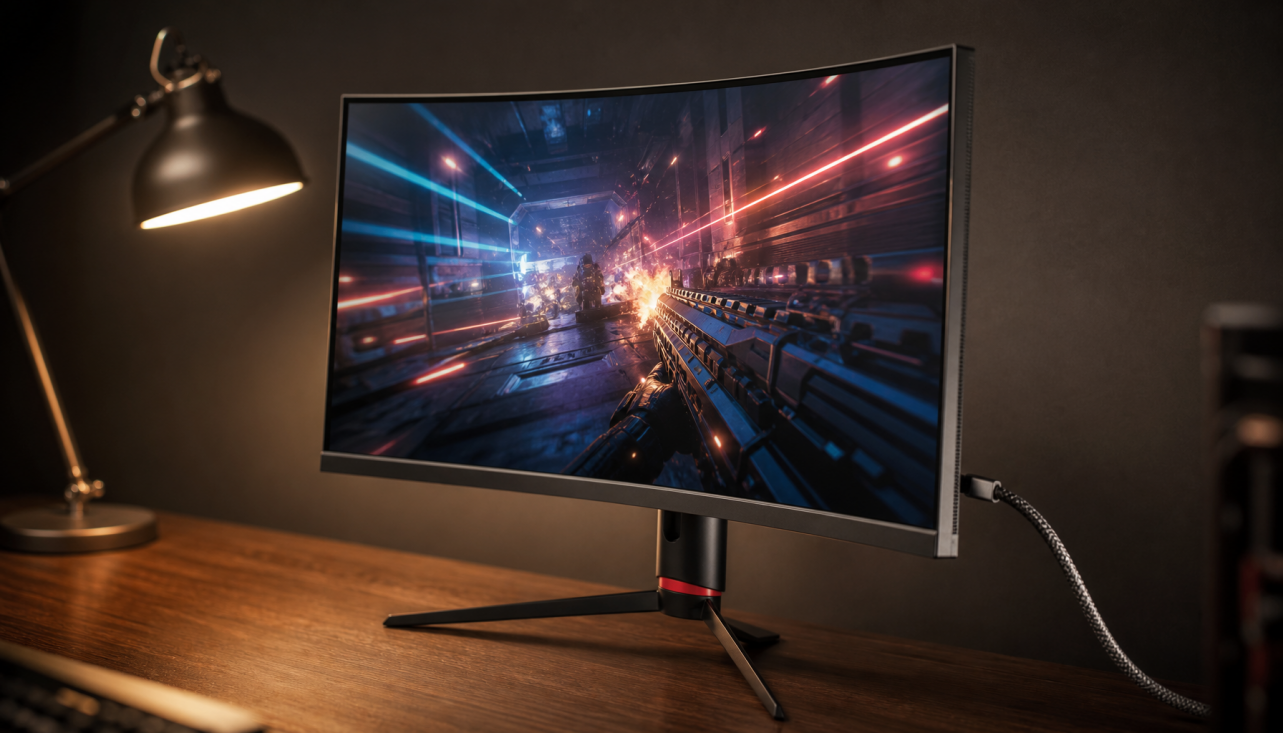
HDR needs the right graphics card color format because the display link must carry more brightness, color detail, and metadata than ordinary SDR. If bandwidth, bit depth, or chroma format is mismatched, HDR may look washed out, lose text clarity, or fail to enable at all.
Does HDR look brilliant in one game, then gray and soft on the desktop a minute later? On real monitor setups, the fix is often testable within minutes: set the output format, bit depth, refresh rate, cable, and operating system HDR mode as one complete signal chain. You’ll get a clear way to choose RGB, YCbCr, 10-bit, and HDR toggles without guessing.
HDR Is Not Just “More Color”
HDR changes how the whole display pipeline behaves. A normal SDR desktop usually targets sRGB behavior, while HDR uses a different brightness response and wider color expectations. That is why a monitor can look accurate in SDR, then suddenly appear dull, too bright, or strangely tinted when HDR is left on all day.
HDR on a monitor depends on the source, operating system, GPU, cable, and display all agreeing on the same type of signal. HDR is built around higher brightness, deeper blacks, wider color, and usually at least 10-bit color depth. That “usually” matters because a PC can output many combinations: RGB 8-bit, RGB 10-bit, YCbCr 4:4:4, YCbCr 4:2:2, YCbCr 4:2:0, and different refresh rates.
A useful way to think about it is this: HDR asks the graphics card to send a richer signal, but the cable and port have a fixed-size pipe. At 4K and high refresh rates, the GPU control panel may have to trade one thing for another. You may keep 10-bit HDR but reduce chroma detail, or keep full chroma for sharp desktop text but fall back to 8-bit.
Why the GPU Control Panel Matters
The operating system can enable HDR, but the GPU control panel decides how the signal is packaged before it reaches the monitor. That packaging includes output color format, color depth, dynamic range, resolution, and refresh rate. If one part is too demanding for the port, the driver may hide 10-bit, force chroma subsampling, drop the refresh rate, or prevent HDR from appearing stable.
PC HDR setup is harder than TV HDR because the whole chain must support it, including HDMI 2.0 or 2.1, DisplayPort 1.4a, a compatible GPU, HDCP where needed, and an HDR monitor. A 4K 144 Hz gaming monitor running HDR is simply asking more from the link than a 1080p office display at 60 Hz.
In practical testing, the most common failure pattern is not “HDR is broken.” It is “this exact resolution, refresh rate, color format, and bit depth combination is too heavy or unsupported.” A user may succeed at 4K 60 Hz RGB 10-bit HDR, then fail at 4K 120 Hz unless they switch to YCbCr 4:2:2 or use a higher-bandwidth port and cable.
RGB, YCbCr, and Chroma Subsampling
RGB sends separate red, green, and blue information. It is clean and predictable for desktop work because every pixel carries full color information. YCbCr separates brightness from color information, which allows formats like 4:2:2 and 4:2:0 to reduce color detail while preserving much of the perceived image structure.

The key tradeoff is text and UI clarity. Full chroma information in YCbCr 4:4:4 is close to RGB in visible fidelity, while 4:2:2 and 4:2:0 reduce color resolution to save bandwidth. That can be acceptable for movies, where video is often already compressed this way, but it is less ideal for spreadsheets, code editors, small red text, or fine interface lines.
For a gaming monitor used as a desktop display, RGB 10-bit or YCbCr 4:4:4 10-bit is the clean target when the hardware supports it. If that option disappears at your chosen refresh rate, YCbCr 4:2:2 10-bit can be a reasonable HDR gaming compromise. For office work, RGB or 4:4:4 usually matters more than squeezing HDR into every mode, because text clarity is part of performance too.
Setting |
Best Use |
Main Advantage |
Main Tradeoff |
RGB 10-bit |
HDR gaming, creation, premium monitors |
Full color detail with HDR-friendly depth |
Requires more bandwidth |
YCbCr 4:4:4 10-bit |
HDR when RGB 10-bit is unavailable |
Full chroma with high bit depth |
Not supported equally by every display |
YCbCr 4:2:2 10-bit |
4K HDR gaming or video on bandwidth-limited links |
Keeps 10-bit HDR with lower bandwidth |
Fine text can look less crisp |
RGB 8-bit |
SDR desktop and productivity |
Sharp text and broad compatibility |
Less ideal for HDR gradients |
YCbCr 4:2:0 |
Movies on limited links |
Lowest bandwidth demand |
Poor choice for desktop text |
Bit Depth Is the HDR Setting People Notice Late
HDR benefits from 10-bit output because it gives smoother tonal transitions and supports a wider range of visible color steps. SDR 8-bit color can represent about 16.7 million colors, while 10-bit reaches about 1.07 billion possible colors. That does not mean every scene suddenly looks more saturated; it means gradients, skies, shadows, and highlight roll-off have more room to breathe.
Wide color gamut expands the palette and bit depth compared with sRGB, which is why the bit-depth setting in GPU control software is not cosmetic. On a 27-inch OLED or mini-LED gaming display, an 8-bit HDR signal may still activate HDR mode, but it can show banding in smooth skies or foggy game scenes where 10-bit looks cleaner.
There is a value angle here: do not chase 12-bit output unless your display chain actually benefits from it. Many consumer HDR displays are effectively built around 10-bit-class output, and a stable RGB or 4:4:4 10-bit mode is usually a better practical target than a theoretical 12-bit mode that forces awkward compromises.
Why HDR Can Look Washed Out on the Desktop
HDR often looks wrong on the desktop because most desktop content is still SDR. The display is being asked to operate in an HDR response mode while the app content was made for SDR assumptions. That mismatch can flatten contrast, shift colors, or make normal white windows uncomfortable.
HDR desktop testing supports enabling HDR only when viewing real HDR games, video, or media. This is especially important for productivity users: SDR content in HDR mode can lose accuracy, monitor controls may become locked, and the SDR brightness slider can reduce digital white level rather than properly lowering the panel backlight on LCDs.
For office productivity displays, the practical workflow is simple: keep the desktop in SDR for email, spreadsheets, dashboards, browsing, and document work. Switch HDR on for HDR games, HDR movies, or HDR grading. That single habit preserves text clarity, color consistency, power behavior, and eye comfort.
Tone Mapping Adds Another Layer
The operating system does more than flip a switch. It composes the desktop and maps HDR content to the display’s actual capabilities. If a monitor supports multiple HDR modes, the visible result can vary depending on certification behavior, brightness limits, and how the display handles metadata.
HDR settings rely on monitor information and content metadata so the GPU can tone map before the final desktop image is composed. In plain terms, tone mapping is the translation step that prevents a 1,000-nit movie scene from blowing out on a monitor that cannot actually show 1,000 nits across that image.
This is why two HDR monitors can behave differently with the same GPU setting. One may prioritize certified color accuracy and cap brightness lower. Another may expose a non-certified HDR10 mode that gets brighter but less controlled. For gaming, the brighter mode may feel more impactful. For creative work, the certified path is often the more reliable baseline.
Cable and Port Limits Are Not Minor Details
A high-refresh HDR monitor can expose weak links fast. If the cable cannot sustain the selected mode, the symptoms may look random: black flashes, sparkles, audio cuts, reconnect sounds, lost HDR toggles, or a display that only works after lowering the refresh rate.
Display cable signal integrity should be tested at the hardest real workload: native resolution, intended refresh rate, normal color format, and HDR enabled if you use it. A practical 20- to 30-minute stress test is more useful than assuming a cable is fine because it works at the desktop.
The cleanest troubleshooting move is controlled swapping. Keep the same PC, monitor, port, driver, and settings, then change only the cable. If one cable fails 4K high-refresh HDR and another passes, the cable is the likely limitation. Short, certified cables are often more reliable than long, flashy ones.
Choosing the Right Settings by Use Case
For competitive gaming, start with native resolution, your target refresh rate, adaptive sync if stable, and HDR only when the game has proper HDR support. If RGB 10-bit is available, use it. If it is not available at your chosen refresh rate, YCbCr 4:2:2 10-bit is often a better HDR gaming compromise than RGB 8-bit, because motion and contrast usually matter more than tiny desktop text inside the game.

For office productivity, prioritize RGB or YCbCr 4:4:4, native resolution, comfortable brightness, and SDR mode. HDR brightness needs vary by workflow, but average users should not prioritize peak brightness over color accuracy and real use conditions. A display that makes spreadsheets crisp for eight hours is doing its job.
For creators, separate SDR and HDR workflows. Use calibrated SDR modes for sRGB, Rec.709, P3, or Adobe RGB work when the deliverable is SDR. Use HDR mode only for HDR review, grading, or playback. If you edit HDR video on a portable smart screen or compact OLED, confirm not just the HDR badge but also brightness behavior, color gamut, bit depth, and whether the software is color managed.
A Practical Setup Path That Works
Start in advanced display settings and confirm the monitor is running native resolution and the refresh rate you actually paid for. Then open the GPU control panel and choose the highest-quality color format the link can sustain. For most HDR monitor users, that means trying RGB 10-bit first, then YCbCr 4:4:4 10-bit, then YCbCr 4:2:2 10-bit if bandwidth blocks the first two.

After that, enable HDR only for HDR content. SDR-to-HDR conversion can improve some SDR video or games on compatible systems, but it still requires an HDR-capable display and a properly configured HDR state. Treat these features as enhancements, not replacements for a clean signal chain.
Finally, calibrate. Use the operating system’s HDR calibration tool where appropriate, check the in-game HDR sliders, and avoid stacking multiple tone-mapping systems blindly. If the game has its own HDR peak brightness setting and the monitor also tone maps aggressively, the result can become too dark or clipped. A simple test scene with bright clouds, dark interiors, and readable UI text will reveal more than a spec sheet.
Why This Matters More as HDR Monitors Grow
HDR is no longer a niche checkbox. The HDR monitor market was valued at $8.4 billion in 2025 and is projected to reach $19.7 billion by 2034, with gaming listed as the largest application segment in the research notes. More buyers are pairing 4K, OLED, mini-LED, high refresh rates, and HDR in one setup, which makes signal configuration more important than it was in the 1080p 60 Hz era.
The performance-driven answer is simple: HDR requires specific color format settings because the display signal has to balance quality, bandwidth, compatibility, and the type of content on screen. Use full chroma for desktop clarity, 10-bit for HDR depth, certified cables for stability, and HDR mode only when the content deserves it. A great monitor should feel immersive when you play and precise when you work; the right GPU color format is what lets it do both.