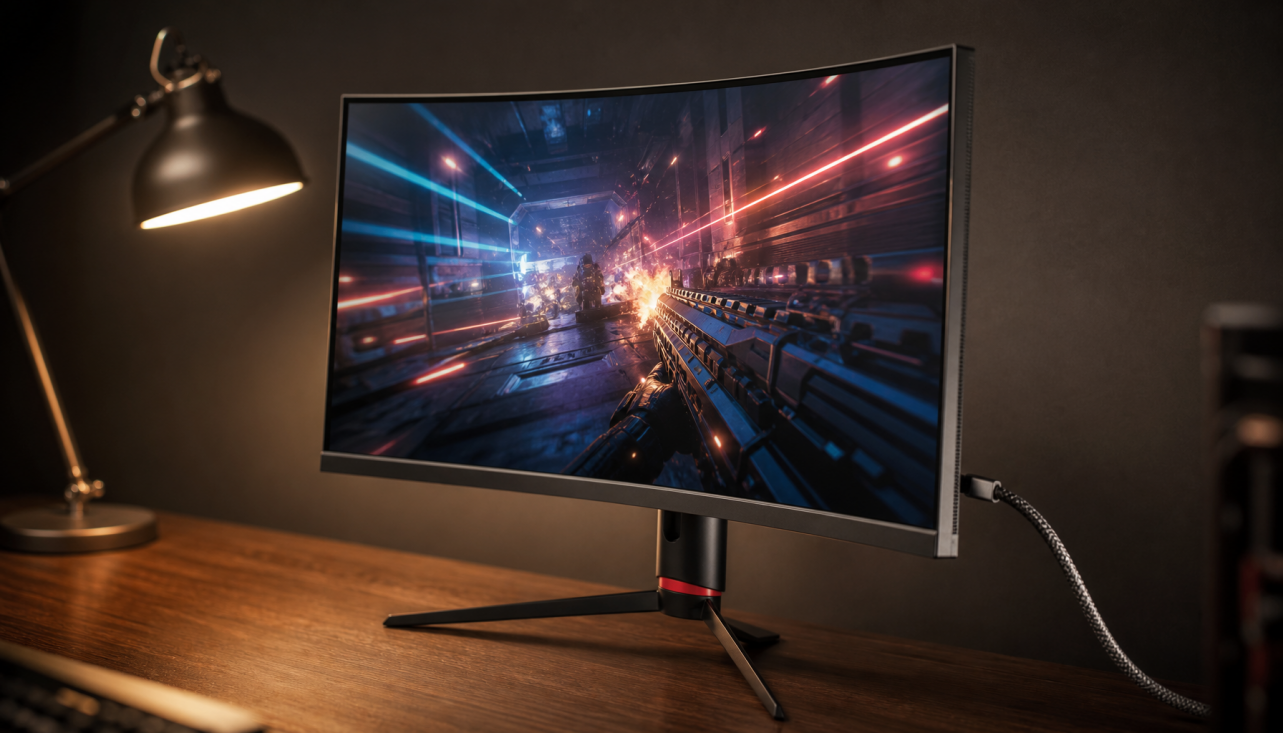
HDR tone mapping treats tiny, mirror-like flashes as brief peak-brightness events, while broad bright areas are compressed more carefully to preserve shape, texture, and overall scene balance.
Does a game scene look brilliant when a sword catches sunlight, but strangely flat when the whole sky turns bright? On a capable HDR monitor, good tone mapping can keep that flash intense while still showing cloud detail, snow texture, or a sunlit wall without washing out the entire image. Here is how to read that behavior, tune for it, and choose displays that handle both kinds of brightness with control.
Why Specular Highlights and Diffuse Brightness Are Not the Same
A specular highlight is a concentrated reflection from a glossy, metallic, wet, glassy, or polished surface. Think of a car hood in a racing game, a muzzle flash on armor, sunlight bouncing off water, or a chrome edge in a product render. It is usually small and intense, and it can reach the display’s peak brightness briefly without overwhelming the scene.

Diffuse bright areas are different. They are larger surfaces that scatter light more evenly, such as a white office wall, a snowy field, a cloudy sky, a bright spreadsheet background, or a sunlit sidewalk. If these areas are pushed too high, the image can lose readable texture and visual comfort. If they are pulled too low, HDR looks dim and lifeless.
HDR tone mapping exists because HDR content often exceeds the real brightness and color limits of the screen showing it. A movie, game, or rendered scene may contain light values that fit a mastering monitor or floating-point render pipeline, while your monitor, projector, or portable smart screen has a fixed peak brightness, black level, color volume, and dimming system.
The Core Difference: Preserve Sparkle, Protect Structure
Tone mapping usually gives specular highlights more permission to stay bright because they are small and visually meaningful. A sharp glint can sell realism without needing much screen area or sustained power. On a strong Mini-LED gaming monitor, that might mean a torch reflection or neon edge briefly climbing near the panel’s HDR peak.
Diffuse bright areas need gentler handling. A full white cloud bank, bright hockey rink, or large office document cannot simply be driven to the same peak as a pinpoint reflection. If the tone map treats the whole area like a highlight, the screen may clip detail, raise eye fatigue, trigger aggressive backlight limiting, or flatten midtones around it.
This is why HDR can look “bright” in two very different ways. A display may produce punchy specular highlights but still look restrained in broad bright scenes because sustained full-screen brightness is harder than short peak brightness. For monitor buyers, that distinction matters more than a single peak-nit number.
How the Tone Curve Handles Each Zone
Tone mapping compresses high-brightness information into the display’s available range. In graphics rendering, tone mapping transforms HDR floating-point values into a displayable range while trying to preserve visible detail. That same concept applies to consumer HDR playback: extreme values cannot all be shown literally, so the display decides what to preserve, compress, or clip.

Specular highlights often sit in the upper end of the curve, sometimes called the highlight roll-off region. A well-tuned roll-off keeps the highlight bright but prevents a harsh, featureless blob. In a racing sim, the sun reflection on a windshield should feel intense, but you should still see the windshield edge, road, and cockpit instruments.
Diffuse bright areas rely more on midtone and upper-midtone control. The tone map has to keep the scene readable. In a productivity display, a white document should remain clean without crushing pale gray UI dividers. In a strategy game with a snowy map, terrain ridges should remain visible instead of becoming one glowing sheet.
Bright Area Type |
Typical Example |
Tone-Mapping Goal |
Bad Result |
Specular highlight |
Sun glint on metal, neon reflection, muzzle flash |
Preserve punch and local intensity |
Clipped white blob or dull sparkle |
Diffuse bright area |
Snow, clouds, white wall, office document |
Preserve texture, contour, and comfort |
Washed-out detail or dim, gray HDR |
Mixed scene |
Bright sky behind a character |
Balance highlight retention with subject visibility |
Dark foreground or blown sky |
Why Dynamic Tone Mapping Helps
Static tone mapping uses one mapping curve for a whole movie or large content segment. That can work when content is predictable, but it struggles when a dim cave, a bright desert, and a neon city all share the same fixed strategy. Static HDR metadata can describe the content broadly, but it cannot perfectly steer every scene.
Dynamic tone mapping analyzes scenes or frames and adjusts the mapping as brightness changes. That matters for specular highlights because the display can decide when a small peak deserves extra headroom. It also matters for diffuse brightness because the display can prevent large bright areas from overwhelming the scene.
The practical difference shows up quickly in games and video. In a dark neon street, dynamic tone mapping may keep small reflections hot while maintaining shadow depth. In a bright desert level, it may lower the top-end mapping so sand texture, sky gradients, and distant structures remain visible. The goal is not maximum brightness all the time; it is controlled brightness where it matters.
Display Hardware Sets the Ceiling
Tone mapping cannot create brightness, black depth, or color volume that the panel does not have. It can only allocate the display’s real capability more intelligently. This is why a premium HDR monitor, an OLED display, a Mini-LED local-dimming monitor, a projector, and a portable screen can all interpret the same HDR signal differently.
For LCD HDR, local dimming is especially important because it improves dark and bright region control compared with changing the whole backlight at once. A small specular highlight on a dark background needs a local zone to brighten without lifting the whole screen. If the dimming system is slow or coarse, you may see blooming around the highlight or a delayed brightness pulse.
OLED handles specular highlights differently because each pixel can dim or switch off independently, giving strong black levels and precise small highlights. The tradeoff is that large diffuse bright areas may be limited by panel power and heat management. A full-screen white spreadsheet or bright snowfield may not sustain the same luminance as a tiny reflection.
Projectors face an even harder challenge because their peak brightness is usually much lower than flat-panel HDR displays. Projectors typically operate with far less brightness headroom than many HDR masters, so tone mapping must be more aggressive. That can make specular highlights less explosive, but good processing can still protect shape, shadow detail, and overall contrast.
What This Means for Gaming Monitors
For pro gaming, the best HDR tone mapping does three things at once: it keeps explosive highlights fast and punchy, avoids raising black levels around small bright objects, and preserves visibility in large bright environments. Competitive players should pay attention because bad HDR can hide enemies in crushed shadows or flatten bright maps into low-contrast glare.

If your HDR game has calibration sliders, set black level first, then paper white or UI brightness, then peak brightness. Paper white controls the brightness of normal diffuse content such as menus, snow, clouds, and matte surfaces. Peak brightness controls how far specular highlights can climb. Pushing paper white too high often makes the whole game tiring, while pushing peak brightness too low removes HDR impact.
A simple real-world check is a bright sky with clouds and a shiny object in the same scene. The clouds should show soft detail, and the shiny object should still pop above them. If both look equally white, the highlight roll-off is too harsh or the display is clipping. If neither pops, the HDR mode may be too conservative, the game calibration may be wrong, or the monitor may lack real HDR headroom.
What This Means for Office and Creator Displays
Office productivity displays should not chase HDR spectacle at the expense of comfort. Large diffuse bright areas dominate productivity work: documents, dashboards, email windows, spreadsheets, and browser pages. If an HDR monitor runs these too bright, you get eye strain and inconsistent UI tone. If it tone maps them too low, HDR video and design previews may look underpowered.
For creators, the key is separating review brightness from working brightness. HDR grading, 3D rendering, and photo editing benefit from a monitor that can show highlight headroom, but daily interface work should remain controlled. Professional HDR workflow guidance emphasizes using HDR visualization tools and checking clipping or display limits rather than trusting the image by eye alone.
If you edit product visuals, test both a chrome reflection and a matte white product surface. The chrome can approach peak brightness; the matte surface should keep texture, edges, and color. When both behave correctly, your output is more likely to survive real screens, from a desk monitor to a portable smart display.
Pros and Cons of Aggressive Highlight Mapping
Aggressive specular mapping can make HDR feel premium. Games gain impact, movies gain realism, and product renders gain material depth. Small highlights are one of the fastest ways a display communicates that the image is HDR, not just brighter SDR.
The downside is artifact risk. On LCD monitors with limited dimming zones, tiny bright objects can bloom. On weaker HDR displays, the tone map may sacrifice diffuse detail to make highlights look more impressive. On portable screens, limited sustained brightness can make the algorithm dim the whole image after a bright moment.
Conservative mapping is more reliable for office work, mixed lighting, and long sessions. It protects comfort and texture, but it can make HDR look too close to SDR if the display already has limited peak brightness. The best implementation gives users a useful HDR mode selection, such as accurate, game, cinema, or bright-room presets, without forcing one compromise everywhere.
How to Evaluate It Before You Buy or Tune
Look beyond the HDR badge. A meaningful HDR monitor should have credible peak brightness, strong contrast, useful local dimming or OLED-level pixel control, 10-bit signal handling, and wide-gamut coverage. Low-end HDR labels can be misleading when the hardware lacks the brightness or contrast needed for convincing tone mapping.
Use familiar scenes. A night city scene checks small highlights and blooming. A snowy or cloudy daylight scene checks diffuse brightness. A game HUD over HDR scenery checks whether the monitor keeps UI readable without over-brightening the whole frame. For work displays, open a white document next to an HDR video preview and watch whether the desktop becomes uncomfortable or unstable.
Room light matters too. Reflections reduce perceived contrast, especially on portable smart screens and glossy gaming displays. If you use HDR near a window, specular highlights may still look bright, but dark-to-bright separation can collapse. In that environment, a monitor with stronger sustained brightness and anti-reflective coating may outperform a theoretically better panel in a dark-room test.
FAQ
Should specular highlights always be the brightest part of HDR?
Usually, yes, when they represent intense reflections or light sources. But a highlight should not destroy nearby detail unless the content intentionally clips it. A good HDR monitor makes the glint feel brighter than a matte white object without turning the whole scene into glare.
Is dynamic tone mapping always better than static tone mapping?
Dynamic tone mapping is often better on displays with limited brightness because it can adapt scene by scene. Static mapping can be more predictable and closer to a fixed reference curve, but it may make some scenes too dark or too flat when the content’s brightness range varies widely.
Why does HDR sometimes make bright scenes look darker?
The display may be preserving highlight detail by lowering overall scene brightness. That can be correct in moderation, but if the image looks consistently dim, check the game’s HDR calibration, the monitor’s HDR mode, operating system HDR settings, and whether the content is using static metadata that does not match your screen well.
Final Word
Specular highlights are HDR’s precision strike; diffuse bright areas are HDR’s endurance test. The best monitor does not simply get bright. It spends brightness intelligently, keeping small highlights alive while preserving the broad, readable detail that makes games immersive, office work comfortable, and creative review trustworthy.