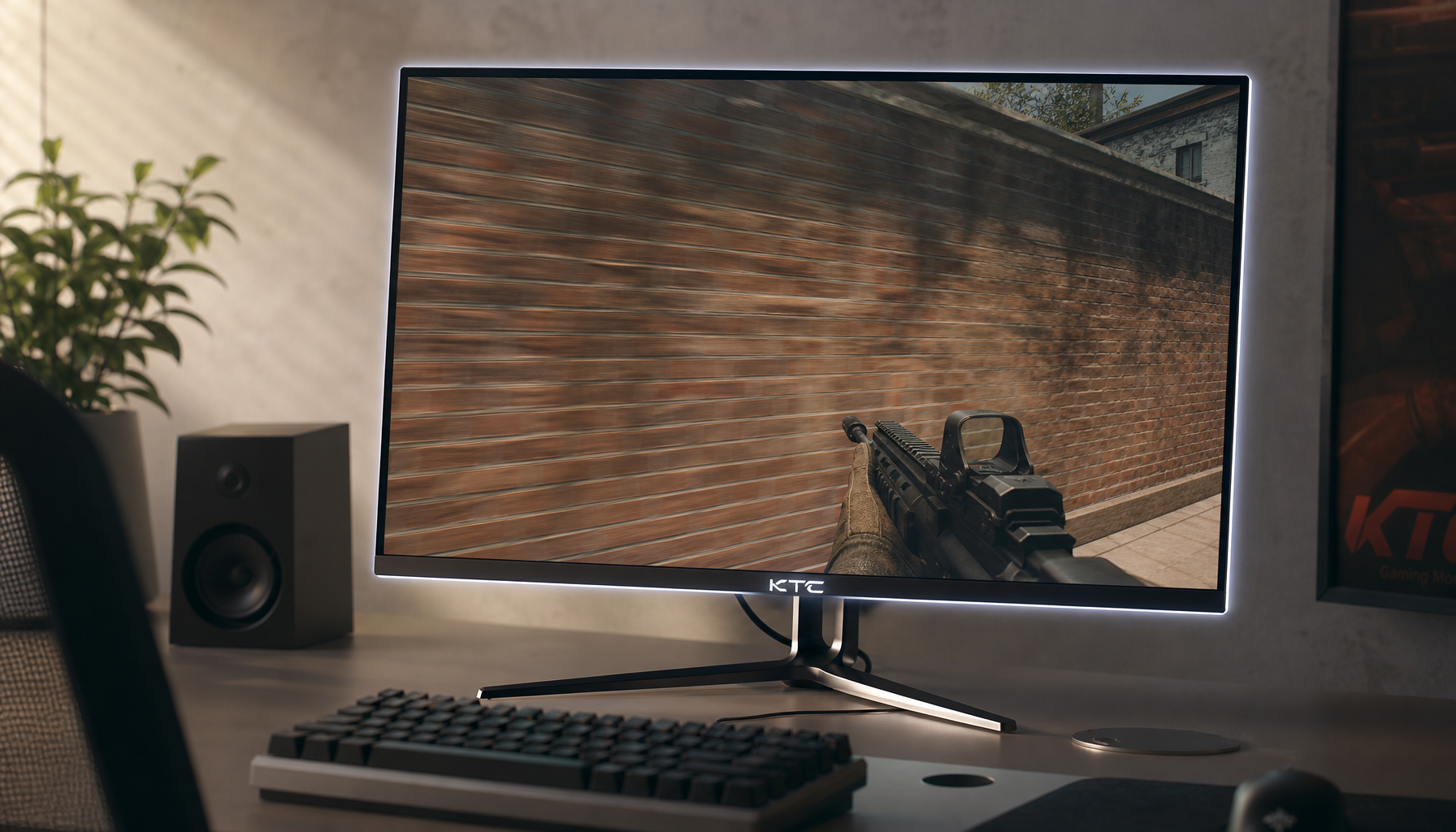
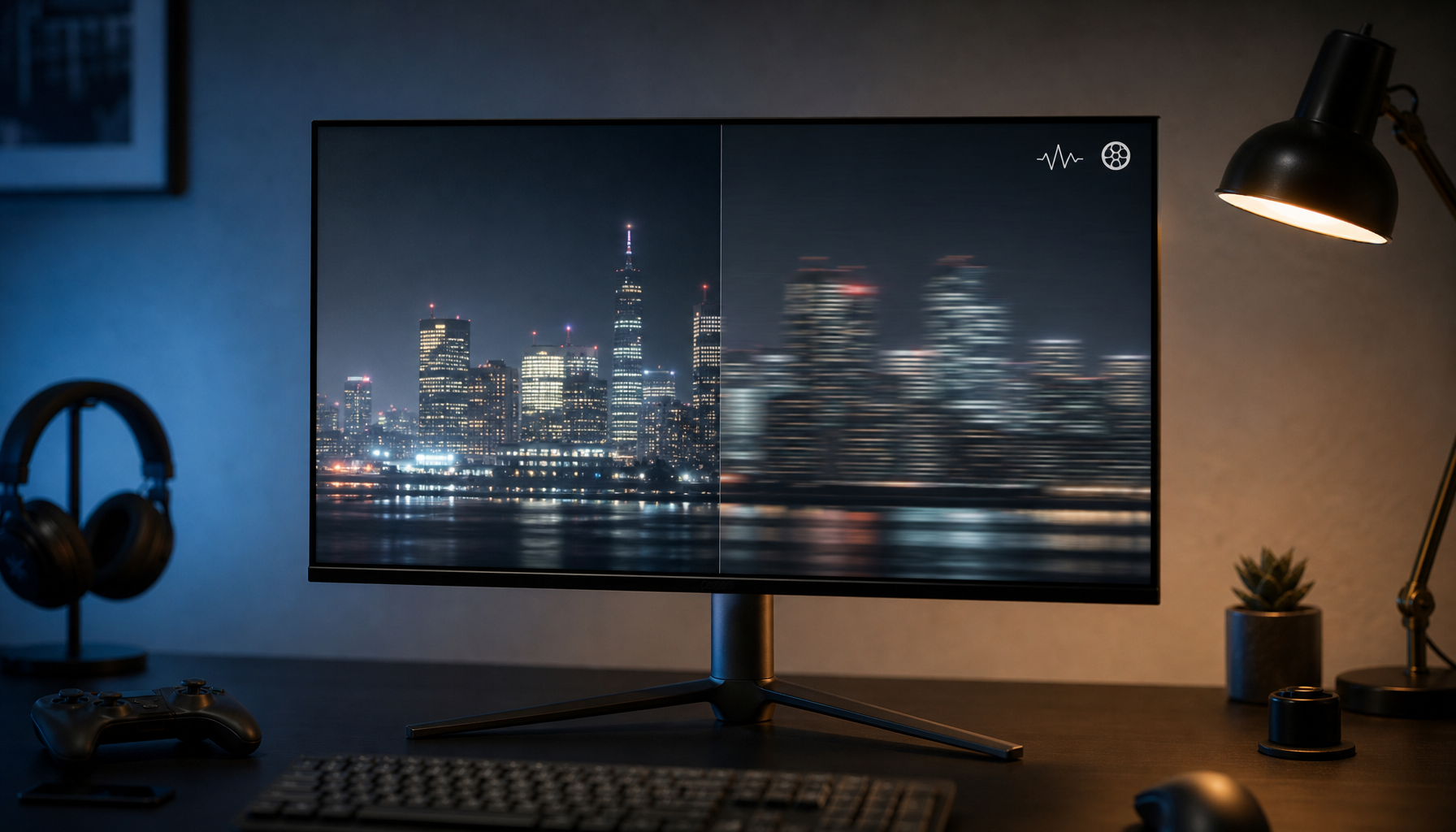
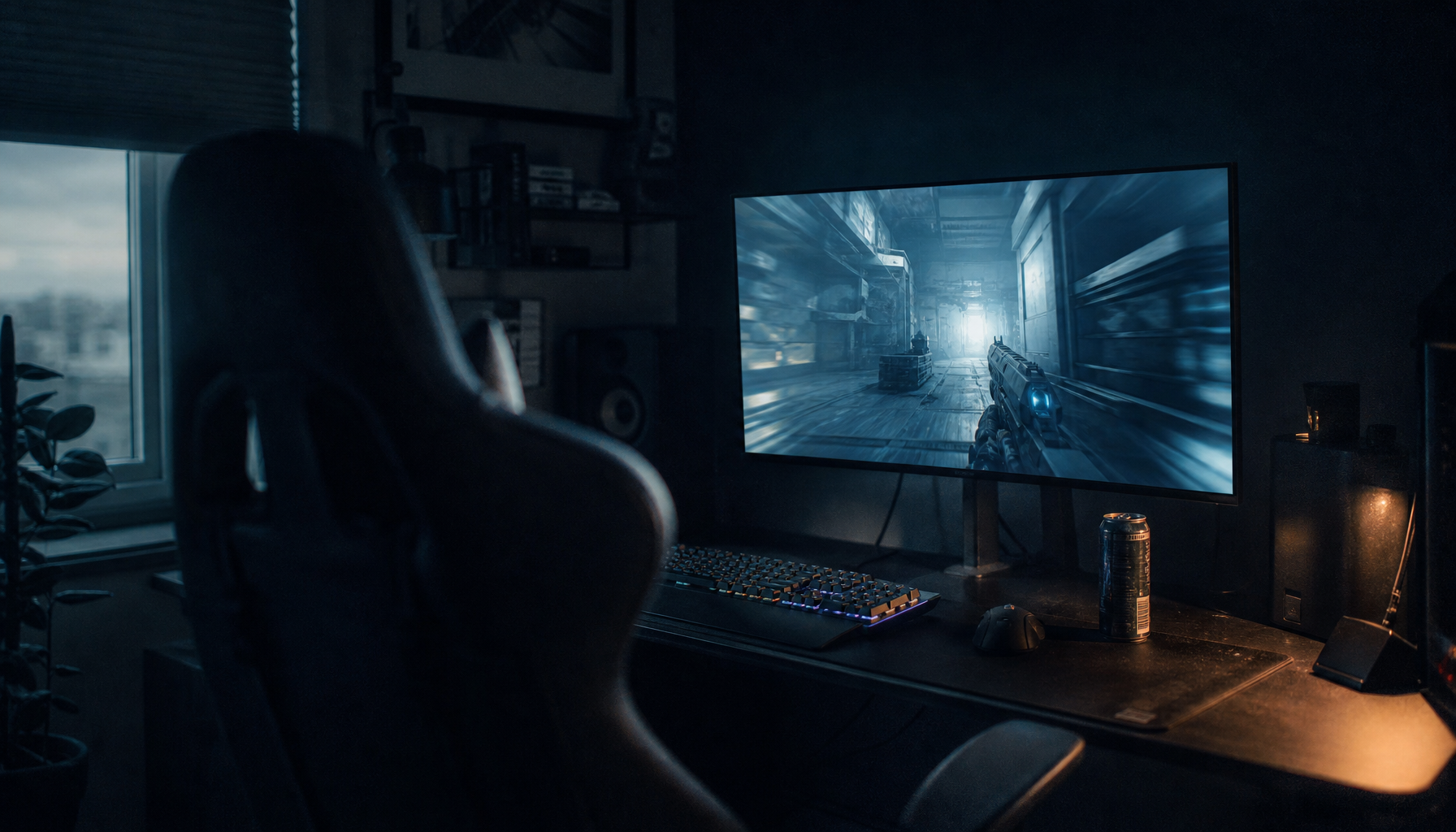
HDR10 is the broad compatibility baseline; HDR10+ can look more consistently tuned when the game, device, and display all support it. For most gamers, monitor quality matters more than the logo, but HDR10+ can reduce manual tweaking on supported setups.
Is your game too dim in dark scenes or blown out when sunlight, explosions, or neon signs hit the screen? On a capable HDR display, especially one with strong brightness and real contrast control, the right HDR path can preserve more detail without forcing you to keep revisiting sliders. Here is how to decide whether HDR10+ is a meaningful upgrade for your gaming setup or just a spec-sheet bonus.
HDR10 vs HDR10+: The Core Difference
HDR10 is the standard HDR format most PC monitors, TVs, consoles, and games can understand. It uses 10-bit color and static metadata, which means one set of brightness and color instructions is applied to the whole piece of content. That broad support is why HDR10 is commonly treated as the baseline format across TVs, streaming devices, Blu-ray players, and content platforms.
HDR10+ builds on HDR10 by adding dynamic metadata. In plain terms, the display can receive more specific brightness and contrast guidance as scenes change, instead of relying on one general instruction set. The official HDR10+ ecosystem positions the format around richer color, deeper contrast, and improved picture quality, with the biggest practical benefit being more adaptive tone mapping.
For gaming, that distinction matters because games change lighting constantly. A dungeon, a snowfield, a neon city, and a muzzle flash can all appear within minutes. HDR10 can still look excellent, but the display has to interpret those scenes with less scene-specific guidance. HDR10+ Gaming aims to make the game engine and display communicate more directly so the image lands closer to the creator’s intent with less user adjustment.

Format |
Metadata behavior |
Gaming strength |
Main limitation |
HDR10 |
Static metadata |
Works almost everywhere |
May need manual calibration and can vary by display |
HDR10+ |
Dynamic metadata |
Better scene-by-scene tone mapping when supported |
Smaller game and device support footprint |
DisplayHDR rating |
Hardware certification, not a content format |
Helps judge monitor brightness and contrast capability |
Does not guarantee HDR10+ support |
Why the Difference Is Sometimes Obvious and Sometimes Invisible
HDR10+ helps most when the display has enough hardware range to show the difference. A weak HDR monitor with 400-nit peak brightness and no meaningful local dimming may accept an HDR signal, but it cannot create the same separation between deep shadows and intense highlights as a stronger panel. VESA says HDR-capable apps can produce a different peak white level than standard SDR apps, which is a useful reminder that the signal is only half the story.
On an entry-level HDR400-class monitor, HDR10+ dynamic metadata may improve mapping decisions, but the visible gain can be subtle because the panel lacks the brightness and black-level control to make those instructions dramatic. On an OLED, QD-OLED, or Mini-LED monitor with real contrast, the same metadata can better preserve highlight detail in a bright sky while keeping the cockpit, cave, or night street from looking washed out.
A practical example: if you play a sci-fi shooter with bright energy effects against dark corridors, HDR10 may make you choose between keeping the effects controlled or lifting the shadows enough to see enemies. HDR10+ can potentially keep that balance more stable from scene to scene, provided the game and display both support it. If the game only outputs HDR10, the monitor cannot create native HDR10+ metadata out of nothing.

HDR10+ Gaming Is About Calibration Friction
The most gamer-relevant promise of HDR10+ is not just “better picture.” It is less time spent fighting the picture. One display maker describes HDR10+ Gaming as a way for the game engine and display to understand each other’s capabilities, automatically adjusting HDR settings for more accurate color, contrast, and brightness.
That matters because HDR gaming setup is often messy. One game asks for paper white. Another asks you to move a logo until it disappears. Another has separate sliders for UI brightness, peak brightness, and black level. Then your monitor has its own HDR mode, local dimming mode, brightness limiter, contrast enhancer, and color temperature settings.

HDR10+ Gaming is designed to reduce that setup burden. In a supported title on a supported display, the experience should require less trial and error than standard HDR10. The real-world win is not that every scene becomes radically different. The win is that you spend less time guessing whether the image is accurate and more time playing with consistent highlight and shadow behavior.
Monitor Hardware Still Beats Format Chasing
A better HDR format cannot rescue a weak HDR panel. Peak brightness, black level, local dimming, panel type, and color volume decide how much HDR you can actually see. The DisplayHDR 400 vs 1000 vs 1400 comparison from KTC makes the key point clearly: DisplayHDR tiers reflect more than peak brightness, especially whether the display can control dark and bright areas independently.

For gaming monitors, DisplayHDR 400 is best treated as entry-level HDR compatibility. It can look brighter and more colorful than SDR, but without local dimming, dark scenes on many IPS panels still look gray because the backlight is shared. DisplayHDR 1000 or 1400, OLED, and QD-OLED panels are where HDR becomes more convincing because highlights can pop while blacks stay dark.
Independent monitor testing has measured modern OLED gaming monitors with HDR brightness up to around 1,300 nits in some models, and buying advice often emphasizes matching the panel to your actual priorities, such as speed, resolution, contrast, and GPU power. A top gaming monitor with strong contrast and low input lag will usually improve your experience more than a weaker display that simply lists more HDR formats.
Current buying advice lands in a similar place: OLED has become a premium gaming favorite because of fast response, deep blacks, strong contrast, and vivid color. The best gaming monitor recommendations also stress matching resolution and refresh rate to your PC, since a high-end HDR screen is wasted if your GPU cannot drive the games you actually play.
When HDR10 Is the Smarter Choice
HDR10 is the smarter default if you want maximum compatibility. It is widely supported across PCs, consoles, monitors, TVs, streaming devices, and games. If you play across multiple platforms or use a portable smart screen, office display, and gaming monitor interchangeably, HDR10 is the least fragile option.
It is also the safer bet for PC gaming libraries today. Many games support HDR10, while fewer explicitly support HDR10+ Gaming. Even when HDR10+ support exists, you need the whole chain to match: the game, GPU or console path, operating system behavior, cable bandwidth, and display all have to cooperate. If one part falls back to HDR10, your HDR10+ badge becomes irrelevant for that session.
That does not make HDR10 inferior in every room. On a strong OLED or Mini-LED monitor, well-calibrated HDR10 can look spectacular. If the game includes good HDR calibration tools and the display tone maps intelligently, the difference between HDR10 and HDR10+ may be modest during play.
When HDR10+ Is Worth Prioritizing
HDR10+ is worth prioritizing if you want fewer calibration chores and play titles that explicitly support HDR10+ Gaming. It is also more appealing if you use the same screen for HDR games and HDR video, because dynamic metadata can benefit both types of content.
The format’s biggest value appears on displays with enough brightness and contrast to reveal scene-level improvements. A Mini-LED monitor with strong local dimming or a premium OLED/QD-OLED panel gives HDR10+ room to work. On a basic 400-nit monitor, the improvement is more likely to be a small tuning difference than a major visual upgrade.
A simple buying rule works well: do not pay a large premium for HDR10+ alone, but treat it as a valuable plus when the monitor already has the right fundamentals. Those fundamentals are high refresh rate, low response time, strong contrast, wide color, good HDR brightness, and the right ports for your PC or console.
How to Test HDR on Your Current Setup
Before replacing a monitor, confirm that HDR is actually working. VESA recommends checking your display settings and making sure HDR gaming and app playback are enabled on compatible systems. The HDR setup process also includes comparing SDR and HDR sample images and testing real HDR playback, which can quickly reveal whether your screen is receiving and displaying HDR correctly.
For a real-world check, open a bright SDR app like a plain text editor beside an HDR test app or HDR video. If HDR is active and the display has meaningful brightness headroom, peak whites in HDR content should separate from ordinary SDR white. If everything looks equally flat, washed out, or dim, the issue may be display settings, GPU drivers, cable bandwidth, game settings, or the monitor’s HDR mode.

You should also test in the kind of game you actually play. A competitive shooter may benefit more from clear visibility, low latency, and high refresh rate than aggressive HDR contrast. A cinematic RPG, racing sim, or sci-fi adventure is more likely to show the value of HDR10+ because lighting shifts and highlight detail are part of the immersion.
Pros and Cons for Gaming
HDR10’s biggest advantage is reliability. It works across more devices and content, and it is the format you can reasonably expect a modern HDR display to support. Its downside is that static metadata can leave more work to the display’s tone mapping, which means two monitors can make the same game look noticeably different.
HDR10+ has the advantage of dynamic adjustment. When supported, it can improve consistency across bright and dark scenes and reduce manual calibration friction. Its downside is availability. Game support, device support, and monitor support are still narrower than HDR10, so it should not be the only reason you buy a display.
For office productivity displays, HDR10+ is usually less important than text clarity, USB-C power delivery, ergonomic adjustment, SDR color accuracy, and low eye strain. For portable smart screens, HDR support is useful, but limited brightness often means you should treat HDR as a bonus rather than a core buying criterion. For serious gaming monitors, HDR10+ becomes more interesting once the panel already clears the performance bar.
The Practical Buying Verdict
Choose HDR10 if you want the safest standard, broad game compatibility, and fewer surprises across PC, console, and media playback. Choose HDR10+ as a premium feature when you are already buying a strong HDR display and you play supported games or use HDR10+ video sources.
The real-world difference is this: HDR10 gets you into HDR gaming, while HDR10+ can make HDR feel more automatic, more consistent, and less dependent on manual slider tuning. Spend first on the screen’s actual HDR capability, then let HDR10+ tip the decision when two otherwise strong monitors are close.