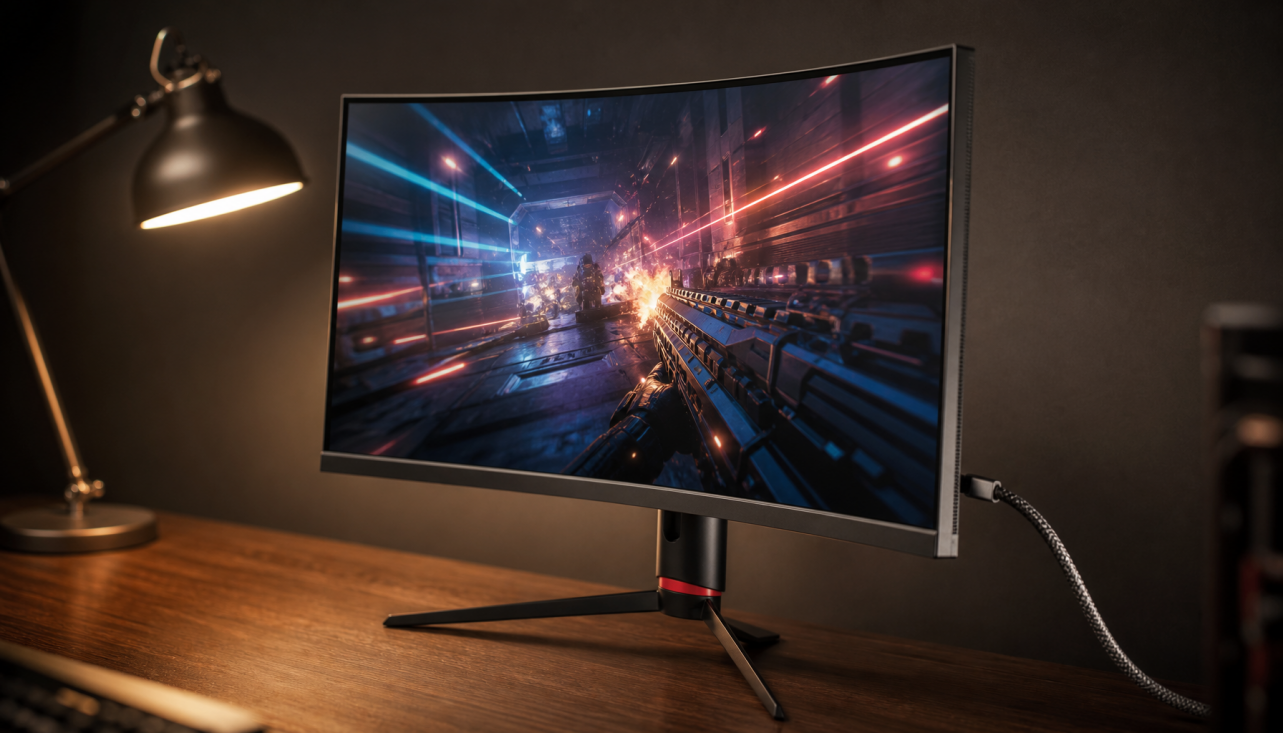
Black areas can appear to glow because many screens still push light through a backlit panel, and your eyes become far more sensitive to that leakage in a dark room. The fix is usually a smarter mix of panel choice, brightness control, viewing position, and room lighting.
Does your monitor look fine during the day, then turn dark game scenes into gray fog at night? A simple setup pass can usually make blacks look deeper, reduce eye fatigue, and help you separate normal panel behavior from a defective unit. You’ll learn what is happening, how to diagnose it, and which upgrades actually matter.
The Short Answer: Your Screen Is Rarely “Black” in the Dark
When a room goes completely dark, your visual system adapts to detect tiny amounts of light. That helps you spot enemies in a horror game, read dim UI, or watch a shadow-heavy movie, but it also exposes every weakness in the display’s black-level performance. What looked like solid black under office lighting can become cloudy, blue-gray, purple-gray, yellowish, or washed out once the monitor becomes the brightest object in the room.
The most common causes are LCD backlight leakage, IPS glow, backlight bleed, local dimming limits, overly high brightness, raised gamma, aggressive black equalizer settings, and reflected room light. OLED changes the equation because its pixels can turn off individually, but even OLED can look less impressive if room light hits the panel or if the content, operating system, or HDR mode raises near-black detail.
Black Level, Contrast, and Glow: Plain Definitions That Matter
Black level is the amount of light a display emits or reflects when it is supposed to show black. Contrast is the difference between that black level and the brightest white the screen can produce. In practice, deep blacks are not only about impressive specs; they decide whether a night scene feels dimensional or flat.
In LCD monitors, the key reality is that IPS uses a constant backlight while liquid crystals try to block that light. They never block it perfectly. That is why black on an IPS monitor can look gray in a fully dark room even when the image signal is pure black. VA LCD panels usually block light better, so they often deliver deeper dark-room blacks, though they may trade off viewing-angle stability or motion clarity depending on the model.
OLED is different because every pixel is self-emissive. When a pixel is black, it can turn off, which is why OLED has the advantage for cinematic black depth, HDR impact, and dark-room immersion. The tradeoff is that OLED costs more and needs sensible care around static desktop elements, game HUDs, and long productivity sessions.
Why IPS Glow Looks Like Light Coming From the Corners
IPS glow is an optical behavior of IPS-type LCD panels. It often appears as a pale haze in the corners or edges during dark scenes, especially when you sit close to a large display or view the corners off-axis. On ultrawide and large-format screens, this can be more visible because the edges are naturally at a steeper angle from your eyes.

A practical test is simple: display a black screen in a dark room, keep your brightness at a normal level, and move your head slightly left, right, up, and down. If the bright patch shifts, fades, or changes color as your viewing angle changes, IPS glow is likely the cause rather than a fixed defect. If the same bright blotch stays in the same place regardless of your angle, especially near an edge, you may be seeing backlight bleed or panel uniformity variation.
For competitive players, IPS can still be the right choice because fast IPS monitors deliver strong color, wide viewing angles, and high refresh rates. For late-night cinematic gaming, dark RPGs, horror titles, and movie watching, that same IPS glow can be the behavior you notice most.
Backlight Bleed Is Not the Same Thing
Backlight bleed is unwanted light leakage from the edges or structure of an LCD panel. Unlike IPS glow, it does not move much when your viewing angle changes. It is more like a fixed stain of light on the black image.
This distinction matters because IPS glow can be managed, while severe backlight bleed may justify an exchange if it is obvious at normal brightness and normal seating distance. The fair test is not a cell phone photo taken in a pitch-black room at 100% brightness, because cameras exaggerate glow. The useful test is your actual use case: your normal chair position, your real brightness setting, and content you actually play or watch.
Why a Completely Dark Room Makes the Problem Worse
A pitch-black room creates the highest contrast between the screen and everything around it. Your pupils open wider, your eyes become more sensitive, and small amounts of light leakage become obvious. The monitor also becomes the room’s main light source, so any unevenness in black level feels amplified.
This is why bias lighting is such a high-value fix. Bias lighting means soft illumination behind or around the display rather than a lamp shining into your eyes or onto the panel. It reduces the brightness gap between the screen and the wall, making black areas look less washed out and long sessions more comfortable without destroying the focused dark-room feel.

For a practical setup, place a soft neutral light behind the monitor, keep it dim, and avoid shining it directly on the screen. If your wall is strongly colored, the reflected light can tint your perception, so neutral walls or neutral light placement work better for color-sensitive work.
Brightness Is Often the Biggest Setting Mistake
Many monitors ship with brightness set far too high for dark-room use. A screen tuned for a showroom, bright office, or daylight desk can be punishing at midnight. On a backlit LCD, high brightness raises the amount of light available to leak through black pixels, so the same panel flaw becomes more visible.
For office-style computer work, ambient lighting around 300-500 lux is commonly recommended, but a dark gaming room or editing bay may run much dimmer. The key is matching the screen to the room. If you lower the monitor from 100% brightness to a comfortable dark-room level, black glow often drops from distracting to tolerable. A quick paper test also works: under your room lighting, a white document or web page should not look dramatically brighter than a sheet of white paper on the desk.
Black equalizer, black stabilizer, shadow boost, and some gaming presets can make the issue worse. These modes lift shadow detail so enemies are easier to see, but they can also turn intended blacks into gray. For immersive play, start with a standard, sRGB, cinema, or accurate preset, use gamma near 2.2 when available, and only raise shadow visibility when the game demands it.
Mini-LED Helps, But It Can Add Blooming
Mini-LED is a backlight upgrade, not a new LCD panel type. It uses many small LEDs grouped into local dimming zones so darker areas can dim while bright highlights stay bright. That makes a major difference for HDR, especially in games with flashlights, explosions, neon signs, or bright UI over dark scenery.

The tradeoff is zone size. Since each dimming zone controls many pixels, a bright object on a black background can create a halo. Mini-LED backlights can deliver much stronger perceived contrast than standard IPS, but they cannot match OLED’s pixel-by-pixel black control. For HDR single-player games and mixed desktop use, Mini-LED is a strong value play. For star fields, subtitles over black, and dark UI with bright icons, blooming can still show.
Display type |
Why blacks may glow |
Best fit |
Main tradeoff |
IPS LCD |
Backlight leakage and IPS glow |
Esports, productivity, color-stable work |
Weaker dark-room blacks |
VA LCD |
Some backlight leakage, less than typical IPS |
Movies, dark games, value contrast |
Possible motion smearing or angle shift |
Mini-LED LCD |
Dimming zones reduce glow but can bloom |
HDR gaming, bright rooms, hybrid use |
Haloing around bright objects |
OLED |
Pixels can turn off for true black |
Cinematic gaming, HDR, premium immersion |
Burn-in care and higher cost |
HDR Can Raise Blacks If the Monitor Is Not Built for It
HDR is not automatically better. A monitor can accept an HDR signal while lacking the contrast, brightness, dimming, or tone mapping needed to display it well. In that case, HDR may make the desktop look washed out, lift shadows, or make black levels feel less convincing than SDR.
Real HDR quality depends on light control, not just the badge. HDR support is now common, but meaningful HDR usually needs strong contrast, good local dimming, or self-emissive pixels. If your monitor is an entry-level HDR LCD with no effective local dimming, SDR may look cleaner for desktop work and many games. Enable HDR when the content and display can use it; leave it off when it simply lifts blacks.
A Practical Dark-Room Fix Path
Start by setting brightness for the room, not for the spec sheet. In a dark room, that often means a dramatic reduction from factory defaults. Then sit centered, keep your eyes near the middle of the panel, and move the monitor so the top edge is around eye level or slightly below. If the corner glow changes when you move, improve viewing geometry before judging the panel.
Next, disable shadow-boost modes and try a more accurate preset. If you use HDR, run the operating system or console HDR calibration and check a dark scene with bright highlights. If blacks look gray everywhere, compare SDR. If SDR looks better, your monitor’s HDR implementation may be the limiting factor.
Then add bias lighting behind the display. A gentle background light preserves immersion while reducing the harsh screen-to-room contrast. Monitor backlighting can reduce eye strain and improve perceived contrast because the screen no longer floats as a bright rectangle in a black void.
Finally, decide whether the panel matches your actual use. If you mainly play competitive shooters, a fast IPS monitor may still be the value winner. If you spend nights in cinematic games, watch movies in bed, or care deeply about black depth, VA, Mini-LED, or OLED will usually feel more immersive. If your screen doubles as an all-day office display with static spreadsheets, browsers, chat apps, and dashboards, Mini-LED or high-quality IPS can be the more reliable long-term tool.
When It Is Time to Upgrade
Upgrade when the glow changes what you choose to play, watch, or create. If you avoid dark games because your monitor makes them look foggy, the display is limiting the experience. If you work under bright office lighting and mostly view documents, spreadsheets, and web apps, black glow may matter less than text clarity, ergonomics, brightness range, and warranty confidence.
For premium gaming, QD-OLED is compelling because it combines OLED contrast with high color performance, and gaming-focused models often include burn-in mitigation features. QD-OLED gaming monitor lineups increasingly highlight care systems such as taskbar or logo detection, which matters if your monitor also handles desktop work. Still, no care feature changes the basic buying logic: OLED wins black levels, while LCD-based options can be more worry-free for static, high-hour productivity.
FAQ
Is black glow always a defect?
No. IPS glow is normal behavior for IPS panels, and some gray-looking black is expected from many LCD monitors in a dark room. A fixed, severe bright patch that remains visible at normal brightness and normal viewing distance may be backlight bleed or poor uniformity.
Will lowering brightness hurt image quality?
In a dark room, lowering brightness usually improves perceived black depth and comfort. The image may look less punchy at first because showroom brightness is addictive, but your eyes adapt quickly, and shadow scenes often look more natural.
Does blue light cause black glow?
No. Blue-rich light can affect comfort and sleep timing, but black glow is mainly about panel light control, brightness, viewing angle, and room conditions. Warm modes may feel dimmer because they reduce cool light output, but they do not fix IPS glow or backlight bleed at the panel level.
A dark room is the toughest test for any display. Control brightness, add soft bias lighting, use accurate modes, and choose panel technology around your real workload. The best screen is not the one with the loudest spec sheet; it is the one that keeps shadows controlled, motion clean, and your eyes comfortable through the full session.