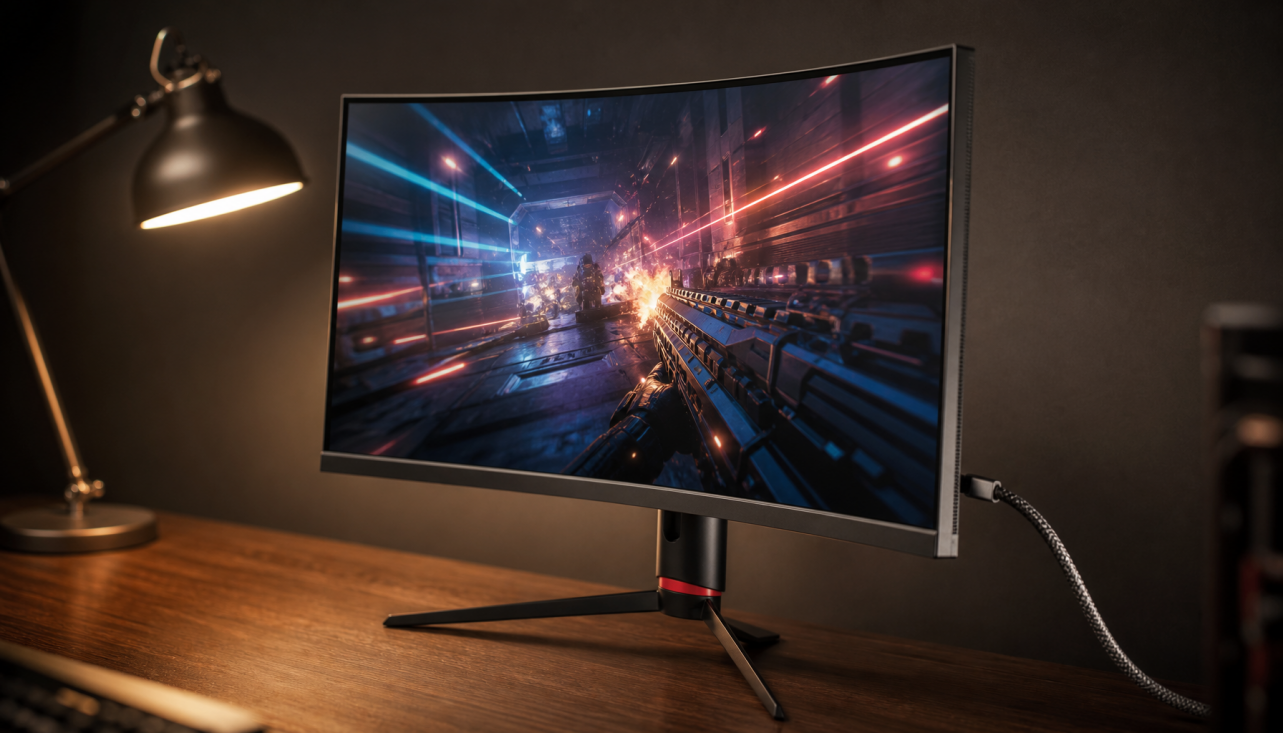
Your monitor’s overdrive setting can sharpen motion by pushing pixels to change faster, but too much of it can make pixels overshoot their target color. That is why the “Fastest” mode may create bright halos, dark trails, or reverse ghosting instead of cleaner gameplay.

Overdrive Is a Speed Boost, Not a Free Upgrade
Overdrive, sometimes called response time compensation, applies extra voltage so LCD pixels transition between shades more quickly. The goal is simple: reduce ghosting, where moving objects leave a soft trail because pixels cannot keep up with the refresh cycle.
This matters more as refresh rate climbs. A 60 Hz screen refreshes every 16.67 ms, while a 144 Hz screen has only about 6.94 ms per frame, so pixel transitions need to finish faster to look clean; higher refresh rates leave less time for slow pixels to catch up.
For esports, racing, action games, and sports video, moderate overdrive can make motion feel tighter and more responsive. For office work, reading, spreadsheets, and static creative layouts, the benefit is often minimal.
Why Artifacts Appear
The artifact problem starts when overdrive gets too aggressive. Pixels are pushed past the intended color value, then snap back, creating overshoot.
That overshoot is often called inverse ghosting. Instead of a normal blur trail behind a moving object, you may see a bright outline, dark shadow, or oddly colored smear moving with it; too much overdrive can create glowing artifacts around motion.
A practical example: move a white cursor quickly across a gray-blue background. If overdrive is overtuned, the cursor may leave a purple or dark shadow instead of a clean edge.

This is why the highest setting is not automatically the best setting. “Extreme,” “Fastest,” “Premium,” or “Super Fast” modes can win a spec-sheet race while making real scenes look worse.
The Best Setting Depends on Refresh Rate and Content
A good overdrive setting is contextual. A mode that looks clean at 240 Hz may overshoot badly when a demanding game drops closer to 60 FPS.
Variable refresh rate adds another wrinkle. When the monitor’s refresh rate changes with your GPU output, many displays still use fixed overdrive behavior. That means a setting tuned for high frame rates may become too strong at lower frame rates, because variable refresh rate technologies can change how overdrive behaves across frame ranges.
The practical move is to aim for the cleanest balance, not the most aggressive label. For many gaming monitors, Normal, Medium, or Fast is the sweet spot.
Some displays with adaptive overdrive can adjust overdrive dynamically, but many mainstream monitors still require manual tuning.
How to Tune Overdrive Without Guessing
Use a fast-motion test, then confirm in the games or workflows you actually use. Synthetic tests reveal trails clearly, but real content tells you whether the artifact is distracting.

Quick tuning steps:
- Start with Off or Low, then move up one level at a time.
- Watch for halos, dark trails, or color fringes around moving objects.
- Test both high-FPS and lower-FPS scenes if you use variable refresh rate.
- Use Medium or Normal if the highest mode adds inverse ghosting.
- Turn it off for reading, office work, or color-sensitive editing if artifacts appear.
Most monitor menus hide the option under names like Overdrive, Response Time, Trace Free, or Super Fast. If visual artifacts appear, lower the setting first before blaming the panel, cable, or GPU.
The right overdrive mode should make motion clearer without calling attention to itself. When the setting becomes visible, it is no longer improving immersion; it is getting in the way.