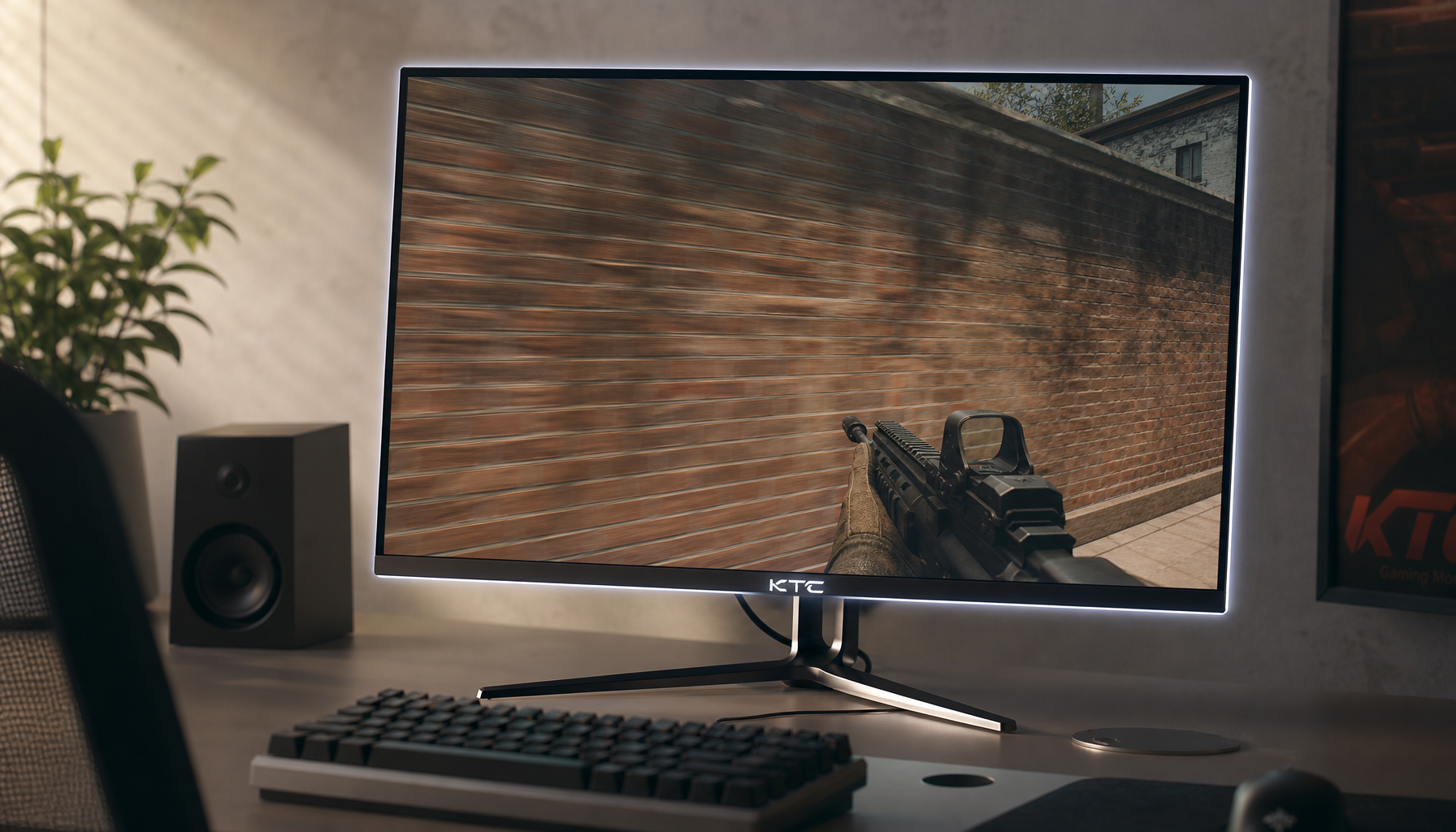
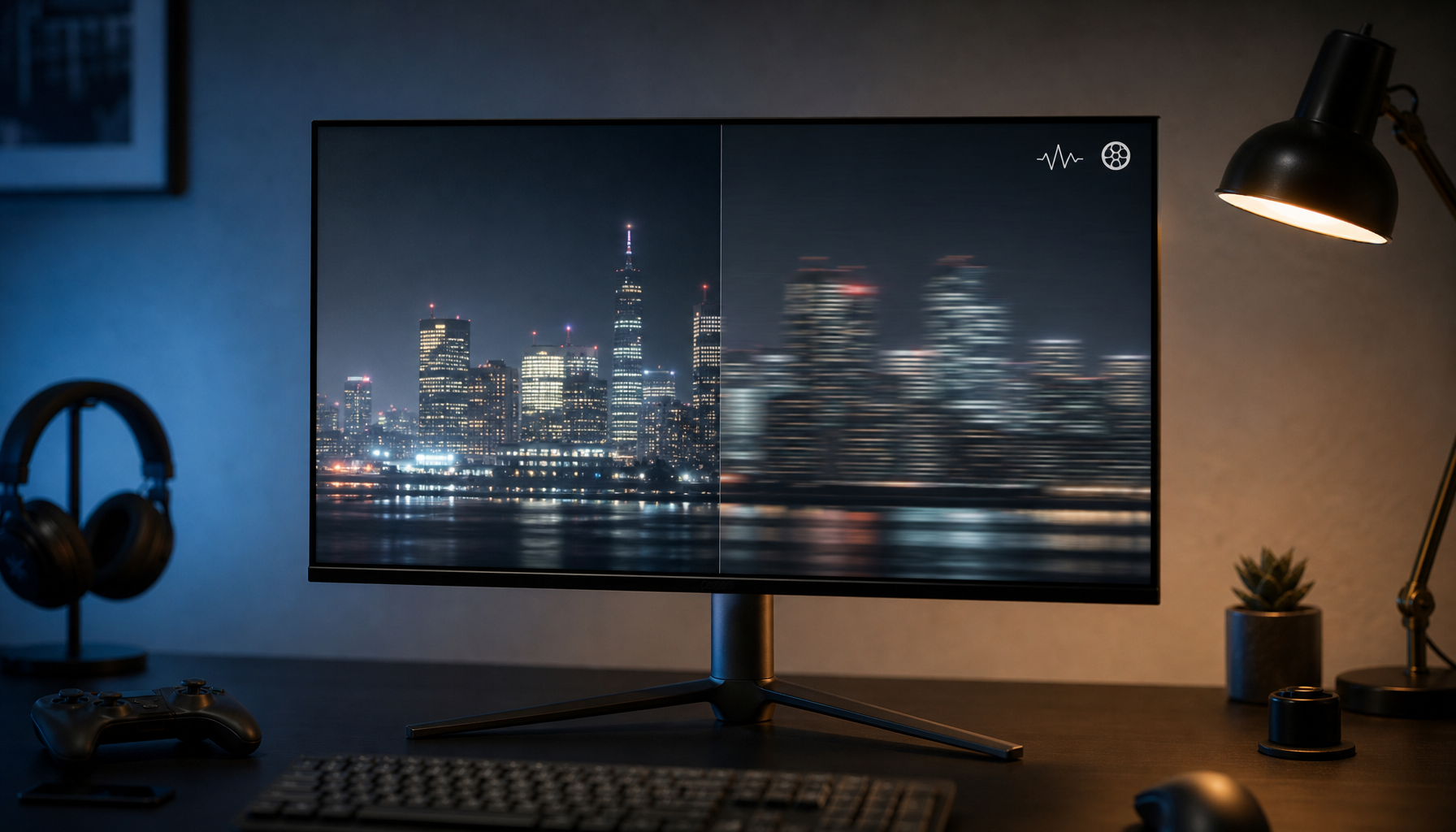
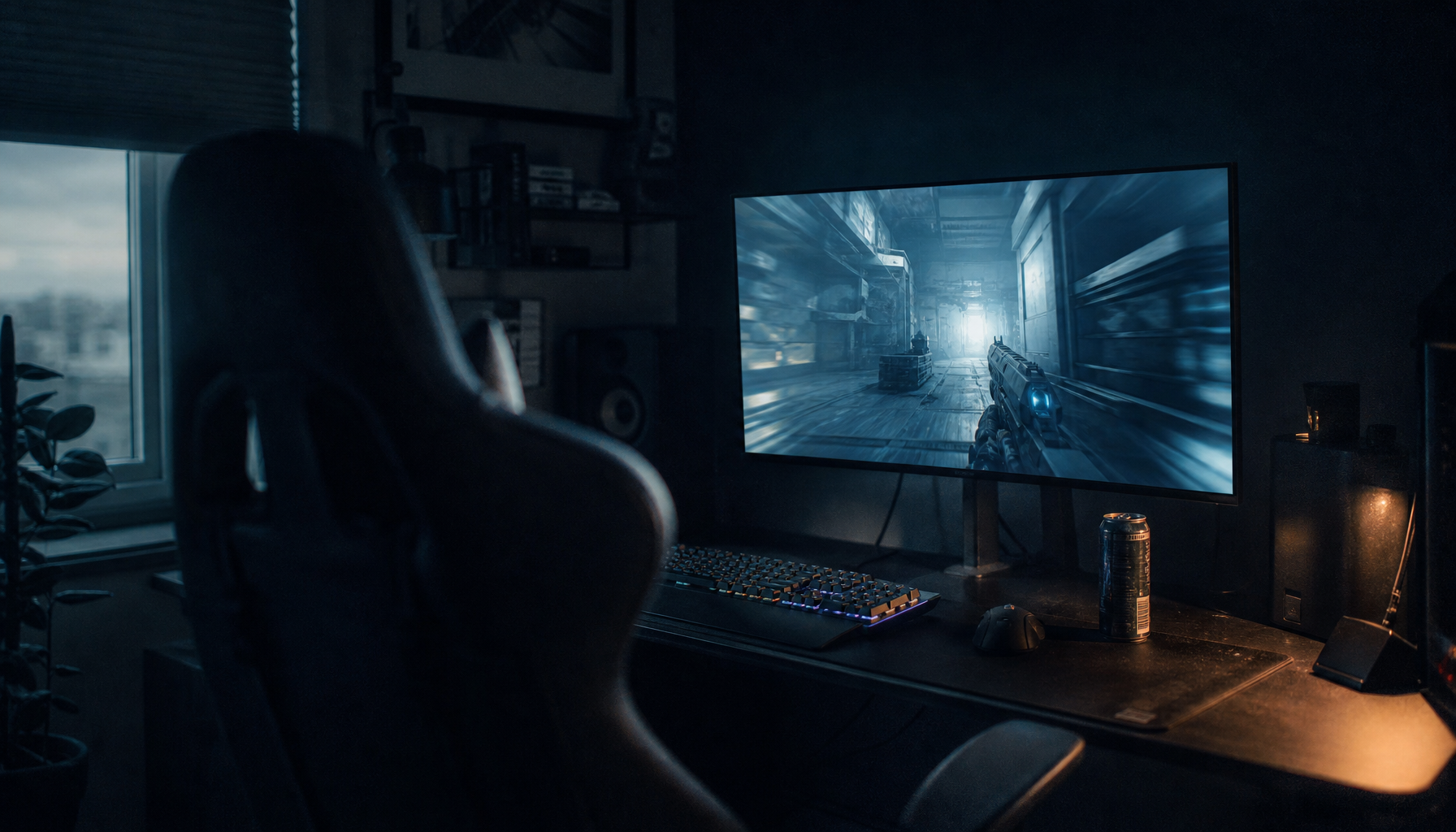
Response time settings can make motion look sharper, but aggressive overdrive can destabilize near-black tones through overshoot, inverse ghosting, shadow flicker, or temporary gray lift. For the most stable blacks, use the fastest setting that avoids visible artifacts, then calibrate brightness, gamma, and local dimming separately.
Is your dark game scene pulsing, smearing, or turning gray every time you switch from “Normal” to “Extreme” response time? A practical black-level check with a near-black pattern can reveal within minutes whether the setting improves motion or quietly damages shadow stability. This article explains how response tuning affects blacks, when faster modes help, and how to set up gaming, office, OLED, Mini-LED, and portable displays without crushing detail.
Response Time Settings, Defined Simply
Response time is the time it takes for pixels to change from one shade to another, usually measured in milliseconds. A lower number generally reduces blur and ghosting, especially in fast games, but the setting in your monitor menu is not the same as a guaranteed measured result. Many monitors use overdrive, a voltage push that forces pixels to transition faster, and that push can overshoot the target shade.
That overshoot is where black level stability gets complicated. A monitor buying guide may define response time as pixel transition speed, but black stability depends on how accurately the pixel lands after that transition. If a dark gray object moving across a black background briefly becomes too bright, too dark, or edged with color, the black level is no longer visually stable, even if the spec sheet claims a fast response time.
In hands-on setup work, the worst problems usually appear in the most aggressive response mode. Names vary, but labels like “Extreme,” “Fastest,” “Level 3,” or “Esports” often trade tonal accuracy for speed. The best setting is rarely the slowest or the fastest; it is the one that keeps moving dark objects clean without adding bright halos or black smears.
How Response Time Can Change the Look of Blacks
Black level stability means that dark areas stay visually consistent as content changes. On a stable display, a black desktop background stays black when a white cursor moves over it, dark game corners do not brighten during camera pans, and shadow gradients do not flash or collapse when the refresh rate changes.
Aggressive response time settings can disturb this in three main ways. Overshoot can create inverse ghosting, where a moving object leaves a bright or pale trail against a dark background. Undershoot can make dark transitions dip too low, causing black smear or crushed-looking trails. Motion tuning can also interact with variable refresh rate, local dimming, or HDR processing, making dark scenes look inconsistent from frame to frame.

This is why a setting that looks excellent on a bright desktop may fail in a dark shooter, racing game, or space scene. Fast gray-to-gray transitions are easier to advertise than clean near-black transitions. VA panels are especially relevant because they often offer deeper native contrast, while lower-cost models may show more dark motion smearing. IPS panels tend to look more stable in motion but usually cannot match VA or OLED black depth. OLED has the strongest foundation for black levels because each pixel can turn off, but OLED response behavior and protection features still need thoughtful setup.
Response Time vs. Brightness, Contrast, and Gamma
Response time does not directly set the black point the way a brightness control might. It changes how quickly pixels move between tones. However, because black stability is judged during real motion, response settings can make blacks appear lifted, crushed, or unstable even when the static black level has not changed.
Brightness, contrast, and gamma still form the baseline. A display calibration workflow should use a black-level pattern so the darkest visible steps are barely visible without turning black into gray, because brightness calibration is where static black level problems usually start. After that, response time should be checked with motion: scroll a dark webpage, pan across a shadowed game area, or move a small gray window over a black background.
Gamma adds another layer. A neutral gamma setting keeps midtones and shadows balanced, while a darker gamma can increase perceived contrast but hide shadow detail. For most computer use, gamma 2.2 is the practical starting point because it keeps desktop UI, web content, SDR games, and office work predictable. If you change gamma after choosing an aggressive response mode, you may mistake overdrive artifacts for a black-level calibration problem.
Setting |
What It Mainly Changes |
How It Can Affect Blacks |
Brightness |
Backlight output or black point behavior |
Too high makes blacks gray; too low can hide shadow detail |
Contrast |
White level and highlight separation |
Too high can clip highlights and alter tonal balance |
Gamma |
Midtone and shadow curve |
Higher gamma can deepen shadows but crush detail |
Response time or overdrive |
Pixel transition speed |
Too aggressive can cause bright trails, dark smears, or flicker-like instability |
Local dimming |
Backlight zone behavior |
Can deepen blacks, but may bloom, lag, or pulse around highlights |
Panel Type Changes the Risk
On IPS monitors, response time settings often focus on reducing blur without the heavy dark smearing associated with some VA panels. The trade-off is that blacks may look more like dark gray in a dim room because native contrast is usually lower. This makes black stability less dramatic but also less deep.
VA panels can deliver richer dark scenes, making them attractive for media, mixed work, and immersive gaming. The catch is that dark pixel transitions are often harder to control, especially on budget models. If a VA monitor has “Extreme” overdrive, test it in dark motion before trusting it. A slower “Normal” or “Fast” mode may preserve the panel’s contrast advantage better than the headline response setting.
OLED behaves differently because it does not rely on a shared backlight. QD-OLED combines OLED pixel-level lighting with quantum-dot color enhancement, and that panel architecture is built for high contrast and fast response. The practical concern shifts from black smear to image retention, brightness behavior, and feature limitations. Desktop users should pay attention to taskbar and logo protection features, especially if the same static UI stays on screen for hours.
Mini-LED LCDs introduce a separate issue: the backlight is divided into zones. More zones can improve contrast, but the dimming algorithm matters as much as the count. A 32-inch monitor with 1,152 zones should control dark areas more precisely than a similar 384-zone model, but local dimming can still cause blooming, lag, or shadow crushing if processing is poor. In SDR office work, disabling local dimming often gives more stable brightness and cleaner text.
Gaming: Faster Is Useful, But Not Automatically Better
For competitive play, response time matters because motion clarity and input feedback affect tracking. High refresh rates also reduce perceived blur and latency, so a monitor running at 144 Hz, 240 Hz, or higher can feel more responsive than a 60 Hz office display. Still, a fast panel running an overcooked response mode can make dark enemies harder to read if trails or inverse ghosting appear around moving objects.
A gaming display overview rightly treats latency as a combination of input lag and response time, but black level stability is the visual quality check that keeps speed from becoming self-defeating. If you play dark competitive titles, use a shadow-heavy scene as your test. Move the camera slowly, then quickly. If “Extreme” creates pale outlines or flashing dark patches, step down one response level.
A 25-inch gaming monitor with 240 Hz, 1 ms response time, adaptive sync, and 22-level black stabilization shows how gaming displays often separate motion speed from black visibility controls. Black stabilization can reveal opponents in shadows, but it usually raises dark tones rather than preserving cinematic black depth. For esports, that may be acceptable. For HDR single-player immersion, it can flatten the scene.

Office Displays and Portable Screens Need Stability First
For office productivity, ultra-low response time is usually less important than clean text, stable brightness, proper viewing distance, and predictable gray tones. A spreadsheet, code editor, or document window does not benefit much from an extreme overdrive mode if that mode makes scrolling text shimmer or gray UI panels shift in tone. A 100 Hz or 120 Hz display can make scrolling feel smoother, but response time should stay in a balanced mode.
Display comfort also depends on the room. Ergonomics guidance commonly notes that glare, posture, viewing distance, and brightness all contribute to fatigue, and display brightness should match ambient lighting rather than stay at factory defaults. If black areas seem unstable only at night, the response setting may not be the only culprit; excessive contrast, local dimming, or a too-bright screen in a dark room can make transitions feel harsher.
Portable monitors add another variable: power. USB-C portable screens may change brightness behavior depending on laptop power, battery mode, or presets. Portable-monitor workflows often depend on one-cable simplicity and laptop-bag convenience. For these displays, use a moderate response mode and calibrate while connected exactly as you use it, because a powered dock, laptop battery mode, and travel adapter can produce different brightness ceilings.
A Practical Setup Method for Stable Blacks
Start in a controllable picture mode such as Standard, Custom, User, Creator, or sRGB. Turn off dynamic contrast, eco mode, automatic brightness, HDR simulation, black enhancers, and aggressive game presets while you establish the baseline. Let the monitor warm up for about 30 minutes, then set brightness for the room and verify black detail with a near-black pattern.

Next, choose gamma. For most SDR gaming, productivity, browsing, and multi-monitor work, use 2.2 or the preset that best preserves near-black steps without washing out the image. Keep contrast near default unless a white-level pattern shows clipping. Only after static tone is stable should you tune response time.
Now test response modes in real content. On an IPS productivity monitor, “Fast” may be clean. On a VA gaming panel, “Normal” may hold dark transitions better than “Extreme.” On OLED, response settings may be less critical than refresh rate, VRR behavior, static UI protection, and HDR tone mapping. On Mini-LED, test with local dimming on and off, because dark-scene instability may come from the backlight algorithm rather than pixel response.
A simple real-world check works well: open a black desktop background, place a dark gray window on it, and drag it slowly across the screen. Then test a game or video scene with small bright objects over black, such as subtitles, stars, UI markers, or a white cursor. If trails turn bright, lower overdrive. If dark edges smear, try one step faster. If the whole zone around the object blooms or pulses, review local dimming instead.
Pros and Cons of Faster Response Time Settings
A faster response mode can make motion clearer, reduce ghosting, and improve the feel of high-refresh gaming. It is especially useful when your graphics card can sustain frame rates close to the monitor’s refresh rate and the panel’s overdrive tuning is well controlled.
The downside is that the fastest mode can reduce tonal accuracy during motion. It may create inverse ghosting, brighten near-black transitions, exaggerate edge artifacts, or make dark scenes look less stable. It can also behave differently at 60 Hz than at 144 Hz or 240 Hz, which matters for consoles, laptops, variable refresh rate, and games that fluctuate in frame rate.
The value-oriented choice is disciplined: do not buy or configure by the smallest millisecond number alone. A mainstream 2 ms to 5 ms mode with clean transitions can look better than a claimed 1 ms mode that produces pale trails in dark scenes.
When Black Level Problems Are Not Response Time Problems
If the screen goes black after raising refresh rate, that is more likely a signal, driver, firmware, or cable issue than a response-time issue. Operating-system support notes often point to display drivers as a common cause when a monitor fails above 60 Hz, with manufacturer-specific driver updates and rollback steps as practical fixes. In plain terms, losing the entire picture is different from unstable blacks inside a working image.
If blacks look washed out all the time, check brightness, RGB range, HDR mode, and gamma before blaming response time. If blacks pulse only around bright objects, local dimming is the likely suspect. If discomfort appears after long sessions regardless of settings, workstation lighting, flicker behavior, glare, and eye-care setup deserve attention. User forums show that some people find newer displays uncomfortable even when the image looks technically impressive, which is a reminder that performance settings should serve the viewer, not just benchmarks.
Best Setting Recommendations by Use Case
For competitive gaming, use the fastest response mode that does not show bright inverse trails in dark scenes. Pair it with a high refresh rate, VRR when stable, and restrained black stabilization if visibility matters more than cinematic contrast.
For immersive HDR gaming and movies, prioritize panel contrast, local dimming quality, OLED pixel control, and careful HDR calibration. A slightly slower response mode is worth it if it preserves shadow texture and avoids halos or flashing.
For office productivity, coding, writing, and dashboards, use a balanced or normal response setting. Stable text, neutral gamma, low glare, and comfortable brightness will matter more across an eight-hour day than an extreme overdrive mode.
For portable smart screens, calibrate in the actual power and cable setup you use. Choose the response setting after confirming brightness and contrast, because compact displays can vary more across presets and power states than a fixed desktop monitor.
Black level stability is not a single spec; it is the result of pixel response, panel contrast, gamma, brightness, local dimming, refresh rate, and processing working together. Treat response time as a tuning control, not a badge. The best display is the one that stays fast when motion gets intense and stays honest when the screen goes dark.