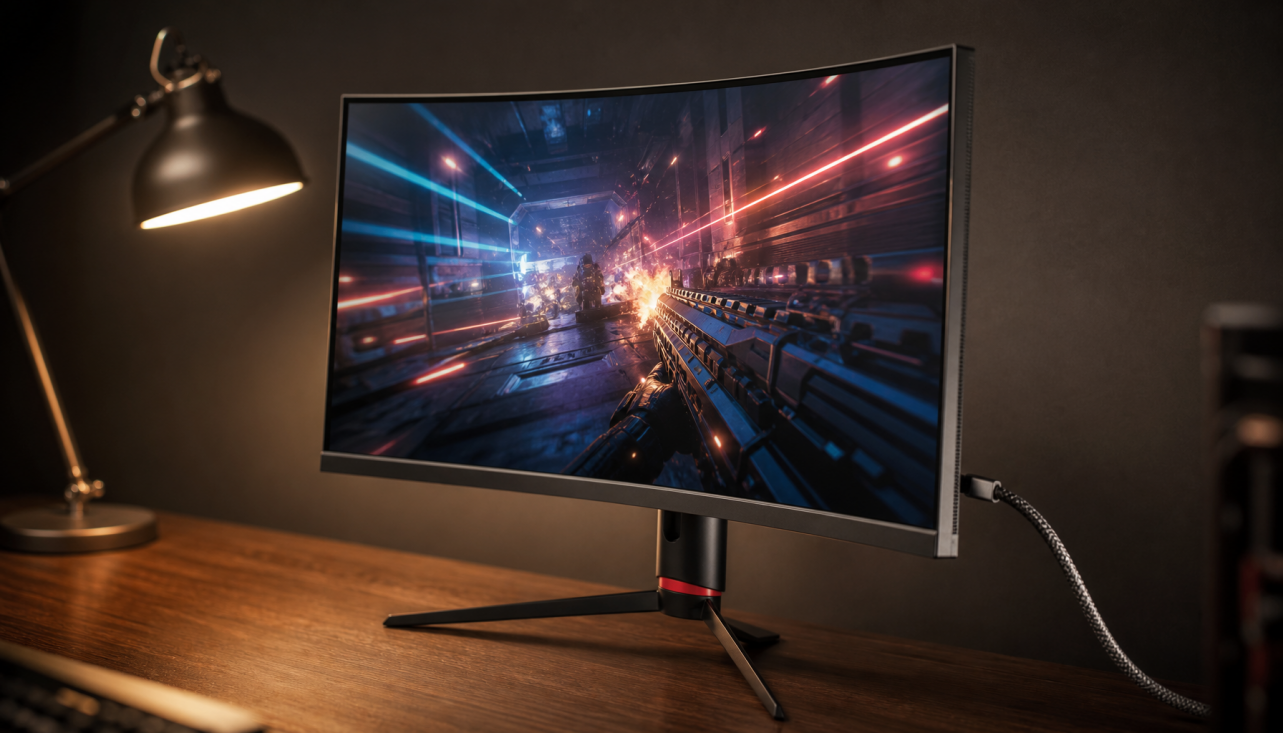
Color accuracy shifts because SDR and HDR use different brightness curves, color spaces, bit depths, metadata, and tone mapping. Your monitor, GPU, operating system, app, and room lighting all reinterpret the image when you toggle modes.
Does your game look rich in SDR, then oddly gray, dim, or neon-tinted the moment HDR turns on? On a capable display, a proper HDR setup can reveal brighter highlights, deeper shadow detail, and smoother gradients; on a weak or misconfigured one, the same switch can make color look less trustworthy. Here is how to identify the real cause and set up SDR and HDR so each mode looks intentional, not random.
SDR and HDR Are Not Two Brightness Presets
SDR, or Standard Dynamic Range, is the older and still widely used display format for office apps, web content, SDR games, and most desktop interfaces. HDR, or High Dynamic Range, is a different signal and rendering system designed to describe a wider range of brightness and color. The shift is not just “more brightness.” It changes how the display interprets the whole image.
A practical example is a white spreadsheet background versus a sun glint in a racing game. In SDR, raising brightness tends to lift the whole image together. In HDR, the system tries to keep ordinary white surfaces comfortable while reserving extra output for highlights. That is why the same monitor can make a document look flatter in HDR desktop mode while making an explosion, sunset, or chrome reflection look more dimensional in native HDR content.
The technical split is significant. HDR content commonly uses wider color spaces and at least 10-bit color, while SDR is usually tied to sRGB-style color and 8-bit output. That bit-depth jump matters because 8-bit SDR describes about 16.7 million colors, while 10-bit HDR can describe about 1.07 billion steps, reducing banding in skies, fog, gradients, and soft lighting.
The Main Reasons Color Accuracy Changes
Color Gamut Changes
A major cause is gamut mapping. SDR content is usually mastered for sRGB or Rec.709. HDR content often targets wider gamuts such as DCI-P3 inside a BT.2020 container. When you switch modes, the monitor may move from an sRGB clamp to a wide-gamut or native panel mode.

That can make colors look more saturated, less saturated, or simply different. If your SDR mode was oversaturating sRGB content by using the panel’s full native gamut, HDR may look washed out even when it is actually closer to the intended color. The reverse can also happen: a monitor with aggressive HDR color enhancement may push reds, greens, and skin tones beyond accuracy.
For office productivity, this is why a web dashboard may look punchy in SDR but restrained in HDR. For gaming, it is why grass, fire, neon signs, and UI overlays can shift when HDR engages. For color-sensitive work, the correct move is not to chase the most vivid mode; it is to keep SDR in an sRGB or creator preset and reserve wide-gamut HDR modes for real HDR content.
The Tone Curve Changes
SDR usually follows a gamma-based tone response, with gamma 2.2 being a common default for desktop use. HDR uses a different brightness behavior, often based on PQ or HLG depending on the content and device path. This changes midtones as much as highlights.

Gamma is why a 50% gray patch does not appear half as bright as peak white. A monitor can show mid-gray far below half of peak luminance, and that is normal because human vision is more sensitive to darker tonal changes. When HDR turns on, the operating system and monitor stop using the same SDR assumptions, so gray UI panels, shadowed game scenes, and skin tones may all move.
The visible symptom is simple: HDR may make the desktop look dull while HDR movies look correct, or it may make a game’s dark areas look lifted until you adjust the game’s black level and paper-white settings. That does not mean HDR is broken. It means the tone curve changed and the full chain needs calibration.
Tone Mapping Compresses the Image
Tone mapping is the translation step between what the HDR content asks for and what your monitor can actually produce. A game or movie may be mastered for much higher brightness than your monitor can sustain. If your screen peaks around entry-level HDR brightness, it must compress highlights and midtones more aggressively than a stronger Mini LED or OLED display.
This is where many HDR-compatible monitors disappoint. HDR support alone does not guarantee strong HDR because the display still needs adequate brightness, contrast, color volume, and tone mapping. A monitor that accepts an HDR signal but lacks real contrast control may show gray blacks, clipped highlights, or flat midtones.
Think of a 1,000-nit highlight being forced onto a monitor that can deliver only a few hundred nits with weak local dimming. The monitor has to decide whether to dim the highlight, lift the whole scene, crush nearby detail, or fake contrast. Any of those choices changes perceived color accuracy.
Metadata and Format Handling Differ
HDR carries information about how content was mastered. Some HDR formats use static metadata for the whole video or game presentation, while others use dynamic scene-by-scene guidance. The more precise the metadata path, the better the display can decide how to map brightness and color.
The catch is that monitors, PCs, consoles, streaming apps, and games do not all handle metadata the same way. Static and dynamic metadata can lead to different results because one mode may describe the whole stream broadly while another can adapt more precisely. On PC, the operating system may also convert SDR apps into an HDR desktop space, creating another layer of interpretation.
That is why a TV or monitor may look excellent with a console, yet washed out from a desktop. The display hardware did not change. The signal path did.
Why HDR Can Look Washed Out on a Good Monitor
Washed-out HDR usually comes from one of three problems: the monitor cannot produce meaningful HDR, the source is mapping SDR into HDR poorly, or two devices are tone mapping the same image.
Forum-style user reports are useful because they expose real-world friction. In one PC discussion, users described HDR looking flat on multiple displays, including models that performed better with other devices. That kind of anecdote does not replace lab testing, but it supports a practical conclusion: HDR quality depends on the whole chain, not the panel alone.
Automatic HDR conversion has improved, especially for games, but app support and behavior can still vary across browsers, streaming services, titles, and monitors. Native HDR in a well-supported game can look dramatically better, while automatic conversion or desktop HDR may be more inconsistent.
For a gaming monitor, the key test is not whether the HDR badge appears in the operating system. It is whether a native HDR game lets you set black level, paper white, and peak brightness cleanly without gray blacks or blown highlights.
Panel Hardware Matters More Than the HDR Toggle
OLED and Mini LED solve HDR in different ways. OLED controls light per pixel, so it can produce very deep blacks and avoid blooming around bright objects. Mini LED uses a backlight split into dimming zones, so it can often get very bright but may show halos around small highlights on dark backgrounds.

That tradeoff affects color accuracy because contrast and color volume are linked. A color does not only have hue and saturation; it also has brightness. If a display cannot hold deep black beside a bright highlight, color may look milky. If it cannot sustain brightness, saturated HDR colors may lose impact.
Mini LED and OLED also differ for productivity. OLED is excellent for immersive gaming and dark-room media, but static UI elements can create long-term burn-in risk. Mini LED is often the more reliable choice for bright office work, spreadsheets, coding, and long sessions with fixed toolbars, though blooming can affect dark themes and subtitles.
Display Type |
SDR Strength |
HDR Strength |
Main Tradeoff |
Basic IPS HDR-compatible monitor |
Stable for office work and SDR gaming |
Often limited impact |
Weak contrast can make HDR look flat |
VA monitor with local dimming |
Better native contrast than many IPS panels |
Can deliver stronger perceived depth |
Viewing angles and response behavior vary |
Mini LED monitor |
Bright productivity and strong HDR highlights |
High brightness with zone dimming |
Blooming around small bright details |
OLED monitor |
Excellent blacks and pixel-level contrast |
Highly immersive HDR in dark rooms |
Burn-in care for static desktop use |
Room Lighting Can Make Accurate Color Look Wrong
Ambient light changes perception. A monitor calibrated for a dim room can look too dark near a bright window. A display tuned for daytime productivity can look harsh at night. This matters more when switching SDR and HDR because HDR may reserve peak brightness for highlights while SDR may use a more familiar full-screen brightness level.

For office productivity, the practical target is comfort and consistency. A neutral SDR mode near gamma 2.2, moderate brightness, and an sRGB clamp will usually make text, charts, UI panels, and browser content more predictable. For HDR gaming or movies, lower room glare helps black level and contrast feel more accurate.
High brightness is useful, but it is not automatically better. Monitor brightness should be judged alongside color gamut, Delta E accuracy, eye comfort, and the actual use case. A creator grading SDR photos needs trustworthy color more than headline peak nits. A gamer chasing HDR impact needs brightness, contrast, and local dimming that can hold up in motion.
How to Set Up SDR and HDR Without Chasing Your Tail
Keep SDR and HDR as separate workflows. For SDR desktop use, choose the monitor’s standard, sRGB, Rec.709, creator, or custom mode. Set a comfortable brightness for the room, keep contrast near default unless test patterns show clipping, and use gamma 2.2 for most office, web, and SDR gaming tasks.
For HDR, start with the monitor’s most accurate HDR mode rather than its most vivid one. Enable HDR in the monitor’s on-screen menu, the operating system, and the game or playback app when needed. Then run the platform’s HDR calibration tool and rerun it if you change the monitor’s HDR mode. In games, adjust paper white so menus and normal surfaces are comfortable, then set peak brightness so highlights are bright without erasing detail.
Avoid leaving HDR on all day unless your setup handles SDR-in-HDR well. Many SDR apps, web pages, office tools, and non-HDR videos can look gray or oddly mapped when forced through an HDR desktop. For a mixed work-and-play setup, a reliable pattern is SDR for desktop productivity, HDR only for HDR games, HDR films, or HDR creative review.
Pros and Cons of Switching HDR On
HDR’s biggest advantage is immersion. In games, it can give headlights, magic effects, sky detail, fire, reflections, and shadow contrast a more convincing shape. In movies, it can preserve detail in bright windows, dark rooms, and specular highlights. On a strong monitor, the image feels less like a flat panel and more like a controlled lighting system.
The downside is complexity. HDR exposes every weak link: poor panel contrast, limited brightness, bad local dimming, incorrect color mode, unreliable metadata, app incompatibility, and operating system conversion. A mediocre HDR implementation can be less accurate than a well-calibrated SDR mode.
That is why the best display strategy is not “HDR always on” or “HDR never on.” It is using the right mode for the job.
FAQ
Should I use HDR for office work?
Usually no. SDR is still the cleaner choice for spreadsheets, email, web apps, coding, presentations, and long productivity sessions. It is more predictable, easier on the eyes, and better matched to most desktop content.
Why does HDR make SDR content look dull?
The system may be mapping SDR colors into an HDR container rather than showing them in the monitor’s familiar SDR mode. If your SDR mode was oversaturated, HDR can also look dull by comparison even when it is more controlled.
Is OLED required for accurate HDR?
No, but OLED makes contrast easier because each pixel controls its own light. A strong Mini LED monitor can deliver excellent HDR brightness, especially in brighter rooms, but local dimming quality determines how much blooming or haloing you see.
Should creators edit in HDR?
Only when the whole workflow supports it. You need HDR-capable software, a display with repeatable HDR behavior, proper calibration, and a delivery target that justifies HDR. For standard web images, SDR accuracy remains the practical baseline.
Bottom Line
Color accuracy shifts between SDR and HDR because the display system is changing the rules: gamut, bit depth, tone curve, metadata, brightness mapping, and panel behavior all move at once. Treat SDR as your reliable productivity and color-consistency mode, then use calibrated HDR when the content, hardware, and room conditions can actually show its advantage.