Stretched UI on a 21:9 ultrawide is usually a game-side layout problem, not a panel defect.
Ever boot a game on a 34-inch ultrawide, see the world look right, and then notice the HUD, menus, or cutscenes looking wrong? On a 3,440 x 1,440 display, you are asking the GPU to draw about 34% more pixels than on a 2,560 x 1,440 monitor, so ultrawide support affects both layout quality and performance headroom. The sections below explain why this happens, which games are most likely to misbehave, and what to check before you buy.
What Stretched UI Actually Looks Like
More view does not mean more correct UI
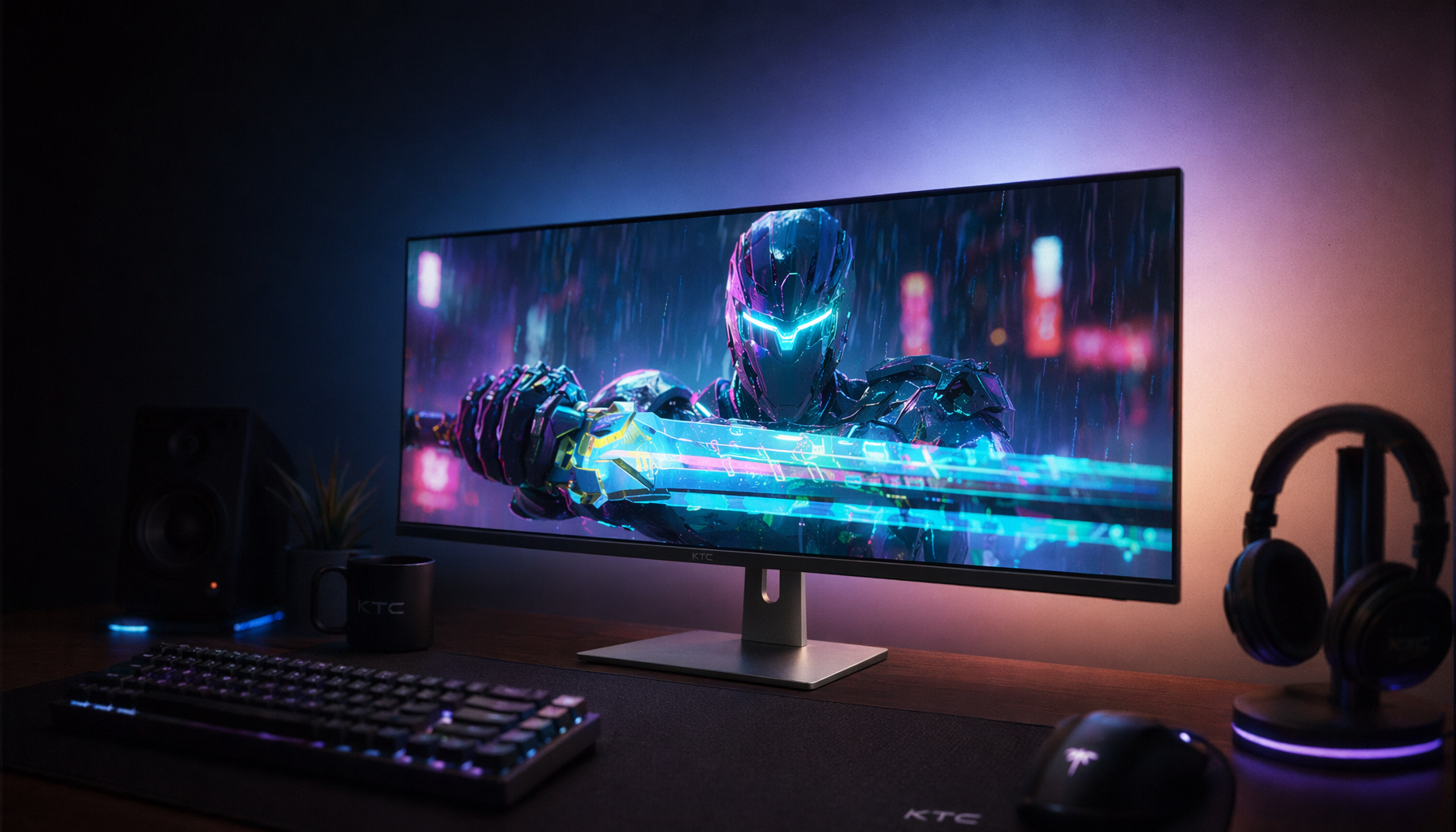
A 21:9 monitor is usually an ultrawide 64:27 display, and many modern games can widen the field of view without trouble. The problem starts when the game treats the 3D world and the 2D interface as separate systems and only one of them adapts correctly.
When that happens, the world may look properly expanded while the HUD gets widened instead of preserved. Circular meters become ovals, health bars look too long, and corner-anchored elements drift farther apart than they should. By the same logic, that same layout bug can also show up in menus, subtitles, and pause screens if the game reuses a fixed layout across every screen.

The warning signs players actually notice
The easiest sign of bad scaling is geometry distortion. If a radar ring or button should stay circular but looks stretched horizontally, the game is scaling the UI instead of repositioning it.
A second sign is distance, not shape. On a wider screen, a healthy ultrawide implementation keeps the interface the same size and simply gives it more room. A bad one pushes important elements toward the far edges, which makes mouse movement and eye travel worse even when nothing is visibly warped.
Why the Game Usually Causes It
3D rendering and 2D UI often follow different rules
Ultrawide support is mostly a software decision, and HUD stretching happens when a game expands interface graphics horizontally instead of preserving their original shape. That is why the same title can have a correct-looking world view and a broken-looking overlay.
The game engine may be rendering the 3D scene with a wider field of view while keeping the HUD on a fixed 16:9 canvas or safe area. When that happens, the UI can be technically “fit” to the screen without being visually correct. The result is a display that fills the panel, but does not respect the shapes the artist intended.

Fixed aspect-ratio assumptions are the root of most bad layouts
Many older titles were built around 16:9, then adapted later with partial ultrawide support. Some competitive games also lock to 16:9 on purpose so ranked play stays consistent, which means the game may prefer black bars or a forced narrow frame over a wider one.
That is why one part of a game can feel modern and another part can feel stuck in a previous generation. Gameplay may support ultrawide, but cutscenes, menus, or overlays may still fall back to narrower framing. On a buyer’s side, that means the monitor can be excellent and the experience still feels uneven if the library you play does not match the display’s assumptions.
Which Games and Setups Are Most at Risk
Older titles, competitive games, and prerendered cutscenes
Older games, indie titles, and esports-heavy shooters are the most likely to show problems first. Recent ultrawide buying notes point out that some games still force 16:9 cutscenes, stretch the image to fill the panel, or lock the frame for competitive balance.
That is not always a bug. In some cases, the developer is choosing consistency over ultrawide flexibility, so the game may use black bars, a forced 16:9 presentation, or a stretched fallback. The practical result is the same for the player: gameplay may be usable, but the interface and cinematics do not match the screen.
Super ultrawide makes the same problem easier to see
A 32:9 display exaggerates the same design flaws because the interface has even farther to travel across the screen. If a game already feels fragile at 21:9, it is even more likely to expose weak assumptions on super ultrawide panels.
That matters when you are comparing monitor classes for a desk setup. A 21:9 panel can be a sweet spot for single-player immersion, but once you move to much wider displays, the quality of the game’s UI scaling becomes a bigger part of the buying decision than the raw screen size itself. A 49-inch DQHD display such as a 49-inch DQHD monitor can make those scaling mistakes easier to spot, so buyers should verify support for their actual games before choosing that format.

What to Check Before Buying an Ultrawide Monitor
The product page is not enough
Before you buy, check whether the games you actually play list native ultrawide support, partial support, or no support at all. A monitor spec sheet can tell you the resolution, but it cannot tell you whether a game’s menus, HUD, and cinematics were designed for that shape.

This applies to portable monitors and docked laptop setups too. The panel type changes, but the game still has to decide how to handle the aspect ratio, and the same compatibility problems can show up on any external display.
Match the display to the genres you actually use
Ultrawide gaming monitors are a strong fit for racing, flight, and first-person adventure games, where a wider scene adds immersion. They are a weaker bet for older back catalogs, some indie releases, and competitive titles that care more about strict layout consistency than panoramic views.
The other tradeoff is performance. A 3,440 x 1,440 monitor has almost 5 million pixels, versus about 3.7 million at 2,560 x 1,440, which is roughly 34% more work per frame. That does not cause UI stretching, but it can make any bad ultrawide implementation feel worse because the GPU is already doing more work to keep the frame rate stable.
Problem area |
Good 21:9 support |
Weak 21:9 support |
What the buyer sees |
Gameplay view |
Wider scene, more immersion |
Forced 16:9 frame or cropped visuals |
Black bars or awkward framing |
HUD and menus |
Correctly proportioned elements |
Stretched icons or pushed-out corners |
Ovals, oversized panels, long mouse travel |
Cutscenes |
Matches gameplay aspect ratio |
Falls back to 16:9 |
Bars on the sides during cinematics |
Performance |
Smooth with enough GPU headroom |
Frame rate drops from extra pixels |
Lower settings or upscaling needed |
How to Reduce Stretching or Bad Layouts
Look for settings that control UI, not just resolution
If a game offers separate controls for HUD scale, safe area, or aspect ratio, use those first. Some titles also let players clamp the UI to a narrower internal frame, which keeps the interface centered instead of spreading it across the full width of the screen.
That approach has been used in shipped games, too. Ultrawide UI clamping keeps the interface inside a chosen ratio, such as 16:9, while the game world still uses the wider display. It is a practical compromise when the scenery benefits from ultrawide but the interface does not.
Use the least disruptive fallback for the game in front of you
If a title looks wrong when stretched, preserving the original aspect ratio is usually better than forcing the image to fill the screen. Black bars are not elegant, but they keep character models, HUD icons, and menus from looking distorted.
For competitive games, the cleanest choice may be to run the game in the aspect ratio it was designed for and treat the ultrawide monitor as a general-purpose display rather than a guaranteed competitive advantage. For single-player games, a well-supported 21:9 mode usually gives the best balance between immersion and readability.
Practical Next Steps
When the choice is between a bigger screen and a cleaner layout, the cleaner layout usually wins. Use this checklist before you buy or before you tweak a game.
- Check whether your top games support 21:9 natively.
- Look for screenshots or reviews that show menus and cutscenes, not just gameplay.
- Watch for HUDs that widen, drift to the edges, or turn circular icons into ovals.
- Prefer aspect-ratio preservation over forced stretching when a game falls back badly.
- Budget extra GPU headroom for 3,440 x 1,440 or wider panels.
- Favor ultrawide for genres that benefit from a wider view, not for every library.
- If you already own the monitor, test the game’s HUD scaling, safe-area, and cinematic options before you reach for community fixes.
FAQ
Q: Is the monitor causing the UI to stretch?
A: Usually no. The monitor is showing the aspect ratio the game gives it; the game’s UI layout and fallback behavior are what usually cause the stretching.
Q: Why does gameplay look correct but the menu looks wrong?
A: Many games render the 3D scene and the 2D interface separately, so ultrawide support can work in gameplay while menus, HUD elements, or cutscenes still use narrower assumptions.
Q: Should I avoid a 21:9 monitor if I play older games?
A: Not necessarily, but you should verify support first. Older games and competitive titles are more likely to use black bars, force 16:9, or mishandle UI scaling.