

Blooming happens because a mini-LED monitor lights the backlight in zones, not one pixel at a time, so a small bright object often activates a larger area than it really needs.
You usually spot it when white subtitles, a mouse cursor, or a game HUD seems to drag a faint glow across a dark screen. In one lab test, a bright center patch hit 340 nits while nearby bloom still measured about 0.20 nits just 0.04 in away before fading off with distance. The sections below show why that happens, when it becomes most visible on gaming and ultrawide monitors, and what settings and buying specs actually help.

Why Mini-LED Monitors Bloom in the First Place
Local dimming improves contrast, but it is still zone-based
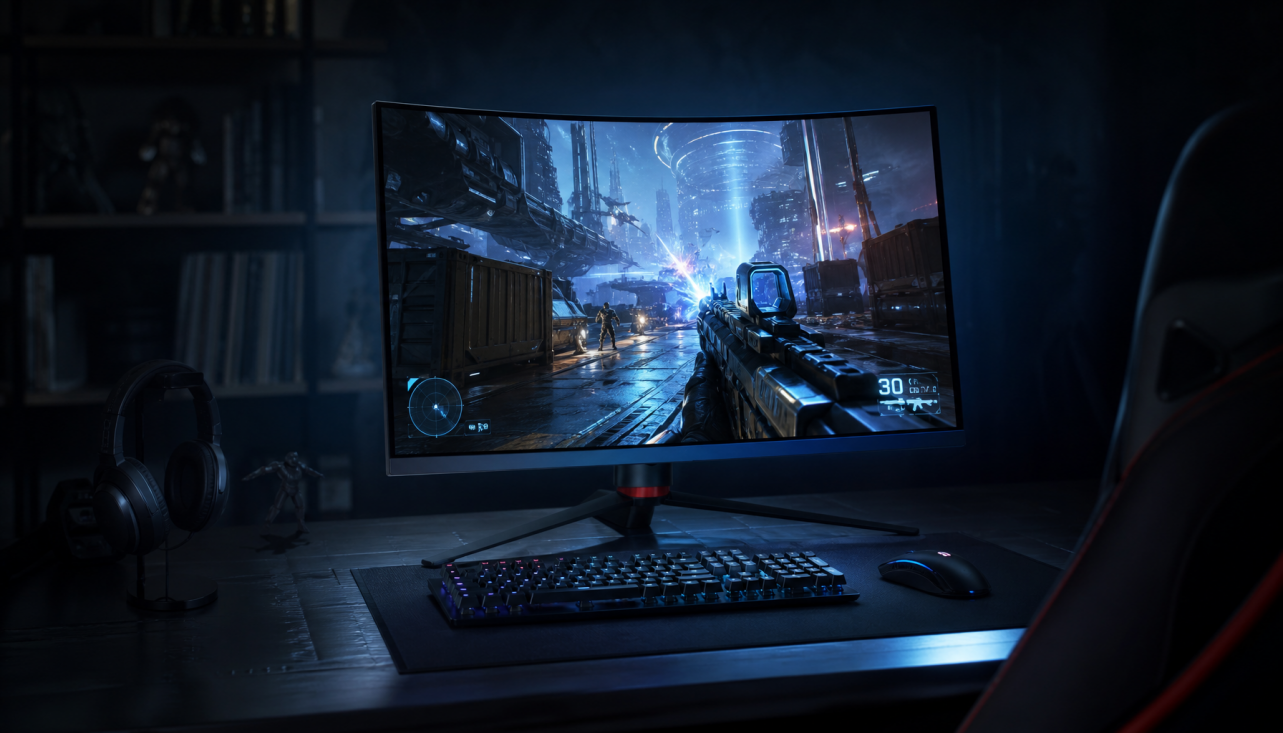
Mini-LED blooming is a zone-control problem more than a simple brightness problem. Mini-LED gaming monitors use many tiny LEDs behind an LCD panel, then group them into local dimming zones so dark parts of the image can dim while highlights stay bright. That is why mini-LED can look far better in HDR than a basic edge-lit LCD, especially on high-refresh-rate monitors that need strong brightness for highlights.
Halation on LCDs with local dimming appears because the backlight is controlled in sections rather than at pixel-level precision. If a white crosshair, subtitle, or star is smaller than the active dimming zone, the monitor still has to brighten the whole zone, and some of that light leaks into nearby dark pixels through the LCD layer.
Bright objects are smaller than the light area behind them
Bright objects trigger zones larger than the object itself, which is the core reason blooming shows up around small highlights. This is most obvious on desktop monitors because many common UI elements are tiny and high contrast: white mouse pointers, operating system taskbars, minimaps, subtitle text, and specular highlights in dark game scenes.
Optical research on halo effect in mini-LED LCDs also points to the same tradeoff: smaller zones reduce bloom, but zone control still is not pixel-level, so haloing never fully disappears. In practical monitor shopping terms, mini-LED is buying better HDR and stronger black performance than standard IPS, not buying OLED-like precision around every bright detail.
When Blooming Is Most Noticeable on Gaming and Ultrawide Monitors
Dark rooms, HDR, and small highlights make it easier to see
Blooming is easiest to notice around isolated bright elements on dark backgrounds, especially in a dim room with the monitor set very bright. That is why users tend to complain during HDR gaming, movie subtitles, star fields, loading screens, or black desktop wallpapers rather than during bright daytime office work.

Real user reports around subtitles and overlays show the same pattern outside gaming. Bright subtitle text or borders can visibly change perceived brightness in dark scenes, and darker subtitle colors often reduce the effect. For monitor buyers, that matters if you watch movies on the same high-refresh-rate display you use for games.
Ultrawide layouts and desktop UI can make the artifact feel larger
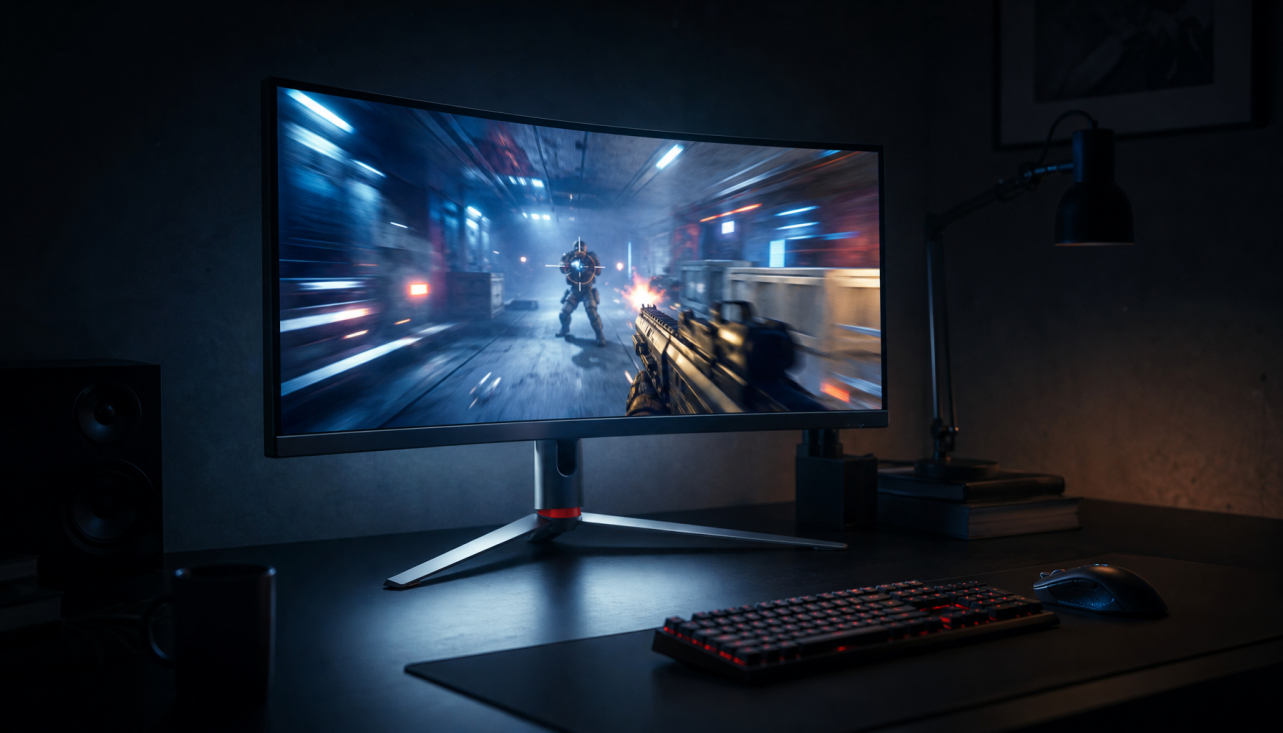
Users on mini-LED monitors often notice blooming around the taskbar, scrollbars, and cursor, because those elements stay fixed against darker content and keep lighting the same zones. On an ultrawide monitor, black bars, wide dark game scenes, and long desktop edges can make the contrast between lit and unlit areas more obvious.
Side viewing can make haloing look worse than straight-on viewing because the LCD stack handles off-axis light less cleanly. That matters for large 34-inch to 49-inch ultrawide monitors, where your eyes naturally view the far edges at a slight angle even when you sit centered.
What Specs Actually Matter More Than Marketing
More zones usually help, but zone count is not the whole story
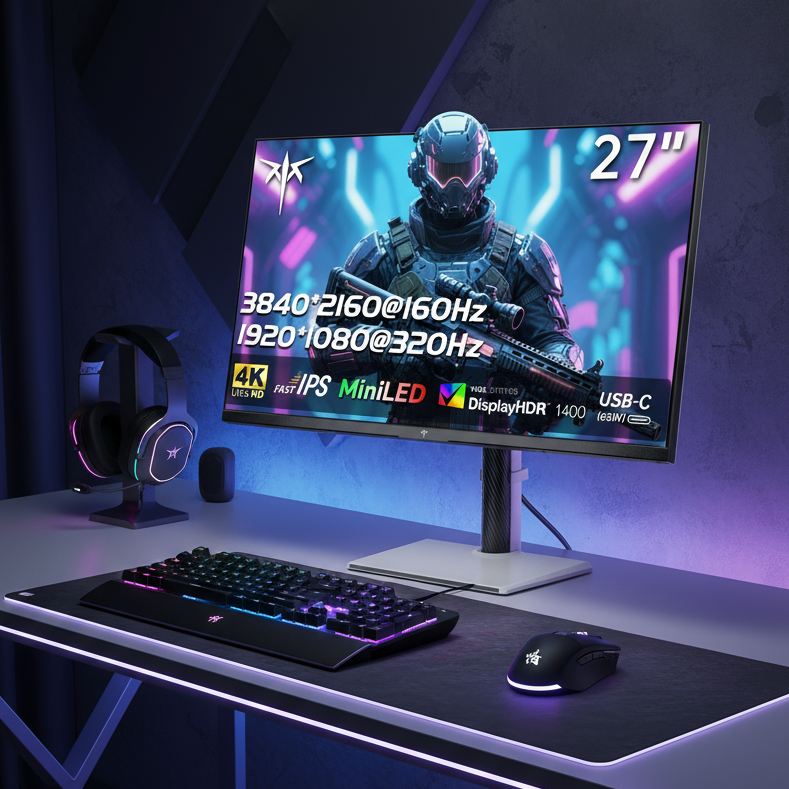
More dimming zones generally reduce blooming, because each zone covers a smaller part of the screen. For example, the monitor product page lists 1,152 local dimming zones, and counts that high can help tighten light control, but they still do not remove blooming on their own.
Zone count alone does not guarantee good blooming control. The dimming algorithm matters just as much because it decides how aggressively zones brighten, how quickly they react, and whether the monitor favors brighter highlights or darker blacks. Two monitors with similar zone counts can behave very differently in actual games.
Refresh rate and panel class do not cancel the blooming tradeoff
Mini-LED can still bloom on premium high-brightness displays, and the effect often becomes more obvious as you raise screen brightness. A 144 Hz or 240 Hz gaming monitor is not immune just because it is fast; if anything, HDR gaming encourages the exact dark-scene-and-bright-highlight mix that exposes blooming.
Fast dimming has its own tradeoffs. If the backlight reacts too aggressively, halos can pop more visibly around moving objects. If it reacts too slowly, you can get trailing glow, dark leading edges, or unstable transitions around the HUD and cursor. That is why serious buyers should care about review footage and motion tests, not only the spec sheet.
How to Judge Blooming Before You Buy
Look for the scenes that reveal it quickly
Static stars, subtitles, and small bright objects on black backgrounds are some of the fastest ways to expose blooming. If you are comparing gaming monitors, do not rely only on bright HDR demo clips. Use a dark desktop, a white cursor, a letterboxed movie scene, and a game menu with small bright UI elements.

The most useful buying mindset is simple: test the monitor with the kind of content you actually use. If you play competitive shooters with bright HUD markers, stream subtitled content, or keep a dark-themed desktop, you are far more likely to notice blooming than someone who mainly edits spreadsheets in a bright room.
A practical comparison table for monitor buyers
Factor |
What it changes |
Usually better for less blooming |
Tradeoff |
Dimming zone count |
How small each lit area can be |
More zones |
Higher cost does not guarantee better tuning |
Local dimming algorithm |
How zones react to content |
Better-tuned firmware |
Hard to judge from specs alone |
Screen brightness |
How strong the visible glow looks |
Lower brightness in dark rooms |
Reduces HDR punch |
Viewing angle |
How much side glow you notice |
Straight-on viewing |
Large ultrawides are harder here |
Room lighting |
How visible halos feel |
Mild ambient light |
Less dramatic black depth |
Content type |
Whether zones are stressed |
Bright full-screen scenes |
Dark scenes with small highlights reveal flaws |
Settings That Can Reduce Blooming on a Monitor You Already Own
Lower the conditions that exaggerate the halo
Lower backlight brightness and modest room lighting can reduce how obvious bloom looks, because less stray light pushes through the panel. This is one of the most effective real-world fixes for desktop use, especially if your monitor is running much brighter than needed at night.

Stronger anti-bloom settings, auto-brightness, and firmware updates can also help, depending on the display. Some monitors handle local dimming more gracefully after updates, while others let you choose between dimming modes that favor either deeper blacks or less aggressive halo control.
Small UI and subtitle tweaks can help more than expected
Subtitle brightness, opacity, and background choices can noticeably reduce blooming in dark content. White text with lower opacity or a black subtitle box often looks cleaner than bright outlined subtitles that keep activating extra zones near the bottom of the screen.
Users troubleshooting subtitle-related brightness shifts have also found that adaptive brightness, HDR behavior, and software-level video settings can change what looks like a panel problem. On a monitor used for both gaming and media playback, it is worth checking operating system HDR, GPU power-saving features, and the monitor’s own local dimming mode before assuming the hardware is defective.
FAQ
Q: Is blooming normal on a mini-LED gaming monitor?
A: Yes. Some level of blooming is normal on mini-LED and other local-dimming LCD monitors because the backlight works in zones. The real question is how visible it is in your use case, especially with dark games, subtitles, or desktop UI.
Q: Does a higher zone count guarantee no haloing?
A: No. More zones usually help, but firmware tuning and transition behavior matter as much as the raw number. A well-tuned monitor can outperform another model with a similar or even higher zone count.
Q: Should you avoid mini-LED if you mostly play in dark rooms?
A: Not automatically. Mini-LED can still deliver excellent HDR, strong highlight brightness, and much better contrast than standard IPS. But if dark-room purity around subtitles, stars, and small HUD elements matters more than peak HDR brightness, OLED is still the cleaner option.
Final Takeaway
Mini-LED blooming around bright objects is caused by a basic hardware reality: the backlight dims in zones that are larger than many of the bright details you see on screen. For monitor buyers, that means the artifact is most noticeable on dark scenes, subtitles, desktop UI, and HDR gaming with small highlights.
The practical buying rule is to judge mini-LED monitors by the combination of zone count, dimming behavior, brightness control, and your own room conditions. If you want stronger HDR impact on a gaming monitor, mini-LED is often worth the tradeoff. If you want the cleanest possible edges around every bright object on a dark screen, pixel-level emissive displays still hold the advantage.
References
- a platform: brightness changes with subtitles
- a company: mini-LED and blooming issues
- a brand: FALD blooming or halo effect
- a company: halation
- a platform discussion: halo effect more pronounced at increased brightness
- a brand community: blooming on a monitor model
- a publication: halo effect and blooming
- a publication: halo effect in HDR mini-LED backlit LCDs
- a platform: local dimming and blooming