Matching your graphics card to a high-refresh-rate monitor is one of the most important decisions in a 2026 gaming PC build. The right GPU-monitor pairing eliminates stuttering, screen tearing, and wasted potential, letting you actually see the smoothness your expensive hardware promises. In practice, this means checking whether your GPU can sustain the frame rates your monitor's refresh rate demands at your chosen resolution, while also confirming the connection has enough bandwidth.

Many gamers upgrade to a 240Hz or 360Hz panel expecting instant improvement, only to find gameplay feels no smoother than before. The cause is usually a mismatch: either the GPU cannot keep up, or the display port cannot carry the full signal without compression. Understanding these limits early prevents disappointment and unnecessary spending.
Why GPU-Monitor Pairing is the Most Critical Decision for Your 2026 Build
Hardware synergy means the GPU produces frames at a rate the monitor can display cleanly, and the monitor shows every frame the GPU delivers without adding blur or lag. When this balance is missing, you get either a powerful GPU feeding a monitor that cannot keep up with its output or, more commonly, a high-Hz monitor starved by a GPU that cannot maintain high enough frame rates.
The wasted-potential problem appears in two common forms. Pairing a mid-range card with a 4K 240Hz screen leaves most of the panel's capability unused in demanding titles. Conversely, pairing a flagship RTX 5090 with a basic 1080p 144Hz monitor means the extra GPU power delivers little visible benefit. The new primary bottleneck in 2026 is bandwidth: older DisplayPort 1.4 connections simply cannot carry the data required for uncompressed high-resolution, high-refresh signals.
The Bandwidth Ceiling: Why DisplayPort 2.1b Changes the Game in 2026
DisplayPort 1.4 tops out at roughly 32 Gbps, which supports 4K at 120Hz or 1440p at 240Hz without compression. This bandwidth chart shows that moving to DisplayPort 2.1b with UHBR20 delivers up to 80 Gbps. That jump makes uncompressed 4K at 240Hz possible for the first time on consumer hardware.

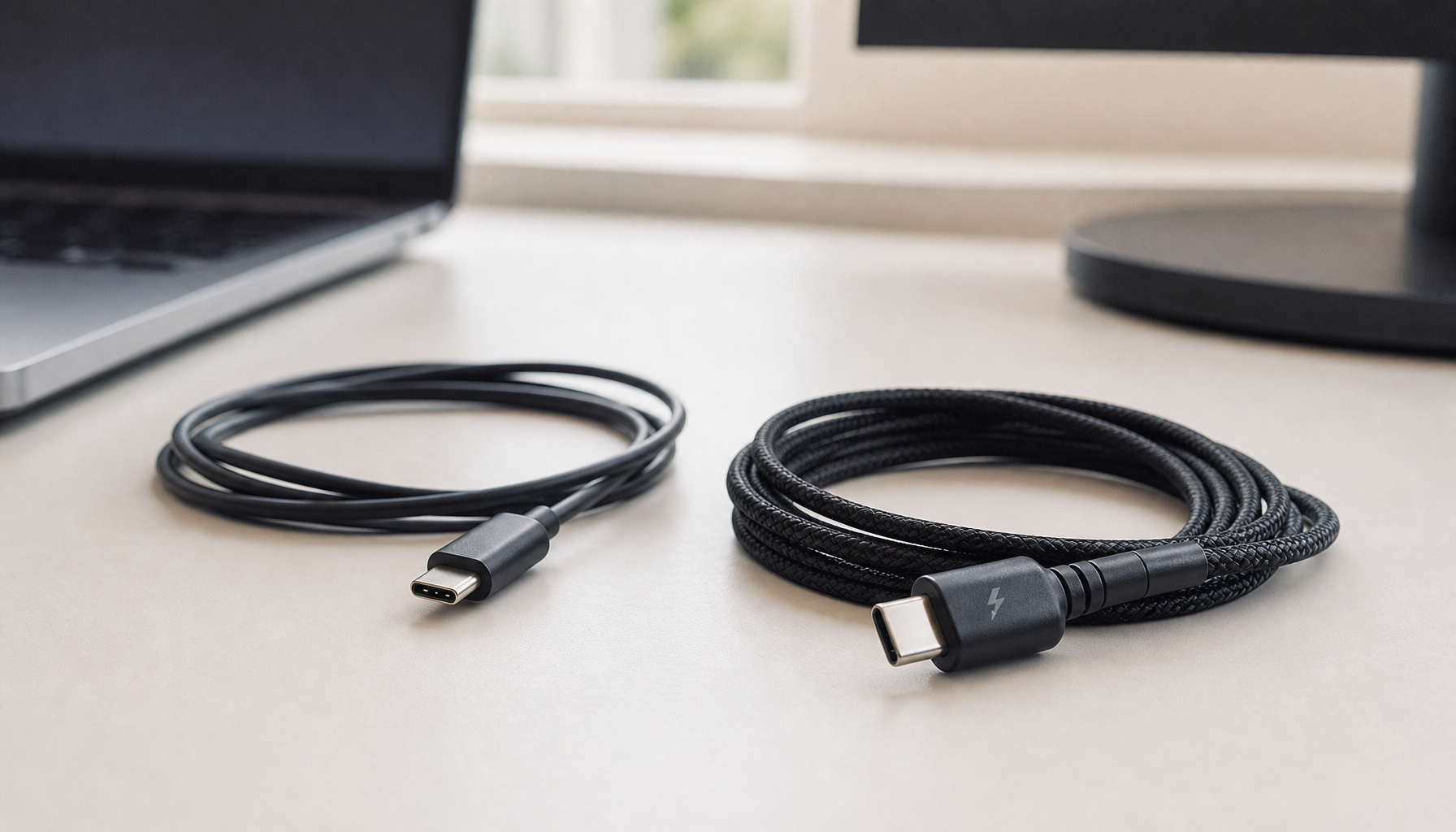
Think of it as a narrow pipe: even the fastest RTX 5090 cannot push its full output through a DP 1.4 connection. You will either drop to a lower refresh rate, enable Display Stream Compression (which is visually lossless for many but not ideal for purists), or reduce color depth. For 2026 builds targeting 4K 240Hz, a DP 2.1b monitor and cable become mandatory if you want to use the full capability of NVIDIA's latest cards.
This insight module helps shift the decision from simple resolution to bandwidth class. RTX 5090 owners should only consider monitors with DP 2.1b (UHBR20) to utilize uncompressed 4K 240Hz+. The RTX 5080 effectively takes over the premium mainstream role for 4K 144-165Hz gaming. 1440p 240Hz emerges as the new standard sweet spot for the RTX 5070 Ti and similar cards.
2026 GPU-to-Monitor Tier Match
Safe pairing zones for common 1080p, 1440p, and 4K high-refresh monitors.
View chart data
| Category | RTX 5090 | RTX 5080 | RTX 5070 Ti | RTX 5070 |
|---|---|---|---|---|
| 1080p | 3.0 | 3.0 | 2.0 | 1.0 |
| 1440p | 3.0 | 3.0 | 3.0 | 2.0 |
| 4K | 2.0 | 1.0 | 0.0 | 0.0 |
How to Match Your GPU to the Right Refresh Tier: A 2026 Roadmap
Start by identifying your target resolution and the refresh rate you actually expect to sustain in your favorite games. For most mainstream gamers in 2026, 1440p at 165-240Hz delivers the best balance of visual quality and performance. The RTX 5070 Ti sits at the center of this sweet spot, providing stable frame-to-refresh parity in competitive and AAA titles alike when paired with modern settings and upscaling.
Higher-end builds shift the target upward. An RTX 5080 handles 4K 144-165Hz comfortably in most scenarios and serves as a strong premium mainstream choice. The RTX 5090 unlocks 4K 240Hz for enthusiasts, but only when connected through DP 2.1b and with DLSS 4 or frame generation active in demanding path-traced games. Frame generation is assumed for these ultra targets because even flagship silicon benefits from the extra frames in the most demanding 2026 titles.
At the esports end, an RTX 5070 or equivalent can drive 1080p 360Hz+ in CPU-bound competitive games, where the GPU rarely becomes the limiter. Here the focus moves to CPU IPC and minimizing frame-time variance rather than raw rasterization power.
Identifying Bottlenecks: Why Your 360Hz Monitor Might Feel Like 60Hz
A high-refresh-rate monitor can feel disappointing when the system cannot maintain consistent high frame rates. GPU bottlenecks occur when the graphics card fails to output enough frames to match the monitor's refresh rate, causing the display to repeat frames or introduce stutter. CPU bottlenecks are more common at 1080p and high refresh targets, where the processor cannot feed the GPU quickly enough even if the card itself has headroom.
Frame time variance explains much of the real-world experience. A system averaging 300 FPS but with large spikes in frame delivery often feels worse than a stable 200 FPS. Tools that show 1% lows help diagnose this. NVIDIA Reflex becomes nearly mandatory for competitive high-Hz play because it reduces system latency by synchronizing GPU and CPU work, cutting the render queue that adds noticeable delay.
Chasing very high refresh rates also runs into diminishing returns. Beyond roughly 360-540Hz, most players notice little extra smoothness, especially on LCD panels whose pixel response times cannot fully exploit the extra refreshes. This is why OLED panels with near-instant 0.03ms gray-to-gray response often deliver superior motion clarity at 240Hz compared with LCDs running 360Hz or higher.
The 'OLED vs. Raw Hz' Trade-off: Why 240Hz OLED Often Beats 360Hz LCD
Pixel response time determines how cleanly each new frame appears. OLED panels achieve roughly 0.03ms GtG transitions, virtually eliminating sample-and-hold blur and dark-level smearing. Fast IPS or TN panels typically sit between 1-3ms, and some budget VA panels suffer noticeable smearing that cancels out the benefit of high refresh rates.
The practical takeaway is clear for many buyers: when budget is limited, a 240Hz OLED frequently provides better competitive motion clarity than a 360Hz or 540Hz LCD. The faster pixel transitions allow each frame to be seen more distinctly, reducing perceived blur even at a lower refresh rate. This makes panel type a more important variable than raw Hz numbers for many esports and fast-paced scenarios.
How to Choose the Right Pairing for Your Build: Final Checklist
Use this practical checklist before buying:
- Confirm your GPU and monitor both support the same DisplayPort version (DP 2.1b for uncompressed 4K 240Hz).
- Match target resolution and expected sustained FPS to your game library (esports vs AAA).
- Choose panel type based on priority: OLED for motion clarity, fast IPS for higher peak refresh and brightness.
- Verify your CPU tier can feed the GPU at your chosen resolution and refresh target.
- Enable NVIDIA Reflex or equivalent latency-reduction technology for competitive play.
Buy a monitor your current GPU can grow into over the next two to three years rather than one it can barely drive today. For many 2026 builds the 1440p 240Hz segment offers the strongest overall value.
KTC's G27P6 OLED is an excellent match for the RTX 5070 Ti sweet spot, delivering 240Hz with outstanding pixel response. Esports players looking at 1080p high refresh should consider the H25X7 series. Those moving into 4K can pair an RTX 5080 or 5090 with the H32P22P.
For deeper troubleshooting on why your setup may not feel smooth, read our guide on what happens when your GPU can’t keep up with your monitor’s refresh rate. Understanding why a 240Hz monitor might feel slower than expected also helps avoid common configuration pitfalls.
If you are still deciding on refresh rate targets, our overview of which refresh rate is best for gaming and the ultimate guide to choosing a gaming monitor provide additional context.
FAQs
How do I know if my GPU is bottlenecking my high Hz monitor? Check in-game frame time graphs or tools that show 1% lows. If your average FPS is well below the monitor's refresh rate or you see large variance in frame delivery, the GPU is likely limiting smoothness. At 1080p the CPU is often the real culprit instead.
Is 240Hz OLED better than 360Hz LCD for competitive gaming? In most cases yes. The near-instant pixel response of OLED reduces motion blur more effectively than the higher refresh rate of an LCD panel whose pixels cannot transition fast enough to take full advantage of 360Hz or above.
Do I need DisplayPort 2.1b for a 1440p 240Hz monitor? Usually no. DP 1.4 can drive 1440p 240Hz without compression in most setups. DP 2.1b becomes essential only when targeting uncompressed 4K at 240Hz or higher.
Should I upgrade my GPU or lower my monitor's refresh target? If your GPU consistently falls short of the refresh rate in your main games, upgrading the card or lowering settings usually gives better results than dropping the monitor's maximum refresh rate. The exception is when you are already in the diminishing-returns zone above 240-360Hz.
Can I use an older RTX 40-series GPU with a new 4K 240Hz monitor? You can, but expect to rely on Display Stream Compression or reduced refresh/color settings. Full uncompressed performance at these specs requires a 50-series card with DP 2.1b support.
What role does NVIDIA Reflex play in high-Hz setups? Reflex reduces end-to-end system latency by optimizing the render queue between CPU and GPU. At high refresh rates the difference is noticeable in competitive play, making it a recommended setting rather than optional.
When does chasing higher refresh rates stop providing value? For the majority of players, benefits plateau somewhere between 240Hz and 360Hz once pixel response, frame time stability, and CPU capability are taken into account. Beyond that point, improving other parts of the chain usually matters more.