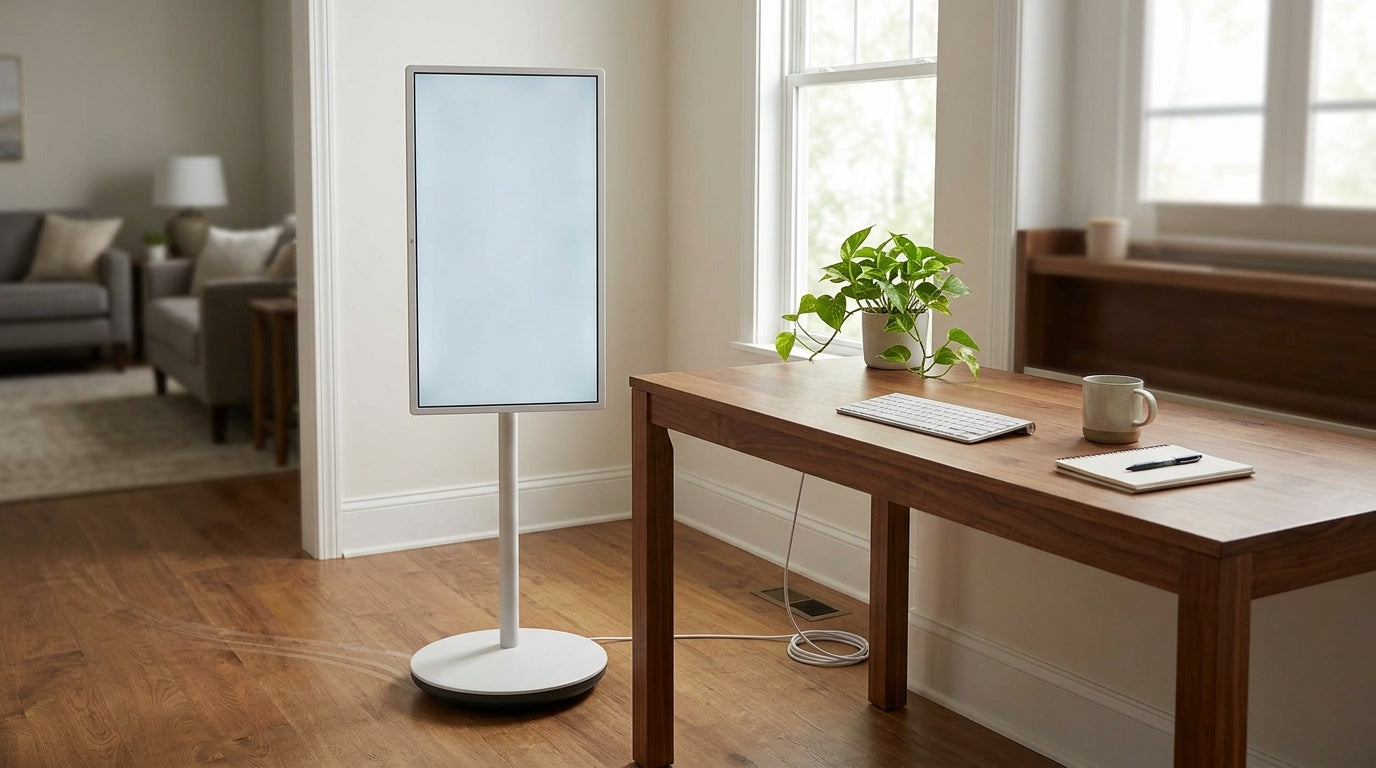
A rolling smart display makes sense when one screen needs to move from desk work to a kitchen timer check, then back to shared family use without constant device switching. The best fit depends less on novelty and more on whether your paths are clear, your charging habit is simple, and the screen still feels easy to read after each move.

Why a Rolling Screen Fits Daily Household Routines
For families and hybrid workers, the appeal is practical: one movable display can cover the morning laptop session, the midday recipe check, and the evening calendar or streaming routine. That cuts down on the small annoyances that happen when every room has a different device.
A rolling setup works best when the screen can move along a clear path and still land in a comfortable viewing position. OSHA's monitor guidance says the top of the screen should sit at or slightly below eye level and roughly an arm's length away, which is a useful starting point whether you are at a desk or standing at a counter.
That means the real question is not whether a rolling smart display is flexible. It is whether your household will use that flexibility often enough to justify the extra setup and charging discipline.
What to Look for in a Kitchen-Friendly Setup
The first check is height and tilt. If the screen cannot move enough to stay readable from a desk, counter, and sofa, the convenience fades fast. For a kitchen-friendly setup, the display should settle into a position that does not force neck bending or awkward tapping.
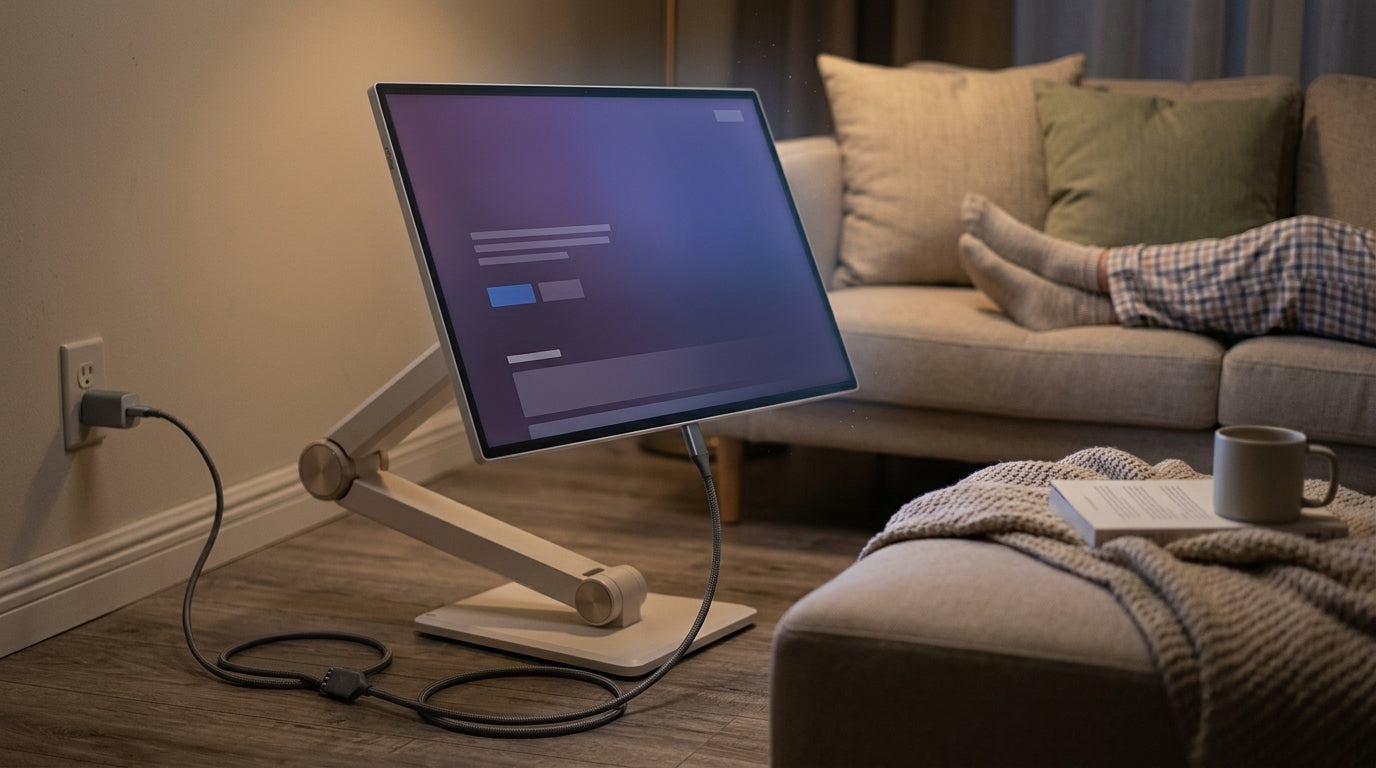
The second check is cable routing. Los Angeles County's telework setup tips call out the same basic friction point you feel in a home: short cords, poor outlet placement, and cable snags make frequent room-to-room movement annoying. A rolling screen that sounds easy on paper can become a daily hassle if power and cable slack were an afterthought.
The third check is shared usability. Parents, kids, and guests should be able to glance at it and tap basic functions without a learning curve. Battery helps, but only as a convenience buffer. It reduces outlet dependence during short moves; it does not remove the need for routine charging.
One good rule of thumb: if you would resent plugging it in every few days, a rolling setup may become more trouble than it saves.
Height and Tilt for Mixed Viewing Positions
A kitchen counter, desk chair, and sofa all create different eye lines. A mobile display needs enough adjustment to stay comfortable across those positions. If the unit only feels right in one room, it is not really solving the household problem.
The Santa Clara County teleworker ergonomics guide also treats counters as workable standing stations when screen height and posture stay neutral. That is a helpful boundary, not a promise. In practice, the screen still has to land at a usable angle for the room you are in.
Power Access and Cable Path Planning
For a rolling smart display, outlet location matters almost as much as the screen itself. If every move requires unplugging, fishing for slack, or crossing a walkway with a cable, the setup stops feeling mobile.
A good check is simple: move through your most common route once with a tape measure and a charger in hand. If the path feels cramped or the cord has to cross a high-traffic zone, plan for a different route or skip the rolling format.
Touch Readability and Shared Use
Touch matters because a family hub is usually used quickly and casually. The screen should be easy to wake, easy to tap, and easy to read from a standing or seated position. That matters more than fancy app depth for most kitchen and household tasks.
If your main use is recipe scrolling, timers, shared calendars, or quick video calls, the display should favor clarity and simple interaction over advanced desk-monitor features.
Kitchen Command Center Versus Home Office Display
| Use Case | What Matters Most | When It Breaks Down |
|---|---|---|
| Kitchen command center | Fast glanceability, timers, simple touch actions, easy cleanup between uses | It becomes awkward if you need to bend, stretch, or keep re-plugging it during cooking |
| Home office display | Stable viewing height, document readability, and comfortable calls | It loses value if the stand height or tilt only works in one room |
| Family hub | Shared calendars, reminders, streaming, and quick check-ins | It gets frustrating if different household members cannot read or tap it quickly |
For most households, the choice flips based on where the screen spends the most time. If it will live near the kitchen and move often, prioritize easy movement and setup. If it will spend more time acting like a shared desk display, prioritize a larger canvas and more stable viewing.
That is why a rolling smart display should be judged as a workflow tool first and a screen second. The same model may feel great for family planning and only average for an all-day desk replacement, or vice versa.
Choosing the Right Screen Size and Runtime
A 27-inch class display is usually the safer pick when the screen has to move through tighter paths or smaller rooms. It is easier to manage through doorways and around counters, and it generally feels less imposing when the household is still figuring out where the screen belongs.
A 32-inch class display makes more sense when the screen is meant to act like a shared household hub or a more desk-like living-room screen. The larger canvas helps when several people need to read the same thing at once, and it tends to feel more natural for split viewing, calls, or casual streaming.
The Mobile Touch Screen collection is built around portable touch screens for work, travel, and home, which makes it a useful place to compare size and battery trade-offs before you narrow to a model.
If you want a compact starting point, the KTC MEGAPAD 27" FHD Android 14 Google EDLA Smart Touch Monitor with 9500mAh Battery is the clearest 27-inch option in this set. It pairs a rolling design with a smaller footprint, a built-in 8MP camera, and up to 6 hours of runtime, so it fits better when the screen is moving around more often than it is sitting still.
For a larger household hub, the KTC MEGAPAD 32" 4K Android 13 Google EDLA Smart Touch Monitor with 9500mAh Battery gives you the bigger 4K canvas and built-in wheels. It is a better fit when the screen needs to serve as a shared display for calls, streaming, or family planning from a more fixed spot.
The newer 32-inch option, KTC MEGAPAD 32" 4K Android 14 Google EDLA Smart Touch Monitor with 8550mAh Battery, is another large-format path to consider if you want the same basic household role with a different Android version and battery profile. The exact fit still depends on whether you value runtime, size, or software version more.
This quick comparison suggests a simple rule of thumb: 27-inch is the safer fit when the display has to move through tighter kitchen paths, while 32-inch is usually the stronger fit when the setup is meant for shared family viewing or more desk-like viewing from a fixed spot.
| Scenario | Kitchen paths | Shared family use | Home-office style viewing |
|---|---|---|---|
| 27-inch | Better for tight paths | Good for light use | Limited for long sessions |
| 32-inch | Limited in narrow spaces | Best for group viewing | Best for stable desk use |

Set Up the Rolling Hub for Everyday Use
Start with the route you use most often. If the display will move between a desk and a kitchen counter, map that path first and check where the base, wheels, and power cord will actually travel.
Next, set the default height and tilt for the most common viewing position before you fine-tune anything else. That saves time later and prevents the screen from becoming a constant adjustment project.
Then simplify the charging routine. If the screen needs to be ready for morning work or evening family use, it should have one obvious home for charging rather than a different plan every day.
Finally, test the things people forget: touch, wake behavior, audio, and whether the unit still feels stable after movement. The MegPad as Kitchen Command Center guide is a good follow-up if you want a more specific kitchen workflow lens, while the Turning Your Smart Monitor into a PC: Connecting Wireless Keyboards and Mice article is useful if you plan to add a keyboard or mouse for hybrid work.
A rolling smart display should reduce friction, not create a new maintenance habit. If setup feels easy in the rooms you actually use, the category earns its place.
Final Checks Before You Buy
Before you buy, confirm five things: the movement path is wide enough for daily turns, the outlet and cable reach fit each room, the screen size matches the farthest viewing distance, the battery routine is realistic, and the screen will be used often enough to justify the mobility premium.
Add two quick scenario checks. First, roll the unit through your busiest doorway with the wheels locked to test stability. Second, place it at the counter and sit or stand as you normally would for five minutes to confirm no neck strain appears. If those checks line up, a rolling smart display can be a clean answer for kitchen routines, home-office tasks, and family planning. If they do not, a fixed display may be the less annoying choice.
FAQs
Q1. How Do I Know If a Rolling Smart Display Will Fit My Kitchen?
Fit depends on aisle width, counter depth, cord reach, and whether the base can turn without catching on furniture or rugs. Measure the path you use most often, then leave extra room for turns. If the route feels tight before you buy, the display may be better suited to a fixed spot.
Q2. What Size Works Best for a Family Hub?
A 27-inch model works better in tighter homes where the screen moves often. A 32-inch model usually makes more sense when multiple people need to read calendars, watch content, or join calls from a shared space. The deciding factor is how far away the farthest viewer will sit or stand.
Q3. Can One Rolling Screen Replace a Desk Monitor and Kitchen Tablet?
It can, if your household accepts daily charging, a touch-first workflow, and occasional repositioning. The trade-off is that you give up the fixed convenience of a dedicated desk monitor or tablet. That is usually fine when the screen is shared often, but less appealing if each room already has a better-fit device.
Q4. Why Does Battery Runtime Matter in a Rolling Setup?
Battery runtime matters because it reduces outlet dependence during short moves, lunch breaks, and quick room changes. It matters less if the screen always sits near power. The key is to match runtime to your routine, not to assume longer battery life is automatically better for every household.
Q5. What Should I Check Before Moving the Screen Between Rooms?
Check wheel clearance, cable slack, default height, and whether the display still feels stable once it is moved. Also confirm that touch, audio, and wake behavior still feel normal in the new room. A setup that works at the desk can feel awkward if the counter or sofa changes the viewing angle too much.
The Best Fit Is the One You Will Actually Move
The best rolling smart display is not the one with the most features on paper. It is the one that fits your paths, your outlet access, and your daily habit without becoming a chore. If you want one screen for kitchen, desk, and family use, start with fit first, then size, then battery.