Moving from desk to kitchen table to couch can break visual consistency, window flow, and focus. The best fix is not more screen space everywhere, but the right mix of a primary monitor, a portable display, and repeatable setup habits.
Does your workday feel sharp at your desk, cramped in a meeting corner, and awkward again when you move to another room? A well-planned display setup can keep your laptop charged, your windows predictable, and your text readable without forcing you to rebuild your workspace every time. Here is how to choose and configure screens that follow the way you actually work.

Why Room-to-Room Work Exposes Display Weaknesses
A monitor that feels excellent in one room can fail in another. Bright windows can wash out contrast in the dining room. A shallow side table may not hold a 32-inch display at a healthy distance. A laptop-only setup forces constant tab switching during calls, research, dashboards, and document work.
The core issue is environmental mismatch. Your office desk may support a large monitor, monitor arm, dock, keyboard, and task lighting. Your bedroom or kitchen setup may offer only a small surface, one outlet, and glare from a window. That shift changes the value of every spec, from brightness and reflection handling to USB-C power delivery and stand adjustment.
There is also a workflow penalty. Multiple-monitor setups can reduce window switching by keeping reference material, calls, and working documents visible at once, and practical dual monitor setup guidance emphasizes that gain. The catch is that a fixed dual-screen desk does not help when your afternoon work happens three rooms away.
The Three Display Modes That Actually Work
The Anchor Desk
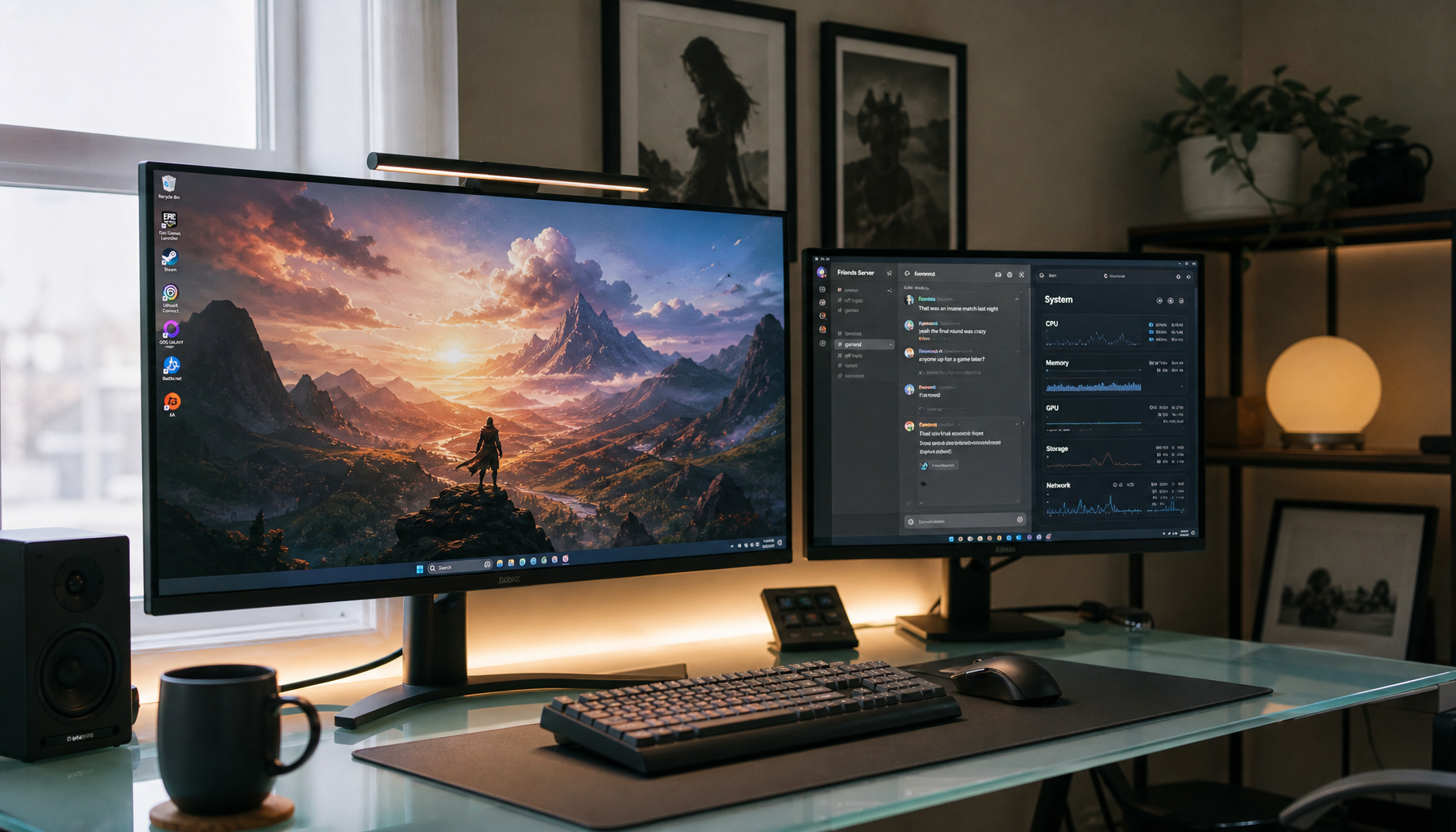
Your anchor desk is the performance station. This is where a 27-inch to 34-inch monitor makes the most sense, because you can control distance, lighting, cables, and posture. For most productivity users, 27-inch QHD is the value sweet spot; it gives noticeably more workspace than 1080p without demanding the cost of premium 4K. For people who edit images, review detailed layouts, or work heavily in spreadsheets, 4K becomes more compelling because 4K displays provide sharper text and more visible detail.
A strong anchor display should have height adjustment, tilt, good reflection handling, and USB-C if you work from a laptop. USB-C with power delivery matters because it turns the monitor into a one-cable docking point: video, charging, and peripherals can run through one connection. That saves time every time you return to the desk.
The downside is obvious: the anchor monitor stays put. It solves your best room, not your whole day.

The Portable Second Screen
A portable monitor is the mobility tool. It is not meant to replace a full desktop display; it is meant to stop your laptop from becoming a bottleneck when you move. Remote-work monitor guidance often frames portable displays as slim USB-C screens for travel, cafes, and compact work areas, and monitors for remote work recommendations commonly place them in the practical range for people who need flexibility more than maximum screen size.
The best use case is simple: keep your main task on the laptop and your reference material, chat, call notes, or dashboard on the portable screen. If you run calls from the kitchen table, place the meeting window on the laptop camera display and keep notes on the portable panel. If you review documents from a couch-side table, use the second screen for the source material and type on the laptop.
The tradeoff is ergonomics. Portable screens often sit low, and low screens invite neck strain. A small folding stand or compact riser is not a luxury here; it is what turns a clever accessory into a sustainable tool.
The Smart or Shared-Room Screen
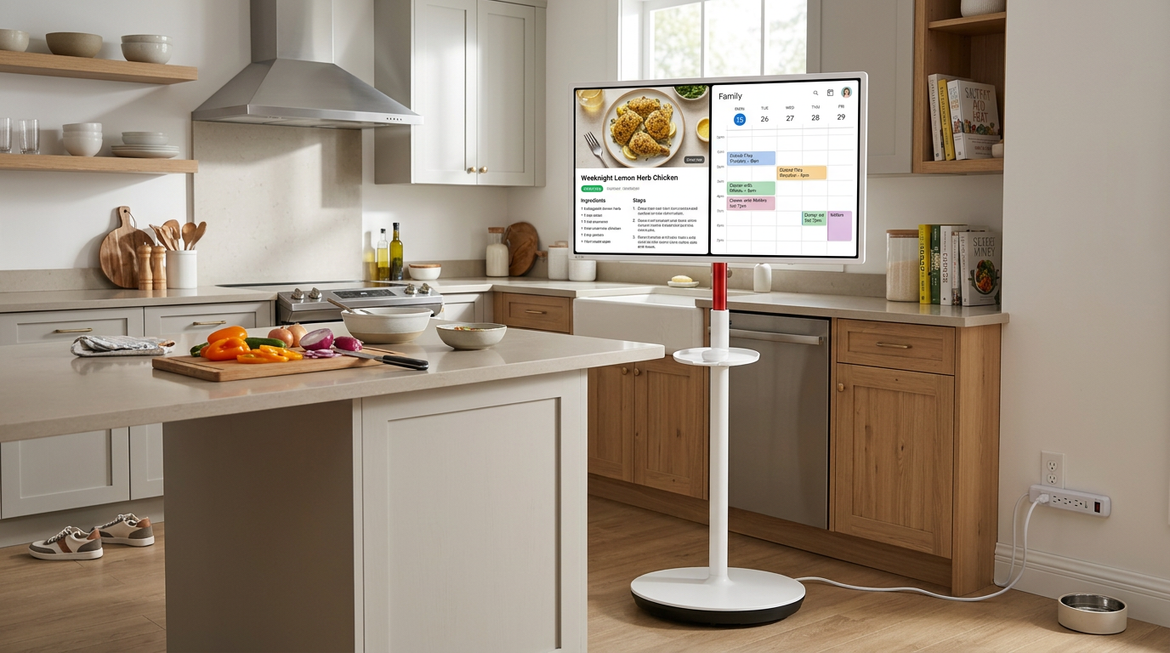
Some rooms already have a large display, but using a TV or smart monitor for work requires discipline. A living room screen can be useful for reviewing slides, watching training, or comparing visual work from a distance. It is less ideal for dense writing, code, spreadsheets, or anything that needs crisp text at close range.
If you use a wireless display, treat it as a presentation surface rather than your main workspace. Most operating systems let users connect and manage multiple displays through system display settings, including projection modes such as Extend and Duplicate. In practice, Extend is best for work, while Duplicate is best for presenting the same content to someone else in the room.

Specs That Matter When You Keep Moving
Resolution and Size
Resolution should match both screen size and room use. A 24-inch 1080p monitor is still serviceable for email, chat, and basic office work, but it feels tight for side-by-side documents. A 27-inch 1440p display is the balanced productivity pick. A 27-inch or 32-inch 4K monitor is better when text clarity, visual review, and detailed multitasking matter.
Monitor testing coverage shows that mainstream computer monitors span many sizes and budgets, while ultrawide models can replace dual displays for certain workflows. That is the right framing for room-to-room work. Do not buy the largest panel you can afford if half your day happens away from the desk.
Refresh Rate and Motion Comfort
Refresh rate is often marketed to gamers, but it affects work comfort too. A 60Hz display is acceptable for office tasks, yet 100Hz or 120Hz can make scrolling through documents, timelines, and long spreadsheets feel smoother. Gaming-monitor guidance treats refresh rate, response time, panel type, and adaptive sync as major selection factors, and gaming monitors can be valuable hybrid tools when one display needs to handle work and after-hours play.
The practical rule is straightforward: prioritize 120Hz or higher if you scroll constantly, use dense dashboards, or want one display for productivity and gaming. If your work is mostly static documents and calls, spend first on resolution, ergonomics, and connectivity.
Brightness, Glare, and Panel Type
Room changes usually mean lighting changes. A matte IPS monitor with decent brightness can be more useful than a glossy premium panel in a sunlit room. Mini-LED and OLED can deliver stronger contrast, but they are not automatic office wins. OLED excels in deep blacks and fast response, while Mini-LED can produce high brightness for challenging light, but both add cost and can introduce tradeoffs such as blooming or burn-in concerns depending on the model and usage.
For most home workers, IPS remains the dependable baseline because it offers wide viewing angles and consistent color. For bright shared rooms, prioritize brightness and reflection handling. For dark rooms and immersive media, OLED becomes more tempting, especially if the display also serves gaming or creative review.

A Practical Room-by-Room Setup
Work Location |
Best Display Choice |
Why It Works |
Main Tradeoff |
Dedicated desk |
27-inch QHD or 32-inch 4K monitor |
Best balance of space, clarity, and ergonomics |
Not portable |
Kitchen table |
Laptop plus portable USB-C screen |
Fast setup with useful second-screen space |
Lower height unless raised |
Living room |
Smart screen or TV for review only |
Good for presentation and media review |
Poor for dense text work |
Bedroom corner |
Compact 24-inch to 27-inch monitor |
Better posture than laptop-only work |
Needs a stable surface |
A real example: if you start the morning at a desk with a 32-inch 4K USB-C monitor, you can keep email, browser, calendar, and document windows open without feeling crowded. At lunch, moving to a kitchen table with a 14-inch portable screen preserves the same two-zone workflow: active writing on the laptop, reference on the side. Later, a living room display can handle a slide review while your laptop remains the control surface.
The important part is consistency. Keep the same app roles across rooms. Put communication on the smaller screen, deep work on the sharpest screen, and reference material where it can stay visible without covering your main task.
Setup Habits That Prevent Friction
The fastest hardware still feels bad if the operating system forgets where everything belongs. Use display settings to identify screens, arrange them to match their physical position, choose Extend, and set the main display where you want the taskbar and primary app launches. A projection shortcut is worth remembering because it quickly switches between single-screen, Duplicate, Extend, and second-screen-only modes.
When a display fails to appear, check the cable, input source, and power before changing deeper settings. Then use Detect in display settings. If you often move between rooms, label your cables or use one USB-C cable per station so setup becomes repeatable rather than improvised.
Buying Priorities by Worker Type
For managers and heavy meeting users, a monitor with USB-C, webcam-friendly positioning, speakers, and a clean docking setup matters more than extreme refresh rate. For analysts, developers, and spreadsheet-heavy users, screen width and resolution are the performance multipliers. For creators, color coverage and 4K detail become more important. For hybrid work-and-play users, a high-refresh QHD or 4K gaming monitor can be a smart value because it supports fast motion without giving up productivity.
Monitor buying advice often starts with size and then weighs resolution, refresh rate, panel type, ports, and workflow features such as KVM switching, and that monitor buying sequence holds up well for flexible work setups. KVM is especially useful if one room serves both a work laptop and a personal desktop, because one keyboard and mouse can switch between devices.
The Best Display Strategy Is Modular
A room-to-room workday needs a modular display system: one strong anchor monitor, one portable option, and one clean software routine. Bigger is not always better; sharper, easier to connect, and easier to position usually wins.
Choose the screen that reduces friction in the room where you lose the most focus. Then make every other display support that workflow instead of forcing you to rebuild your day around the hardware.