Your laptop-plus-monitor setup usually feels awkward because the screens are not working as one intentional workstation. The fix is less about adding pixels and more about matching ergonomics, ports, scaling, and workflow.
Your Screens Are Fighting Your Body
A laptop screen sits low, while an external monitor usually sits higher and farther back. That forces your eyes and neck to keep switching between two different viewing zones.
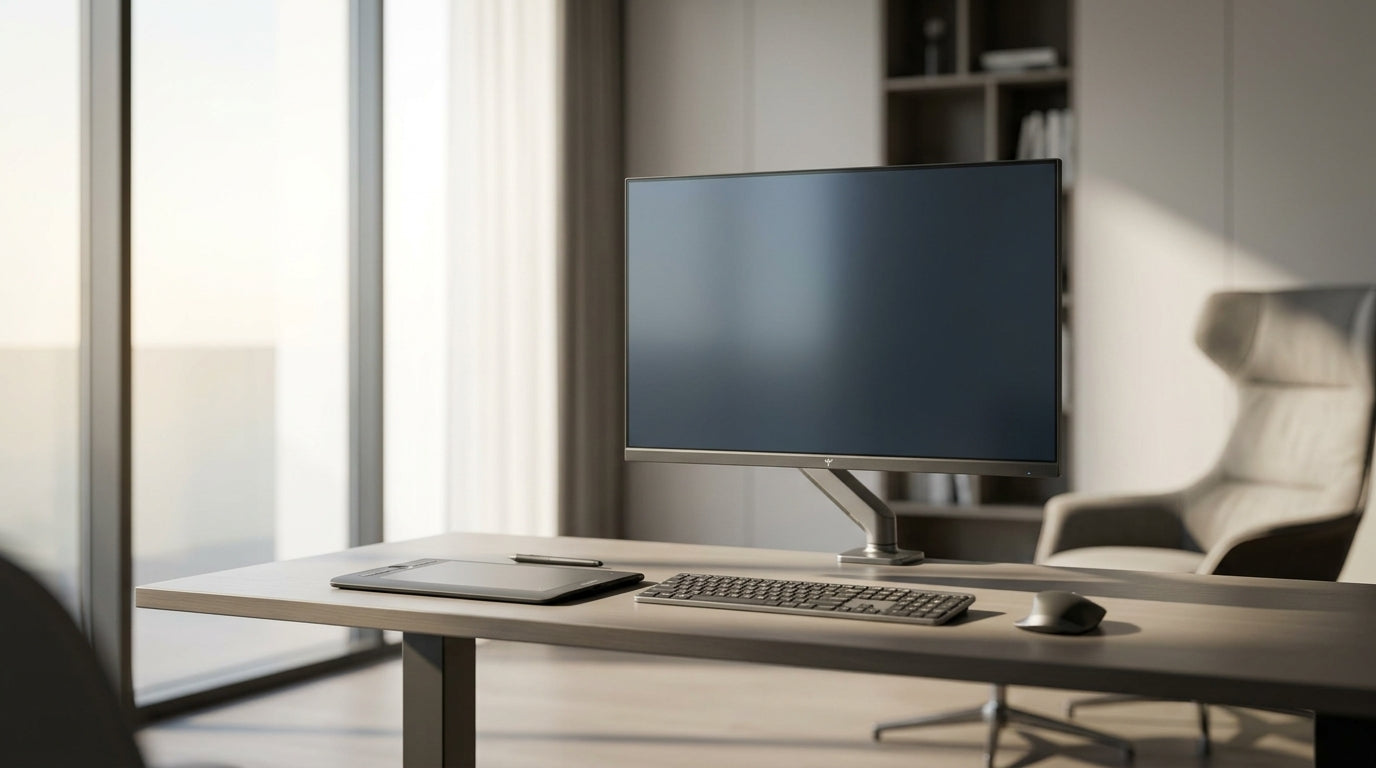
For comfort, the main screen should sit about an arm’s length away, with the top of the display at or slightly below eye level. Eye-comfort advice often points to arm’s length placement because it reduces leaning, squinting, and constant refocusing.

If the laptop is open beside the monitor, treat it as a secondary screen, not an equal partner. Put your main app on the external display, then use the laptop for chat, music, notes, or reference.
The Cursor Path Feels Wrong
One of the fastest ways to make a dual-screen setup feel cheap is a mismatched digital layout. If your monitor is physically above or to the left of the laptop, your operating system needs to know that.
The display arrangement should match the real desk layout so the pointer moves naturally between screens. Multi-monitor settings let you rearrange displays and identify which screen is which.

Quick calibration:
- Set the external monitor as the main display.
- Drag display icons to match your real desk.
- Use Extend, not Duplicate, for productivity.
- Match scaling so text size feels consistent.
- Keep your primary apps on the larger screen.
That last point matters. A 14-inch laptop beside a 27-inch monitor is not a balanced dual-monitor setup; it is a command center plus a support screen.
Your Cable May Be Limiting the Monitor
A premium monitor can feel ordinary if the connection is wrong. Ports affect resolution, refresh rate, HDR, variable refresh rate, and even multi-monitor expansion.
For gaming and high-refresh work, DisplayPort is often the performance pick because it supports strong bandwidth and advanced monitor features. USB-C is excellent for clean laptop desks, but only if the port supports DisplayPort Alt Mode, Thunderbolt, or compatible USB4. Not every USB-C port sends video.
If your 144Hz or 240Hz monitor is stuck at 60Hz, check the cable before blaming the display. The wrong HDMI version or a weak adapter can block the specs you paid for, especially on high-refresh 1440p or 4K panels. A good rule: use DisplayPort for PC gaming, HDMI 2.1 for modern consoles, and USB-C for single-cable laptop docking.

Scaling and Brightness Break the Immersion
Even when everything is connected, the setup can feel visually uneven. One screen may look sharper, warmer, brighter, or larger than the other.
Most operating systems let each display use its own resolution and scaling, which is useful but easy to misconfigure. Large scaling changes can make text, apps, and interface elements look blurry or misaligned.
Aim for comfort, not identical numbers. A laptop may need 125% or 150% scaling, while a 27-inch QHD monitor may feel best at 100% or 125%. Then tune brightness so white pages do not glow on one screen and look gray on the other.

Dark mode and warmer color settings can help some users, but they are comfort tools, not universal fixes for poor placement or mismatched scaling.
Build the Setup Around One Primary Job
The most reliable setup has a clear hierarchy. For office productivity, the external monitor should hold the main document, spreadsheet, browser, or creative canvas. The laptop screen should handle secondary tools.
For gaming, close the laptop if thermals and desk layout allow it, then use the external monitor, keyboard, and mouse like a desktop station. For portable work, a USB-C portable display may feel better than a full desk monitor because it keeps both screens closer in size and distance.
A second screen should reduce friction, not multiply it. When your monitor height, cable bandwidth, scaling, brightness, and window layout all support the same workflow, the awkwardness disappears and the laptop becomes the engine instead of the bottleneck.