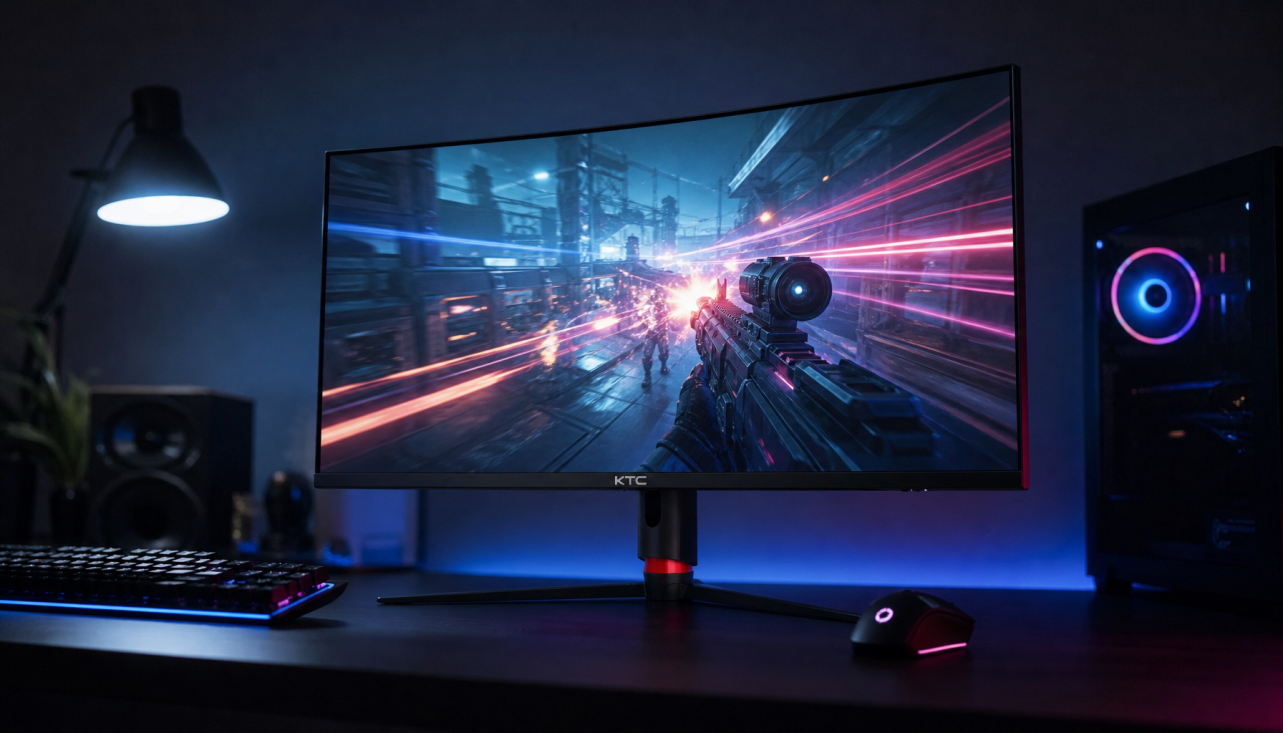
The real difference between a 27-inch and 32-inch 4K monitor is not resolution—it is pixel density. A 27-inch 4K panel delivers roughly 163 PPI for retina-like sharpness at typical desk distances, while a 32-inch 4K panel offers about 138 PPI and more on-screen real estate. The better choice depends on your desk depth, whether you prioritize text clarity or multitasking workspace, and if you game competitively or for immersion.

The Spec-Sheet Showdown: 163 vs. 138 PPI
Pixel density, measured in pixels per inch (PPI), tells you how tightly those 8.3 million 4K pixels are packed onto the screen. Higher PPI produces sharper text and finer details because individual pixels are harder to distinguish at normal viewing distances.
A 27-inch 4K monitor reaches approximately 163 PPI. A 32-inch 4K monitor sits at roughly 138 PPI, according to standard calculations confirmed across monitor sizing guides. Both numbers are significantly higher than the 92–110 PPI typical of 27- or 32-inch 1440p displays, so either 4K option looks noticeably sharper than a same-size 1440p panel.
The practical impact appears most clearly with small text, fine UI elements, or high-contrast edges. At 163 PPI the “Retina” effect—where pixels become visually indistinguishable—arrives sooner. At 138 PPI you still enjoy excellent clarity, but the threshold distance shifts outward.
The Productivity Paradox: Scaling vs. Real Estate
Many buyers assume a 4K monitor automatically gives more usable workspace. In practice, Windows or macOS scaling often erases that advantage on the smaller panel.
At 150% scaling a 27-inch 4K monitor delivers roughly the same logical desktop space as a native 1440p display. Text becomes comfortable, but the “4K upgrade” in multitasking disappears. A 32-inch 4K monitor at 125% scaling keeps text sharp while preserving substantially more room for multiple windows and spreadsheets.
One analysis estimates the 32-inch option provides around 44% more logical workspace at comfortable scaling settings. This gap matters most for users who keep several documents or browser windows open simultaneously. For pure text-heavy coding or writing, however, the higher PPI of the 27-inch model can reduce eye strain during long sessions because edges appear cleaner at closer range.
The chart below visualizes how these trade-offs play out across key decision factors.
27-inch vs 32-inch 4K Monitors: Sharpness and Workspace Balance
Higher bars mean a better fit for the scenario. Sharpness is shown as a relative tier based on the provided PPI and Retina-distance guidance; workspace reflects the stated scaling advantages at each recommended size.
View chart data
| Category | 27-inch 4K | 32-inch 4K |
|---|---|---|
| Sharpness (Retina fit) | 5.0 | 3.0 |
| Workspace | 3.0 | 5.0 |
| Shallow desk (24") | 5.0 | 3.0 |
| Deep desk (30"+) | 3.0 | 5.0 |
| Productivity / text | 5.0 | 5.0 |
| Competitive gaming | 4.0 | 5.0 |
| Cinematic gaming | 4.0 | 5.0 |
The 25-Inch Rule: Why Desk Depth Dictates Sharpness
Retina clarity occurs when the viewing distance exceeds a threshold calculated from PPI. For a 27-inch 4K panel (163 PPI) that threshold sits around 21 inches. For a 32-inch 4K panel (138 PPI) it moves to roughly 25 inches, per standard viewing-distance calculators.
Most standard office desks are 24 inches deep. After accounting for monitor stand depth and typical seating posture, your eyes often end up 18–20 inches from the screen. At that distance the 27-inch model easily clears the Retina line, while the 32-inch model sits close enough that some users notice minor aliasing on fine text or high-contrast edges.
A deeper 30-inch+ desk or a monitor arm that pulls the 32-inch panel farther back lets it reach its full sharpness potential. If your current setup keeps you closer than 25 inches, the 27-inch 4K monitor is the safer choice for crisp office work and coding. This official monitor distance guidance confirms the distance thresholds used here.

Gaming Performance: Competitive Edge vs. Cinematic Immersion
Screen size affects field of view (FOV) and how much of the display your eyes can comfortably track without moving your head. Competitive players in fast-paced shooters or MOBAs usually prefer 27-inch 4K monitors. The entire screen fits inside a comfortable 30–40 degree primary FOV, making it easier to spot small UI elements or peripheral threats without losing focus.
Cinematic or story-driven AAA games benefit from the extra immersion of a 32-inch 4K panel. The larger canvas fills more of your vision, heightening the sense of scale in open-world titles or console-style experiences. Both sizes support high-refresh 4K gaming at 160 Hz or above on modern hardware, so frame-rate advantages remain comparable.
This gaming monitor size comparison notes that competitive users favor the tighter 27-inch footprint while immersion seekers lean toward 32 inches.
The Final Verdict: Which 4K Sweet Spot Is Yours?
Choose the 27-inch 4K path when you have a standard or shallow desk, do text-heavy work that rewards maximum sharpness, or play competitive titles where quick eye movement across the whole screen matters. Models such as the KTC 27" 4K 160Hz/1ms HDR400 Gaming Monitor | H27P22S deliver the high-PPI experience in a compact, high-refresh package.
Choose the 32-inch 4K path when you have a deeper desk (30 inches or more), need maximum multi-window workspace for spreadsheets and research, or want cinematic immersion in single-player games. The KTC 32" 4K 165Hz Gaming Monitor with Vesa Mount | H32P22P gives that larger canvas while maintaining strong 4K performance.
If you are upgrading from 1440p and want the cleanest text possible on a typical home-office desk, start with 27-inch 4K. If your workflow centers on side-by-side windows and you can sit farther back, the 32-inch option often proves more productive once scaling is dialed in. Test your actual seating distance and scaling comfort before buying—PPI numbers only tell part of the story.
For more on ergonomic placement, see our Home Office Setup Guide: How to Choose the Right Ergonomic Monitor. You can also explore the full 4K Monitor collection or the dedicated 27 inch Monitors and 32 inch / 49 inch monitors ranges to match your exact needs.
Frequently Asked Questions
Is 32-inch 4K sharp enough for office work? Yes for most users once you sit at or beyond 25–28 inches and use 100–125% scaling. At closer distances some aliasing on very fine text may appear, but it remains far sharper than 1440p equivalents. Individual eyesight and content type (spreadsheets vs. code) affect perception.
What is the optimal viewing distance for a 27-inch 4K monitor? Approximately 20–24 inches for full Retina clarity. This comfortably matches most 24-inch deep desks and allows 100–150% scaling without strain for the majority of users.
Does 27-inch or 32-inch 4K give better pixel density for gaming? The 27-inch model has higher PPI (163 vs 138), delivering crisper textures and UI elements. The 32-inch version trades some density for greater immersion. Competitive players usually prefer the smaller size; cinematic gamers favor the larger canvas.
How much more workspace does a 32-inch 4K monitor actually provide? At comfortable scaling (125% on 32-inch versus 150% on 27-inch) the larger panel offers roughly 44% more usable desktop area. This advantage appears mainly in multi-window productivity rather than single-document tasks.
Should I buy a 27-inch or 32-inch 4K monitor for a small desk? A 27-inch 4K monitor is the safer pick. It reaches Retina sharpness at closer distances and avoids the scaling trap that can make a 32-inch panel feel oversized on shallow desks.
Do I need to change Windows or macOS scaling when switching to 4K? Almost always. Running either size at 100% scaling on Windows makes text and icons too small for prolonged use. The 27-inch panel typically needs 125–150% while the 32-inch panel performs well at 100–125%. macOS scaling behaves slightly differently and may require experimentation.