A rolling smart display vs tablet for office decision usually comes down to one question: do you mostly work alone, or do you keep needing a larger screen that several people can see at once? For solo note-taking and quick check-ins, a tablet is easier. For shared review, room-to-room movement, and longer meetings, a rolling display is often the more practical setup.

When a Tablet Stops Being Enough
For light personal work, a tablet is hard to beat. It stays small, easy to carry, and quick to wake up. The limit shows up when the workday moves from reading and replying into side-by-side review, meeting notes, and shared documents.
Screen Space Limits for Spreadsheets and Docs
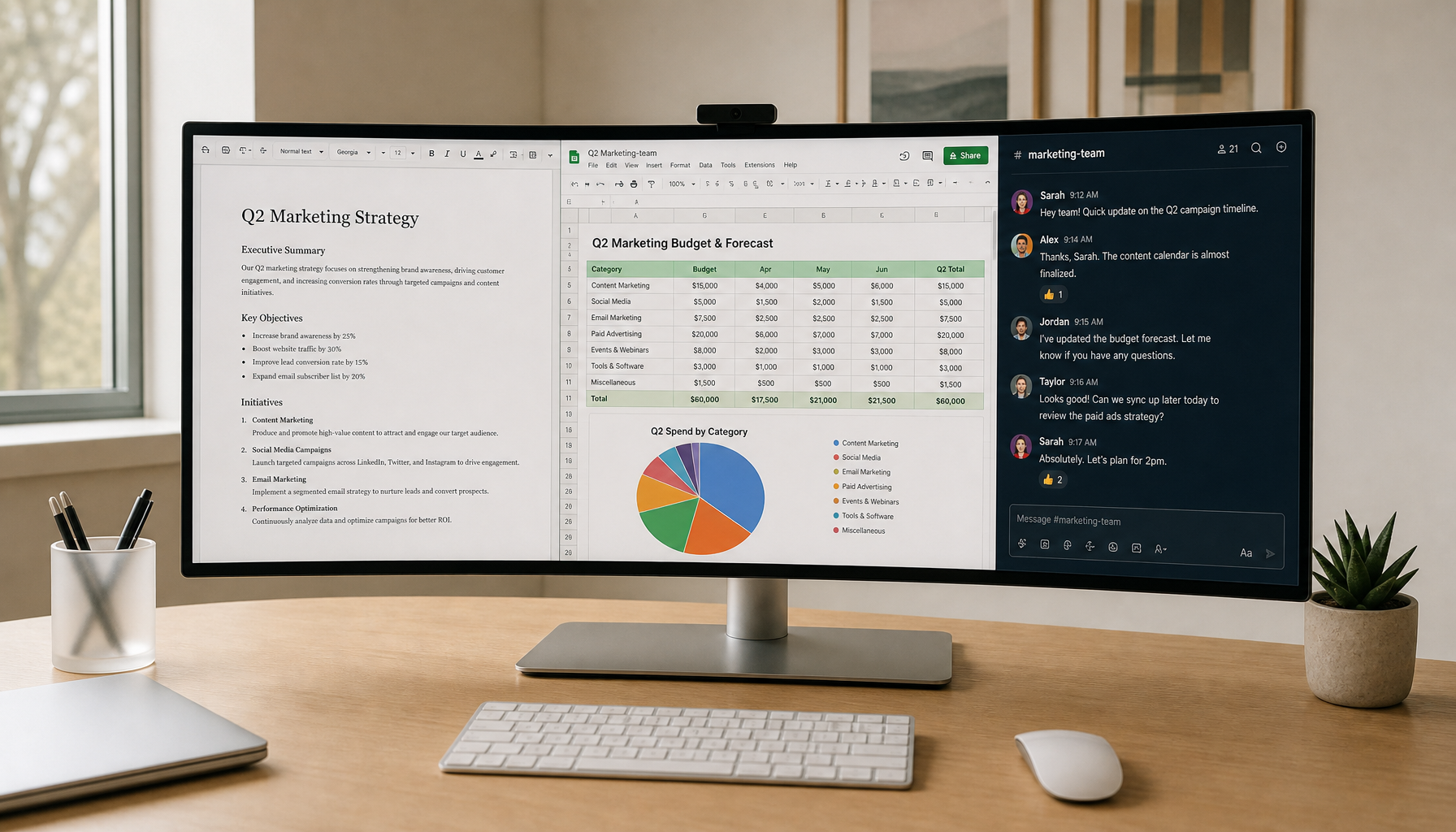
A tablet can show a spreadsheet, a slide deck, or a document, but it often feels cramped once the task becomes more than a glance. That is especially true when the job involves columns of numbers, long agendas, or multiple app windows. In those cases, the screen itself becomes part of the workflow friction.
Shared Viewing During Meetings
Shared viewing is where the rolling smart display vs tablet for office comparison starts to change. A tablet usually asks someone to hold it, prop it up, or hand it around. That may work for one person, but it is awkward when two or three people need to look at the same content at the same time.
Why a Fixed Screen Changes the Workflow
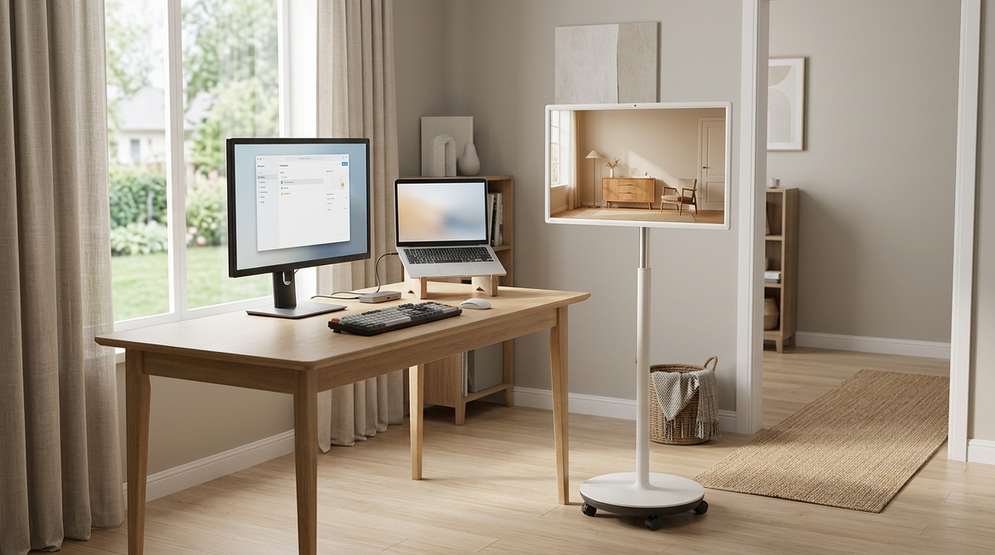
A rolling display is not just bigger. It also stays visible without being held. That sounds simple, but it matters in real meetings because the screen can stay parked at a usable height while people move around it. For hybrid work, that usually reduces the small interruptions that make collaboration feel clumsy.
How Monitor Input Lag Affects Responsiveness in Video Calls and Presentations is a useful follow-up if you want to understand why responsiveness matters more when a screen is part of live discussions.
Mobility, Size, and Viewing Distance
The best choice depends on where the screen lives during the day. A tablet wins when the work is solo and close in. A rolling smart display wins when the screen needs to move between a desk, a huddle area, or a shared family-style room without constant re-setup.
| Factor | Tablet | Rolling Smart Display |
|---|---|---|
| Best use case | Quick solo tasks, reading, and note-taking | Shared viewing, meetings, and room-to-room work |
| Screen comfort | Good at close range | Better when several people need to see it |
| Movement | Handheld and easy to stash | Rolled or parked where the work happens |
| Setup friction | Very low | Higher, but more stable once parked |
| Desk clutter | Minimal | Needs floor space and charging planning |
| When it loses | Shared work and larger documents | Light solo work and simple portability |
In practice, the difference is not just size. It is whether the screen needs to stay fixed for a while. If the answer is yes, the rolling smart display usually makes more sense than a tablet. If the answer is no, the tablet stays simpler.
What a Rolling Smart Display Changes in Meetings
A rolling screen is most useful when the room is the moving part, not the display. That is the main reason it can feel more useful than a tablet in office settings.
- Huddle sessions: The screen can roll closer to the group, then move away when the meeting ends.
- Document review: Several people can look at the same deck or spreadsheet without passing a tablet around.
- Hybrid calls: The display can stay visible to the people in the room while still serving the remote caller.
- Repeat reviews: A stable parked screen is easier to return to than rebuilding a tablet setup every time.
This is also where a rolling smart display workflow for collaboration tends to help most. It is less about replacing every device and more about cutting the repeated small adjustments that waste time in shared sessions.
agile team rolling monitor guide covers a similar room-to-room collaboration pattern, which is useful if your office work shifts between planning, review, and quick standups.

When the Rolling Option Breaks Down
It is not the better choice if the screen needs to travel in a bag every day. It also loses appeal when the workflow is mostly short, private, and one-handed. In those cases, the extra size and stand hardware are more of a burden than a benefit.
Why Power and Ergonomics Decide Everyday Use
For most buyers, the real decision is not resolution or app ecosystem first. It is whether the device stays convenient after the first week.
Battery runtime matters because a mobile display only feels mobile if it can last through your longest stretch of use without constantly hunting for power. Stand stability matters because a larger screen has more leverage when it moves, turns, or gets parked beside furniture. Eye-line comfort matters because a screen that sits at the wrong height gets annoying fast.
If you are comparing a rolling smart display vs tablet for office use, this is the part that flips the recommendation. A tablet is easier to carry, but the rolling display is often easier to live with if the screen stays in one room for hours at a time and several people need to see it.
Battery Runtime and Charging Habits
Battery life is not just a spec. It changes how often you think about charging. A display that only runs well when it is plugged in behaves more like a movable monitor than a true mobile work device. That is fine if you mainly park it near power, but less useful if the whole point is moving between areas.
Stand Stability and Floor Movement
A rolling stand should feel steady when parked. If it wobbles during touch use, the convenience drops quickly. That is one reason buyers should check the stand design, wheel behavior, and how much floor clearance the screen needs before assuming mobility will feel effortless.
Height, Tilt, and Eye-Line Comfort
A screen at the wrong height can be more irritating than a smaller display. The display should meet the group where they are sitting or standing, not force them into a fixed posture. When a setup can keep a comfortable viewing angle, repeated meetings feel less tiring.
portable touch screen monitor specs checklist is a good next read if you want a practical spec checklist before choosing a mobile display class.
Where the A32Q7 Pro Fits Best
The KTC MEGAPAD 32" 4K Android 13 Google EDLA Smart Touch Monitor with 9500mAh Battery fits best when the buyer wants a 32-inch 4K mobile touch display with rolling mobility, a built-in battery, and room-to-room use for shared office work. Its 9500mAh battery, 4-way adjustable wheeled stand, and 90° pivot suit hybrid sessions better than a tablet does.
That said, it is not the right answer for every office. If the main job is quick note-taking or carrying a screen in a bag, a tablet is simpler. If the job is shared review, presentations, or a screen that stays visible in one spot for long stretches, the A32Q7 Pro becomes much more relevant.
Compare the similar KTC MEGAPAD 32" 4K Android 14 Google EDLA Smart Touch Monitor with 8550mAh Battery when battery runtime or Android version is the deciding factor.
The product's Mobile Touch Screen collection is the cleaner place to browse if you want to compare similar mobile display options before narrowing down size and setup.
How to Choose the Right Setup
Choose the rolling smart display when your day includes repeated shared viewing, room changes, or longer meetings where the screen should stay parked at a comfortable height. Choose the tablet when the work is mostly solo, quick, and genuinely handheld. The wrong choice usually shows up as either too much setup friction or too little screen space.
- Check whether the screen is for solo use or shared use first.
- Measure where the display will park between sessions.
- Confirm how often you need to move it across rooms.
- Decide whether you need a touch display, a battery, or just a simple desk monitor.
- Plan cable routing before you buy, not after setup becomes annoying.
- If mobility is low and desk placement is fixed, look at the Office Monitor collection instead.
- If you want to compare broader display categories, the All Monitors collection is the easiest browsing path.
For office buyers, the safest rule is simple: if the screen has to serve multiple people or multiple room positions, the rolling display usually earns its keep. If it only serves one person at one desk, the tablet or a fixed monitor is usually the cleaner buy.
What to Check Before You Buy
FAQs
Q1. How Long Should a Meeting Be Before a Larger Screen Becomes Worth It?
The tipping point is usually not the clock alone. A larger screen starts to matter when people need to reference the same content more than once, especially for agendas, slides, or spreadsheets. A 10-minute meeting can justify it if everyone keeps leaning in; a longer call may not if the screen is only glanced at once.
Q2. What Viewing Distance Works Best for a Rolling Smart Display?
Use the room, not a fixed number, as your guide. The screen should be readable from the seating area without forcing people to stand too close, and text-heavy work usually needs more comfort than a simple video call. If the room is small, check whether the display can park without blocking walkways.
Q3. Can a Rolling Smart Display Replace a Desktop Monitor for Daily Work?
It can if your work is flexible, shared, or split between rooms. A fixed monitor is still better when the desk never moves and you want a simpler cable setup. If your day is mostly typing, spreadsheets, and one-person work, the rolling display is often more than you need.
Q4. How Should I Plan Cable Management for a Mobile Office Screen?
Leave slack for movement and route power so it does not tug when the screen rolls or turns. The safest approach is to plan where the screen parks first, then make sure the cable path stays clear of wheels and foot traffic. That keeps the setup tidy and reduces replugging.
Q5. What Office Tasks Are Still Better on a Tablet?
Tablets stay strong for light note-taking, quick check-ins, and work that happens while standing, walking, or commuting. They are especially useful when you value hand-held convenience more than shared visibility. If the screen rarely leaves one person's hands, the tablet usually wins on simplicity.
The Better Choice Depends on the Workflow
The rolling smart display vs tablet for office decision is mostly about shared viewing, not just screen size. A tablet is still the lighter, easier choice for individual work. A rolling display makes more sense when the screen has to move with the meeting, stay visible to a group, or remain comfortable for long collaborative sessions.
In hybrid offices, teams that run repeated stand-ups or cross-room reviews often prefer the rolling option because it removes the need to reorient a small device each time. Solo contributors who spend most of the day on calls or note-taking usually stay with a tablet. Test both in your actual meeting rooms before committing; the workflow fit becomes obvious within a day or two of real use.