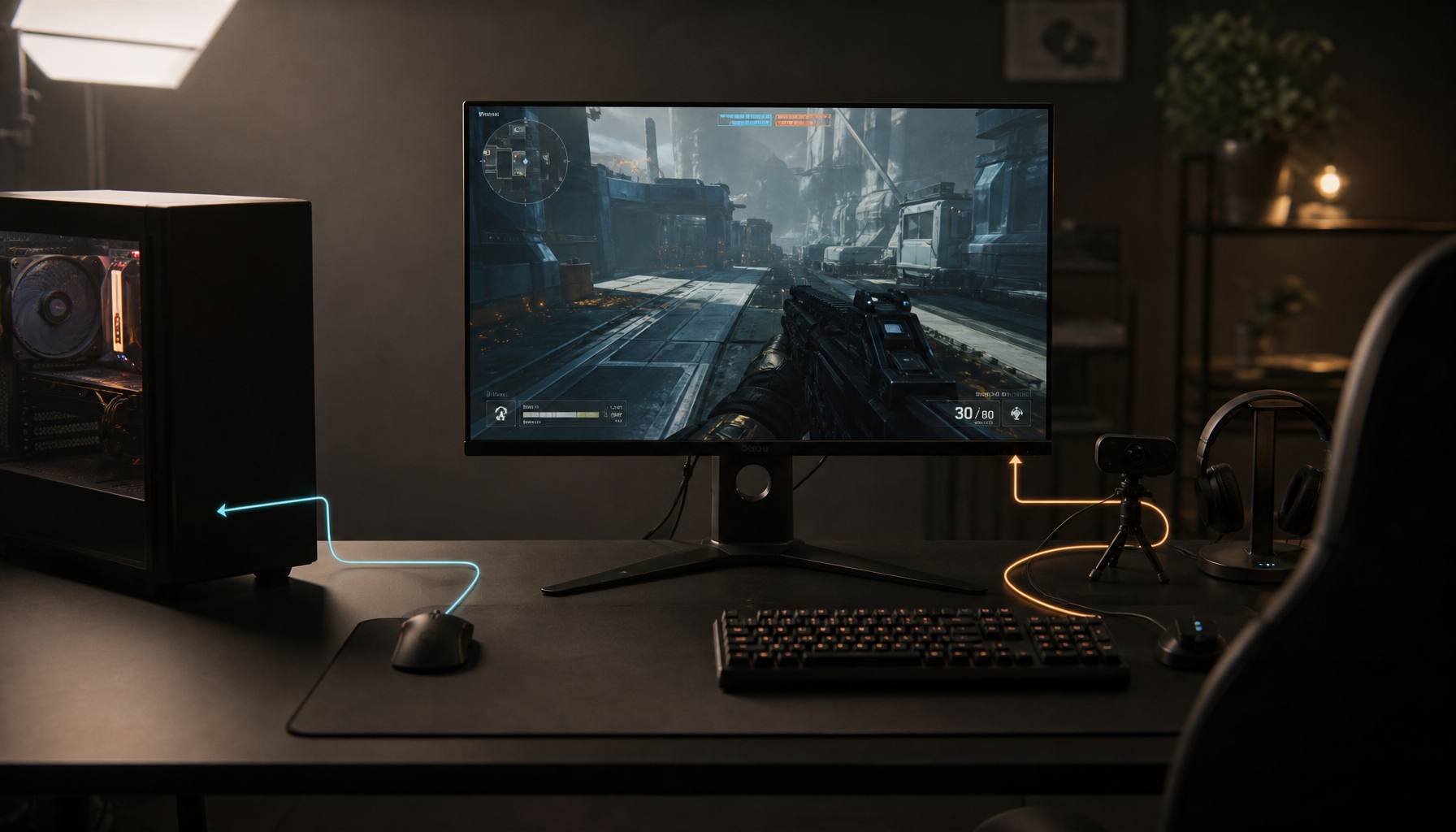
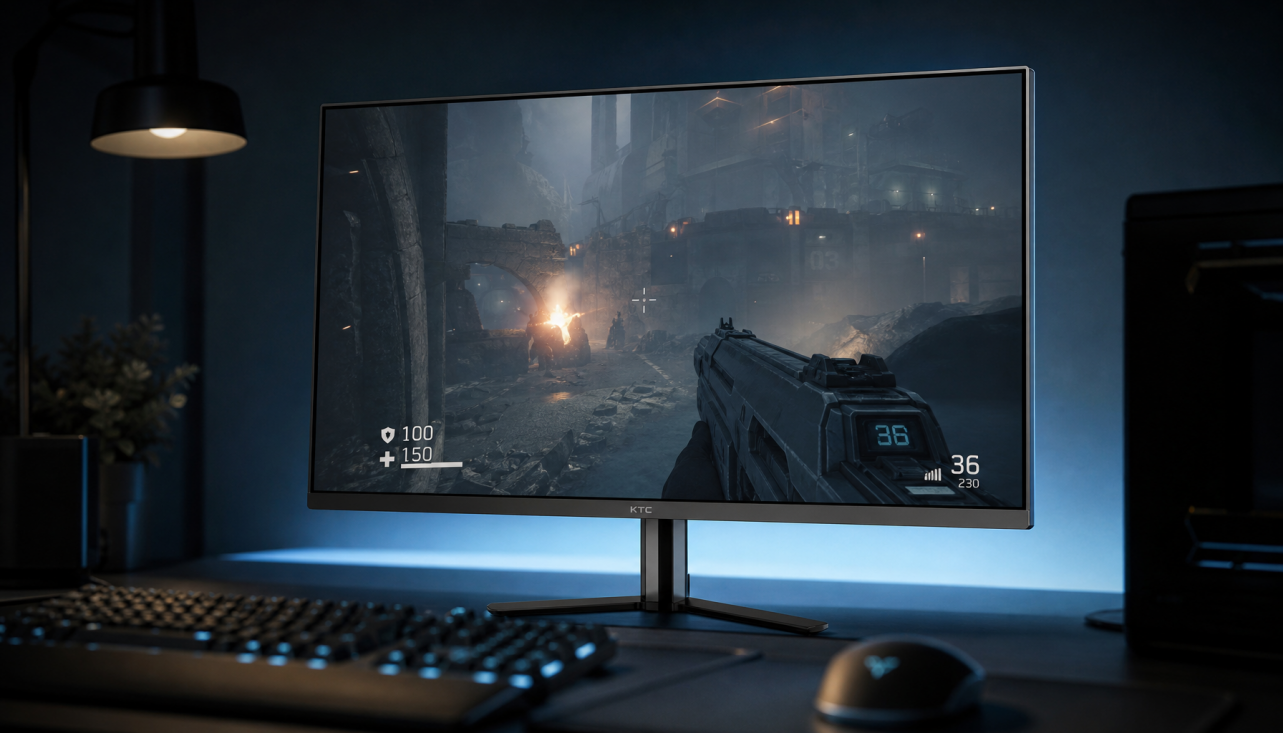
Adaptive Sync matches your monitor’s refresh rate to your GPU output, while V-Sync controls tearing when frames exceed the display’s refresh ceiling.
Adaptive Sync and V-Sync Do Different Jobs
Adaptive Sync makes the monitor follow the GPU’s frame pacing in real time, reducing tearing and stutter when performance fluctuates. In practical terms, a 144 Hz monitor can refresh at 97 Hz, 118 Hz, or 141 Hz as your game’s FPS changes, instead of forcing one fixed rhythm.
That is why Adaptive Sync technology is valuable for modern gaming monitors, especially at 1440p or 4K where frame rates naturally rise and fall. It protects immersion without the heavy input-lag penalty older V-Sync setups were known for.

V-Sync is different. It prevents the GPU from sending a torn frame outside the display’s refresh cycle, but when used alone, it can add latency or cause uneven frame delivery.
What Happens When Both Are On?
When Adaptive Sync and in-game V-Sync are both enabled, Adaptive Sync usually does the work inside the monitor’s variable refresh range. V-Sync mainly acts as a guardrail when FPS rises above the top of that range.

For example, on a 144 Hz Adaptive Sync monitor, your game may run smoothly from roughly 48 FPS to 144 FPS, depending on the panel. If the game hits 160 FPS, Adaptive Sync can no longer match it, so V-Sync may step in to prevent tearing.
That can be good for image stability, but it may add latency once you exceed the monitor’s ceiling. This is why competitive players often add a frame cap instead of letting the game bounce against the limit.
Best Settings for Smooth, Low-Lag Play
For most gaming monitors, use this baseline:
- Enable Adaptive Sync or compatible variable refresh rate settings in the monitor and GPU menus.
- Turn V-Sync on if you notice tearing near the refresh ceiling.
- Cap FPS 2–4 frames below max refresh, such as 141 FPS on 144 Hz.
- Disable V-Sync only if latency matters more than occasional tearing.
- Test per game, because engines handle frame pacing differently.
This setup keeps the game inside the Adaptive Sync range, where motion looks clean and input feels direct. It also avoids the hard V-Sync ceiling that can make mouse movement feel heavier.
Monitor quality still matters. A display may support Adaptive Sync without delivering the same validation level as stronger gaming displays, so checking current monitor validation data can help separate basic support from better gaming behavior.
Competitive vs. Cinematic Games
For esports shooters, racing, and fast action games, prioritize latency. Use Adaptive Sync with a tight FPS cap, and keep V-Sync on only if tearing is distracting.

For cinematic single-player games, image stability usually matters more. Adaptive Sync plus V-Sync can make camera pans, cutscenes, and variable GPU loads feel more polished.

Resolution also changes the equation. At 4K, your GPU renders far more pixels than at 1440p, so FPS swings are more common; 4K gaming performance often benefits more visibly from Adaptive Sync.
If a game stutters only in specific scenes, menus, or combat moments, the cause may be the game engine, CPU load, overlays, or add-ons rather than the monitor sync mode.
The Practical Takeaway
Adaptive Sync is your smoothness engine; V-Sync is your tear-prevention backup. Use them together with a small FPS cap below your monitor’s refresh rate for the best balance of fluid motion, low input lag, and reliable image stability.
For a 144 Hz display, start at 141 FPS. For 165 Hz, try 162 FPS. For 240 Hz, try 237 FPS. Then adjust by feel, because the best monitor setting is the one that stays invisible while you play.