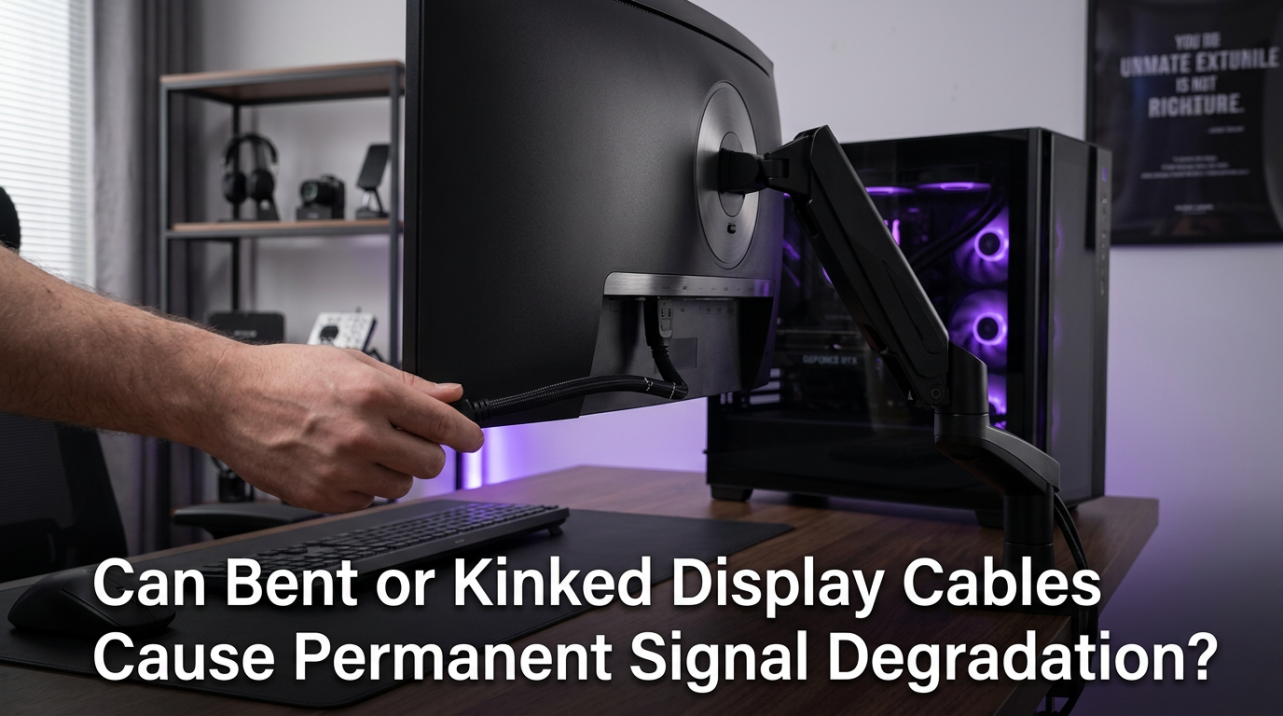
The right aspect ratio changes how easily you can keep multiple windows visible and usable at the same time. Taller screens reduce scrolling, while wider screens make side-by-side work feel less cramped.
Why Screen Shape Changes Workflow
Aspect ratio is the relationship between screen width and height, but that shape directly affects whether your workspace feels efficient or cramped.
If you usually stack content vertically, such as a document above chat or code above a terminal, a taller screen reduces scrolling and keeps more lines visible. That is why 16:10 is a strong choice for coding, documents, and spreadsheets.

If you mainly compare content side by side, width matters more. A wider canvas gives each window enough space to stay readable instead of turning every app into a narrow column.
16:9 vs 16:10 vs 21:9 for Real Multitasking
For general office work, 16:9 remains the safe default. It is familiar, widely available, and works well for one main app plus a smaller second pane.
16:10 adds a bit more height, and that small change matters more than many buyers expect. A 1,920 x 1,200 screen, for example, gives you 120 more vertical pixels than 1,920 x 1,080, which means more visible spreadsheet rows or more lines of code before you need to scroll.

21:9 ultrawide is where window management starts to feel less like compromise and more like control. Two full-size documents, a browser beside a dashboard, or a timeline next to tool panels fit more naturally without the bezel break of dual monitors.
32:9 takes that further. It can work like two 16:9 displays in one panel, which is useful for traders, editors, or anyone who keeps several live windows open, but it also requires better window-snapping habits to avoid wasted space.

Match the Ratio to the Way You Arrange Windows
The best ratio is not about trends. It is about the shape of the windows you use most.
If you want a reliable all-around setup for email, calls, browsing, and light split-screen work, 16:9 is the practical choice. If you spend hours reading, writing, coding, or editing documents, 16:10 helps by cutting down on vertical scrolling. If your day depends on keeping two or three windows open at once, 21:9 usually fits that workflow better. If you treat your display like a control center and want one-panel dual-monitor behavior, 32:9 is the more specialized option.
A useful shortcut is simple: if you constantly press Alt+Tab, go wider. If you constantly scroll, go taller.
Desk Fit, Comfort, and Software Support
A wider ratio only helps if the monitor fits your desk and your viewing distance. Ultrawide setups often work best when you can sit about 30 to 36 inches back, which helps keep the full screen in view without too much head movement.
4,image_mode:: Optimizing Ultrawide Ergonomics
Resolution matters too. A wide screen with low pixel density can make multitasking worse because text looks softer and window content feels less crisp. For many users, 1440p-class resolution or better is the practical sweet spot for keeping multiple windows readable.
One important nuance is that ultrawide formats improve multitasking more consistently than gaming, because 21:9 and 32:9 game support can still vary even when productivity apps scale well.
Bottom Line
If multitasking mostly means stacked reading and writing, 16:10 is the smarter shape. If it means keeping several active windows visible at once, 21:9 is usually the strongest upgrade, while 32:9 is the higher-control option for power users who want a command-center setup on a single screen.