Most HDMI CEC issues come from partial support, not total failure: power and input commands usually work first, while volume and mute depend on stricter conditions.
You hit the console button, your gaming monitor wakes, and then the volume keys do nothing. That mismatch is frustrating because it feels random, but it usually follows a pattern. By checking your signal path in the right order, you can predict which commands should work on your setup and fix the ones that can.
Why Power and Input Usually Work While Volume Often Fails
Power and input are the most portable commands
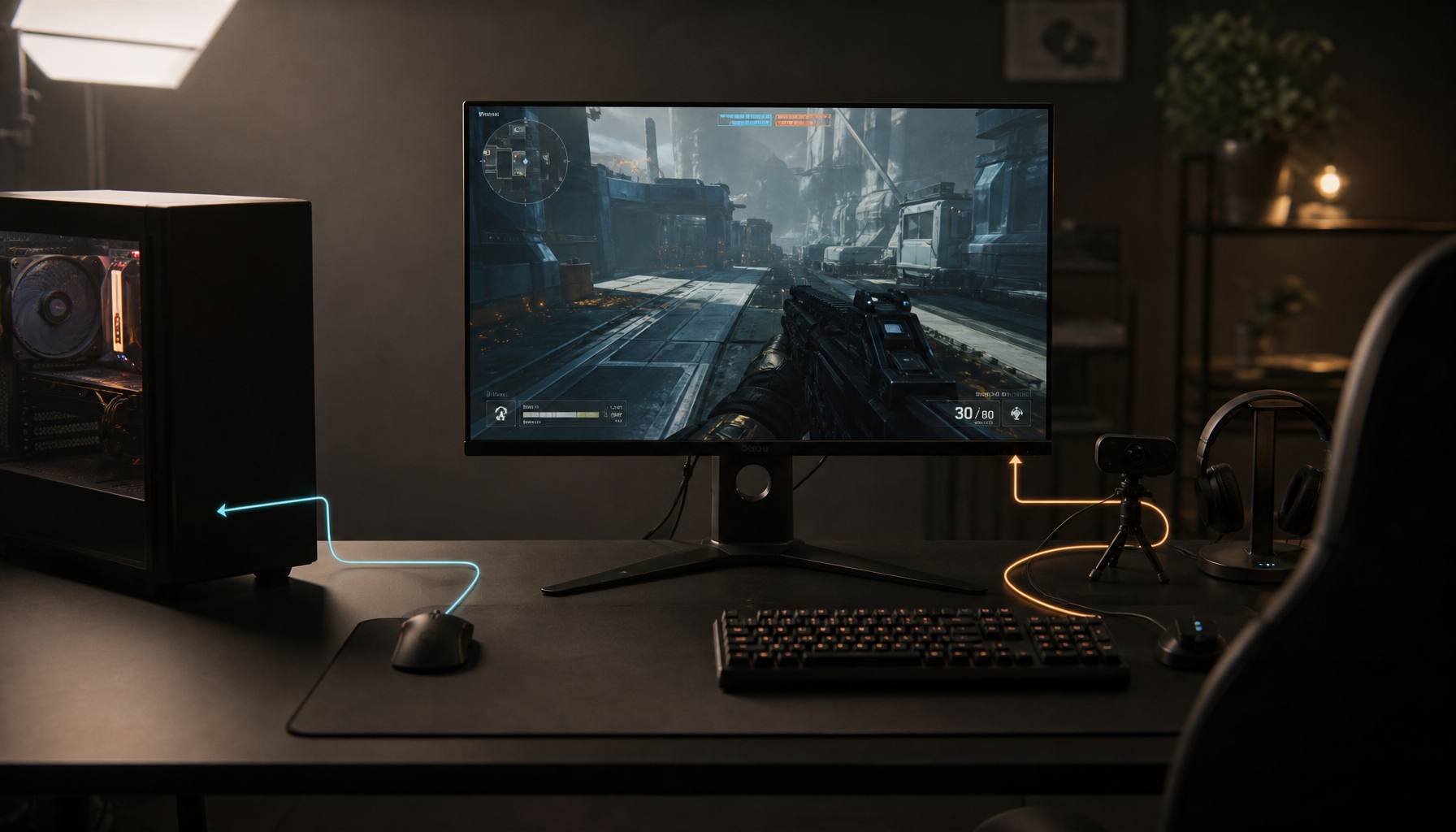
Recent console-focused monitor testing found that One-Touch Play and System Standby were the most reliable CEC behaviors, especially in simple chains like console -> monitor. In practice, this is why pressing a console power button often wakes the display and moves to the right input.

Documented monitor behavior in real CEC scenarios shows predictable source switching logic: a console waking can pull input to its HDMI port, and a console sleeping can return focus to another active source. That matches what most players expect on a desk setup with one main console and one secondary device.
Volume and mute depend on audio topology
Volume control has more conditional behavior because it relies on where audio is actually controlled: monitor speakers, external audio over ARC/eARC, or a separate device. If the wrong device is seen as the audio endpoint, volume commands may be ignored even when power commands still work.

Broader CEC explainers also describe inconsistent command support by device type, which is why one remote can control power across your setup but fail on mute or volume. So “CEC works” is not one yes/no state; it is command-by-command compatibility.
Compatibility Bottlenecks to Confirm Before You Buy or Troubleshoot
Monitor CEC support is still uneven
Testing in the gaming monitor category reports that CEC is not universal on monitors, even though it is common on TVs. For high-refresh models, vendors often prioritize panel performance first, and control features can be limited or selective.
A practical example of uncertainty appears in this 32-inch OLED gaming monitor Q&A: one user reports “yes,” while official support notes no explicit CEC listing for power/volume/mute. When claims conflict, treat the manufacturer spec page as the deciding source.
Menu names and port mapping hide real capability
Many setups fail because CEC is hidden behind vendor-specific names, so users think it is missing when it is just renamed in the OSD or system menu. For monitors, this often appears under system setup rather than picture settings.
Port-level limits matter too, because some monitor implementations expose CEC on HDMI inputs but not DisplayPort. On high-refresh desks where DisplayPort is used for peak frame rate, CEC features may disappear simply because control signaling is not active on that path.
Setup Path |
Power On/Off Sync |
Auto Input Switch |
Volume/Mute Reliability |
Most Common Bottleneck |
Console -> Monitor (HDMI) |
High |
High |
Low to Medium |
Monitor has no CEC feature enabled |
Console -> Monitor -> Soundbar (ARC/eARC) |
Medium to High |
High |
Medium |
ARC/eARC port mismatch or CEC off on one device |
PC -> Monitor (HDMI) |
Low to Medium |
Medium |
Low |
GPU/driver path lacks stable CEC support |
Two source devices -> One display |
Medium |
Medium |
Low |
Conflicting wake/standby commands |

Layered Troubleshooting Flow: Start with the Hardware Path
Step 1: Validate the physical path
Start by confirming your CEC-capable HDMI port path: source to the monitor’s HDMI input that actually supports CEC, not DisplayPort. If you use external audio, verify ARC/eARC labeling on the display and audio device before touching software settings.
Cable class is next, because Ultra High-Speed HDMI is the correct class for 4K at 120Hz links and reduces signal negotiation issues at gaming bandwidths. Also remember HDMI negotiates to the lowest common mode, so one weak link can silently limit expected behavior.
Long runs introduce control instability more often than most users expect, and practical guidance puts passive reliability around 15-25 ft. Beyond about 25 ft, active/hybrid options are usually safer for high-bandwidth video while preserving control signals.
Step 2: Confirm CEC is enabled on every device
Many failures are simple setting mismatches, and CEC must be enabled on both ends of the chain, not just on the monitor. On PCs, update GPU drivers first because stale driver stacks can cause inconsistent behavior.
For Linux and advanced diagnostics, cec-ctl topology checks can show whether your controller is recognized and whether it is the active source. That matters because some commands are ignored unless the sender currently owns active source state.
Then Validate Device and OS Control Policy
Consoles are usually predictable; PCs are variable
Console behavior in tested monitor setups with PS5 and Xbox is generally more repeatable than PC behavior because console hardware/software combinations are fixed. PC platforms vary by GPU, firmware, motherboard routing, and OS control layers.
The same PC-focused troubleshooting path notes that native CEC support is not universal on desktop hardware, which is why adapters are sometimes required for reliable command injection. If your monitor and cable are fine but commands still fail, this is a likely root cause.
Multi-source setups can generate command conflicts
A clear multi-device case study shows two Macs on one TV creating repeated blanking loops when both react to shared CEC traffic. The same display worked with one source but became unstable with two, which is a classic CEC arbitration problem.

Long-running user reports in cross-brand real-world setups show the same pattern: partial success, then random regressions after hardware changes, firmware updates, or added devices. If your monitor started failing after adding a second source, reduce to one source first to confirm conflict-driven behavior.
FAQ
Monitor users ask many versions of the same three questions, and the answer is usually tied to path design more than brand marketing.
Compatibility also changes by command type, so the same setup can be “working” for power but “broken” for volume at the same time.
Q: Why does my gaming monitor wake with my console but not change volume?
A: Because volume control depends on endpoint and feature support more than power/input commands do. If audio is handled by another device, monitor-only CEC may not own volume.
Q: Does ARC/eARC automatically mean CEC volume will work?
A: No. ARC/eARC port correctness and CEC enablement on both devices are still required, and command handling remains implementation-specific.
Q: Is HDMI version number enough to confirm CEC behavior?
A: No. Feature implementation is optional by manufacturer, so two HDMI 2.1 displays can behave differently for CEC commands.
Practical Next Steps
The fastest way to stable CEC on gaming or ultrawide desks is to troubleshoot in layers: physical path first, then per-device settings, then OS policy, then multi-source conflicts. This order avoids wasted time in menus when the real problem is port mapping, cable class, or role ownership.
When buying or configuring a high-refresh monitor, prioritize explicit CEC mention in specs, verify which HDMI inputs support CEC, and use a certified cable class appropriate for your target mode like 4K at 120Hz. If command reliability matters more than automation convenience, limit CEC control scope to power/input and keep audio control isolated.
- Map your chain on paper: source -> monitor HDMI port -> audio device, and confirm each link supports CEC.
- Enable CEC in the monitor OSD and on every connected source/audio device.
- Use the correct cable class for your mode; for 4K at 120Hz, choose certified Ultra High-Speed HDMI.
- Test one source device at a time before adding a second source.
- Verify ARC/eARC port labels if volume passthrough is part of your goal.
- On PC setups, update GPU drivers first; if unsupported, evaluate a USB-to-HDMI CEC adapter.
References
- Consumer Electronics Control (Wikipedia)
- HDMI Cables - Different Cable Types (HDMI.org official)
- HDMI ARC and HDMI eARC: everything you need to know (What Hi-Fi?)
- What Is HDMI ARC/eARC? (RTINGS.com)
- HDMI CEC (Kernel.org documentation)
- AVForums thread: real-world CEC reliability reports
- CEC-CTL command and protocol review