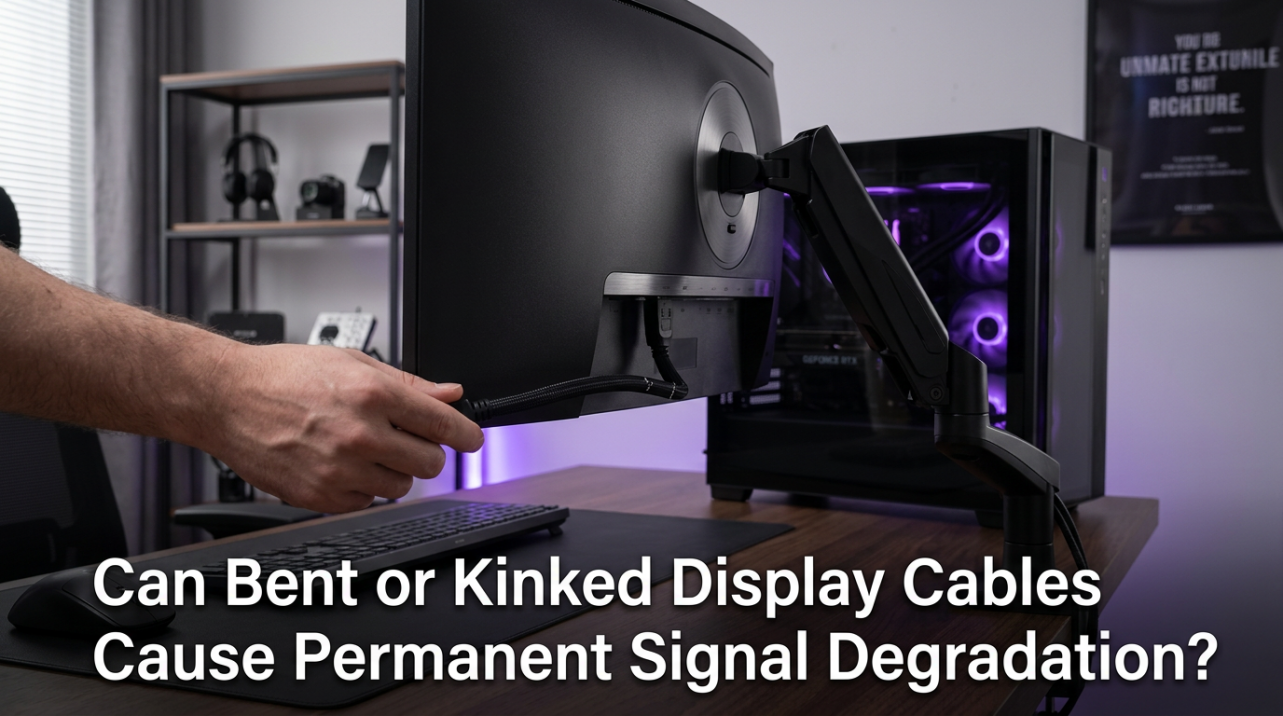
The safest method is to power the monitor off, start with a dry microfiber cloth, and use only minimal moisture on the cloth if residue remains.
If the top edge of your monitor always seems to collect dust right where the webcam or sensor sits, it is easy to turn a quick wipe into a smeared lens cover or a streak along the panel edge. A two-minute weekly pass is usually safer than waiting for buildup and scrubbing harder later. You will learn where these delicate parts usually sit, how to clean them without pushing debris inward, and when to stop before you damage a coating or smart display feature.
Know Where the Sensitive Parts Are
Top-Bezel Clusters
Modern displays collect grime in bezel gaps and cutouts, so the area around a webcam or ambient light sensor should be treated like a seam rather than a flat screen. On gaming monitors, ultrawides, and portable displays, dust often settles in the top lip, around side buttons, near speaker grilles, and inside vent openings long before the middle of the panel looks dirty.

An ambient light sensor measures room light and may sit near a front camera, which means one careless wipe across the top bezel can affect two different parts at once. The camera needs a clear lens cover for image quality, while the sensor needs a clean little window for stable auto-brightness. Treating both like ordinary plastic trim is where many cleaning mistakes start.
Thin-bezel monitor teardowns show how close small connectors, taped sensor strips, and control boards can sit to the front edge. That matters if you own a premium gaming display with touch controls, status lights, or a pop-up camera, because moisture forced into a narrow seam does not have far to travel before it reaches something delicate.
Use the Lowest-Risk Cleaning Method First
Dry Pass Before Damp Pass
Powering the monitor off and unplugging it is the safest first move because a dark screen makes dust easier to see and helps you keep pressure low. Start with a clean, dry microfiber cloth on the screen and outer bezel, wipe from the bezel face outward, and lift the cloth at the seam instead of dragging grit back and forth across the edge.

Portable touch displays should be cleaned with moisture on the cloth, not on the panel, and only in a very small amount. On a 15-inch display, two light sprays on the cloth are usually enough for fingerprints. After that, wipe gently and dry the area right away so moisture does not sit near a port cutout, speaker hole, or top-bezel camera opening.
Routine portable monitor maintenance works best when you clear loose dust first, use one lint-free cloth for the damp pass, and finish with a separate dry microfiber cloth. That wet-then-dry split is especially useful around webcam and sensor windows because it removes residue without making you go back over the same edge with more pressure.
Choose Tools Carefully
What Helps and What Hurts
Harsh household cleaners and paper products are the fastest way to turn a small smudge into streaks, scratches, or coating wear. Avoid direct spray, ammonia-based glass cleaners, rough cloths, paper towels, and tissues. Those materials are a poor match for anti-glare finishes and the glossy lens covers sometimes used over built-in webcams.
Compressed air belongs on vents and grille openings, not on the panel itself, and safer use means one or two short passes from a few inches away at an angle that pushes dust out instead of deeper in. Around a top-bezel microphone hole or rear vent on a high-refresh-rate monitor, that outward angle matters more than force.
Some portable touchscreen makers approve a diluted 70% isopropyl alcohol and distilled water mix or a compatible screen-safe cleaner, but that is manufacturer-specific rather than universal. For routine monitor care, dry microfiber first and a lightly damp cloth second is still the lower-risk path unless your manual clearly allows more.
Adjust the Routine for Your Display Type
Gaming Monitors, Ultrawides, and Portables
Curved ultrawide monitors look dustier faster because they have more surface area, longer edges, and more rear housing to catch particles. A practical cleaning order is top edge first, then rear panel, then stand or arm, then the cable area, and only then the display surface. That high-to-low pattern keeps loosened dust from falling back onto the camera area you just cleaned.

Frequent light cleaning is usually safer for gaming monitors than waiting until vents, button cutouts, and speaker grilles are visibly dirty. If your setup sits near an open window, fan, or busy desk, a two-minute weekly pass is a better habit than a deep monthly scrub that encourages extra pressure near the top bezel.
Portable touch monitors pack more layers near the edge, including coatings, adhesive layers, and touch sensing. That makes moisture control more important than on a plain office monitor. If your portable display also has a webcam, keep the cloth barely damp, avoid letting liquid pool near the side ports, and dry the bezel immediately after each pass.
Know When to Stop
Warning Signs That Need Support
Signs of digitizer or surface trouble include haze, dead zones, reduced sensitivity, and coating wear, so stop cleaning if the area starts to look worse with each pass. Even on a non-touch gaming monitor, a spreading patch, cloudy streak, or inconsistent shine along the bezel edge means it is time to pause rather than rub harder.
Delicate imaging surfaces should not be hand-wiped once they are exposed, because contact can do more harm than dust. If a webcam cover, bezel cap, or repair opening reveals internal optics or debris behind a clear window, use a blower without touching the part. If the mark stays put, that is service-bench work, not routine monitor cleaning.
Webcam-based brightness control is hard to calibrate because cameras auto-adjust exposure and may conflict with other apps, so a display that still misreads room light after careful cleaning may not be dirty at all. At that point, the better next step is calibration, firmware support, or hardware service rather than another round of wiping.
FAQ
Q: Can I use 99% isopropyl alcohol on an ambient light sensor?
A: Only in a repair context on an unpowered part, using a very small amount and full drying time. For everyday monitor cleaning, treat alcohol as manufacturer-specific rather than universally safe.
Q: Is compressed air safe for a monitor webcam area?
A: It is safer for nearby openings and vents than for the lens cover itself. Use short, angled bursts to move dust out of seams, then use microfiber on the outer lens window.
Q: Do portable monitors need different care than a 34-inch ultrawide?
A: The core rules are the same, but ultrawides benefit from high-to-low dust removal across a larger chassis, while portable monitors need stricter moisture control around touch layers, speaker holes, and port cutouts.
Practical Next Steps
For most monitors, the safest routine is simple: clean often, keep moisture minimal, and treat the top bezel as a sensitive assembly instead of just decorative trim.
- Turn the monitor off, unplug it, and let it cool.
- Start with a clean, dry microfiber cloth on the screen and outer bezel.
- Wipe from the bezel face outward, then lift the cloth at seams.
- If prints remain, lightly dampen the cloth away from the monitor.
- Use a soft brush or short angled air bursts only for vents and openings.
- Dry the bezel edge before powering the display back on.
If you are comparing gaming monitors, ultrawides, or portable displays, maintenance is part of the ownership experience. Designs with reachable top edges, fewer deep grooves, and clearly separated camera or sensor windows are easier to keep clean without risking streaks, false brightness readings, or scratched coatings.