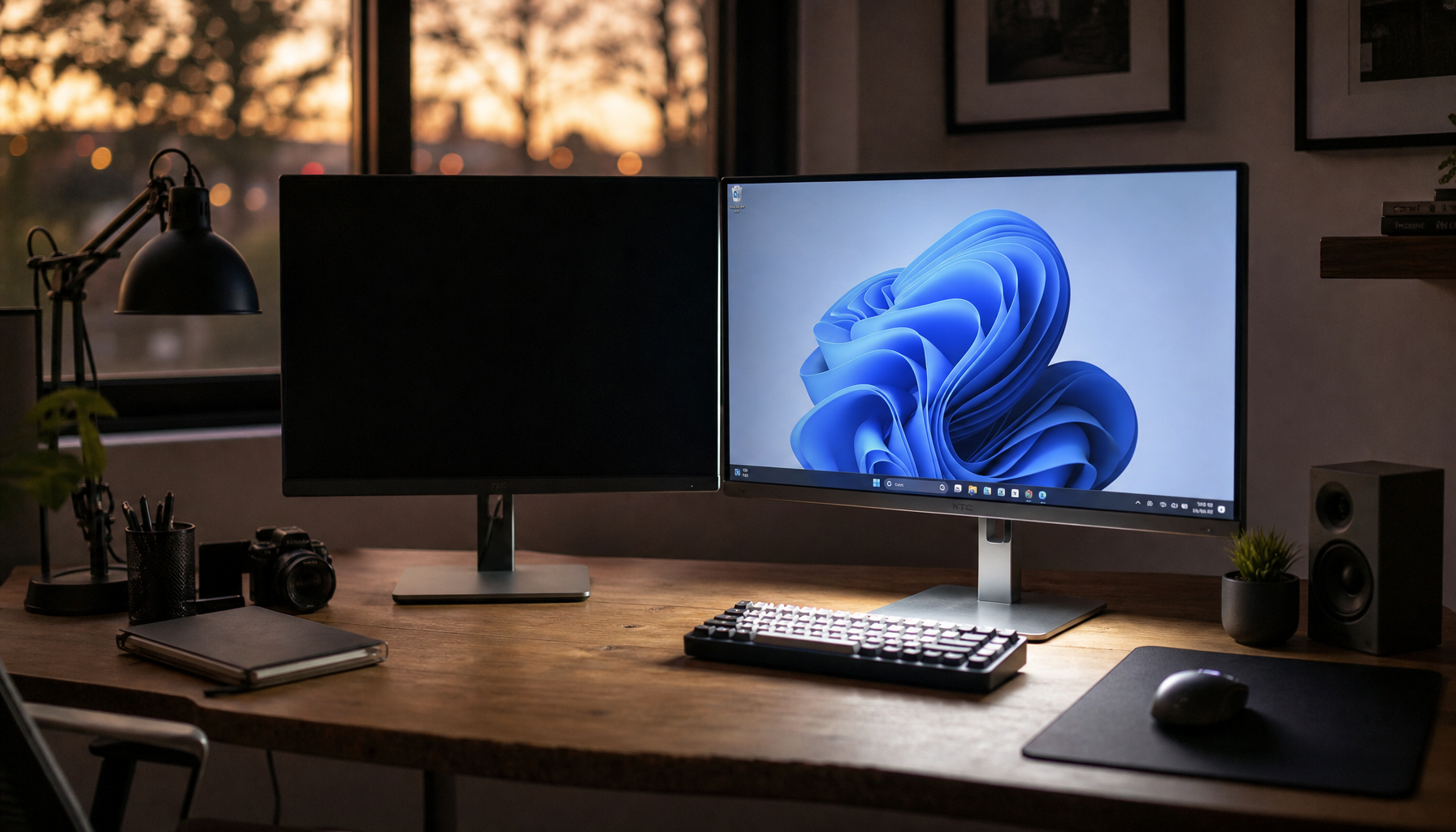
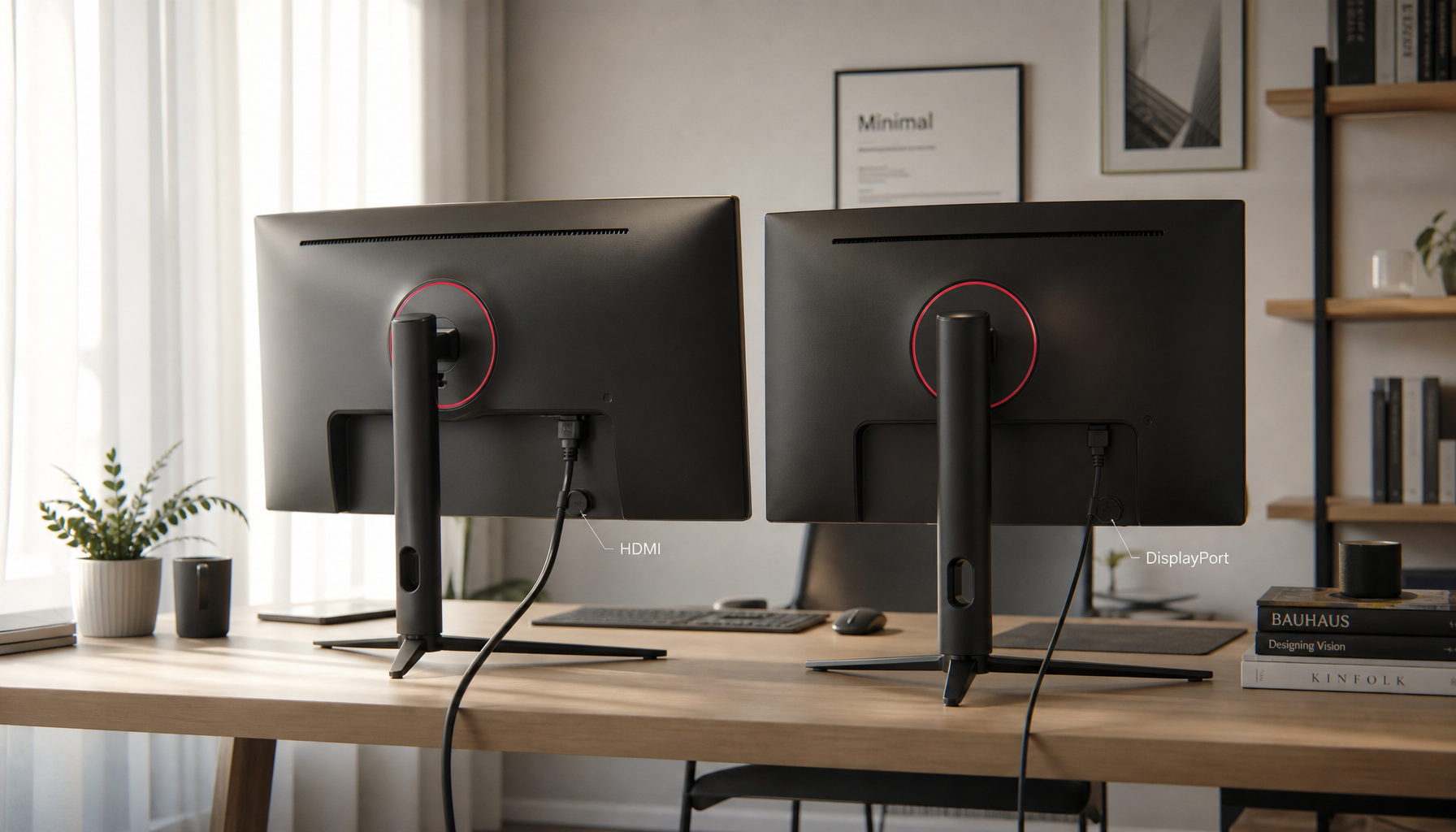
If your monitor is stable at 60 Hz but flickers, splits, or turns black at 120 Hz, 144 Hz, or higher over a display interface, the problem is usually in the signal path rather than the screen panel itself. The usual causes are a marginal cable, an overloaded settings combination, or a driver, firmware, or dock issue.
If your gaming monitor looks perfect on the desktop and then starts flashing the moment you push the refresh rate up, the failure feels random even when it is not. Real-world cases show the break point can appear at 87 Hz, 120 Hz, 144 Hz, or 165 Hz depending on the monitor, cable, source device, and settings stack. You can narrow it down quickly once you test the connection in the right order.
Why High Refresh Rate Exposes the Problem
Less margin, more instability
A case involving a monitor model from a brand showed the classic high-refresh pattern: the display became progressively less usable as refresh rate increased, and anything above 87 Hz caused obvious corruption. That is a practical sign that the link is close to its limit. At 60 Hz, a weak driver, cable, or display path may still hold together; at higher refresh rates, the same setup can start dropping frames, showing horizontal bars, or going fully black.
An ultrawide 1440p display from a brand showed the same pattern over a display interface: 144 Hz and 120 Hz flickered immediately, while 100 Hz and 75 Hz looked stable for light use but still broke during gaming. That detail matters for monitor buyers. A mode that appears fine on the desktop is not automatically stable under real gaming load, especially on ultrawide and high-refresh displays that ask more from the full connection path.
The port matters as much as the GPU
A support case about an ultrawide monitor from a brand highlighted a point many buyers miss: GPU capability and port capability are not the same thing. A system can have enough graphics horsepower but still fail to drive the monitor’s native resolution and refresh rate if the output, dock, or adapter is the real bottleneck. That is why a monitor spec sheet alone is not enough; the source device and the exact input path have to match the mode you want to run.
Start With the Signal Chain
Cable, connector, and direct-path checks
A laptop model from a brand paired with a monitor model from a brand changed behavior when the display cable changed, even though the core problem remained. That is a strong clue that cable quality can move the failure point without fully solving the root cause. On high-refresh gaming monitors, a cable that is merely “good enough” for 60 Hz can still fail when you ask for 144 Hz or 165 Hz.
A basic video-link troubleshooting path still starts with the physical link: reseat the cable, confirm the monitor input is set correctly in the on-screen menu, inspect the connectors, and test another cable before changing more advanced settings. If the current lead is suspect, using a known-good 1.5 m high-spec cable such as a monitor cable product can serve as a clean swap-test baseline. If you are using a dock, hub, or active adapter, remove it from the chain for testing. That single change often separates a monitor problem from a transport problem.

Quick isolation table
Quick test |
What it isolates |
If the problem improves |
Most likely next suspect |
Lower refresh rate to 120 Hz, 100 Hz, or 60 Hz |
Whether the link fails only under higher timing demand |
Flicker or blackouts stop |
Cable quality, port limit, dock, or firmware margin |
Turn off HDR |
Whether extra processing or heavier signal modes are tipping the link over |
Brightness jumps or black screens stop |
HDR interaction, color depth, or sync settings |
Turn off VRR or any branded sync feature |
Whether refresh-rate changes are causing instability |
Menus, loading screens, or dark scenes stabilize |
VRR behavior on the monitor or GPU driver |
Drop from 10-bit to 8-bit color |
Whether the chosen mode is too heavy for the full chain |
Alt-tab or loading blackouts improve |
Color depth, DSC, or sync overhead |
Bypass dock or adapter and connect directly |
Whether an intermediate device is corrupting the link |
System becomes stable |
Dock, hub path, or active converter |
Whether the fault follows the monitor or the source |
The problem follows one device |
That device, its port, or its firmware |
Settings Combinations That Commonly Trigger Flicker
VRR and HDR are a frequent trouble spot
An owner of a monitor model from a brand reported brightness flicker only when VRR and HDR were enabled together. The flicker showed up in darker apps, menus, and loading screens rather than all the time, which is exactly why this problem is often misdiagnosed. If you use a VA gaming monitor, that pattern is worth testing first because it can look like a bad cable even when the trigger is a feature combination.
A case involving a monitor model from a brand showed a heavier version of the same issue: black screens lasted about 1 to 2 seconds when 10-bit color, a newer interface mode, DSC, and sync were active, especially during alt-tabbing and loading screens. Switching to 8-bit reduced the problem but did not eliminate it. For buyers comparing premium 4K 144 Hz gaming monitors, that is the practical lesson: the monitor may support every feature on paper, but the full stack can still become unstable when those features are combined.
Test one variable at a time
A support thread from a company recommended a sensible order of operations: verify the GPU can handle the monitor’s exact resolution and refresh rate, update GPU drivers, check monitor firmware, then try lower rates such as 120 Hz. In practice, the cleanest sequence is to keep resolution fixed, then disable HDR, disable VRR, reduce color depth, and only then change the refresh rate. That approach tells you which feature pushed the setup past its stable point.
Driver, Firmware, and OS Stack Matter More Than Most People Expect
A software problem can look exactly like a bad monitor
The earlier high-refresh case on a platform was solved by replacing the open-source graphics driver with a proprietary driver from a company, not by replacing the monitor. That is one of the clearest examples of why high-refresh display-interface problems should not be treated as automatic hardware failure. If the panel, cable, and GPU all look normal at lower refresh rates, the software stack deserves real scrutiny.
A second case involving a laptop model from a brand and a monitor model from a brand stayed unstable above 120 Hz even after extensive tuning, while the same hardware worked correctly on another operating system. That does not mean that operating system is always the problem; it means the operating system, driver branch, firmware behavior, and EDID handling can all affect whether a high-refresh monitor holds a clean display link.
Safe mode and firmware clues are useful
A hardware forum report described a monitor that worked over the display interface in firmware and safe mode, then went black only after the normal graphics driver loaded. When a monitor is detected but loses the picture only once the full driver takes over, that usually points away from a dead panel and toward the active signal chain, driver mode, or adapter behavior.
How to Tell Whether the Monitor Is the Problem
Use a simple swap matrix
The fastest way to isolate fault is still the oldest one: test the same monitor on another PC, and test another monitor on the same PC. A general display-signal guide recommends exactly that swap method, because it separates source issues from monitor issues without guesswork. If only one monitor fails at high refresh on multiple systems, that input, the monitor firmware, or the internal scaler becomes more suspicious.
A monitor case from a brand showed repeated signal drops on one video input lasting 30 to 40 seconds, even though another video input worked normally. That kind of repeated recovery cycle is different from a one-time bad mode setting. It points more strongly to an input-specific path problem, whether that is inside the monitor, in the GPU output, or in how the two devices train the link.
Docks and adapters deserve extra suspicion
A docking station case from a company caused flickering across multiple displays and even the laptop screen, and restarts only restored stability for 1 to 2 hours. For buyers using ultrawide monitors through high-bandwidth or modern connector docks, this is a major warning sign. A dock can be the weakest link even when the monitor and laptop both look capable on paper.

What to Check Before Buying a High-Refresh Monitor
Read the input specs, not just the headline refresh rate
The support case about the ultrawide monitor from a brand shows why the exact input path matters: a monitor can work at full resolution on one PC and fall back to a lower mode on another because the second system’s output path cannot carry the target mode. When you shop for a gaming or ultrawide monitor, verify the exact native resolution and maximum refresh rate for each input, not just the biggest number on the product page.
Premium gaming displays also need feature-level scrutiny. The earlier VRR-and-HDR case and the 10-bit-plus-DSC blackout case show that stacked features can destabilize a link, even when the monitor technically supports them. If you plan to use HDR, VRR, and maximum refresh at the same time, buy with a return window and test that exact combination early.
FAQ
Q: Why does my monitor work at 60 Hz but flicker at 144 Hz over a display interface?
A: High refresh rate leaves less tolerance for weak links in the chain. Cases on both a 1080p monitor from a brand and an ultrawide panel from a brand showed that higher refresh exposed problems that were hidden at lower rates.
Q: If another video input works, does that mean my monitor is fine?
A: Not necessarily. A display can behave normally on one video input and still fail on another because each input uses a different path and may support different modes or timing behavior, as shown in both the ultrawide discussion and the signal-drop case involving a monitor brand.
Q: Should I replace the monitor first?
A: Usually no. Start with a direct video connection, another cable, lower refresh, HDR and VRR off, and a different source device. A basic isolation workflow often identifies the cable, driver, dock, or mode setting before you spend money on a new display.
Practical Next Steps
If you want the shortest path to a stable gaming monitor, treat this as a process-of-elimination problem rather than a single bad part. Most successful fixes come from removing one variable at a time until the unstable mode becomes obvious.
- Set the monitor to its native resolution and drop refresh to 60 Hz, then step up to 100 Hz, 120 Hz, 144 Hz, and beyond.
- Replace the display cable and connect the monitor directly to the GPU or laptop, with no dock or adapter in the middle.
- Turn off HDR and VRR, then test again at the target refresh rate.
- If available, switch from 10-bit to 8-bit color and retest alt-tabbing, loading screens, and dark menus.
- Update the GPU driver and check for monitor firmware or BIOS updates.
- Test the same monitor on another system, or another monitor on the same system, before replacing hardware.