Touch delay usually comes from the full input chain, not just the screen. A simple comparison setup can show whether the bottleneck is the monitor, the device, or the way the system is configured.
If your touch monitor feels slow when you drag, sketch, or tap quickly, the delay is not automatically caused by the display. In practical testing, a 240 fps phone video is accurate enough to show whether the lag is consistent, whether it changes with the source device, and whether the monitor is only a small part of the problem.
Start With the Right Definition
Touch latency is the delay between your finger or stylus action and the visible on-screen response. That is different from monitor response time, which describes how quickly pixels change color, and it is also different from classic monitor input lag, which monitor input lag describes as the delay between the graphics card sending an image and that image appearing on the display. These terms are often confused, which is why people blame the monitor when the real delay comes from the operating system, app, GPU queue, or touch-controller path.
That distinction matters because a display can advertise a 1 ms response time and still feel slow in use. The KTC testing notes make that clear: a fast gray-to-gray spec does not guarantee low real-world input lag. The same is even more true for touch workflows, where sensing, processing, and rendering all add delay before the panel shows any change.
Why Touch Delay Often Is Not Just the Monitor
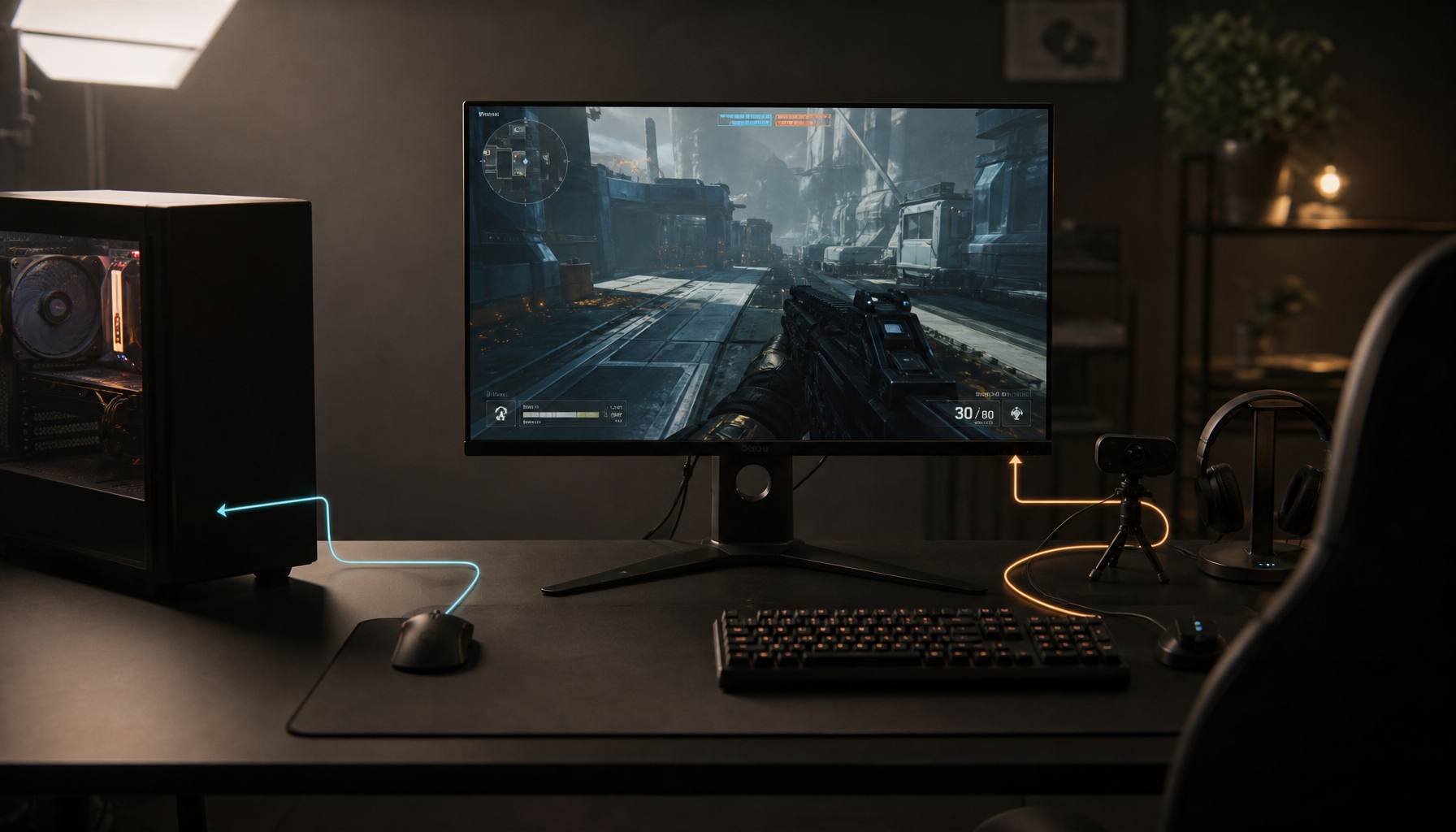
A touch interaction moves through several stages. The research notes describe the full path as sensing, OS input handling, the app event loop, rendering, GPU processing, and display scanout. That means a touch monitor can be reasonably fast while the connected laptop or mini PC still feels rubbery because the app is overloaded or the main thread is blocked.
Touch response depends on both hardware and software, including controller quality, CPU and GPU performance, drivers, and background load. For office kiosks, creative setups, and portable smart screens, the key point is simple: if lag changes dramatically when you switch devices, apps, or workloads, the monitor is probably not the only cause.
Symptom type is also a useful clue. If the screen misses quick taps, trails behind your finger, or gets worse only when the device is busy, the problem usually starts upstream. If the lag is stable and similar across multiple source devices using the same monitor, the display side becomes more suspicious.
The Fastest Home Test That Actually Helps
Use a 240 fps Camera Test
A 240 fps phone camera test is the best home method because it captures the physical touch and the visible response in the same clip. At 240 fps, each frame equals about 4.17 ms, so if the screen reacts five frames after contact, the measured end-to-end delay is about 20.8 ms. That is not a lab-grade measurement, but it is accurate enough to compare setups and catch regressions.

Set the monitor to its maximum refresh rate, use the same cable for each trial, and trigger a clear visual change. A tap target that flips from dark to bright works better than a subtle animation. Record several taps and several quick drags because some systems look fine on simple taps but break down during continuous motion.
What This Test Measures, and What It Does Not
The camera method measures total visible touch delay, not just monitor delay. The KTC notes explain why home tests often read much higher than professional monitor-only tools: the phone method includes extra system overhead from USB polling, OS scheduling, and GPU queues. The touchscreen UX notes also warn that high-speed video works well for comparisons, but it does not fully isolate scanout delay.
That limitation is still useful. The practical question is not whether you can build a lab test. It is whether the delay stays with the monitor or follows the connected device.
How to Separate Monitor Latency From Device Latency
Compare the Same Monitor With Two Source Devices
The cleanest isolation test is to keep the monitor fixed and swap the connected device. Run the same app, use the same brightness range, and repeat the same touch action on both systems. If one laptop gives you about 18 ms and another gives you about 30 ms in the same 240 fps test, the monitor did not suddenly get slower. The difference points to the device, driver stack, or software load.

This is especially revealing with portable touch displays. Portable monitor touch latency is often acceptable for casual creation but still slower than specialized drawing tablets, and the source device can widen that gap further. If the same monitor feels usable on a stronger tablet or laptop but mushy on a low-power office box, the connected device is the limiting factor.
Compare the Same Device With Two Displays
Now reverse the test. Keep the device constant and compare your touch monitor against a known fast reference display if you have one. Reference-based comparisons are a practical way to estimate display-side lag, even though measurement methods vary. If the same device feels similarly delayed on both screens, the monitor is probably not the main problem. If the touch monitor is consistently worse while the reference display reacts faster, the display side deserves closer scrutiny.

A simple comparison table makes that pattern easier to see:
Setup |
Measured delay |
Likely conclusion |
Monitor A + Device X |
28 ms |
Baseline |
Monitor A + Device Y |
18 ms |
Device X likely adds delay |
Monitor B + Device X |
19 ms |
Monitor A likely adds delay |
Monitor A after app cleanup |
20 ms |
Software load was part of the issue |
Watch for Behavior, Not Just the Number
Input lag and response time are different metrics, so watch how the screen behaves, not just the headline number. A monitor with extra processing may feel consistently behind but still look visually clean. A device-side bottleneck is more likely to create uneven dragging, skipped frames, or catch-up motion. The touchscreen UX notes point to unstable frame pacing and overloaded event loops as major reasons touch feels bad even when average frame rate looks acceptable.
Settings That Commonly Shift the Result
Monitor settings can help, but they are rarely the full answer. The KTC notes recommend enabling any low-input-lag or game-style bypass mode, confirming that the monitor is actually running at its maximum refresh rate, and avoiding unnecessary processing modes. Medium overdrive is often a better balance than maximum overdrive because overshoot can make motion look harsher without truly improving touch feel.

Device-side cleanup matters just as much. Software load and background activity can increase touch lag, and the broader systems discussion adds a useful reminder: network activity and video processing are common causes of real-time latency spikes. If touch gets worse when browser tabs, video playback, or sync tools are active, that is strong evidence the connected device is contributing.
One more trap is worth avoiding. Network latency affects traffic between devices and servers, so it is more likely to appear as delayed remote actions, sluggish cloud apps, or rubber-banding in games than as local touch delay in a simple drawing test. If an offline sketch app still lags, the network is not your main suspect.
When You Need More Confidence
If your home test suggests the monitor may be at fault, compare your results with a trusted review source for the exact model. Professional monitor latency tests and input-lag classifications are useful because they isolate display behavior better than a phone camera can. If your measured total delay is high but reviewers show low display-only lag, the missing time is almost certainly coming from the source device or software path.
For gaming PCs, system-latency telemetry can also help by separating PC-plus-display latency from full end-to-end input timing. That is more specialized than most office or portable-screen buyers need, but it reinforces the same lesson: the display is only one part of the chain.
A touch setup should feel immediate, predictable, and confidence-building. If your results stay consistent when the monitor changes but swing when the device or workload changes, fix the source system first. If the lag follows one specific monitor across multiple devices, the screen is the bottleneck, and you can replace it based on evidence instead of guesswork.