Going from 1440p to 4K raises the pixel load by 2.25x, so in GPU-limited games you can often lose roughly 35% to 55% of your frame rate at the same settings. The visual upgrade is real, but so is the performance cost.
The Simple Math Behind the Drop
A 1440p screen renders 2560 x 1440 pixels, or about 3.7 million pixels per frame. A 4K screen renders 3840 x 2160 pixels, or about 8.3 million pixels per frame.
That means your GPU is being asked to push 125% more pixels before you even touch ray tracing, texture packs, or ultra shadows. This is why 1440p is often described as the balance point for sharp visuals and high frame rates, while 4K gaming requires stronger hardware.
For example, if a game runs at 140 FPS at 1440p, a pure pixel-scaling estimate puts 4K near 62 FPS. Real games vary, so a more practical expectation might be 70 to 90 FPS if the engine, CPU, VRAM, and settings cooperate.
Why the Loss Is Not Always Exactly 55%
Resolution is only one pressure point. Some games are shader-heavy, some are CPU-limited, and some lean hard on VRAM bandwidth.
At 4K, high-resolution textures, anti-aliasing, global illumination, and ray tracing all become more expensive. If your GPU runs out of VRAM, the drop can feel worse than the average FPS number suggests because stutter and frame pacing suffer.

Upscaling can change the equation. It can let a 4K monitor display a sharp image while the GPU renders internally at a lower resolution. That is often the smartest way to enjoy 4K without paying the full native-rendering cost.
1440p vs. 4K by Gamer Type
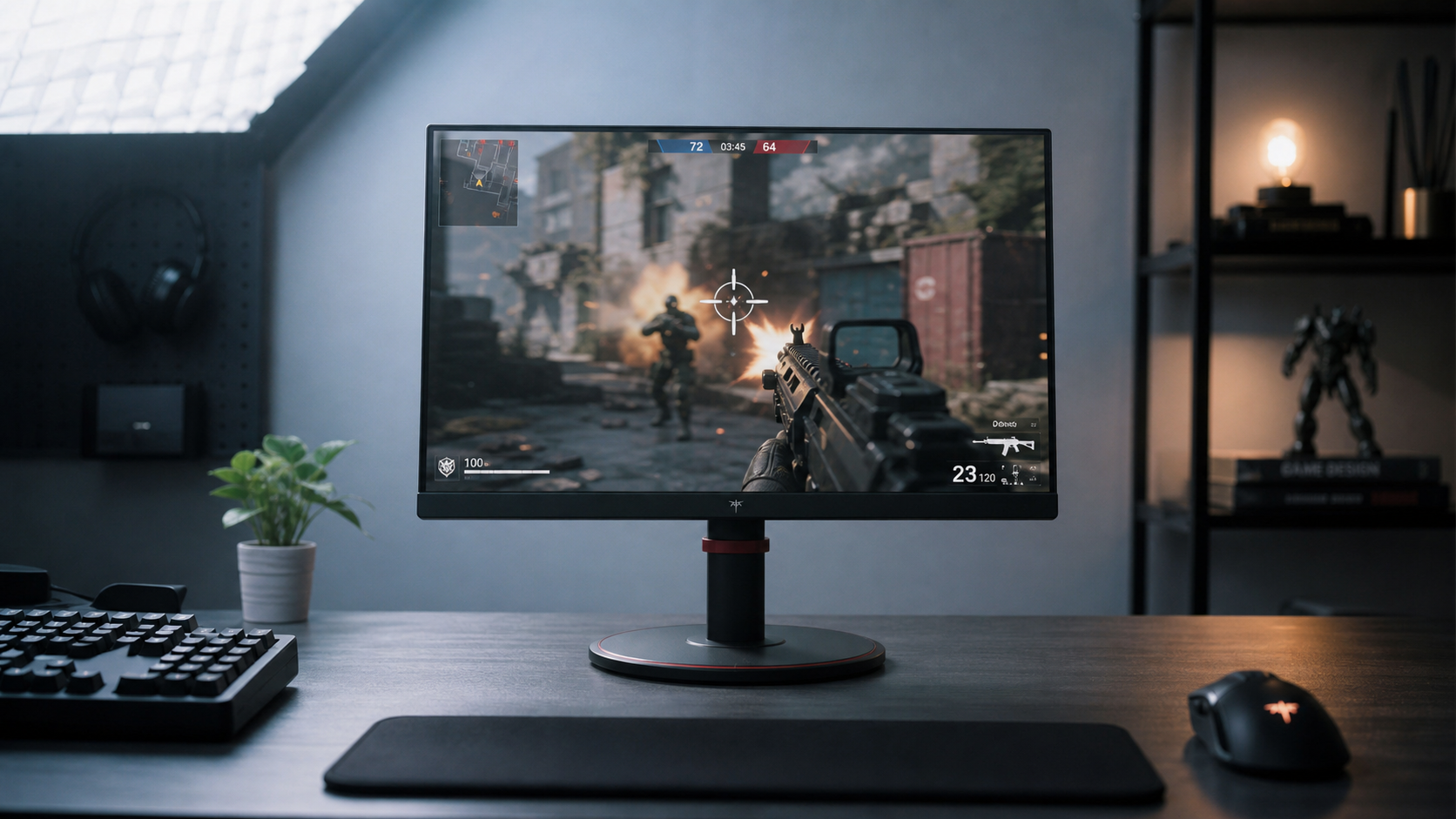
For competitive players, 1440p is usually the more rational performance choice. High refresh rates, low latency, and consistent frame delivery matter more than maximum pixel density; many pros still favor lower resolutions because refresh rate and response time directly shape responsiveness.

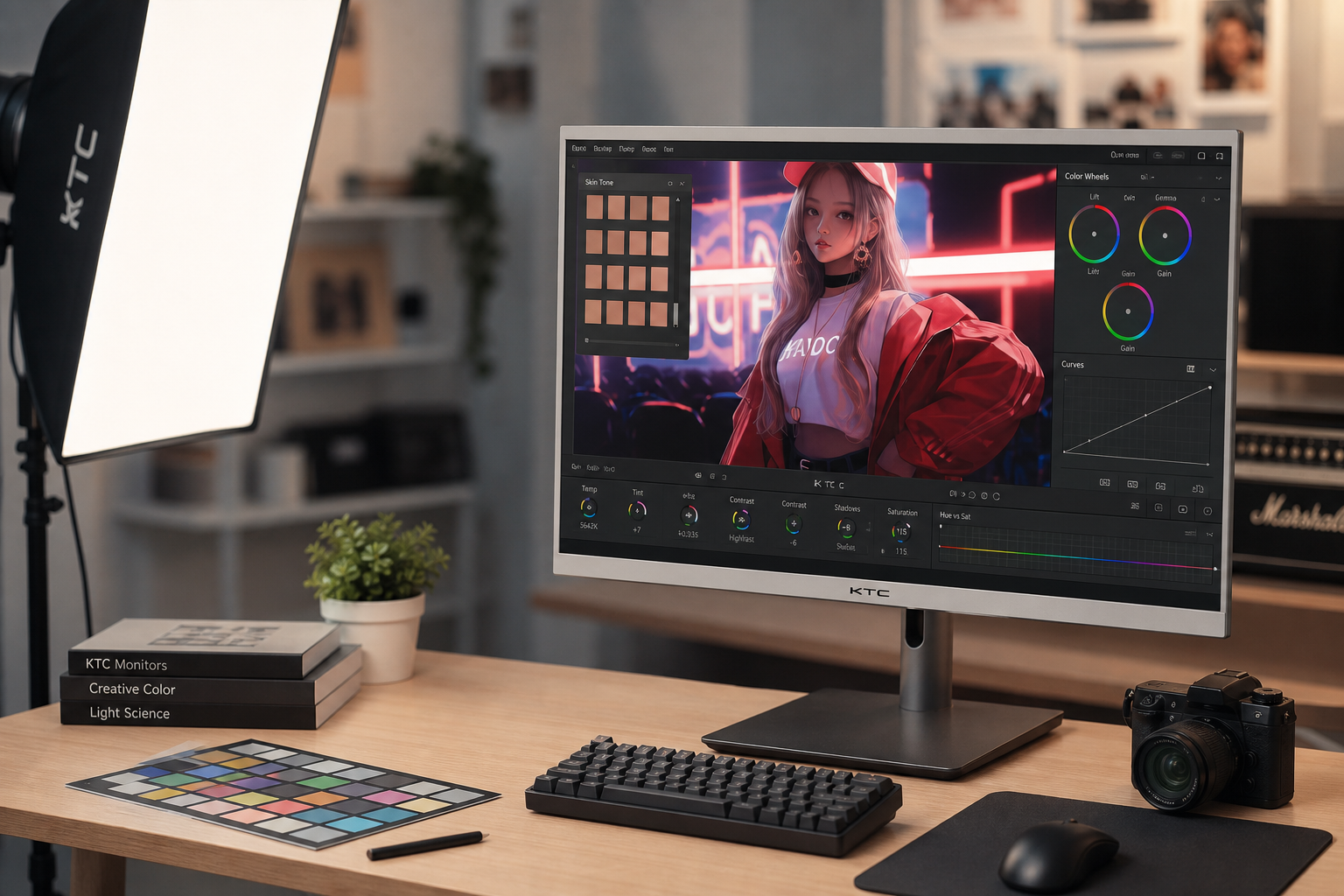
For cinematic, RPG, racing, strategy, and creator-adjacent gaming, 4K makes more sense. Fine textures, distant detail, UI clarity, and HDR presentation all benefit from the extra density, especially on 32-inch and larger displays.
For mixed work and play, 4K has a second advantage: text and workspace clarity. Large 4K office displays can support serious multitasking, and 43-inch 4K productivity monitors are often positioned for users who need multiple windows visible at once.

How to Decide Before You Upgrade
Choose 1440p if you want the best blend of speed, cost, and visual sharpness. A 27-inch 1440p high-refresh monitor still feels premium, and it is much easier to drive at 120 Hz, 144 Hz, or 240 Hz.
Choose 4K if your GPU is upper-tier, your games are more immersive than competitive, and you are comfortable tuning settings. A 32-inch 4K display is where the resolution starts to feel genuinely spacious instead of simply sharper.
Use this quick filter:
- Want 144+ FPS often: stay with 1440p.
- Want sharper worlds and text: consider 4K.
- Use ray tracing heavily: budget extra GPU headroom.
- Own a midrange GPU: 1440p is the value pick.
- Use upscaling well: 4K becomes more realistic.
4K does not automatically make a game better; it makes strong image quality more visible, while weak GPU headroom becomes more obvious.