The Best of Both Worlds: How Dual Mode Monitors Are Revolutionizing the Hybrid Gamer Setup
Dual mode monitors that switch between high-resolution 4K visuals and high-refresh 1080p speed offer a compelling way to handle different types of gaming without needing two separate displays. Early adopters have found that this flexibility can improve both immersion in story-driven titles and responsiveness in competitive play, though results depend heavily on your graphics card, the specific games you play, and how you value clarity versus frame rate. This setup is often ideal for those who split time between esports and AAA titles and want one premium panel for a clean desk; however, it may not be the right choice if you require multiple physical screens for multitasking or demand the absolute highest refresh rates beyond 480Hz for professional-level competition.

What Is a Dual Mode Monitor? Understanding the Hybrid Standard
A dual mode monitor is a single panel engineered to operate in two distinct resolution and refresh rate profiles. This allows users to toggle between a "Quality Mode" (typically 4K at a standard high refresh rate like 144Hz or 160Hz) and a "Speed Mode" (typically 1080p at doubled refresh rates, such as 288Hz or 320Hz).
This functionality is often facilitated by the VESA Adaptive-Sync 1.1a standard, which includes the "Dual-Mode" protocol. This protocol allows the monitor to communicate two different sets of capabilities (EDID profiles) to the PC. When you switch modes—usually via the on-screen display (OSD) or a dedicated physical button—the monitor and GPU renegotiate the handshake. In most current implementations, this process takes a few seconds of screen blackout, rather than being an instantaneous transition.
For hybrid gamers who move between fast-paced esports like Valorant and detailed AAA titles like Cyberpunk 2077, this technology aims to eliminate the "resolution vs. speed" compromise. By using one high-end panel, users can maintain a single focal point on their desk while optimizing the display's behavior for the specific genre they are playing.
The Value Proposition: Single Panel vs. Dual-Display Setups
The core appeal of dual mode monitors lies in "spec consolidation"—achieving the performance of two specialized monitors within one premium chassis.
- Cost Efficiency: While dual-mode panels are premium products, a typical dual-monitor setup that provides equivalent 4K quality on one screen and 300Hz+ speed on another can often cost significantly more when factoring in the price of two high-quality stands and the extra desk real estate. Market estimates suggest a potential saving of $150–$300 compared to buying two separate flagship-tier displays.
- Ergonomics and Space: A single-monitor setup eliminates the "neck crane" associated with looking at a secondary side monitor. It also simplifies cable management, requiring only one high-bandwidth connection to the GPU.
- Consistency: Using one panel ensures that your color calibration, contrast ratio, and panel technology (like Fast IPS or OLED) remain consistent regardless of the game mode, which is rarely the case when mixing two different monitor models.
For more on balancing these tradeoffs, see our The Ultimate Guide to Choosing a Gaming Monitor for Peak Performance.

The Science of Sharpness: How Quad-Binning Works
A common concern with running 1080p on a 4K native panel is the "blurriness" caused by traditional interpolation scaling. Dual mode monitors typically address this through quad-binning (a form of hardware-level integer scaling).
In this mode, each logical 1080p pixel is mapped directly to a 2×2 grid of four physical 4K pixels. Because the pixels are grouped in a perfect square, the image remains sharp and "blocky" (in a native-like way) rather than being smeared across the screen.
Key Performance Notes:
- Latency: Because this scaling is handled at the monitor's hardware level (the scaler), it adds negligible input lag compared to software-based scaling.
- Clarity: While 1080p on a 27-inch or 32-inch 4K panel will never look as sharp as native 4K, quad-binning ensures the edges are distinct, which is critical for spotting enemies in competitive shooters.
Dual Mode vs Traditional Setups: Cost and Versatility Tradeoff (2026)
Comparison of total cost, desk space, and versatility for hybrid gamers switching between esports and AAA titles.
Show Data Table
| Metric | Dual Mode | Two Monitors | Single High-Refresh |
|---|---|---|---|
| Cost Efficiency | 85 | 55 | 75 |
| Desk Space | 90 | 45 | 80 |
| Versatility | 95 | 70 | 60 |
| Ergonomics | 88 | 60 | 65 |
Technical Requirements: Bandwidth and Hardware Compatibility
To achieve the "full-spec" experience of 4K 160Hz and 1080p 320Hz, your system must meet specific bandwidth requirements. These are not "hard rules" for every monitor, but they represent the standard threshold for 2024-2026 hardware:
-
Connectivity:
- DisplayPort 1.4 with DSC: Most current dual-mode monitors use DisplayPort 1.4 with Display Stream Compression (DSC) to fit the high-bandwidth signal through the cable.
- HDMI 2.1: Required for full 4K high-refresh support on consoles and modern GPUs.
- DisplayPort 2.1: While not strictly necessary for current 4K 160Hz/1080p 320Hz limits, it provides a "no-compression" path for future-proofing.
-
GPU Recommendations:
- To maintain stable frame rates at 320Hz in 1080p, a modern CPU and a GPU from the NVIDIA RTX 30/40-series or AMD RX 6000/7000-series are generally recommended.
- The "sweet spot" for 2026 gaming is widely considered to be the 300Hz–360Hz range; beyond this, human perceptual gains often diminish relative to the extreme hardware cost.
Before purchasing, verify your current cables are "Ultra High Speed" (HDMI) or "DP8K" (DisplayPort) certified. For guidance on matching hardware, refer to How to Choose the Perfect Monitor to Match Your Graphics Card.
Is Dual Mode Right for You? A Decision Framework
Dual mode monitors are specialized tools. To determine if they fit your workflow, consider this self-check:
- The "Hybrid" Test: Do you spend at least 30-40% of your time in competitive shooters (Valorant, CS2, Apex) and the rest in visually dense titles (Cyberpunk, Elden Ring, Starfield)? If yes, dual mode is a strong candidate.
- The "Desk" Test: Is your desk space limited, or do you prefer a minimalist, single-screen aesthetic?
- The "Multitask" Test: Do you need a second screen for Discord, OBS, or work spreadsheets while gaming? If you require simultaneous screen real estate, a traditional dual-monitor setup is still superior.
For game-specific matching advice, see From FPS to RPGs: How to Match Your Monitor to Your Favorite Game.
Featured Implementation: The KTC H27P6
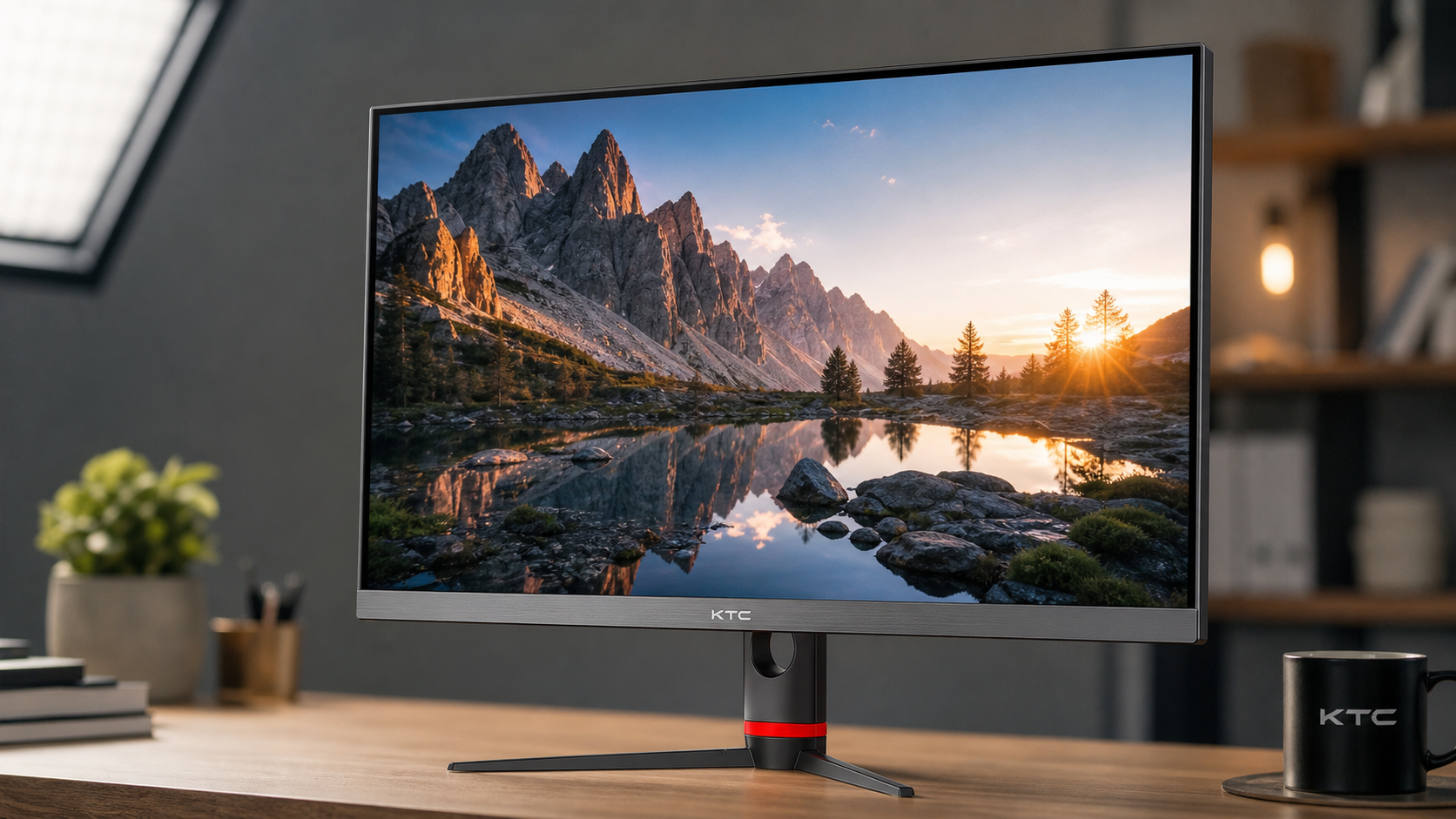
As an example of how this technology is implemented in the current market, the KTC H27P6 serves as a representative high-value model. It utilizes a 27-inch Fast IPS panel to deliver the color accuracy required for AAA immersion while supporting the rapid switching needed for competitive play.
Key Specs for Comparison:
- Native Mode: 4K (3840 x 2160) at 160Hz.
- Speed Mode: 1080p (1920 x 1080) at high refresh rates via quad-binning.
- Connectivity: Includes 90W USB-C, making it a viable "one-cable" solution for users who also use a laptop for work.
You can explore current availability in the Gaming Monitor collection to compare how dual-mode specs stack up against traditional high-refresh alternatives.