AI research labs place unique demands on monitor placement because engineers spend hours reading dense code, scanning training logs, and reviewing high-density dashboards. Standard office ergonomics often fail these workflows: monitors placed for casual browsing create neck strain during deep coding sessions, while multi-display arrays misaligned to attention patterns force constant head turning that breaks focus. The right setup treats monitor height, distance, and alignment as performance variables that directly affect cognitive fatigue and daily output.

The AI Research Workflow: Why Ergonomics is a Performance Variable
Machine learning engineers split their time between two distinct modes. Deep Work involves sustained coding and literature review where the primary monitor carries nearly all visual attention. Active Monitoring involves glancing at real-time training logs, TensorBoard graphs, or Weights & Biases dashboards on secondary screens. In 2026, the increasing density of these visualizations has turned monitor placement into a primary factor in sustained concentration. Poor posture during 8+ hour sessions does not just risk discomfort; it reduces the number of productive debugging cycles a researcher can complete before fatigue sets in.
Many labs default to generic office arrangements that prioritize symmetry over actual usage patterns. This creates uneven viewing angles and forces the neck into repeated micro-rotations. The result is cumulative upper trapezius strain that researchers often notice only after productivity has already dropped. Recognizing these workflow-specific loads is the first step toward an ergonomic configuration that supports rather than hinders long-duration AI work.
Monitor Height: Preventing the 'Chin-Up Trap' in Deep Coding
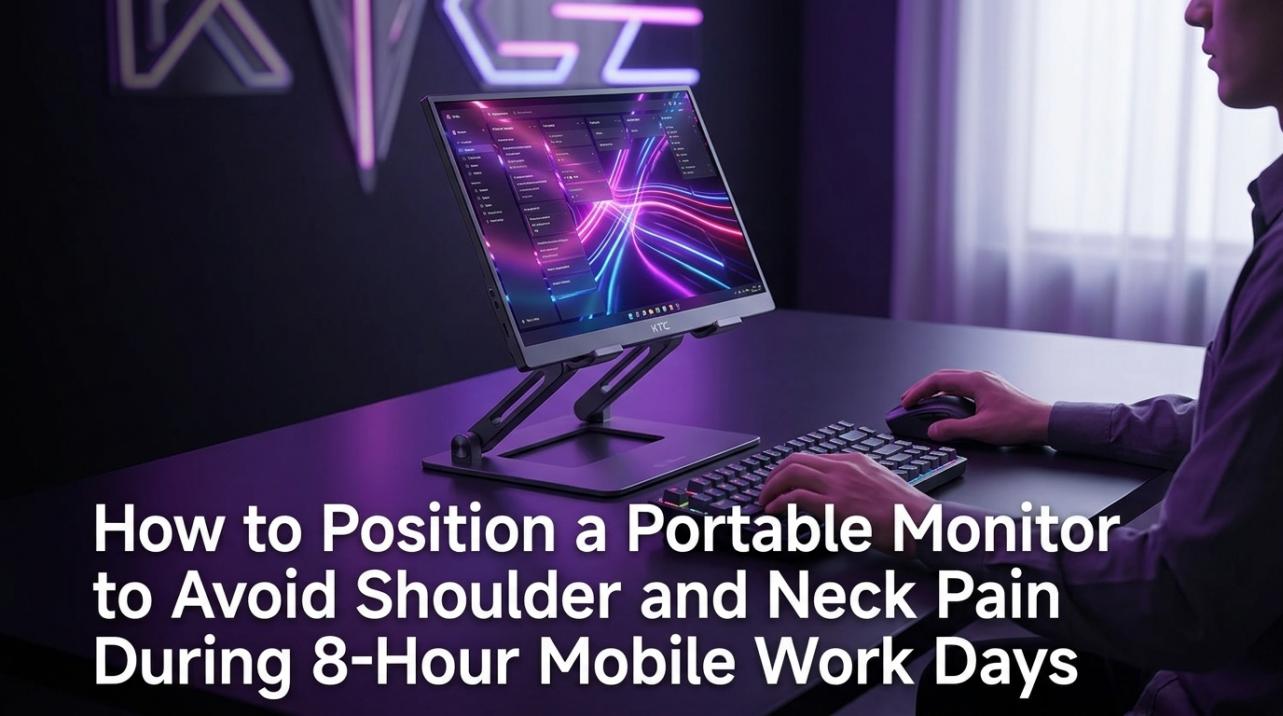
Neutral neck posture requires the top line of the screen to be at or slightly below eye level so the head, neck, and torso remain aligned forward. OSHA guidelines for computer workstations recommend this positioning to minimize cervical extension. AI researchers frequently raise monitors to accommodate secondary screens or to clear desk clutter, inadvertently creating the “Chin-Up Trap.”
Looking upward at training logs or status dashboards for hours produces tension headaches and upper trapezius fatigue. The strain compounds because researchers rarely notice the gradual shift until pain appears. To avoid this, set the primary monitor so the center of the most-used content sits roughly 15–20 degrees below horizontal gaze. This keeps the neck in a neutral position even when switching between code and logs.
For most seated heights, this means the top edge of a 27-inch monitor should sit no higher than eye level. Taller engineers or those using progressive lenses may need to test the position during an actual coding session rather than relying on a static measurement. The goal is sustained comfort across multi-hour model training runs, not a one-time checklist mark.
The Retina Threshold: Distance and High-Density Visualization
High-density code and logs demand pixel-level clarity that changes with monitor resolution and viewing distance. The Retina crossover point is the approximate distance at which a person with typical vision stops seeing individual pixels; beyond that range, text sharpness improves dramatically. For dense AI debugging, this threshold matters more than for casual browsing because blurry punctuation or subtle syntax highlights increase cognitive load.
A 32-inch 4K monitor typically achieves comfortable Retina clarity starting around 25 inches, while a 27-inch 5K panel remains sharp down to roughly 16–18 inches. Many standard lab desks measure only 24 inches deep, which places a 32-inch 4K panel in a marginal zone for prolonged text work. This is why prioritizing pixels-per-inch (PPI) often beats chasing raw screen real estate in shallow research environments.
Desk Depth and Retina Clarity for Dense Code Work
Shows the desk depth ranges where each monitor is likely to stay visually comfortable for dense code and logs. Wider panels can still be usable, but smaller PPI margins make shallow desks less forgiving.
View chart data
| Category | 32-inch 4K | 27-inch 5K |
|---|---|---|
| 14 in | 0.0 | 0.0 |
| 16 in | 0.0 | 1.0 |
| 18 in | 0.0 | 1.0 |
| 20 in | 0.0 | 1.0 |
| 22 in | 0.0 | 1.0 |
| 24 in | 0.0 | 1.0 |
| 25 in | 1.0 | 1.0 |
| 27 in | 1.0 | 1.0 |
| 30 in | 1.0 | 1.0 |
The chart above illustrates safe depth zones for typical AI coding tasks. On desks shallower than 25 inches, the 27-inch 5K option (such as the KTC 27" 5K@60Hz 2K@120Hz Home&Office Monitor) usually maintains clearer text without forcing the user to sit farther back. The 32-inch 4K panel can still work but often requires a deeper desk or a monitor arm that pulls the screen forward. Individual visual acuity varies, so these ranges serve as planning guidelines rather than universal rules. Test during actual debugging sessions rather than relying solely on measurements.
The 30-Degree Limit: Multi-Display Alignment for AI Workflows
Most AI workflows follow an 80/20 attention split: the primary monitor handles active coding while secondary screens display reference logs or dashboards. Canadian Centre for Occupational Health and Safety guidance states that the most frequently used screen should sit directly in front of the user. Symmetrical “V” arrangements that center the bezel look tidy but force repeated neck rotation during deep work, leading to muscle imbalance known as monitor-neck.
Secondary monitors should stay within a 30-to-35-degree lateral arc from the primary screen’s center. This limit, drawn from ISO 9241-5 and related standards, keeps head movement inside the natural range that does not accumulate strain. For an 80/20 setup, toe the secondary display inward 15–20 degrees so its center falls comfortably inside the 30-degree window. Reserve symmetrical layouts for true 50/50 tasks such as side-by-side model comparison.
When adding a third monitor, place the primary in the center and angle the outer screens more aggressively while still respecting the 35-degree total rotation limit. Researchers who ignore this boundary often report shoulder fatigue after only a few hours of continuous monitoring. Adjusting monitor arms to achieve these angles is usually more effective than relying on fixed stands.
Vertical Stacking: When to Use the Y-Axis for Training Logs
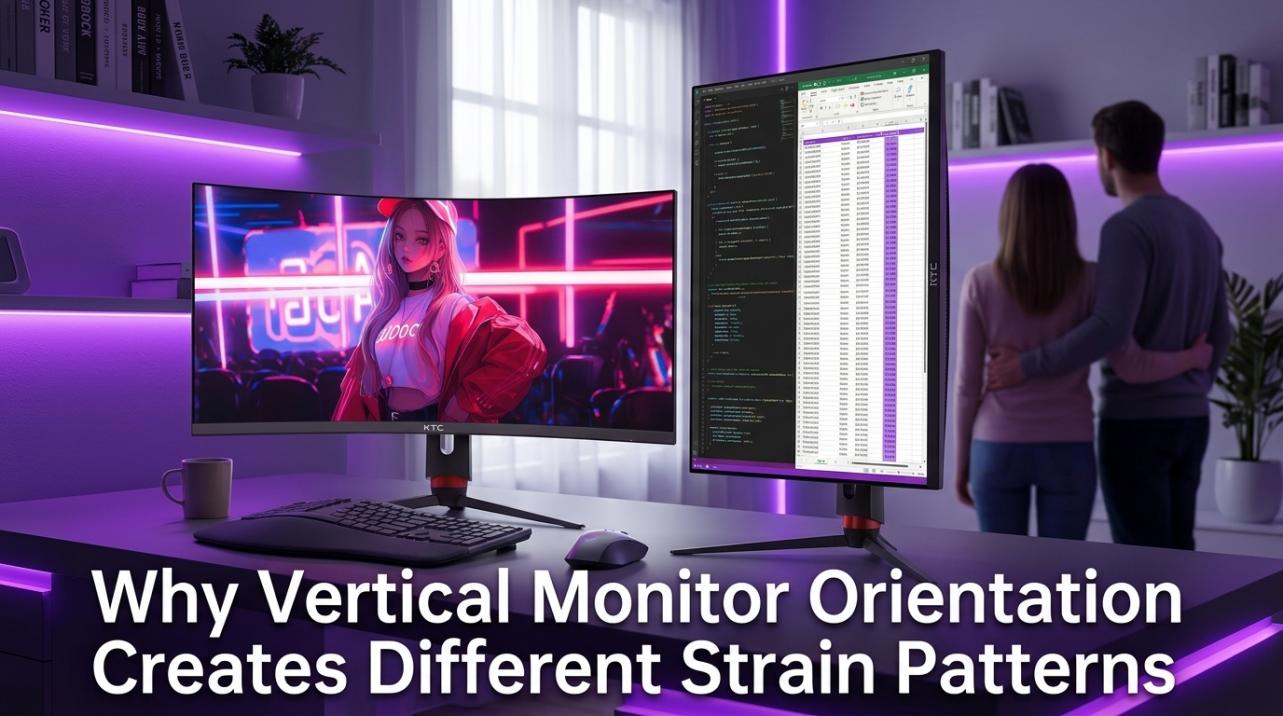
Narrow lab benches sometimes make side-by-side placement impractical. Vertical stacking can reclaim horizontal space, but only when specific conditions are met. The primary monitor must sit within roughly two inches of the desk surface so the stacked screen does not force excessive upward gaze. The upper monitor should tilt downward 12–20 degrees and be reserved for quick-glance tasks such as log monitoring rather than sustained reading.
Avoid vertical stacking if the combined height of both screens exceeds seated eye level by more than 15 percent or if you wear progressive lenses. These configurations can quickly create the chin-lift trap described earlier. Community experience and ergonomic summaries indicate that stacking works best when the lower monitor uses a stand or arm capable of very low positioning and the upper mount offers precise tilt control.
Many KTC models include height-adjustable stands reaching 130 mm, which helps meet the desk-flush requirement for the primary display. Still, test the full stack during a real research session; what looks efficient on paper can produce neck extension fatigue after four hours of continuous use. When the conditions cannot be met, a wider desk or monitor arm that allows deeper side-by-side placement is usually the safer choice.

Desk Depth and Lab Layout: Building the 2026 AI Workstation
Professional multi-monitor arrays generally need at least 30 inches of desk depth to maintain recommended viewing distances while leaving room for keyboard and note-taking space. Shallower benches force compromises that either push monitors too close for Retina clarity or require constant leaning forward. Monitor arms with VESA mounting provide the flexibility to pull displays forward and fine-tune angles that fixed stands cannot match.
KTC’s adjustable stands on models such as the 27" 5K@60Hz 2K@120Hz Home&Office Monitor and several 4K variants deliver 130 mm of height travel plus tilt and swivel. These adjustments help achieve both the eye-level primary position and the 30-degree secondary alignment without adding extra hardware. For labs with limited depth, choose 27-inch high-PPI panels over larger 32-inch options unless the desk can be upgraded.
When planning a new layout, measure the actual seated eye height and primary working distance first. Then select mounting hardware that can reach those coordinates. This sequence prevents the common regret of buying impressive-looking monitors that cannot be positioned correctly on the available bench.
Ergonomic Validation: A Checklist for AI Research Sessions
Before committing to a long training run, run this quick validation sequence:
- Sit in your normal working posture and check that the top of the primary screen sits at or just below eye level.
- Confirm the center of the most-used content falls 15–20 degrees below horizontal gaze.
- Verify that secondary monitors stay inside the 30–35 degree lateral arc from your nose line.
- Glance at the upper screen in a stacked setup; it should require no more than a 20-degree downward tilt.
- Every 20 minutes, look at an object 20 feet away for 20 seconds to reset eye accommodation (the 20-20-20 rule).
- After 90 minutes, note any neck, shoulder, or eye discomfort and adjust immediately.
Perform the full checklist at the beginning of each major project phase. Small misalignments that feel minor at hour one often become painful by hour six. Treating validation as a repeatable habit keeps ergonomics aligned with the actual demands of AI research rather than theoretical ideals.
FAQs
How does desk depth affect monitor choice in AI labs?
Desks shallower than 25 inches usually favor 27-inch 5K or high-PPI 4K panels because they maintain text clarity at closer distances. Larger 32-inch 4K monitors often require deeper benches or monitor arms that extend the screen forward to avoid marginal pixel visibility in dense code.
Should the primary monitor always be perfectly centered in a dual-monitor AI setup?
For 80/20 workflows where coding dominates, yes. Centering the primary monitor eliminates persistent neck rotation. Symmetrical bezel-centered arrangements are only preferable for balanced 50/50 debugging across two equal environments.
When is vertical monitor stacking a good option for research desks?
Vertical stacking works on narrow benches only when the lower monitor can sit within two inches of the desk surface and the upper monitor tilts downward 12–20 degrees. It is usually a poor fit for users with progressive lenses or limited height-adjustable stands.
Does monitor resolution change the ideal viewing distance for code review?
Yes. Higher PPI panels such as 27-inch 5K stay sharp at shorter distances than 32-inch 4K. In text-heavy AI tasks the practical Retina crossover point can shift by several inches, making resolution a more important buying factor than raw diagonal size.
How often should researchers re-check their ergonomic setup?
Run the full validation checklist at the start of any new project phase or after changing desks. Minor shifts in chair height or monitor position can accumulate into discomfort over weeks of continuous use.
What role do monitor arms play in multi-display AI labs?
Monitor arms provide the precise height, depth, and angle adjustments that fixed stands rarely match. They are especially useful on shallow benches where pulling the primary display forward is necessary to reach optimal Retina distances.