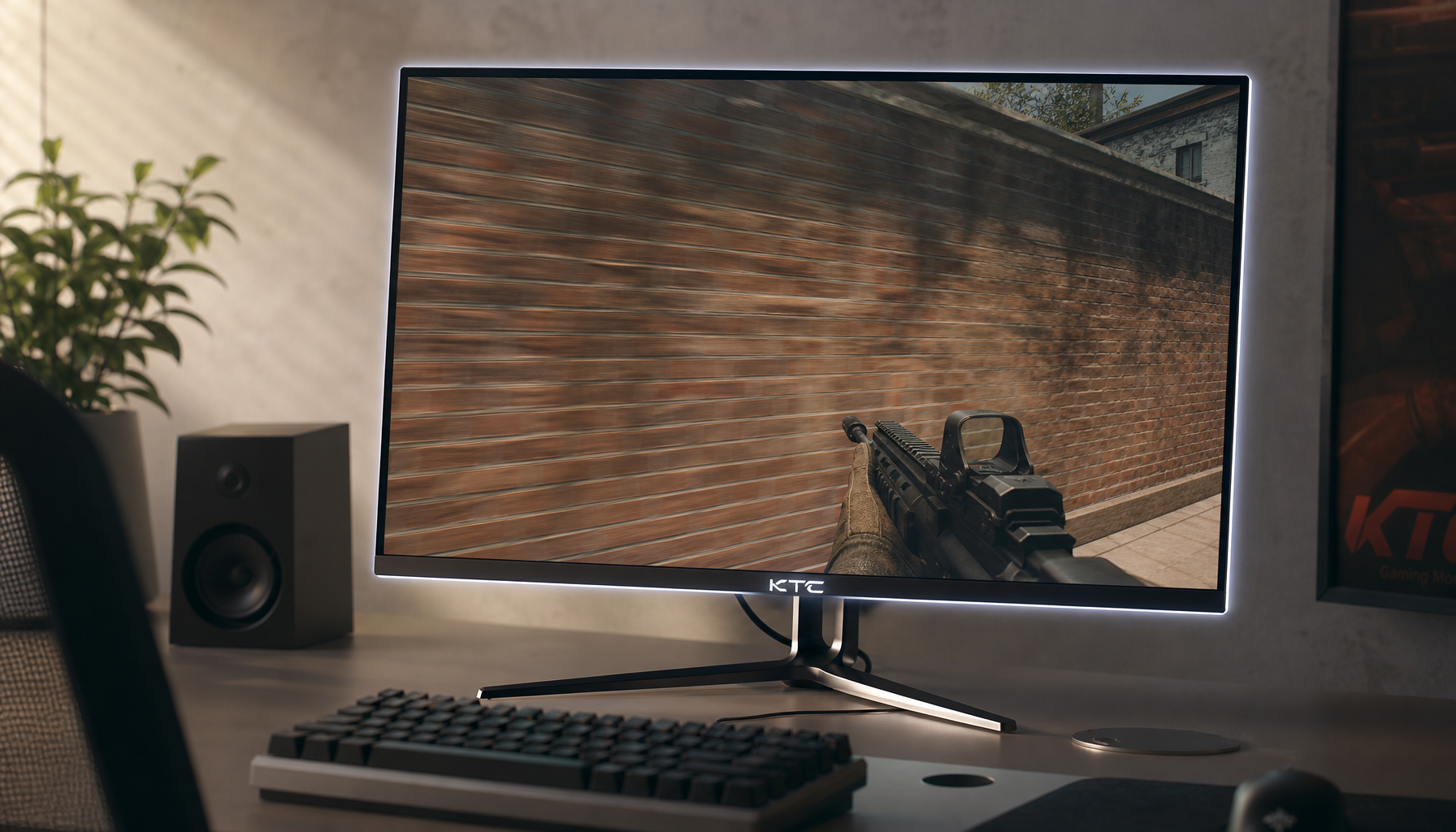
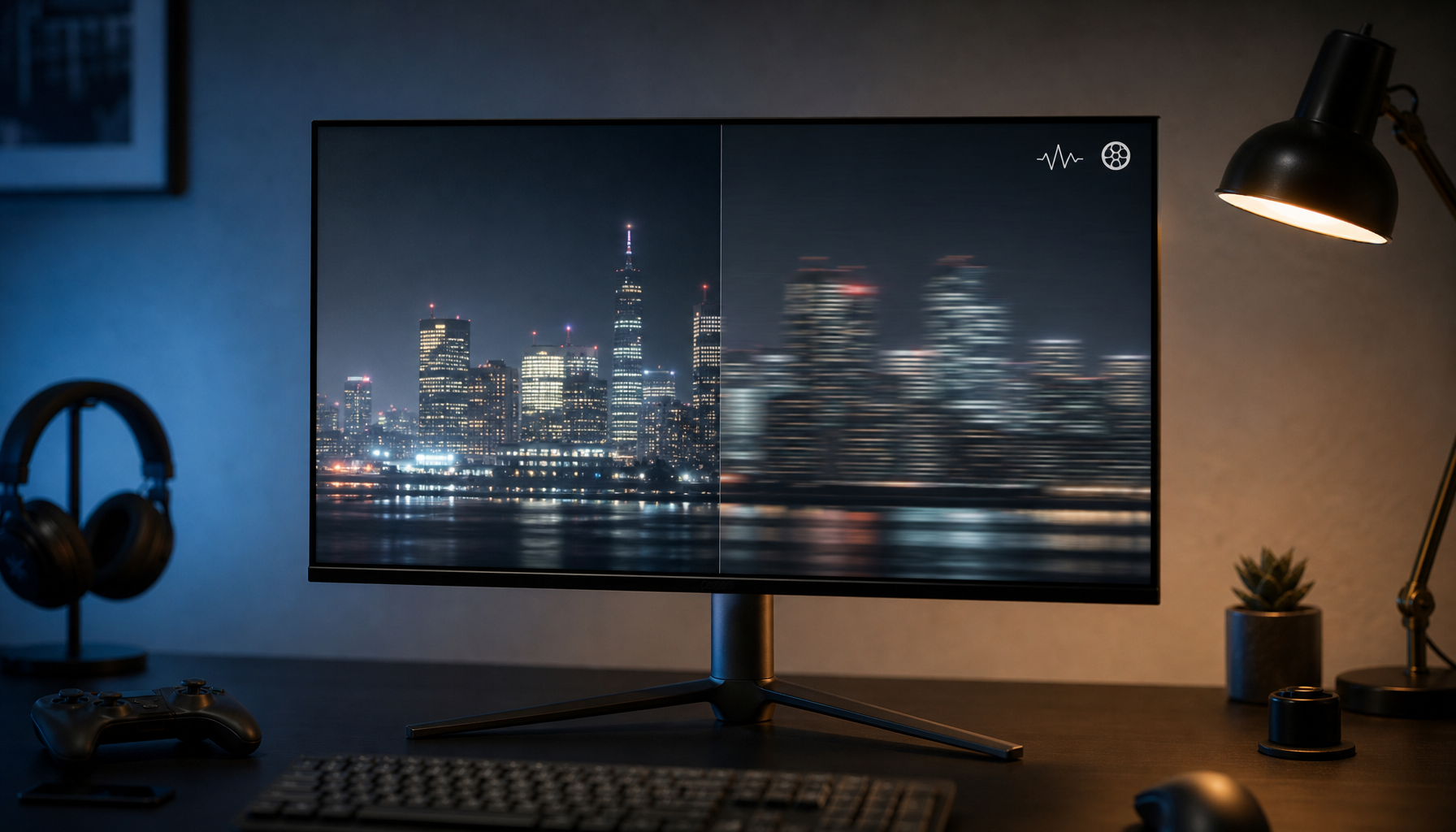
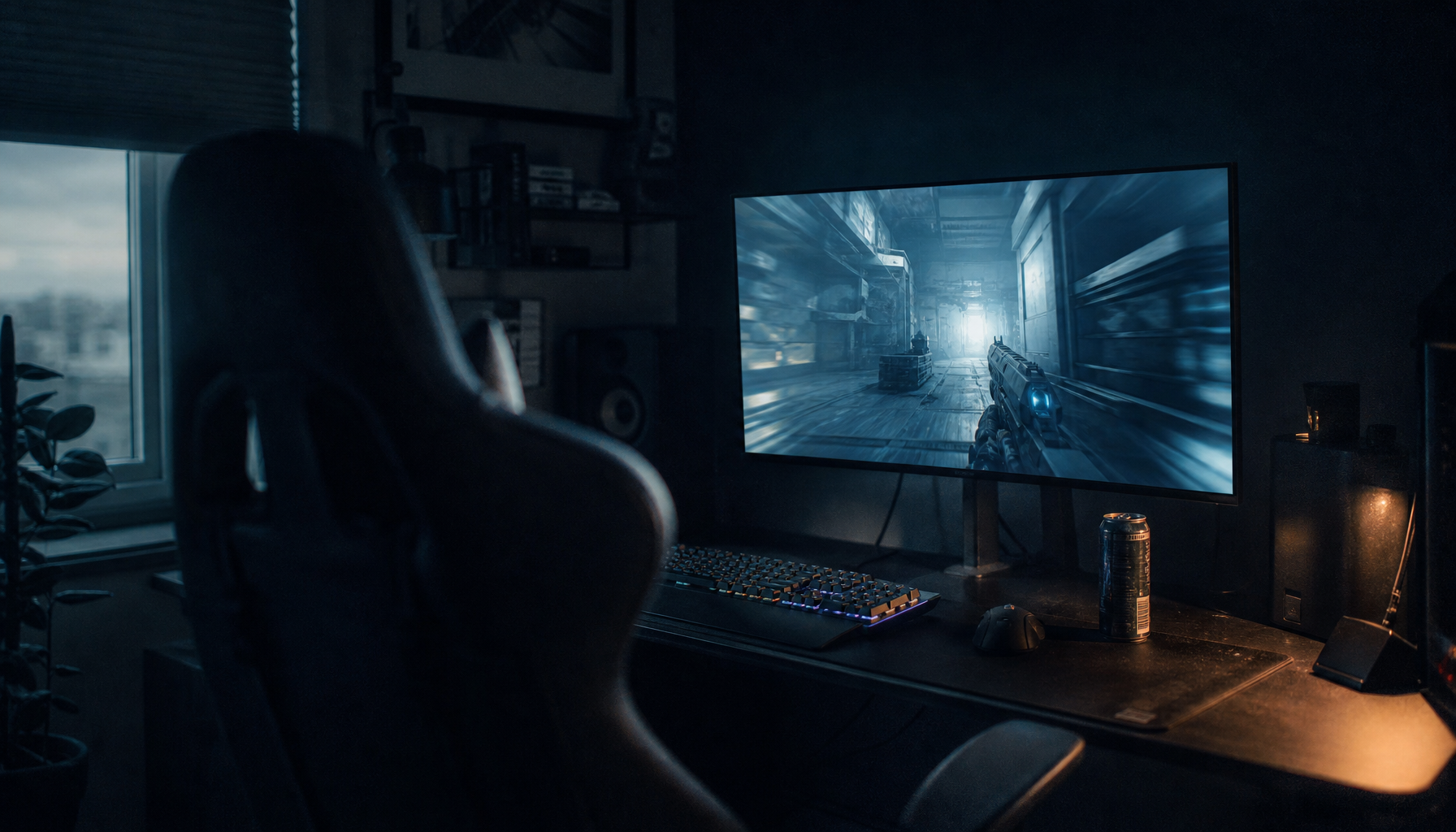
Input lag is the delay between your mouse, keyboard, controller, or laptop touchpad action and the result appearing on screen. Response time describes how quickly pixels change color, which mainly affects motion blur, ghosting, and visual sharpness during movement.
Input Lag Is the “Feel” Delay
Input lag comes from the full signal chain, not just the monitor. Your peripheral sends an input, the PC or console processes it, the GPU renders a frame, and the display receives and shows it.
That is why a monitor can advertise a fast 1 ms response time yet still feel sluggish if the system has render queues, heavy image processing, unstable frame rates, or a low refresh rate. In gaming, input lag is the responsiveness you feel when aiming, clicking, editing video timelines, or dragging windows.
Common causes include a low refresh rate, such as 60 Hz instead of 144 Hz or 240 Hz; GPU or CPU delays from low or uneven frame rates; monitor image processing, scaling, or enhancement modes; VSync, render queues, or poorly tuned sync settings; and wireless or Bluetooth peripherals with higher latency.

For perspective, a 60 Hz display updates about every 16.67 ms, while 240 Hz updates about every 4.17 ms. That shorter refresh window can make actions feel more immediate, assuming your system can deliver enough frames.
Response Time Is the “Motion Clarity” Spec
Response time measures how long pixels take to transition from one shade or color to another. Most monitor makers use gray-to-gray, or GtG, because real images usually involve shade changes rather than pure black-to-white switches.
A slow pixel transition creates smearing, ghosting, or trails behind moving objects. That matters in fast esports titles, racing games, sports broadcasts, and even rapid scrolling through spreadsheets or code.

The tricky part is that advertised numbers can be best-case figures. A “1 ms” mode may use aggressive overdrive that reduces blur but adds overshoot, creating bright or dark inverse trails. A balanced 3 ms to 5 ms mode can sometimes look cleaner than a forced 1 ms mode.
Motion clarity also depends on refresh rate and persistence. On sample-and-hold displays, refresh rate strongly affects perceived blur because each frame remains visible until the next refresh.
How They Differ in Real Use
Input lag affects control. Response time affects clarity.
If input lag is high, your aim feels late, your cursor feels heavy, or your edits appear a beat behind your hand. If response time is slow, movement may look smeared even when your controls feel responsive.
For competitive gaming, prioritize both: low input lag for reaction speed and fast, well-tuned response time for tracking enemies clearly. For office productivity, ultra-low response time matters less, but lower lag and a higher refresh rate can still make cursor movement, scrolling, and window dragging feel smoother.
For portable smart screens, the same logic applies. A travel display used for email and slides does not need elite pixel speed, but a portable screen for console gaming should have low input lag, a high refresh rate, and clean overdrive behavior.
Forum tweaks and operating-system hacks may feel faster to some users, but without controlled latency measurements, treat them as experiments rather than buying criteria.
How to Reduce Input Lag and Choose a Better Display
Start with settings before replacing hardware. Use the monitor’s Game Mode or low-latency mode, disable unnecessary picture enhancements, set the highest supported refresh rate, and make sure the game is actually running near that refresh rate.
A 240 Hz monitor will not feel like a true 240 Hz setup if the game runs at 45 fps. Likewise, a fast OLED or Fast IPS panel can still feel delayed if the GPU is overloaded.
When shopping, look beyond the box. Check independent input-lag and overdrive tests, prefer stable high refresh over inflated response-time claims, look for VRR support to smooth uneven frame pacing, use DisplayPort or HDMI 2.1 when needed for high refresh, and choose wired or low-latency wireless peripherals for gaming.

The best display is not the one with the lowest single number. It is the one where input lag, response time, refresh rate, and system performance work together, so every click feels immediate and every frame stays clear.