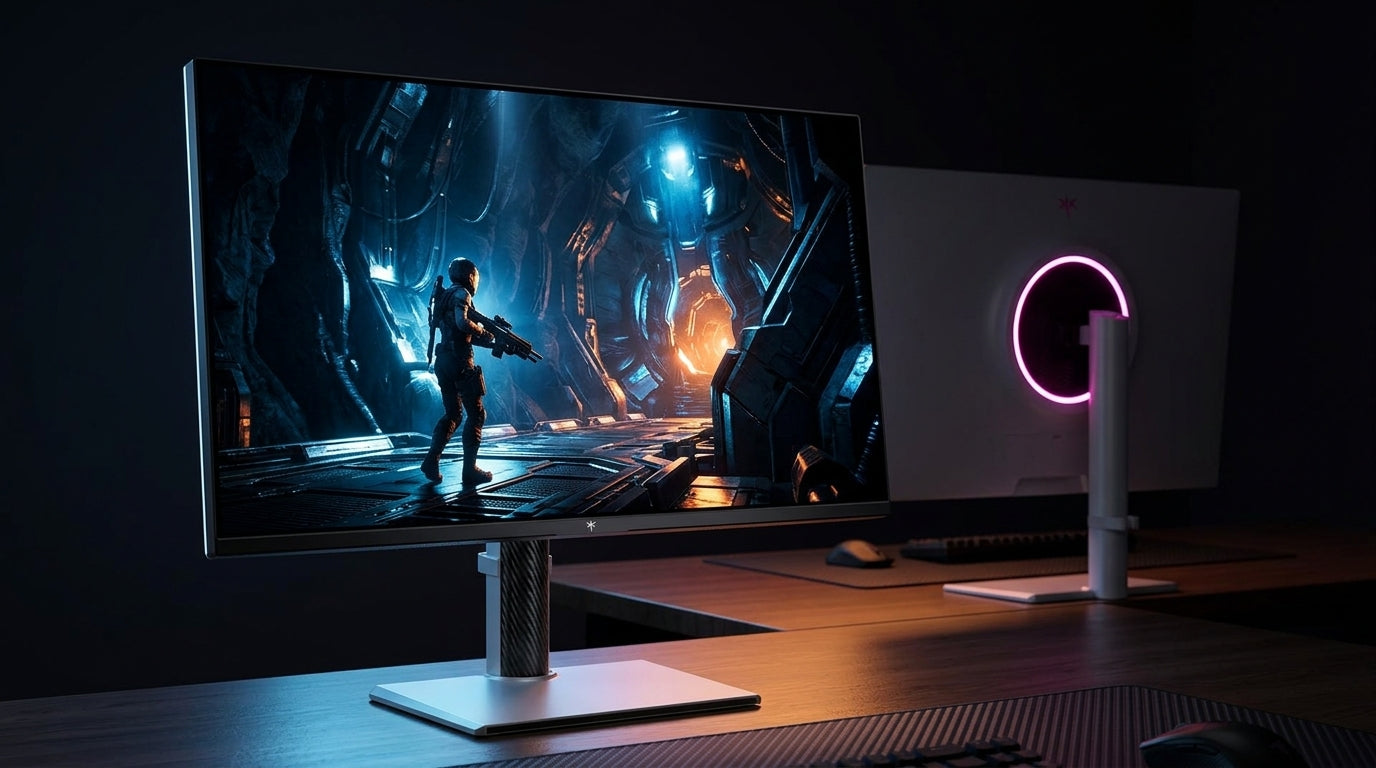
Overdrive can make a gaming monitor look clearer in motion by speeding up pixel transitions, but pushing it too far often creates inverse ghosting, bright halos, or a harsh, grainy look.
If your crosshair looks fine when standing still but falls apart during a fast flick, the issue may be the display setting rather than your aim. On real 144 Hz monitors, users regularly find that a middle overdrive mode reduces visible trailing while the highest mode adds obvious artifacts. You should come away knowing what overdrive changes, when it helps, and how to set it correctly on a gaming, ultrawide, or portable monitor.
What Overdrive Actually Does
It pushes pixels to change faster
Overdrive speeds up pixel transitions by applying extra voltage so the panel reaches its next color state more quickly. On LCD gaming monitors, that matters because motion clarity depends not just on refresh rate, but also on whether each pixel finishes changing before the next frame arrives.
That is why overdrive can make a 144 Hz or 240 Hz display look cleaner during camera pans, scrolling, and target tracking. If response is too slow, moving objects leave a trail behind them, which is the classic ghosting problem seen on many IPS and especially VA panels.

Refresh rate and response time have to work together
At 60 Hz, each frame lasts 16.67 ms; at 120 Hz it lasts 8.33 ms; and at 144 Hz it lasts 6.94 ms. A higher refresh rate lowers the time budget for each transition, so slow pixels become easier to spot as blur, smearing, or doubled edges.
A display-motion site’s refresh-window explanation is useful here: if response time is close to the frame interval, motion artifacts are less obvious; if it runs well beyond that window, ghosting becomes much easier to see. That is why a monitor can advertise a fast refresh rate and still feel less clear than expected in real play.
Why Overdrive Improves Motion Clarity but Can Hurt Image Quality
Faster transitions usually mean sharper motion
Ghosting happens when a monitor cannot keep up with rapid motion because pixel response is too slow. When overdrive is tuned well, moving objects look less smeared, enemy outlines stay more readable, and fine detail survives fast turns better.
That benefit is not just theoretical. In one forum case, a player using a 144 Hz monitor from a brand reported better mouse feel and easier enemy tracking with the highest overdrive mode while playing uncapped games around 300 to 350 FPS. Even though the image quality looked worse, the faster transitions still felt more responsive to that user.
Too much overdrive causes overshoot and inverse ghosting
Stronger overdrive often increases overshoot, where the pixel goes past its target before settling. Instead of a dark trail behind motion, you may see a bright halo, a light corona, or a strange outline in front of moving objects.

Owner reports from multiple brands show how this looks in practice. One user of a brand’s monitor described a blurry, grainy effect during in-game camera movement and even operating-system animations, while another owner said Off looked blurry, Normal introduced inverse ghosting, and Extreme made it much stronger. On another monitor from a brand, a user testing at 144 Hz with adaptive sync on and off reported that switching response-time modes barely improved motion and mainly dimmed the screen, which is a reminder that not every monitor implements overdrive well.
Why the Best Setting Changes by Panel Type, Refresh Rate, and Sync Mode
Panel type matters more than many spec sheets admit
VA panels are usually the most ghosting-prone LCD option, especially in dark-to-dark transitions where black smear becomes obvious. Fast IPS panels tend to control ghosting better, while TN panels have historically offered the quickest transitions, even if they give up some image quality.
That matters for buying advice. A curved ultrawide VA monitor may look great for contrast-heavy games and movies, but it often needs more careful overdrive tuning than a fast IPS esports display. A portable monitor also tends to have fewer tuning controls, so if its single overdrive mode is poorly tuned, you may not have much room to optimize motion.
Variable refresh can change the ideal overdrive mode
Adaptive sync matters because frame rates fluctuate instead of staying fixed. A setting that looks great at a locked 144 FPS may overshoot badly when your game dips to 80 FPS, or it may become too weak if frame rate falls toward 60 FPS.
Some monitors use variable overdrive with a sync platform, automatically adjusting the overdrive behavior to match refresh changes. Many other adaptive-sync displays do not handle this as well, so the best manual setting is often the middle preset that stays acceptable across the whole VRR range rather than the fastest mode at the top end.
When You Should Use Off, Normal, or Extreme
A middle preset is usually the safest choice
Gaming monitors commonly offer Off, Normal, and Extreme-style presets, and the middle setting is often the best balance. It usually cuts enough trailing to improve motion clarity without adding the obvious overshoot that makes text edges and moving objects look worse.
That lines up with real user advice. Owners of some brands are often told to start at Normal and only move to Extreme if ghosting remains severe. Users of another brand are often guided toward a midscale setting like 60 or 80 rather than 100 for the same reason: the last step may benchmark faster while looking worse in actual gameplay.
Off is not always wrong
Some users prefer Overdrive off for low-FPS content, especially around 30 FPS. In that range, stronger overdrive can make motion look unnatural or oddly sped up, even if the pixels are technically transitioning faster.
This is a practical point for mixed-use monitors. If you use one display for 144 Hz shooters, 60 FPS console input, and 30 FPS video, a single “fastest” setting may not be the most pleasant choice for every task. On many monitors, Normal is the best all-around option, while Off can still make sense for slower content if overshoot is distracting.
Quick comparison of common overdrive choices
Overdrive setting |
What it usually does |
Best use case |
Main risk |
Off |
Leaves pixel transitions unboosted |
Video, slower games, low-FPS content, artifact-sensitive users |
More ghosting and softer motion |
Normal / Medium |
Speeds transitions without the most aggressive tuning |
Best default for most gaming monitors, ultrawides, and mixed use |
Some minor trailing may remain |
Extreme / High |
Pushes for the fastest visible transitions |
High-refresh competitive play if artifacts stay controlled |
Overshoot, inverse ghosting, halos, grainy motion |
Variable overdrive |
Adjusts behavior across refresh changes |
Well-tuned VRR gaming |
Quality depends heavily on monitor firmware |

How to Test Overdrive Properly on Your Own Monitor
Use a repeatable motion test
An online ghosting test is one of the simplest ways to compare presets because it makes trailing and inverse ghosting easier to spot than casual desktop use. Check each overdrive mode at the monitor’s max refresh rate, then again around 120 Hz and 60 Hz if your display or GPU setup allows it.
When I evaluate monitor motion settings in practice, I look for three things: whether dark trails get shorter, whether bright coronas appear ahead of the object, and whether text or fine lines break apart during lateral movement. A setting that wins on one of those but fails badly on the other two is usually not the right choice.
Test with your real frame-rate range, not just the desktop
A review-style response test considers total response time, overshoot, and motion-photo quality together, which is the right mindset for buyers. A monitor that looks clean in a static menu may fall apart once the game moves between 70 FPS and 144 FPS.
Use the content you actually play. If your ultrawide runs racing games near 100 FPS, test there. If your portable gaming monitor spends most of its time at 60 Hz over USB-C, judge it at 60 Hz. If your esports monitor lives at 240 Hz with uncapped FPS, then motion clarity at the top end matters more than how it behaves in a movie.
Practical Next Steps
Action checklist
- Set the monitor to its native resolution and intended refresh rate first.
- Start with Normal, Medium, or the brand equivalent rather than Extreme.
- Run a motion test such as an online ghosting test and compare dark trailing versus bright overshoot.
- Check the setting again at the frame rates you actually use, especially with VRR enabled.
- If you notice halos, coronas, or grainy motion, lower overdrive one step.
- If motion still looks smeared, raise overdrive one step and retest.
- Save different presets if your monitor allows separate gaming and video profiles.

The buying takeaway is simple: overdrive is valuable, but only when it is matched to the panel and your real refresh behavior. High-refresh-rate gaming monitors benefit the most, VA ultrawides demand the most caution, and portable monitors often leave you with fewer ways to tune around a bad implementation.
FAQ
Q: Does higher overdrive always reduce input lag?
A: Not always in a meaningful way, but it can reduce perceived latency by making pixel changes appear earlier on screen. That is why some competitive players tolerate mild overshoot if the monitor feels more immediate during tracking and flicks.
Q: Why does my monitor look worse with overdrive on at low frame rates?
A: Low-FPS content gives your eyes a different motion pattern to follow, so aggressive overdrive can look unnatural or create visible overshoot. If you watch 30 FPS video or play slower titles, Off or Normal may look better than Extreme.
Q: Is the advertised 1 ms response time enough to judge motion clarity?
A: No. Marketing specs often reflect selective test methods rather than the full range of transitions. Real motion clarity depends on total response behavior, overshoot control, refresh rate, and how the monitor performs across multiple gray-to-gray changes.